Deploying Services
Ship a service onto your cluster from a template, a Helm chart, a Dockerfile, a docker-compose file, or a GitHub URL — each deployment gets its own domain and TLS.
Once you have a cluster (see Connect Your Machines), you deploy services onto it from the deploy area. You pick where your service comes from, fill in a short form, and Studio packages and installs it. Every deployment gets its own domain with TLS — no Kubernetes to write by hand.
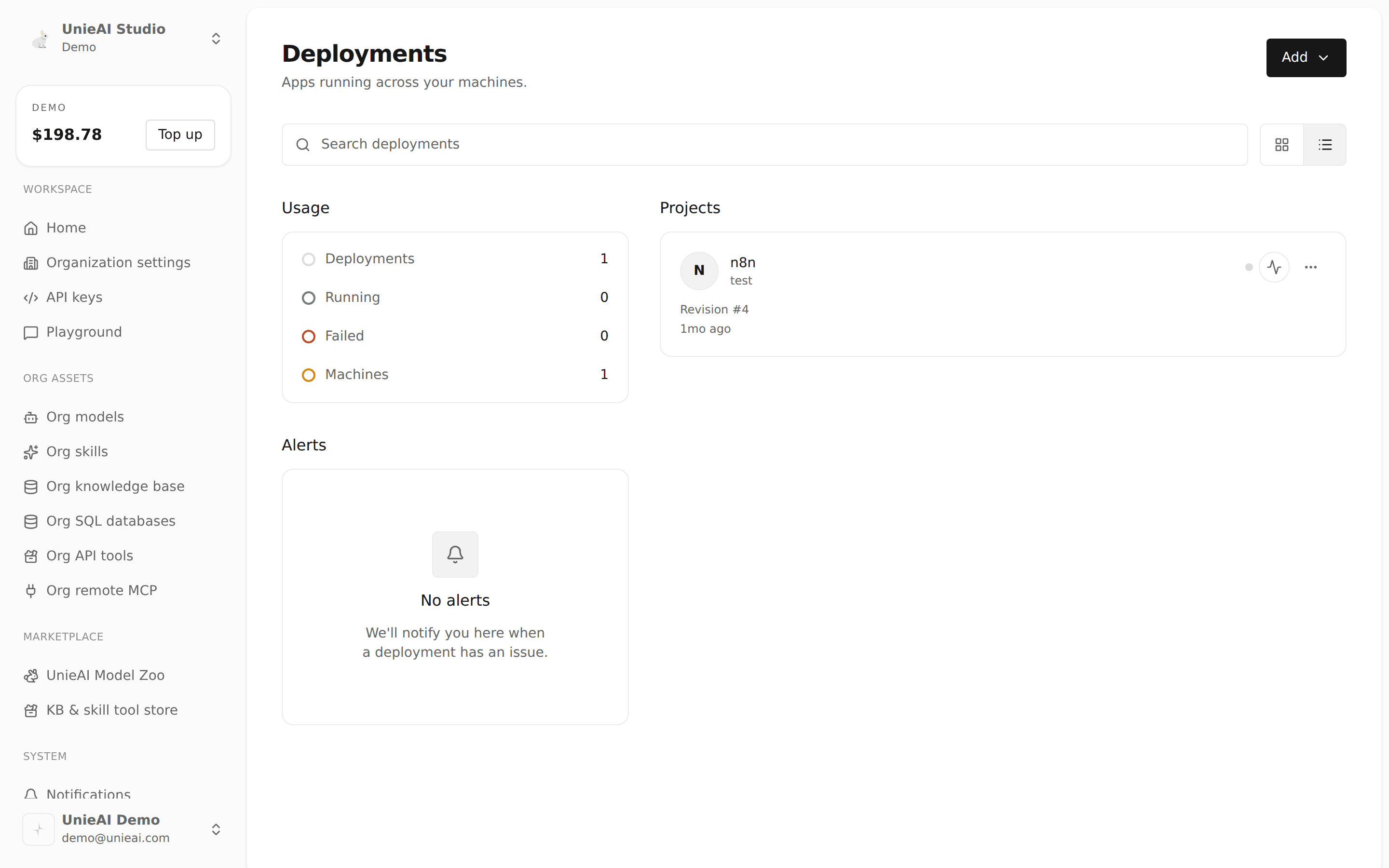
Deploy from a Template
The fastest way to ship is from a template. Studio ships built-in templates for common workloads — LLM model servers, test services, and distributed-computing runtimes among them. Pick a template, fill in the required fields in the form, and deploy. You don't write any deployment configuration.
Open the deploy area for your cluster and choose Deploy from template.
Pick a template from the catalog and fill in its parameters in the generated form.
Deploy. Studio installs the service and gives it a domain automatically.
Packaging Options
Beyond templates, you can bring your own service from four sources. Choose the one that matches what you already have.
Zero-config. Paste a GitHub repository URL — you don't even need a Dockerfile. Studio detects the language, builds an image, and deploys it, then wires up the domain and TLS. This is the Zeabur / Railway-style experience for source you already have on GitHub.
Point Studio at a Dockerfile (or a Git repository plus branch and subdirectory). Studio builds the image inside your cluster, deploys it, and reuses the same domain, TLS, and model discovery as everything else.
Bring a docker-compose file and Studio converts it into a running multi-service deployment, filling in in-cluster addresses for services that need them and applying the usual domain and TLS.
The supported scope covers compose services that use prebuilt images. Compose services that need to be built on the spot (a build: section) are on the roadmap.
Point Studio at a Helm chart. Adjust its values through a form generated from the chart's parameters, or edit the YAML directly, then deploy. Upgrades roll out in place.
Building from source (GitHub URL, Dockerfile, or docker-compose) needs a container registry to store the images Studio builds. Your Admin configures this once; if it isn't set, a central default is used.
Your Own Registry
Studio can run entirely on a container registry you own — a Harbor instance on your network, for example. Your Admin points Studio at it once, and an organization can override that with a registry of its own.
The configured registry then participates in every application image flow:
- Images Studio builds for you are pushed there and pulled from there, so your source never leaves your network.
- Private images referenced by Helm charts or Compose files use the configured credentials automatically. Existing chart pull secrets are preserved, and public images continue to pull normally.
- Public images that templates depend on can be pulled through it too, once your Admin sets a public image mirror — a pull-through project on your registry. From then on, a template that would have reached out to a public registry pulls from yours instead. Nothing changes in how you deploy; you simply see the mirrored address in the deployment log.
The mirror is what makes the deploy area usable on a network with no path to the public internet, and it removes the pull-rate limits and outages of public registries from your deployments. Images that already name a specific registry are left as they are.
Per-Deployment Domains
Every deployment gets its own public address automatically — a subdomain under your workspace domain — and a TLS certificate is issued and renewed for you. As soon as the deployment is ready, the address works.
If your service exposes a model API, Studio also discovers the models it serves and registers them back into the platform, so you can call them directly without extra wiring. See the DNS Service page for how domains are supplied and managed.
Status & Troubleshooting
Each deployment shows live status and logs as it packages and starts up, so you can watch a build progress or see where it stopped.