Quick Start: From One Server to Your First App
One complete walkthrough — onboard a machine, carve it into compute, list it, rent it, set up DNS, and deploy an app. Every step has a screenshot.
This page is a record of one complete run, not a feature list. Follow it and you end up with a working machine and an app reachable at a public URL.
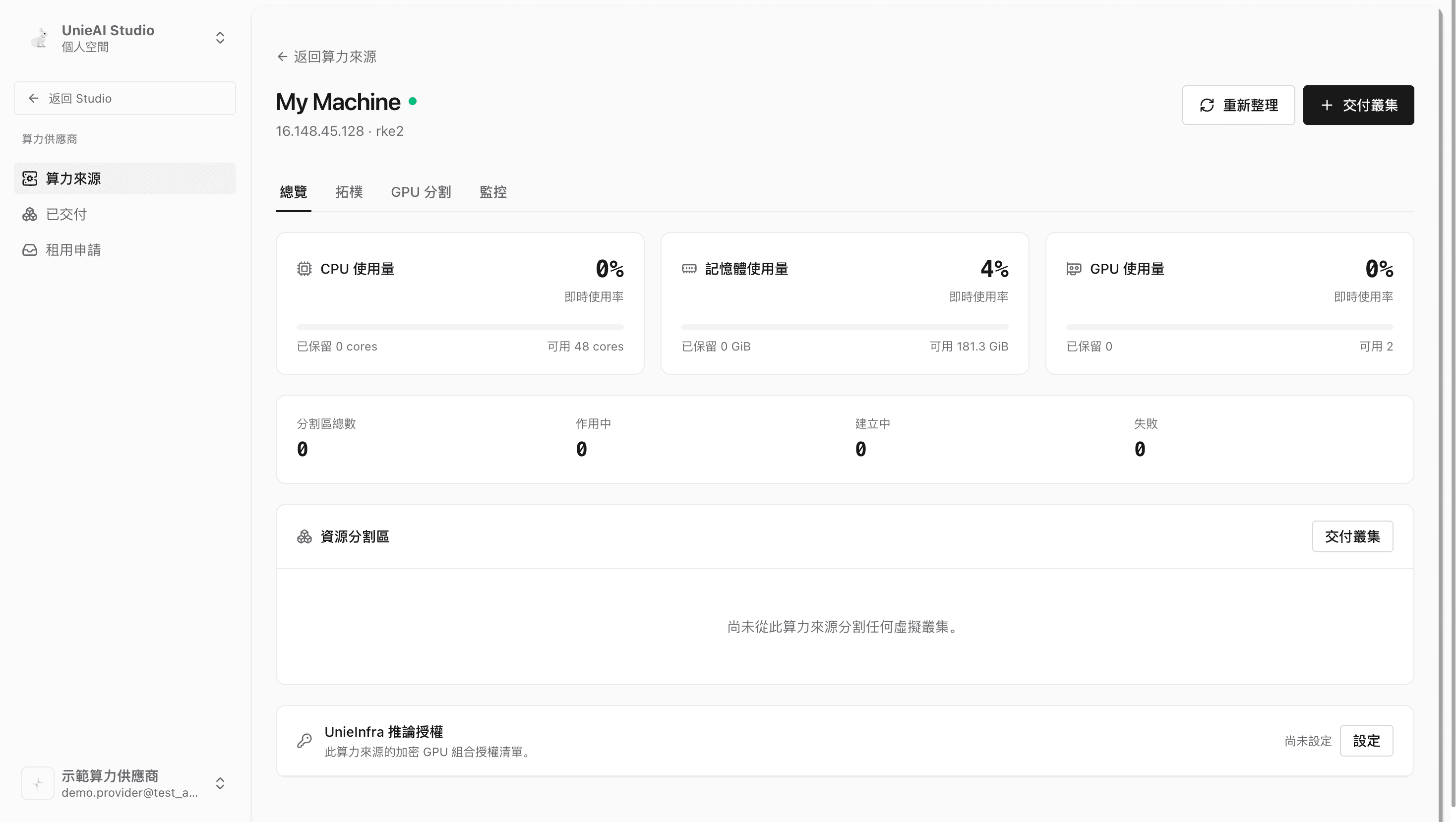
The walkthrough uses two accounts: the provider owns My Machine (48 cores / 181 GiB / 2 GPU devices),
and the tenant rents a virtual cluster carved out of it.
The screenshots in this walkthrough were captured with the interface set to Chinese. The buttons appear in the same positions in every language; the English names of each control are given in the text.
Part 0. Three names to learn first
The whole flow revolves around three things. Get the names straight and no step lands on the wrong screen.
| Term | What it is | Where you see it |
|---|---|---|
| Physical machine | One of your own servers. Once onboarded you can deploy apps on it directly | Deploy → My machines → Physical machines |
| Compute source | A physical machine converted to "for partitioning only". It is no longer used for ordinary deployment | Compute provider → Compute sources |
| Virtual cluster | A slice carved out of a compute source with its own CPU, memory, and GPU. It can host apps on its own, and it can be delivered to somebody else | Compute provider → Delivered; the tenant's My machines → Virtual clusters |
Two role terms:
- Compute provider — a capability granted by a platform admin. Once granted, the "Compute provider" switcher appears at the top left of the sidebar.
- Workspace — renting is done by a workspace, not by a person. The machine is delivered to whichever workspace you were in when you applied, and every member of that workspace can see and deploy on it. Personal and organization workspaces can both rent.
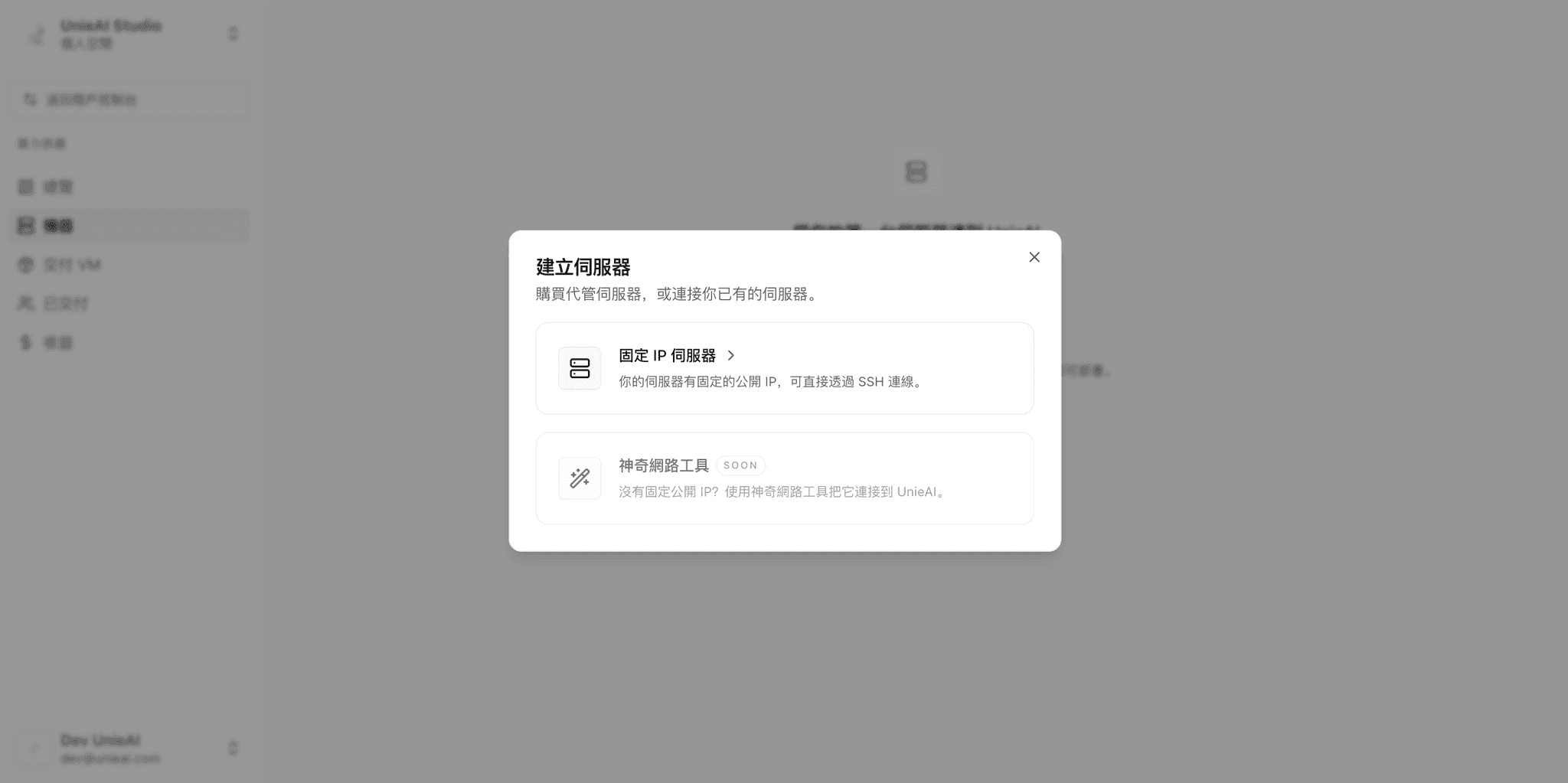
Part 1. Provider: onboard the server
Nothing in this part is about renting — anyone who wants to deploy their own apps takes the same path.
Prepare a machine that qualifies
- A Linux server reachable over SSH
- The account has
sudo - Ports
80and443are free and reachable from outside
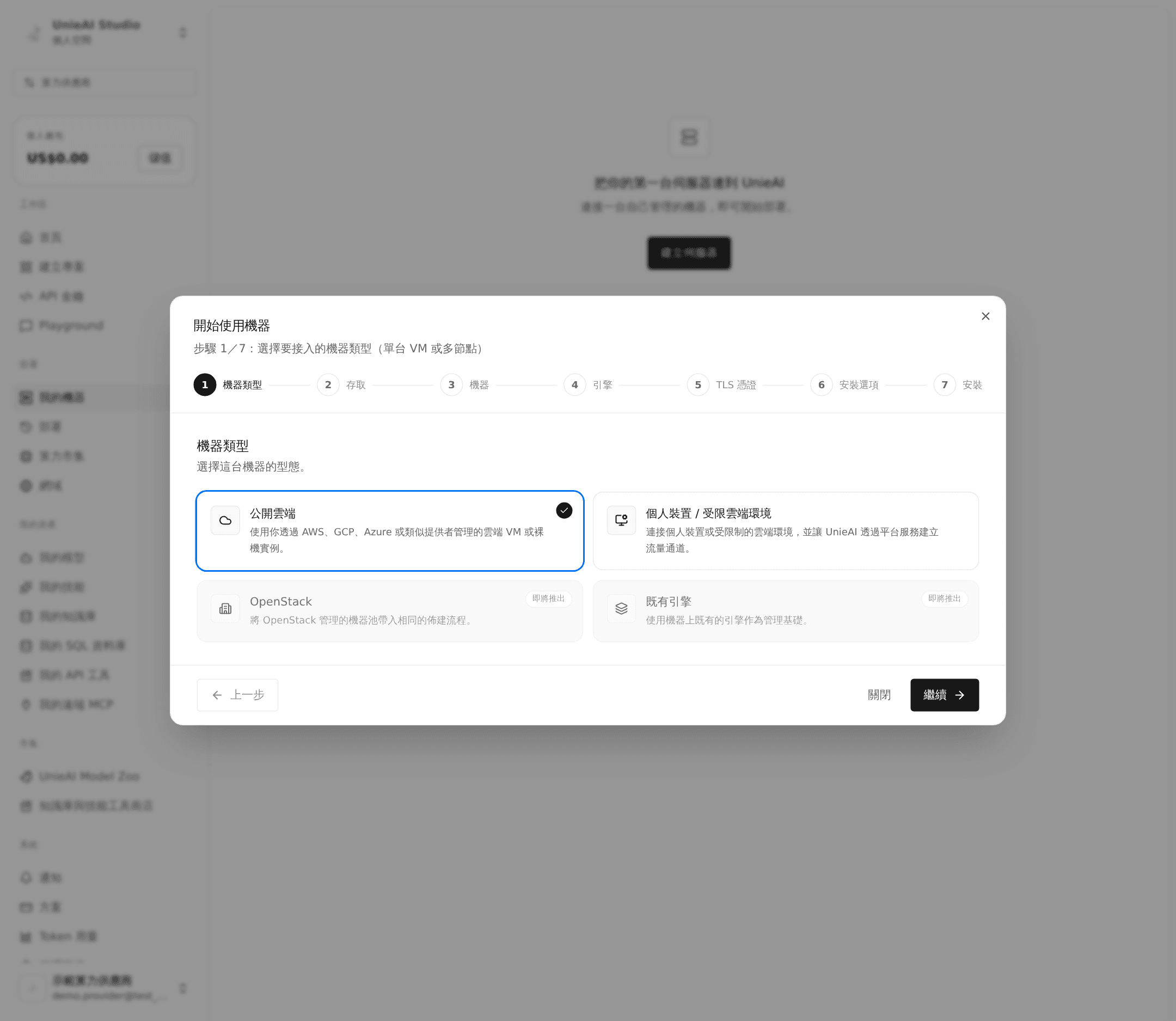
Enter host details and set up SSH
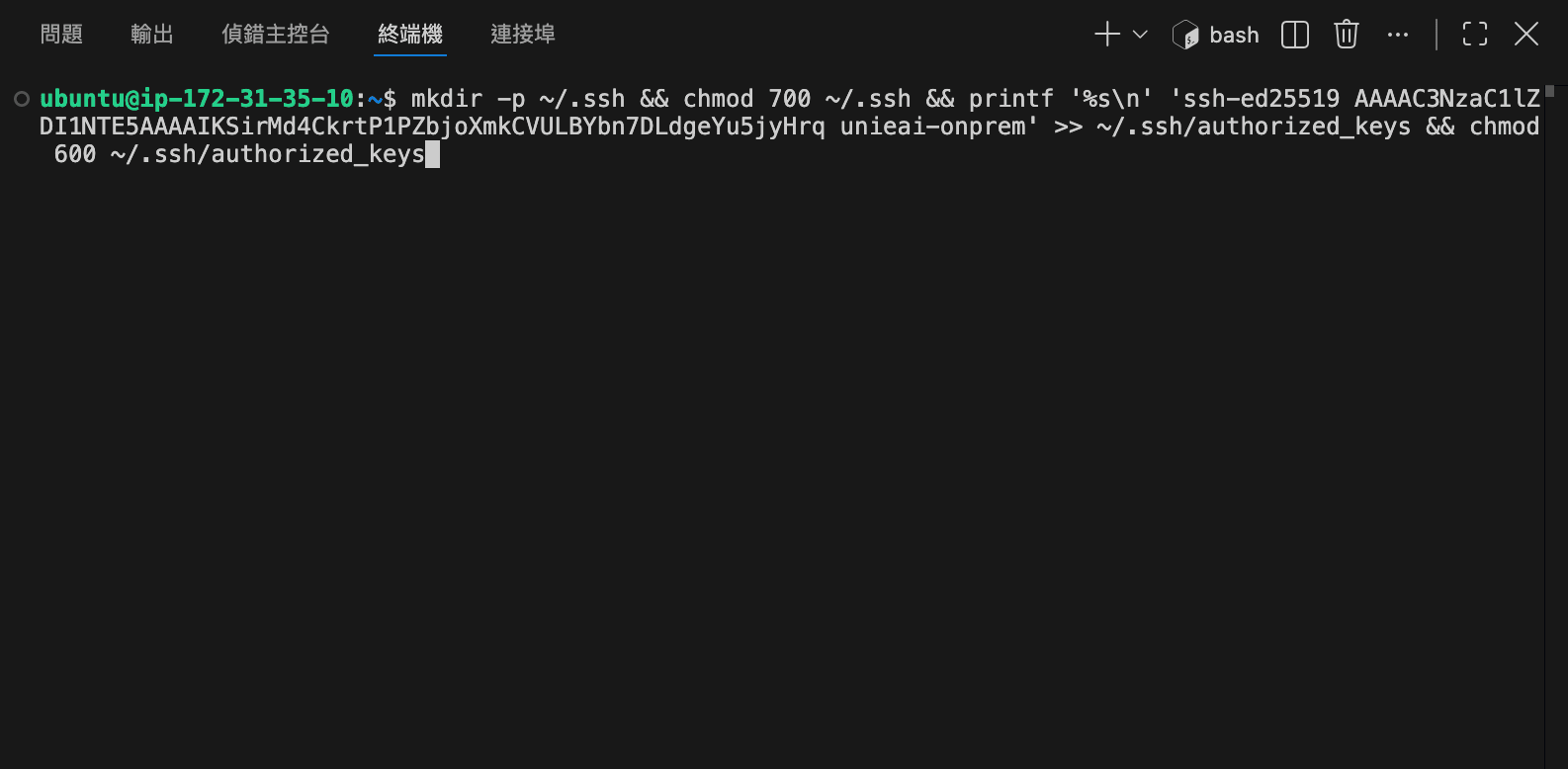
Fill in Host IP, Port, and Username, then pick one SSH access method:
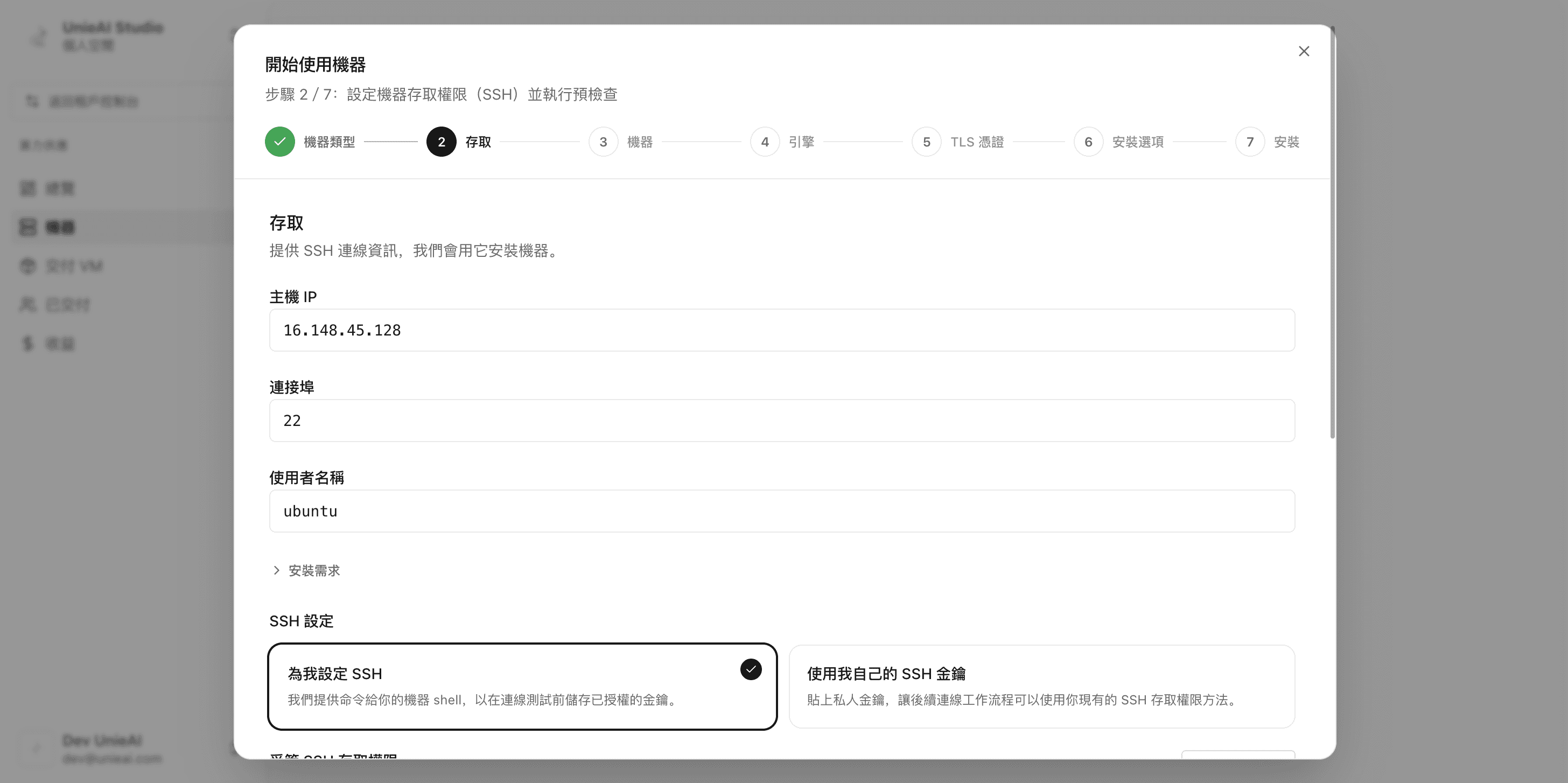
| Method | What you do | Best for |
|---|---|---|
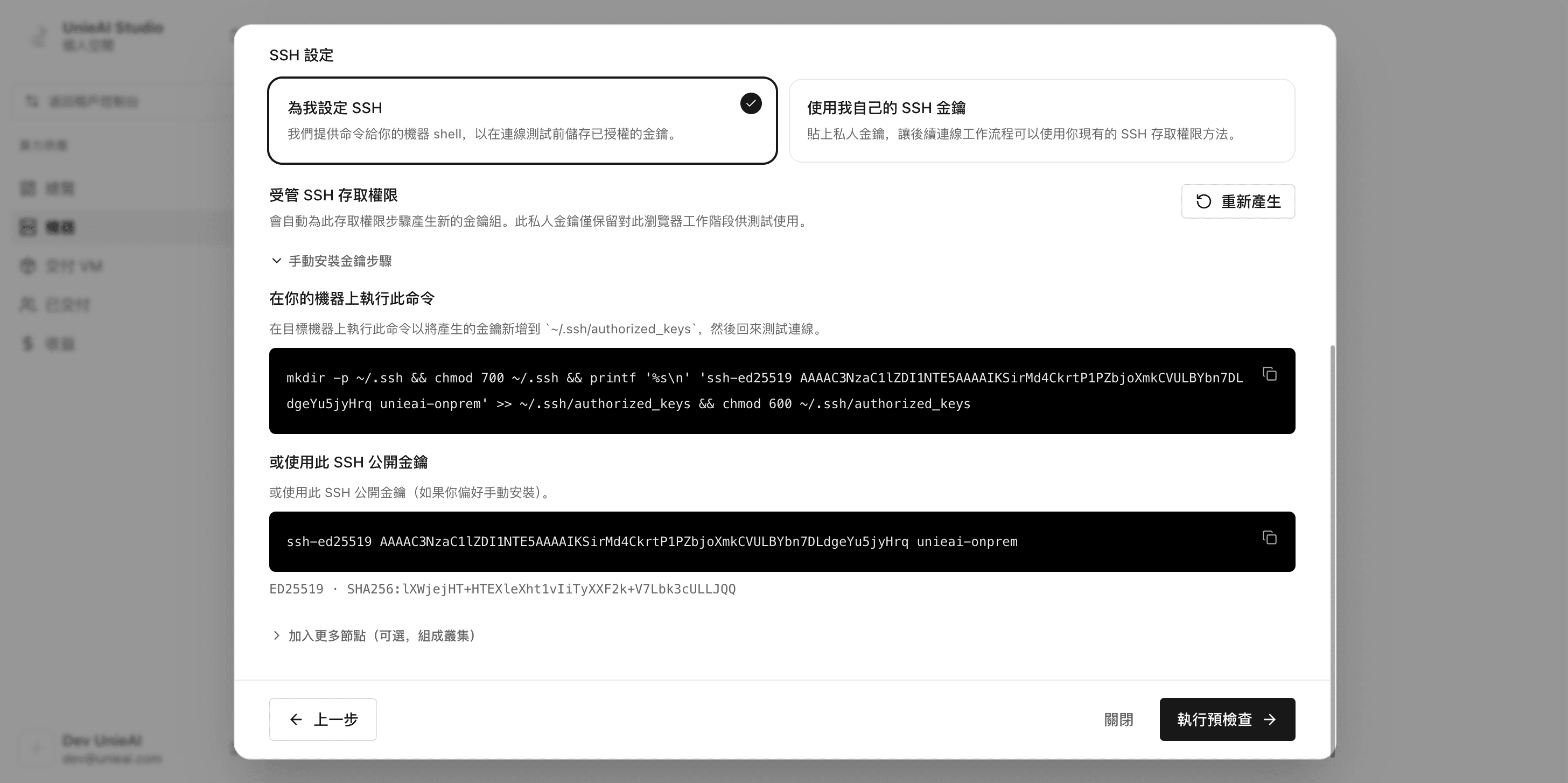
| Set up SSH for me | Copy the command shown and run it on the server; it writes the key into ~/.ssh/authorized_keys | You have a terminal on the server |
| Use my own SSH key | Paste a private key | You already manage keys yourself |
| Managed SSH access | The platform issues a temporary key pair; install the public key as instructed | Fastest path |
Run the preflight check
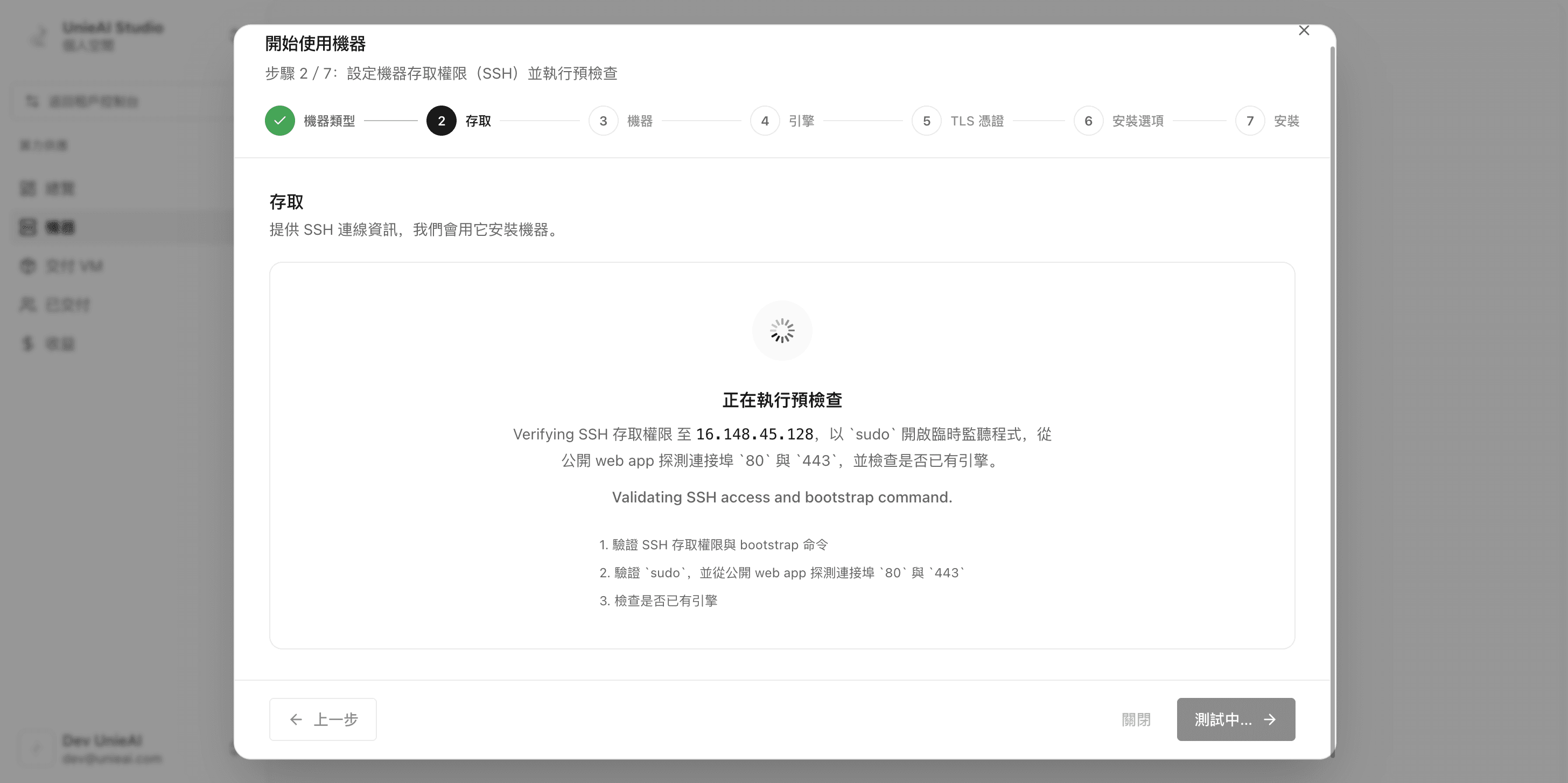
The platform does three things in order and ticks each one off:
- Verify SSH access and the bootstrap command
- Verify
sudo, and probe ports80and443from outside - Check whether a Kubernetes engine is already present
Any failure stops there with the reason stated. Fix it and re-run.
Set machine identity and domain
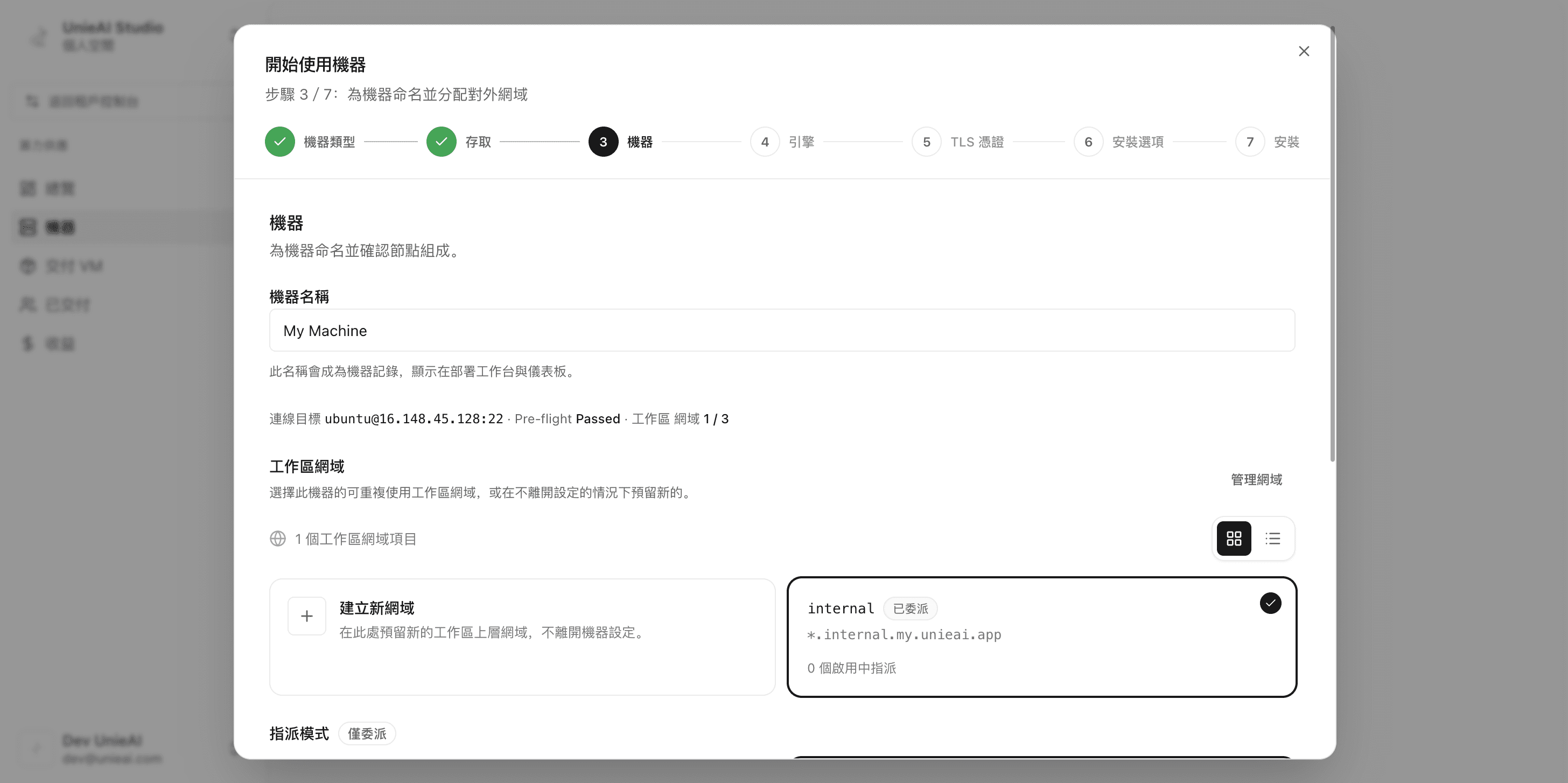
- Enter a machine name
- Choose the workspace domain this machine will use (creating one is covered in Part 8)
- If the environment needs it, the screen lists the DNS records to create
Installation does not proceed until DNS resolves.
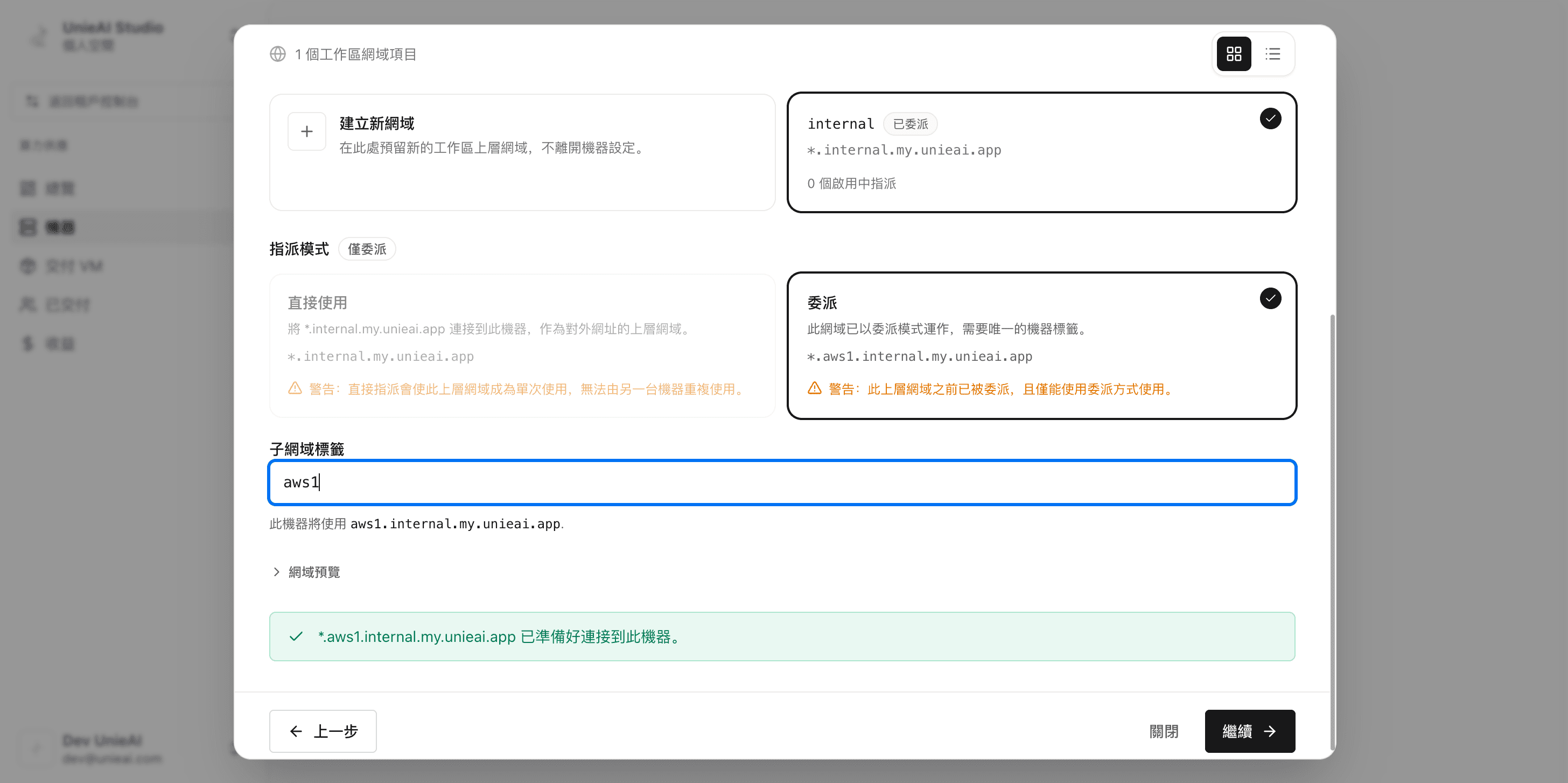
Then set the machine's subdomain. It gives later services (API, Console, Agent) a consistent, controlled internal domain. If your environment has naming rules, follow them to avoid collisions.
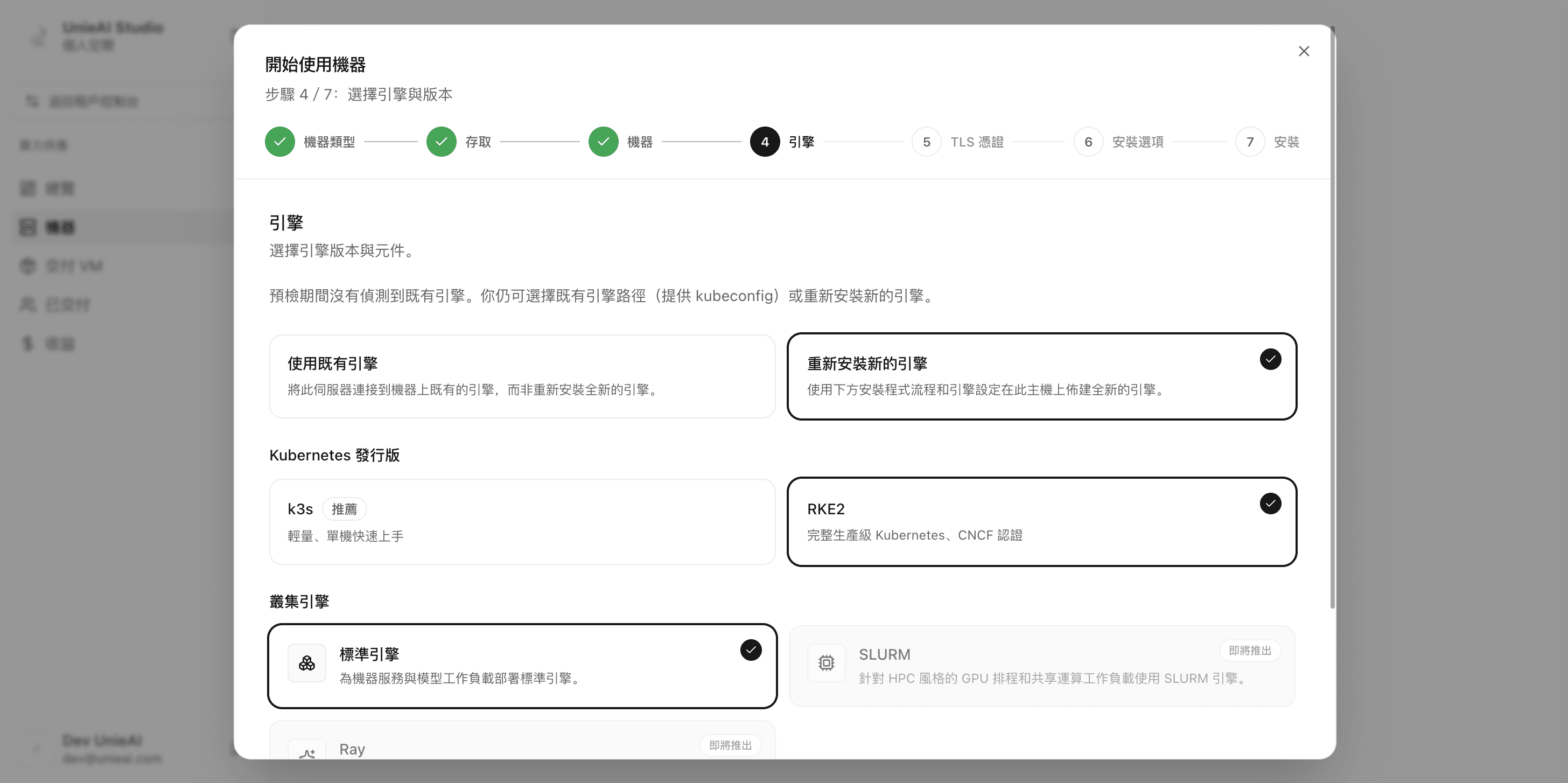
Install the virtualization engine: RKE2.
Configure the domain certificate.
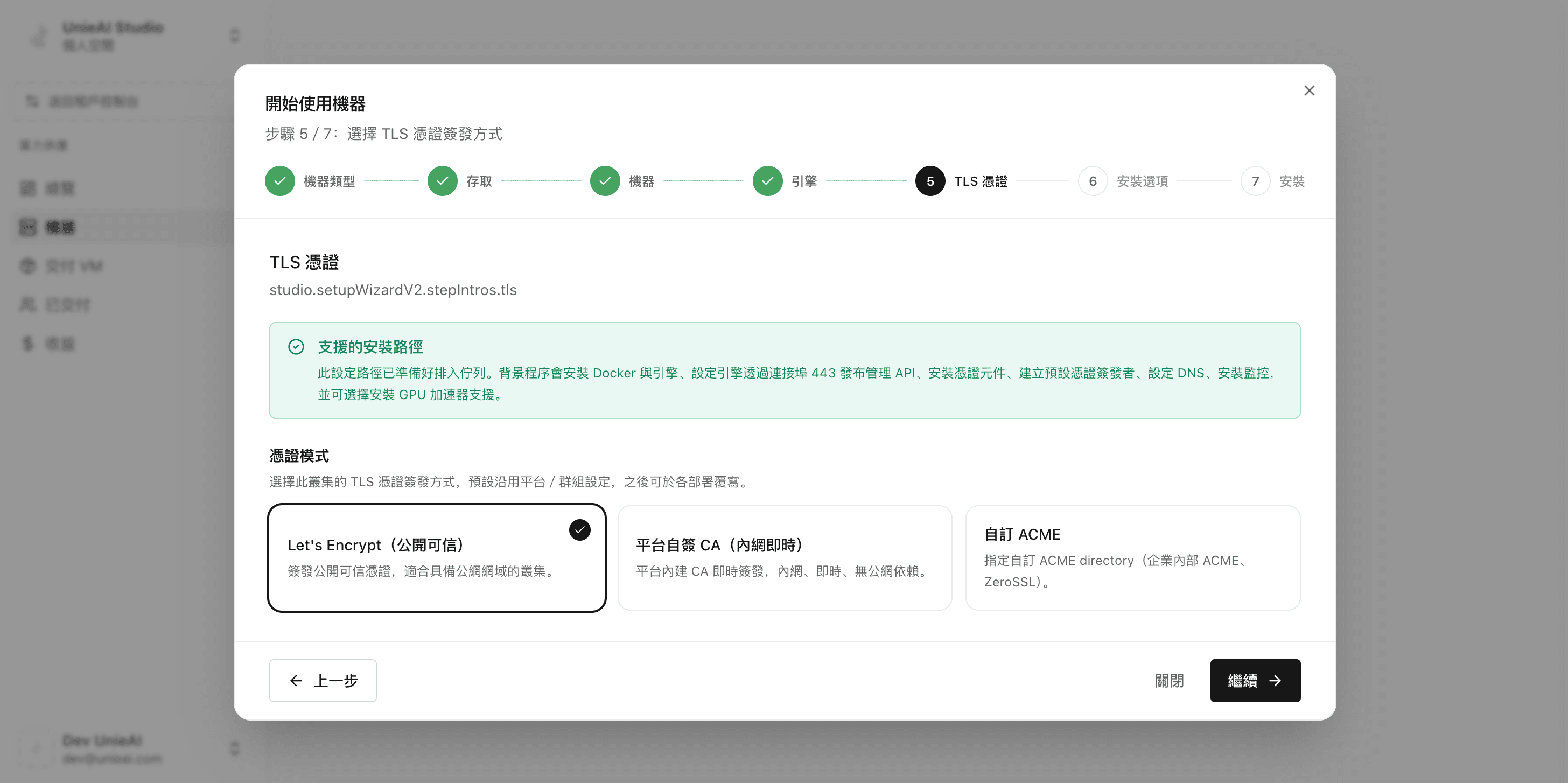
With a self-signed or internal CA, make sure the tenant and deployment sides trust that chain — otherwise browsers and CLIs will fail TLS verification.
Preinstall the baseline infrastructure apps, then click Next.
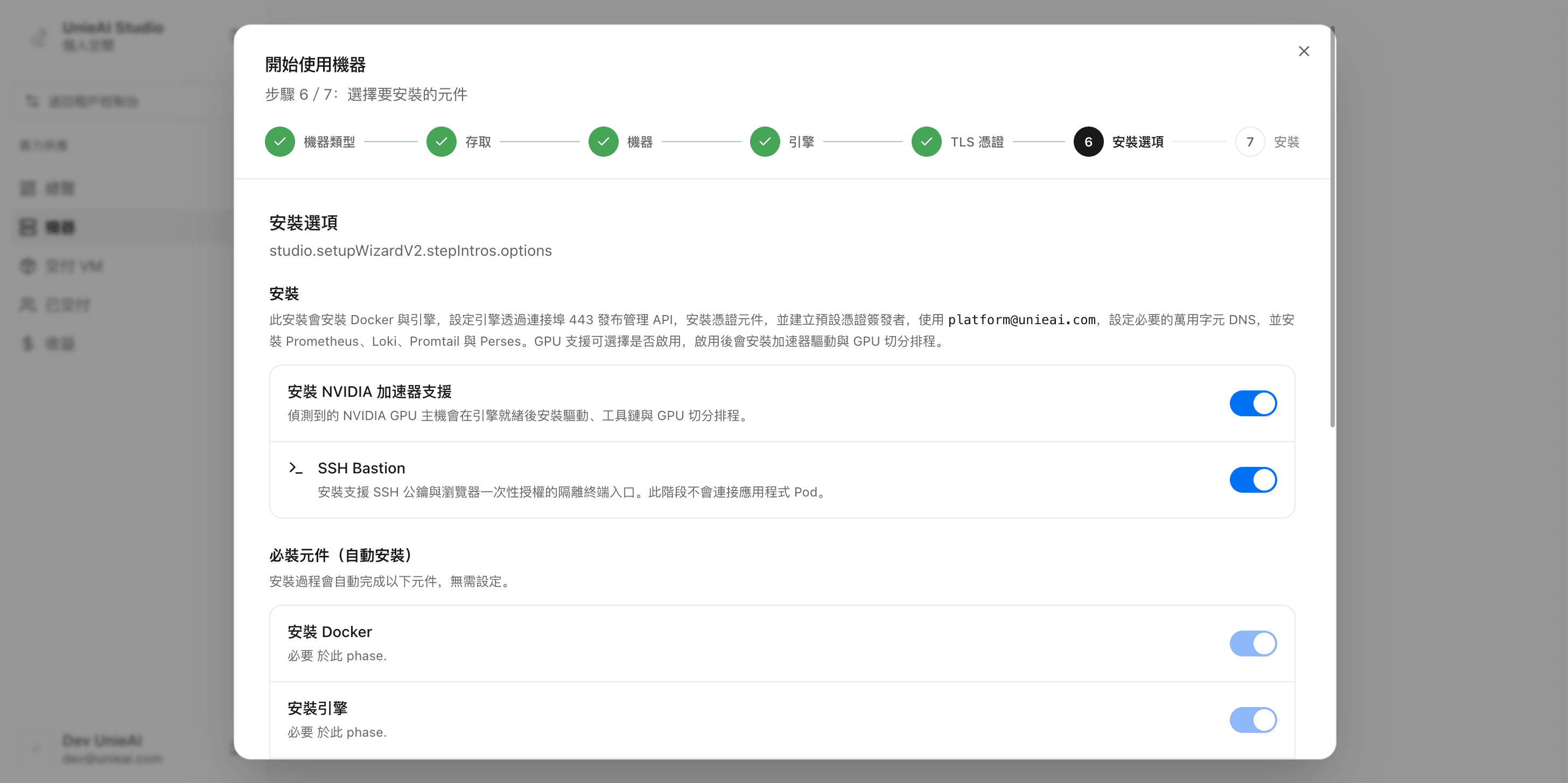
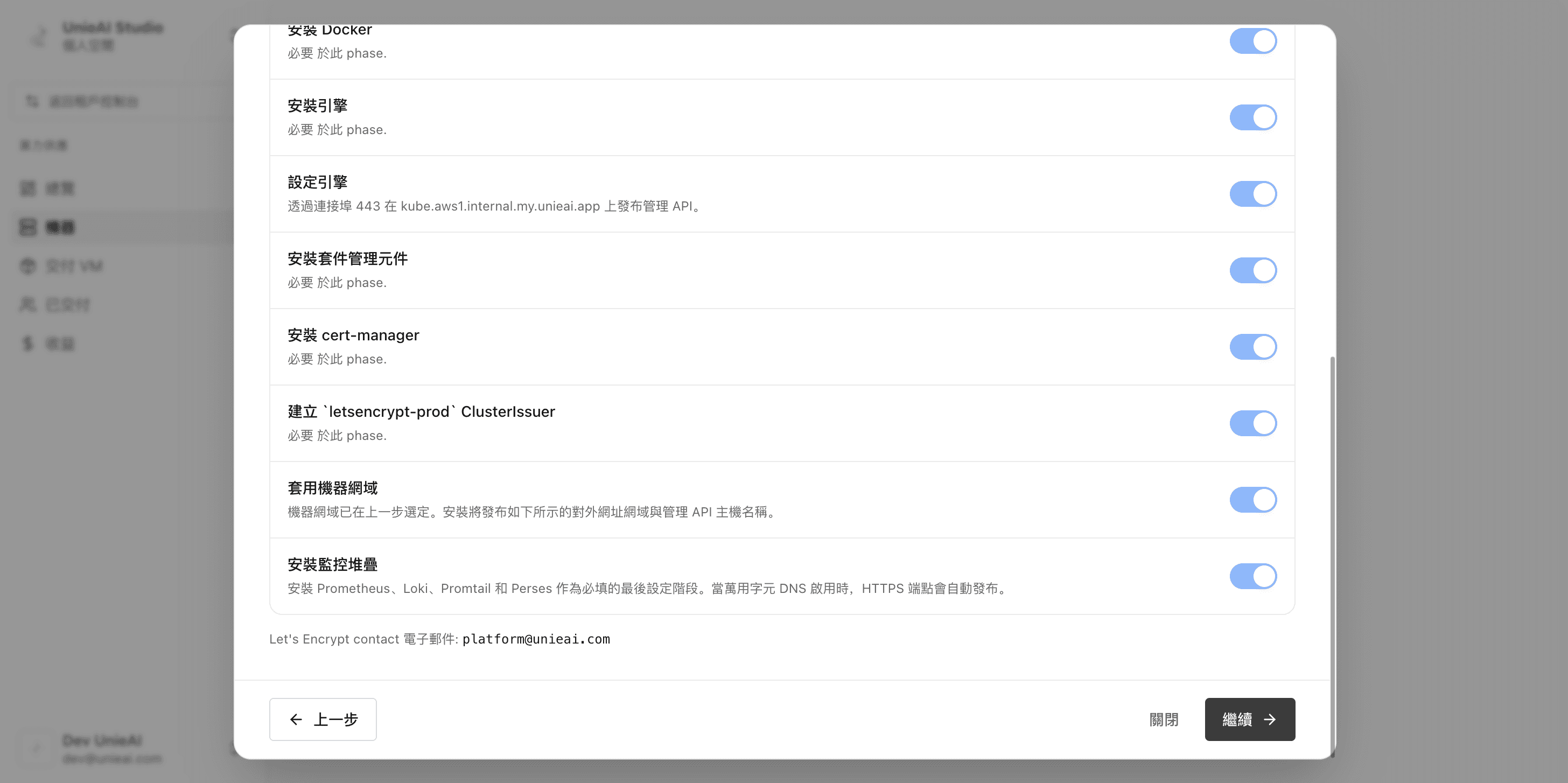
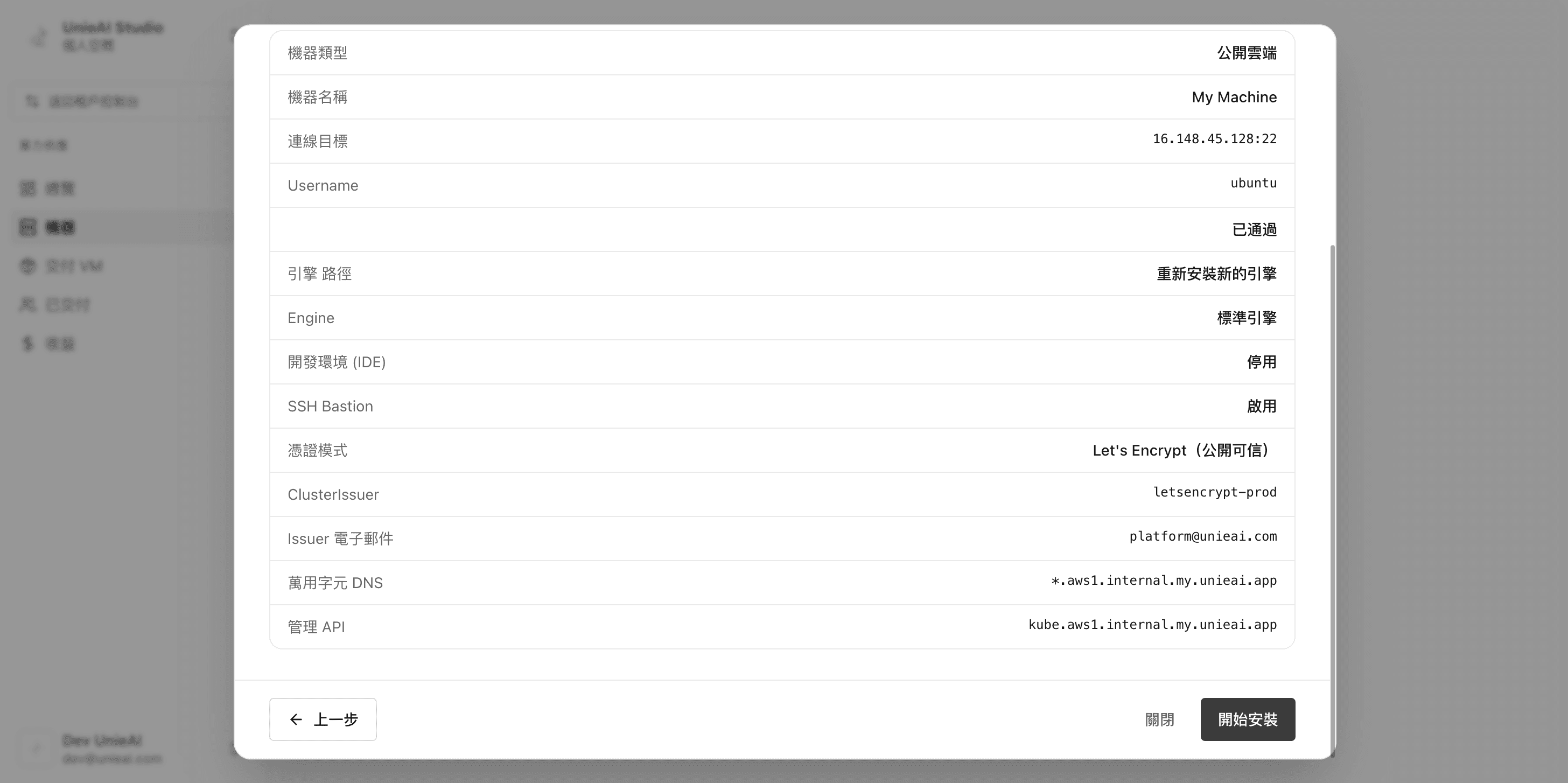
Review the machine initialization settings.
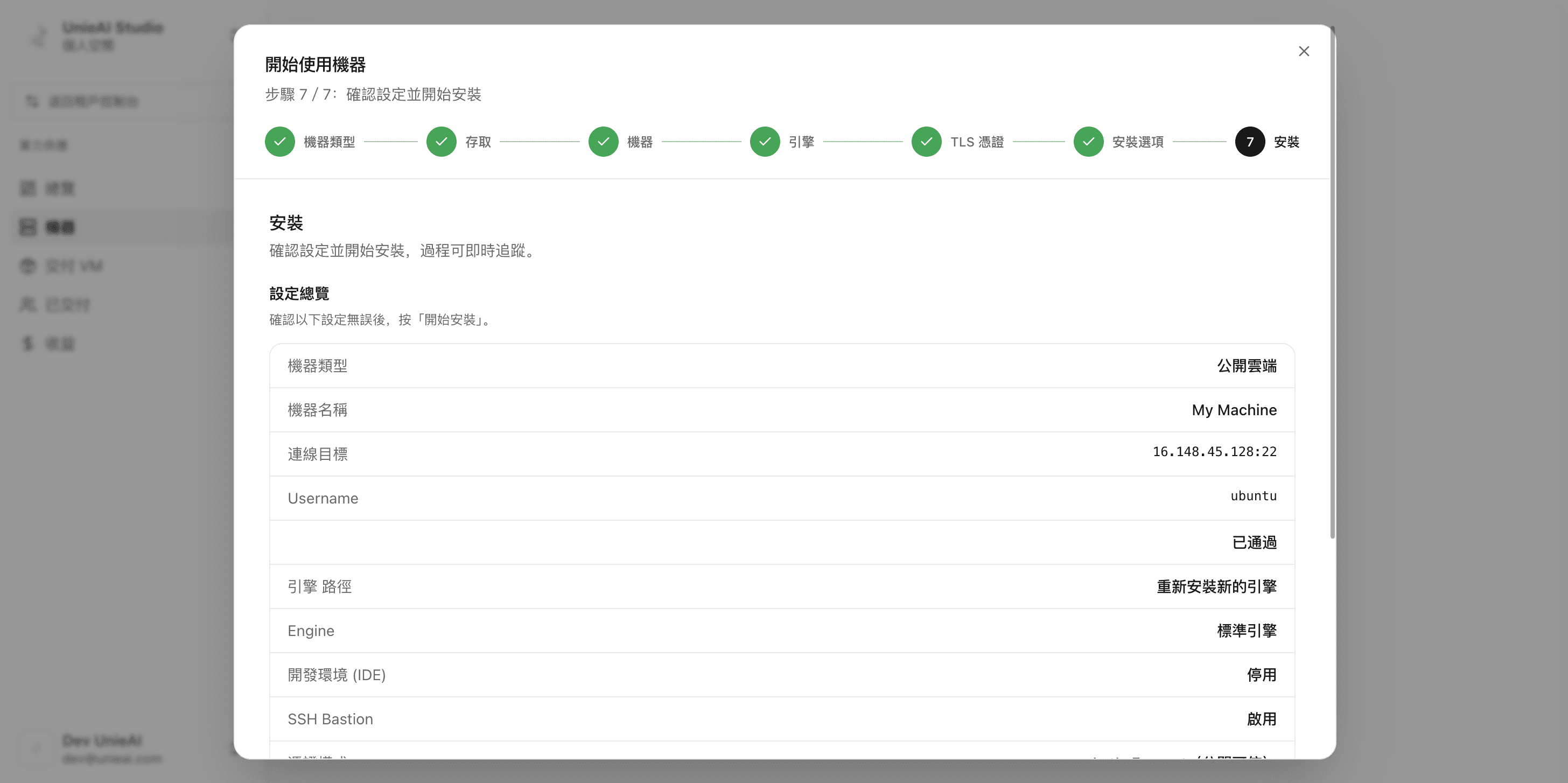
Install, and wait for it
After Install you see "installation queued". It runs in the background with live progress.
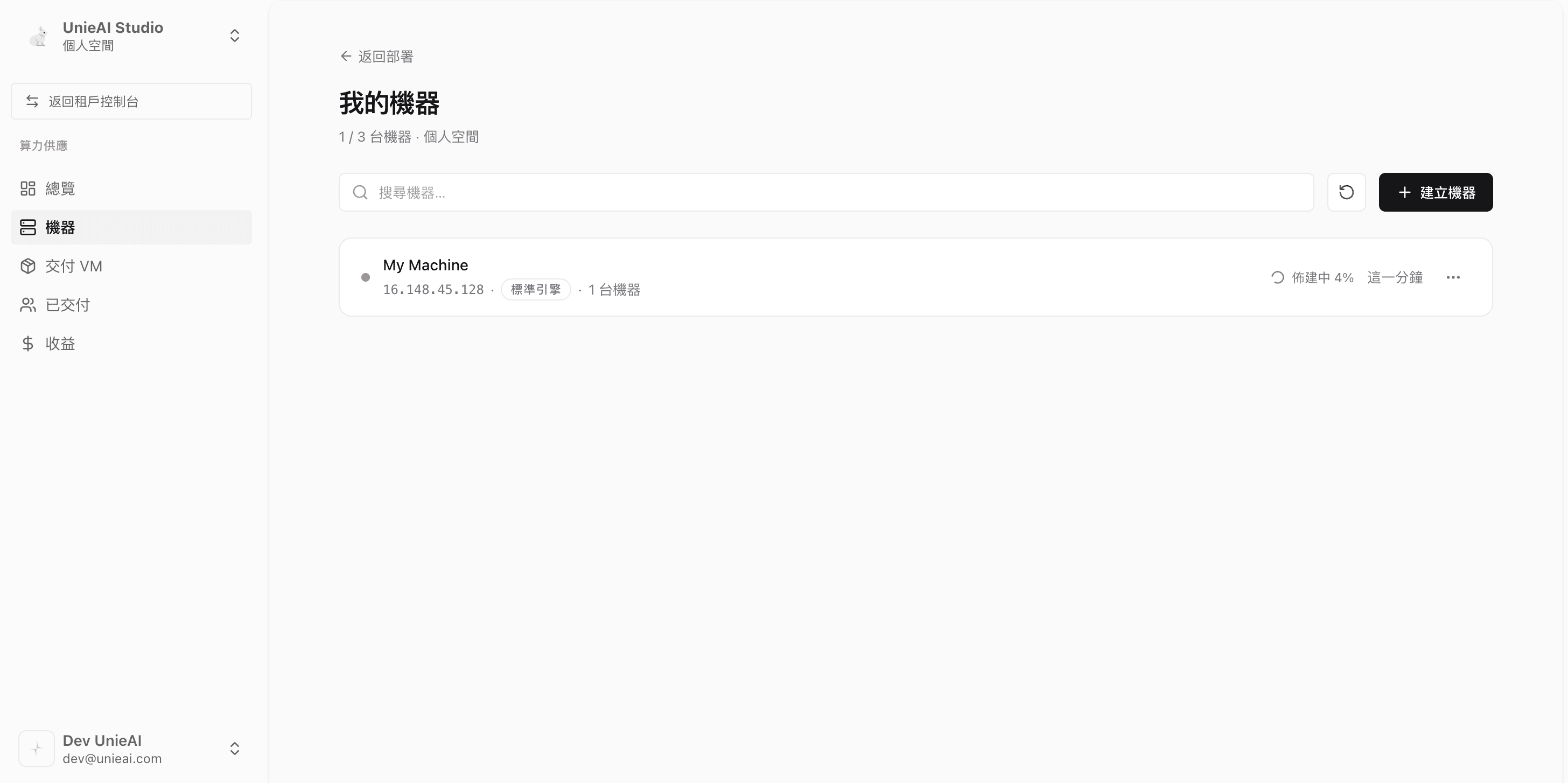
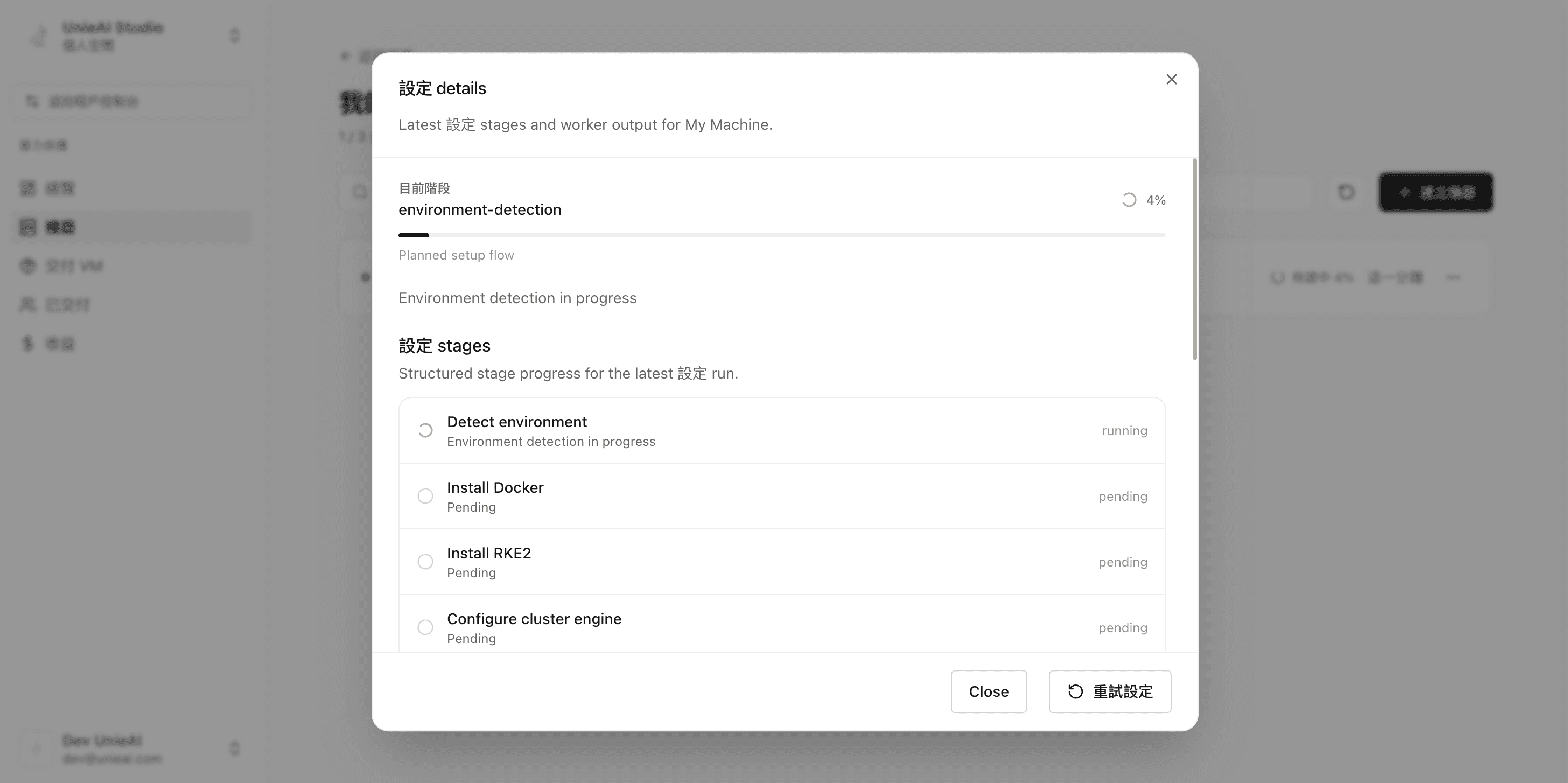
When it finishes, the machine appears under My machines → Physical machines in the ready state.
At this point the machine can already host apps. Continue to Part 2 only if you want to rent it out.
Part 2. Provider: convert the machine into a compute source
Switch to the compute provider console
Click Compute provider at the top left of the sidebar. It has exactly three entries: Compute sources, Delivered, Rental requests.
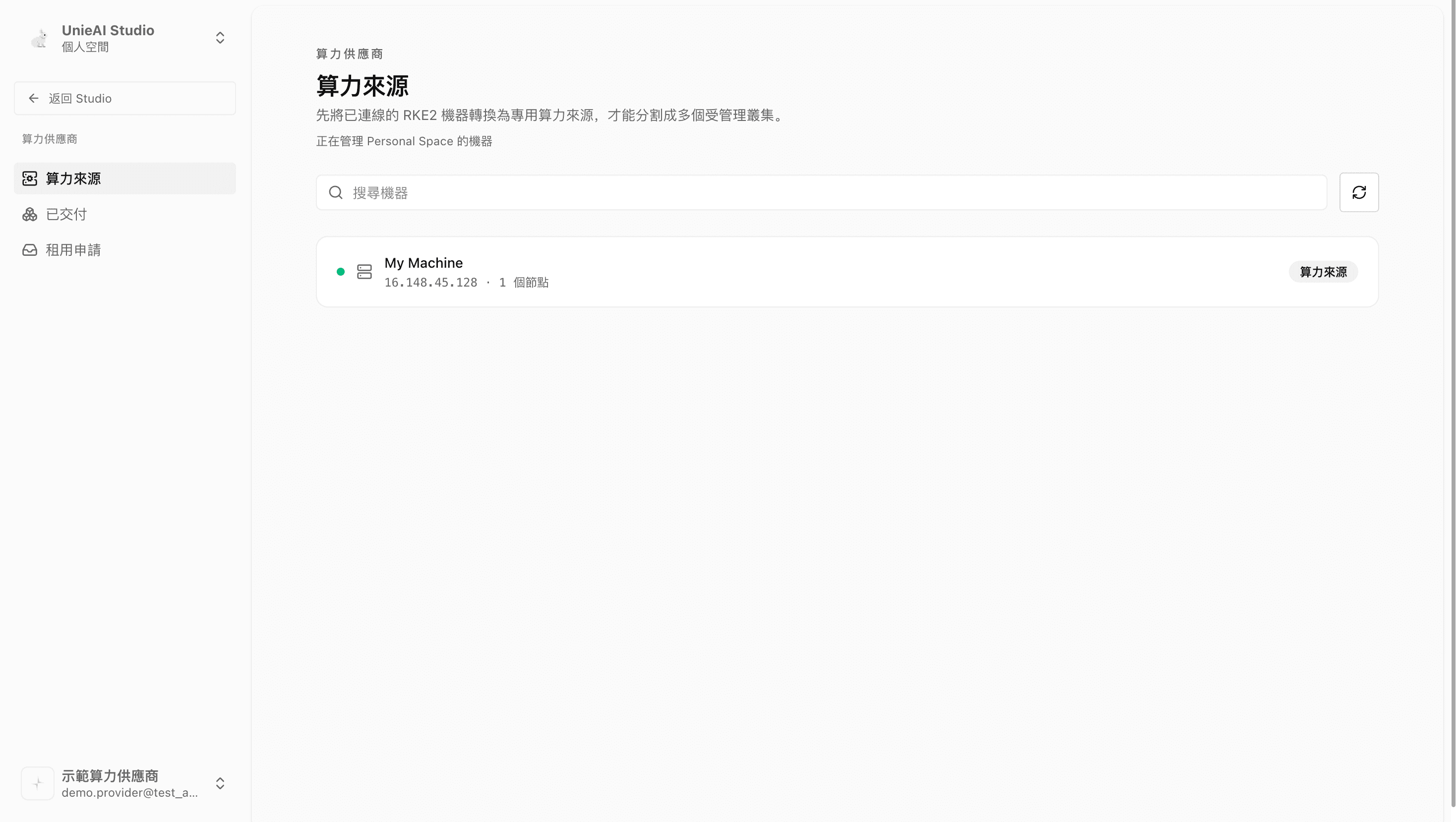
Find the machine under "Compute sources"
Every convertible physical machine in this workspace is listed. The status on the right reads Deployment machine before conversion and Compute source after.
Convert it
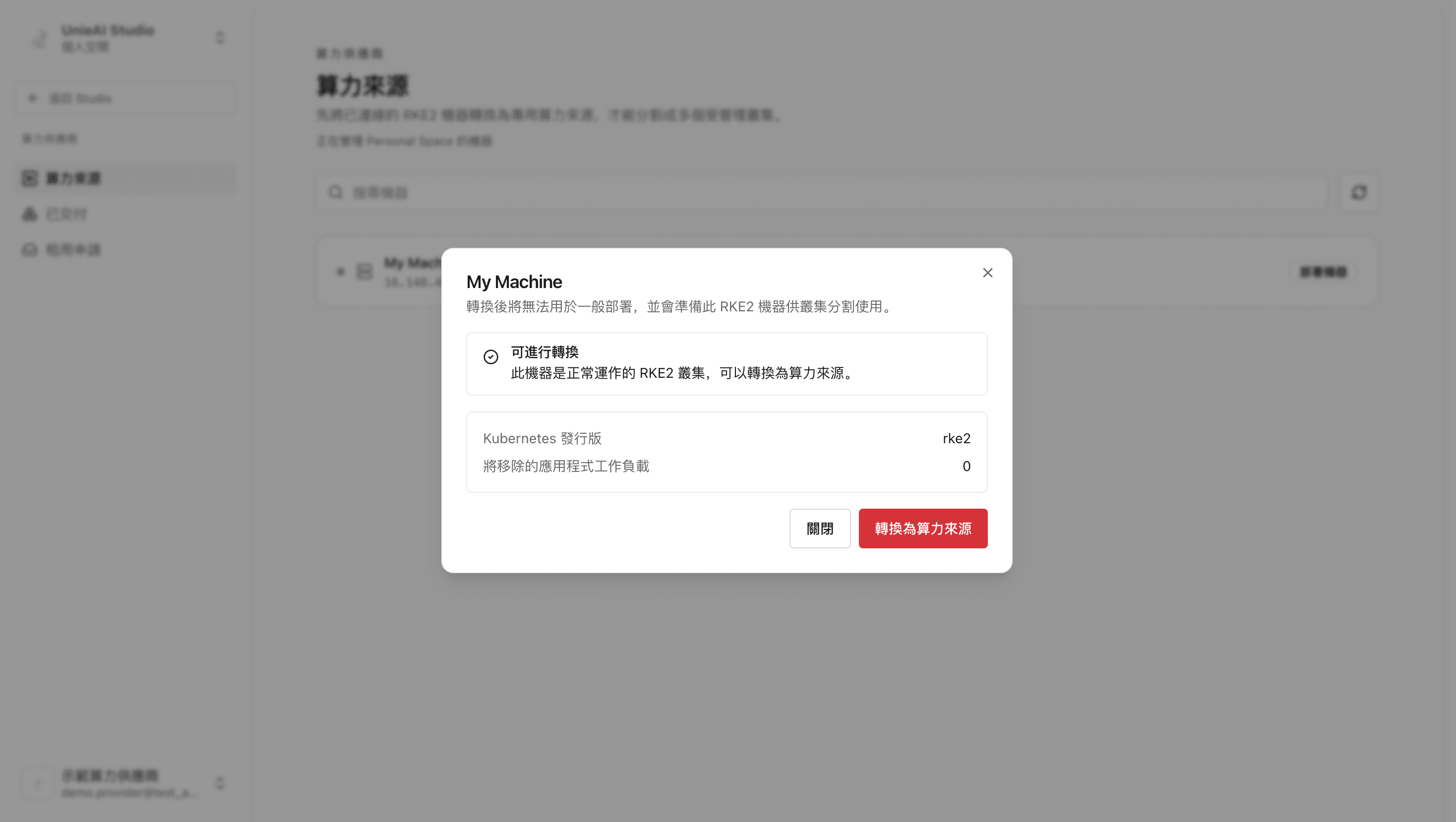
Click the status button. The platform checks the machine live and tells you two things:
- Eligible for conversion: it must be a ready, healthy physical machine
- Application workloads that will be removed: conversion stops and uninstalls them
Confirm, then click the red Convert to compute source.
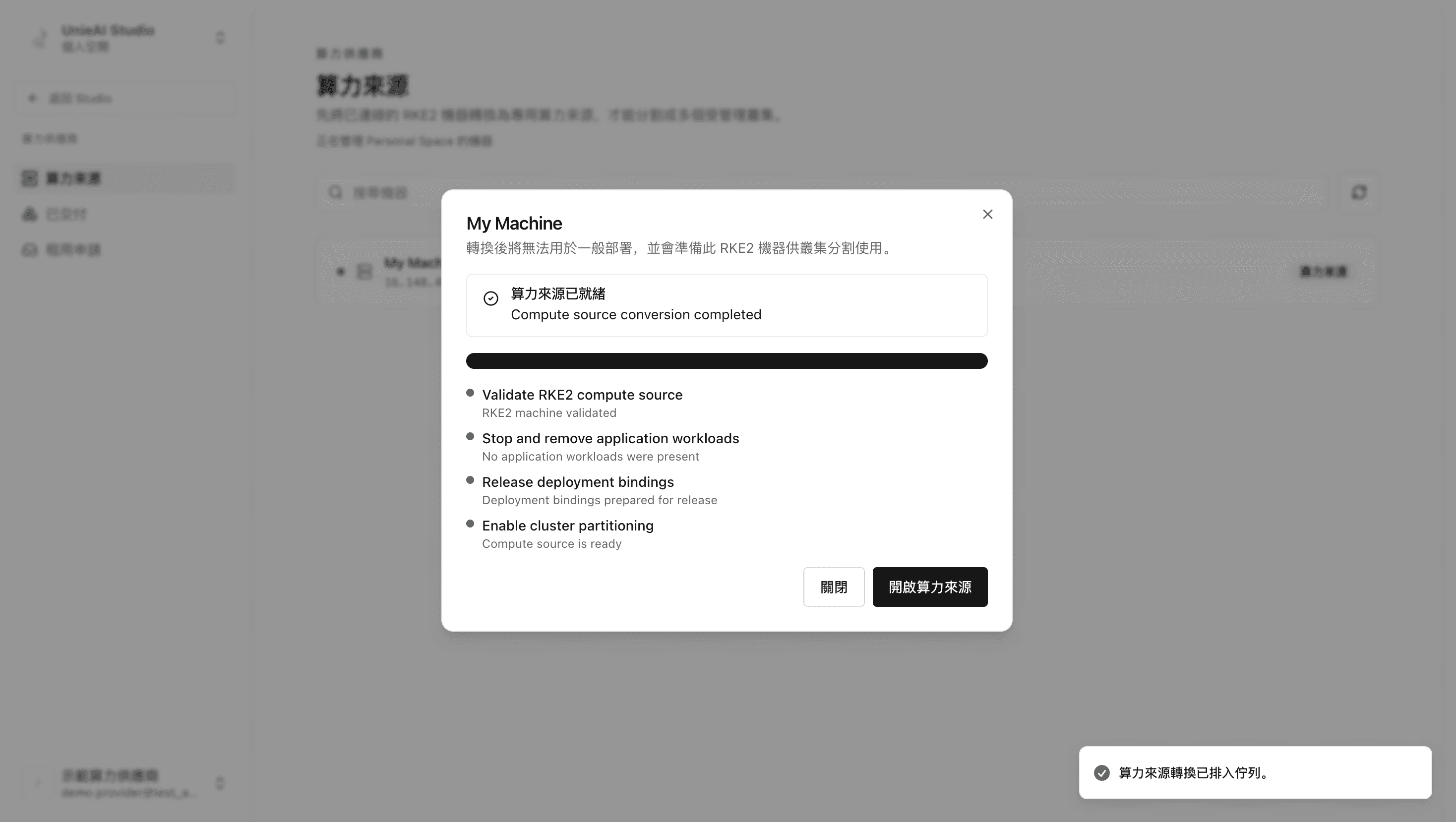
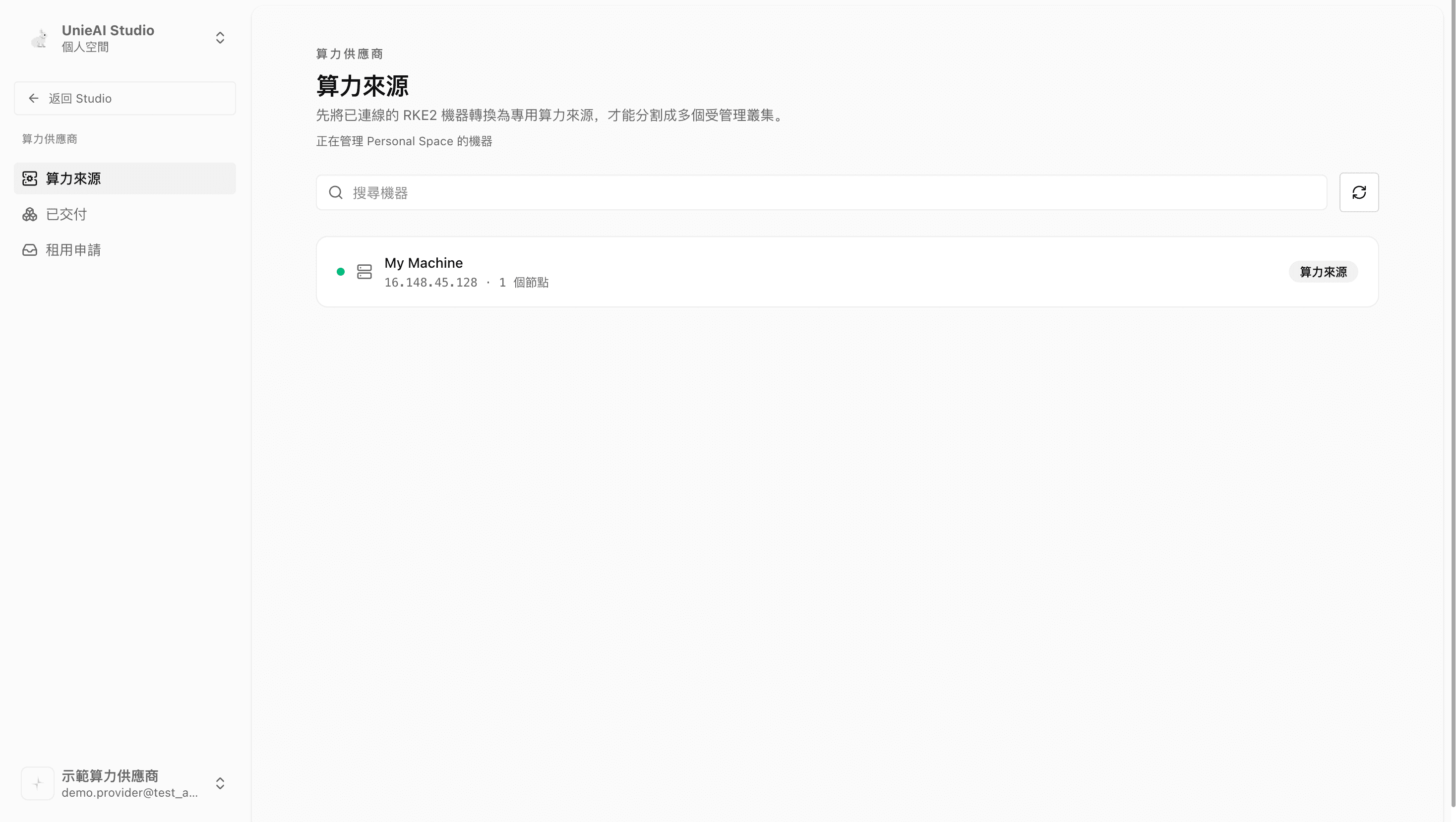
After conversion this machine can no longer host ordinary deployments. It disappears from "My machines" and lives only in the compute provider console. There is no way back in the interface — be sure before you convert.
Set the inference license
Open the compute source's detail page. It shows live CPU, memory, and GPU usage, the partitions already carved out, and at the bottom the UnieInfra inference license. Click Configure, paste the license, save.
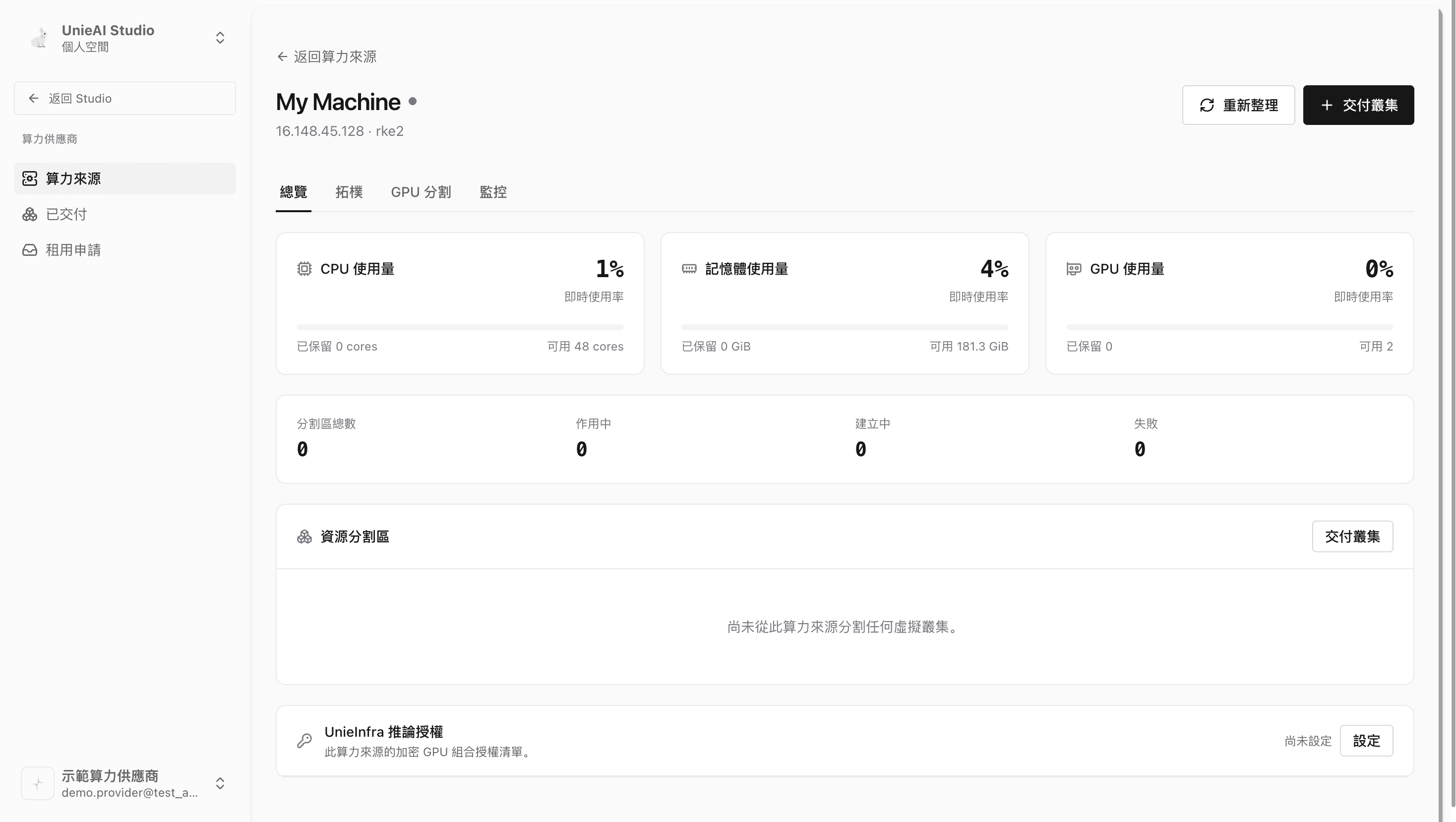
Without an inference license on the compute source, tenants cannot deploy any app — not just LLMs.
Part 3. Provider: carve out a virtual cluster
Partition the GPUs first (if needed)
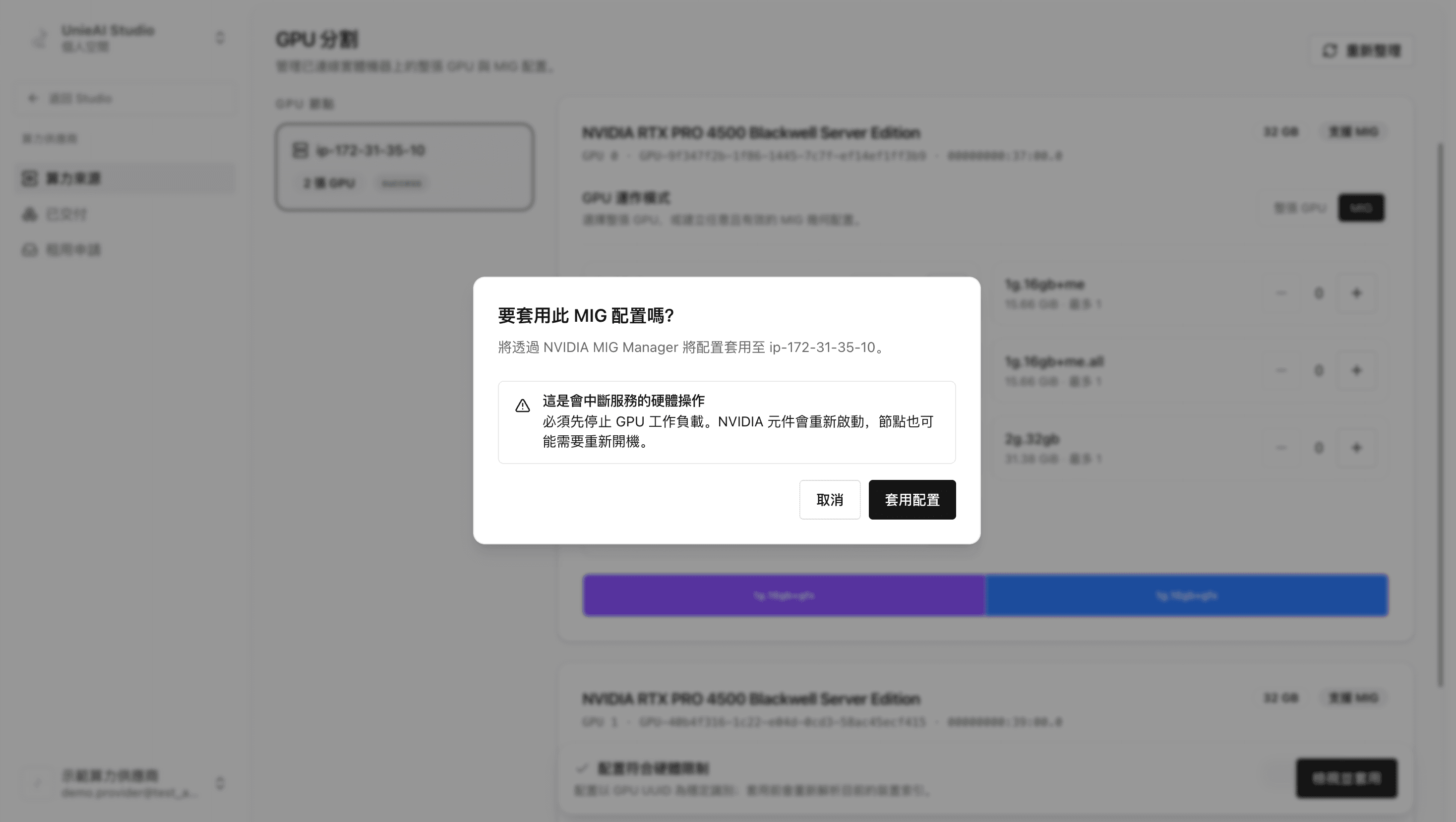
Click GPU partitioning.
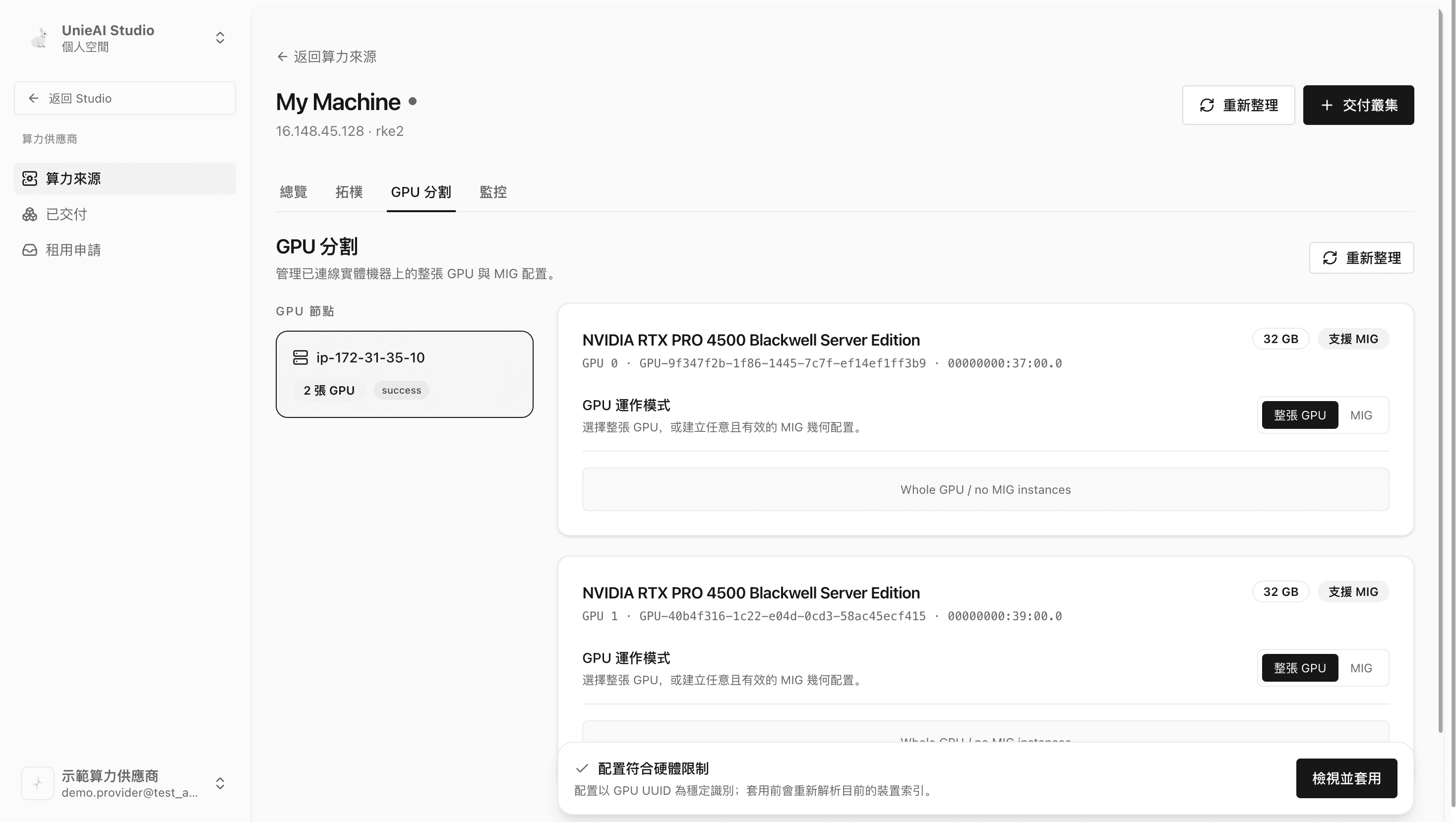
Apply a MIG layout, then click Apply → Apply configuration. MIG splits one physical GPU into several GPU instances so different tenants share a card while staying isolated.
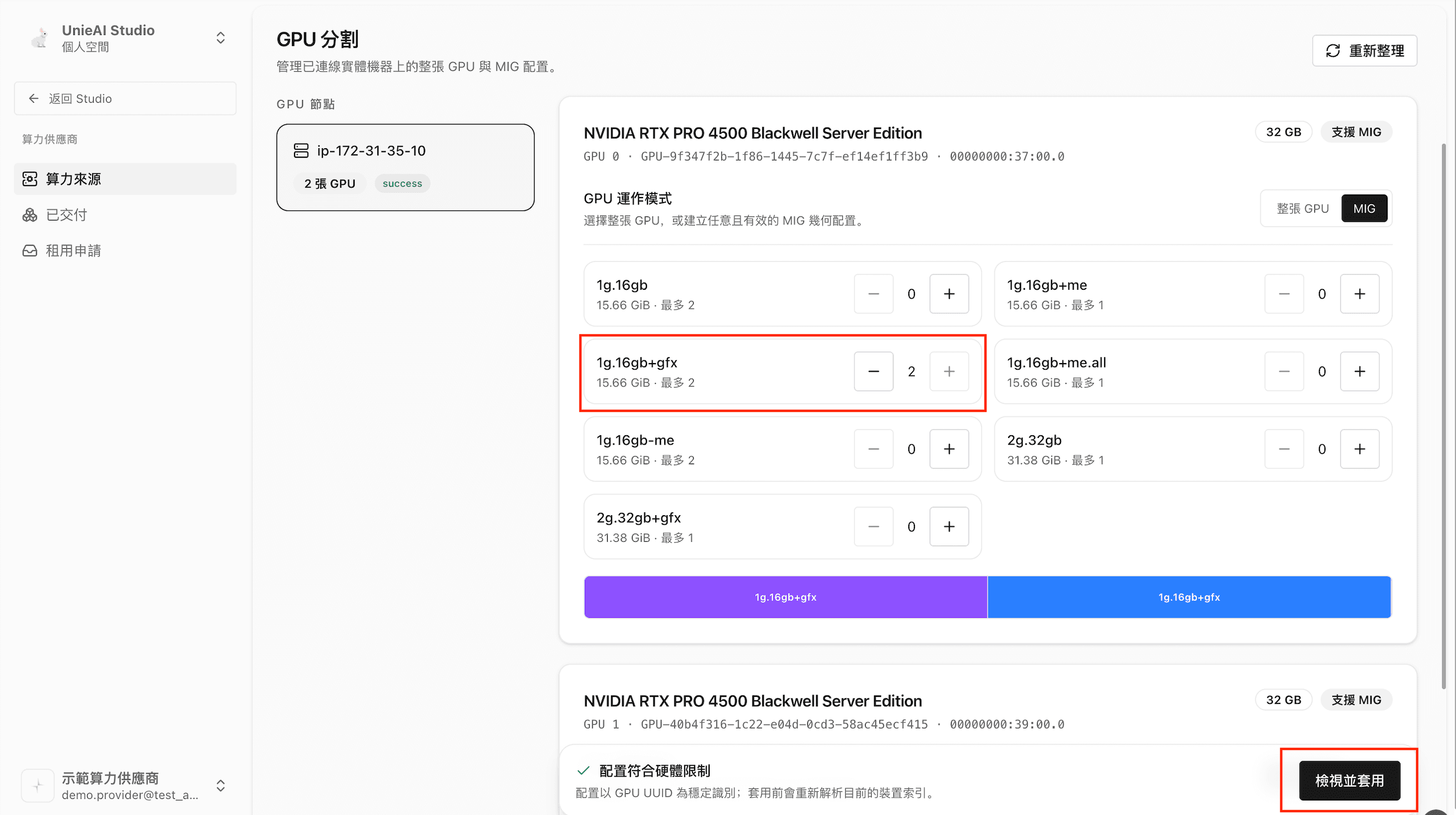
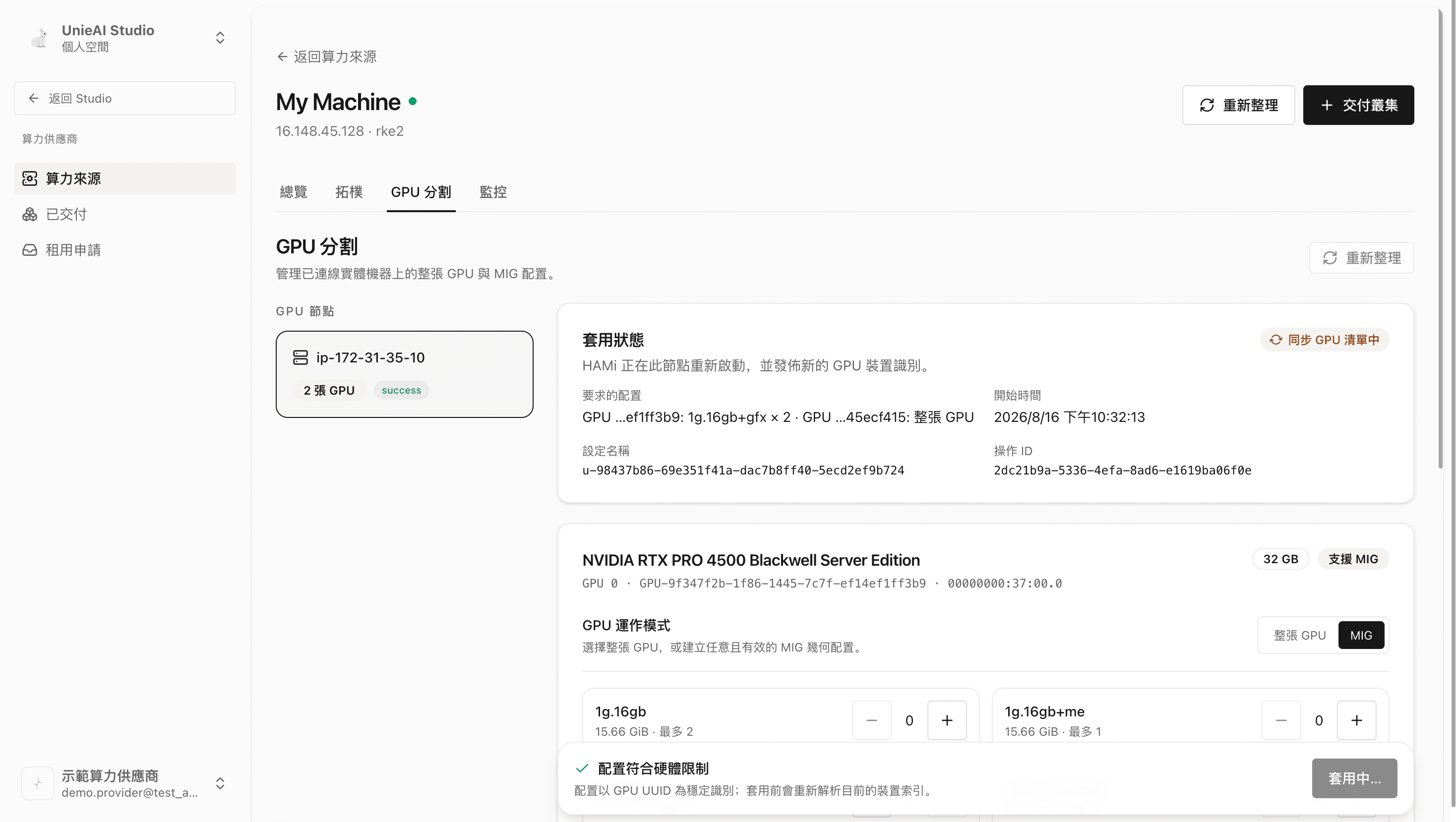
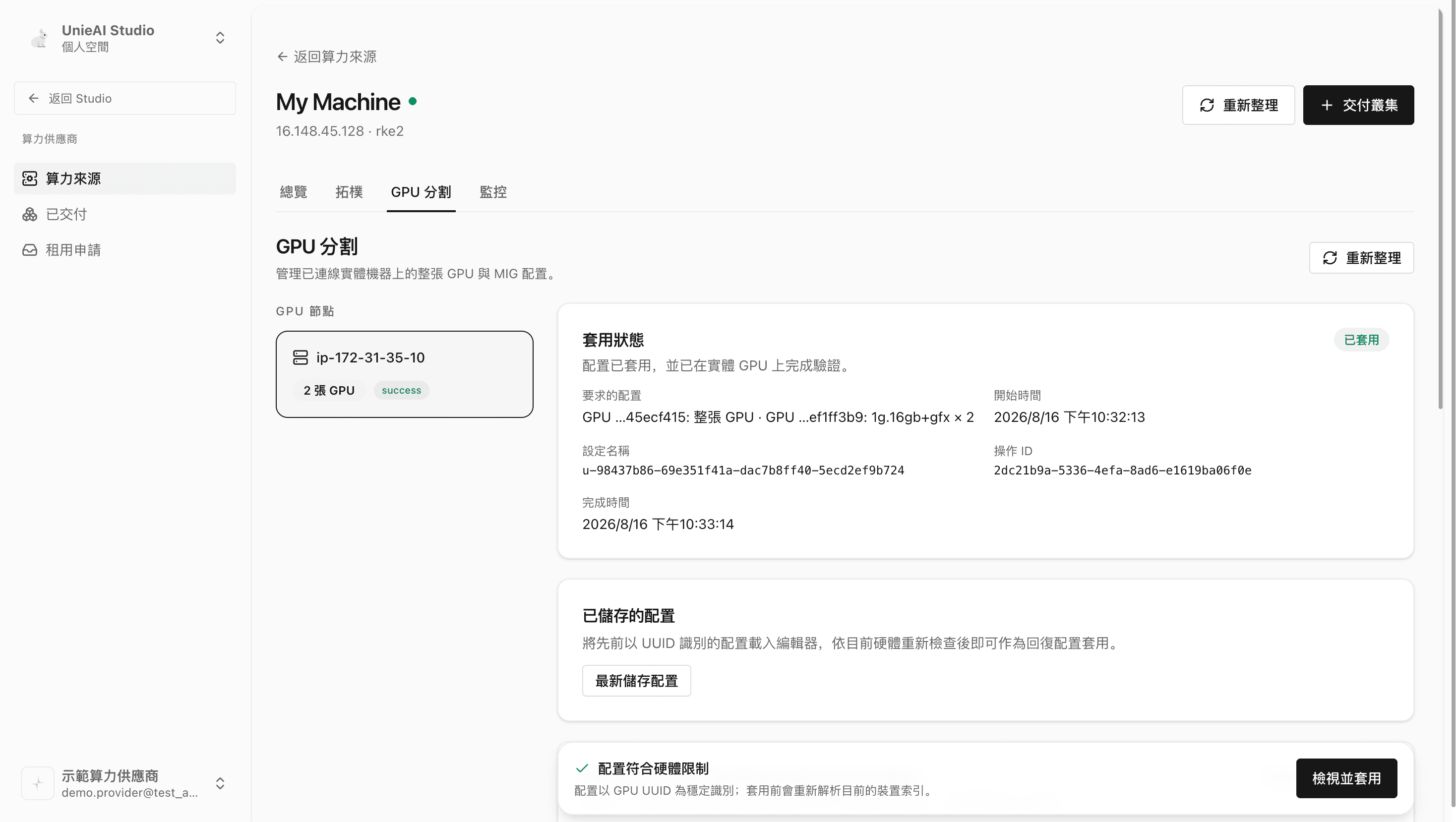
"Applied" at the top means the partitioning is done.
Start the delivery flow
Compute provider → Delivered → Deliver cluster at the top right (the same button exists on the compute source detail page).
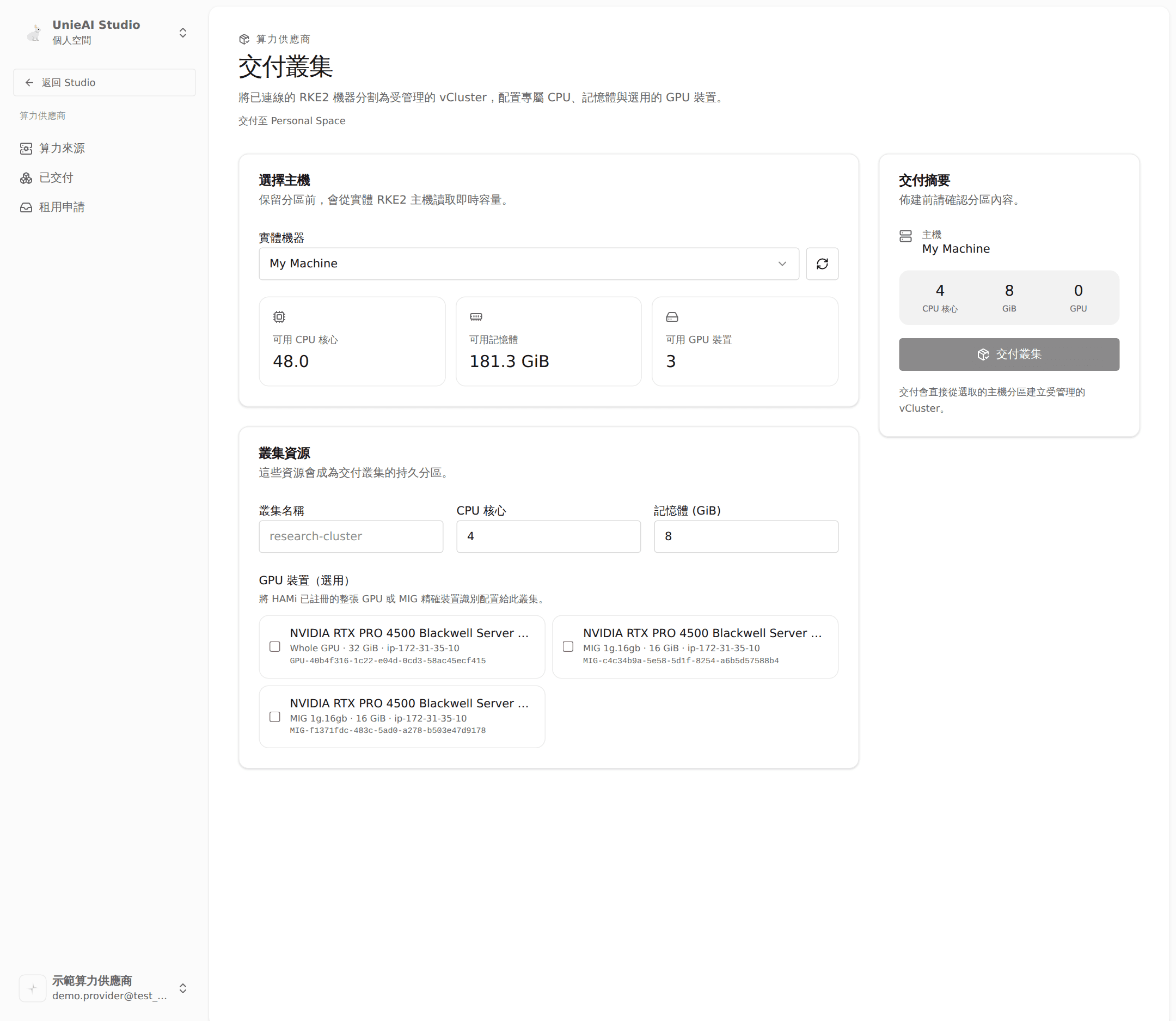
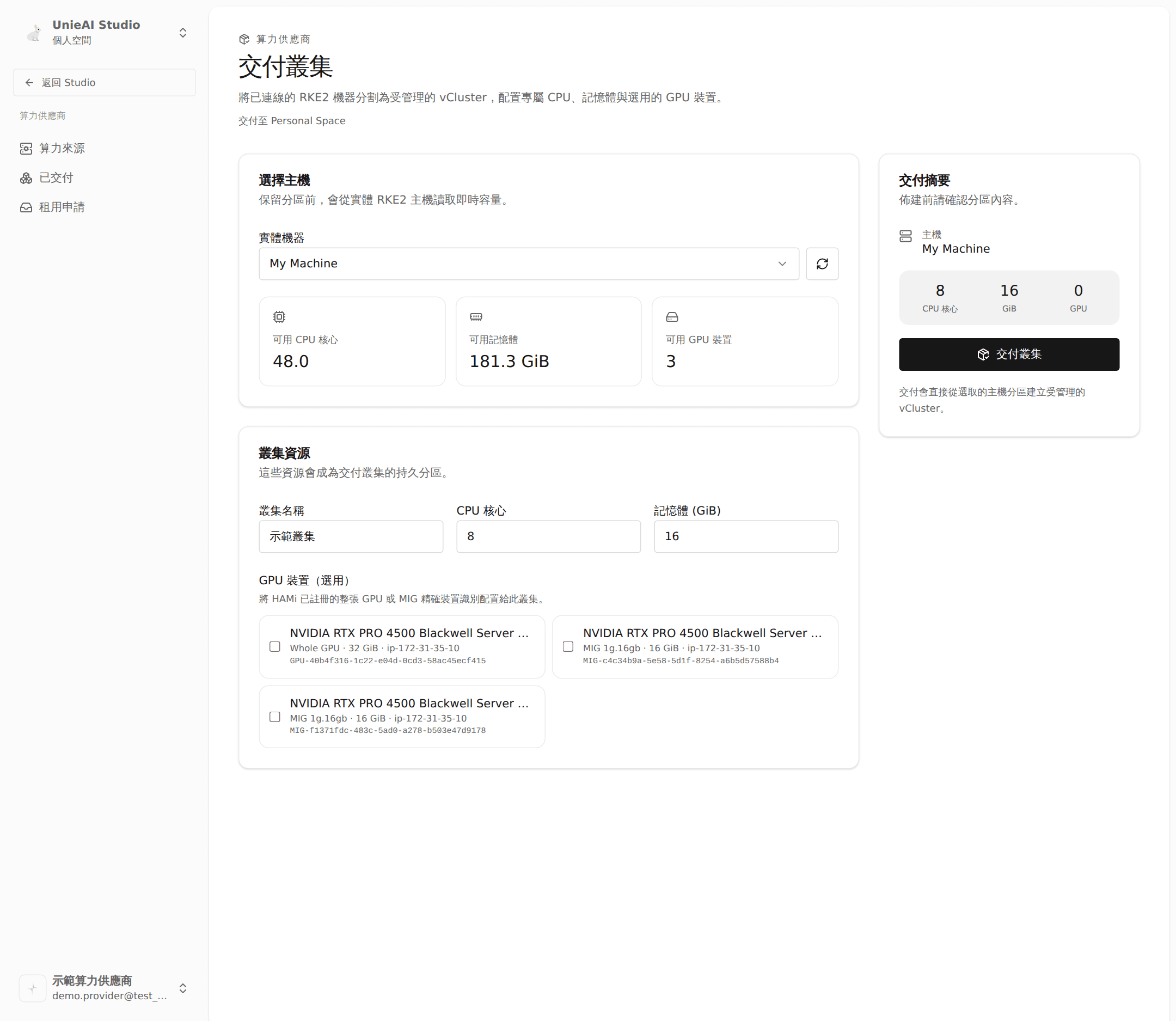
Pick a ready compute source under Select host. The platform immediately reads out its available CPU cores, available memory, and available GPU devices — those three numbers are your ceiling.
Size the cluster
- Cluster name
- CPU cores: at least 1
- Memory (GiB): at least 2
The delivery summary on the right tracks what you are handing out.
Assign GPUs (optional)
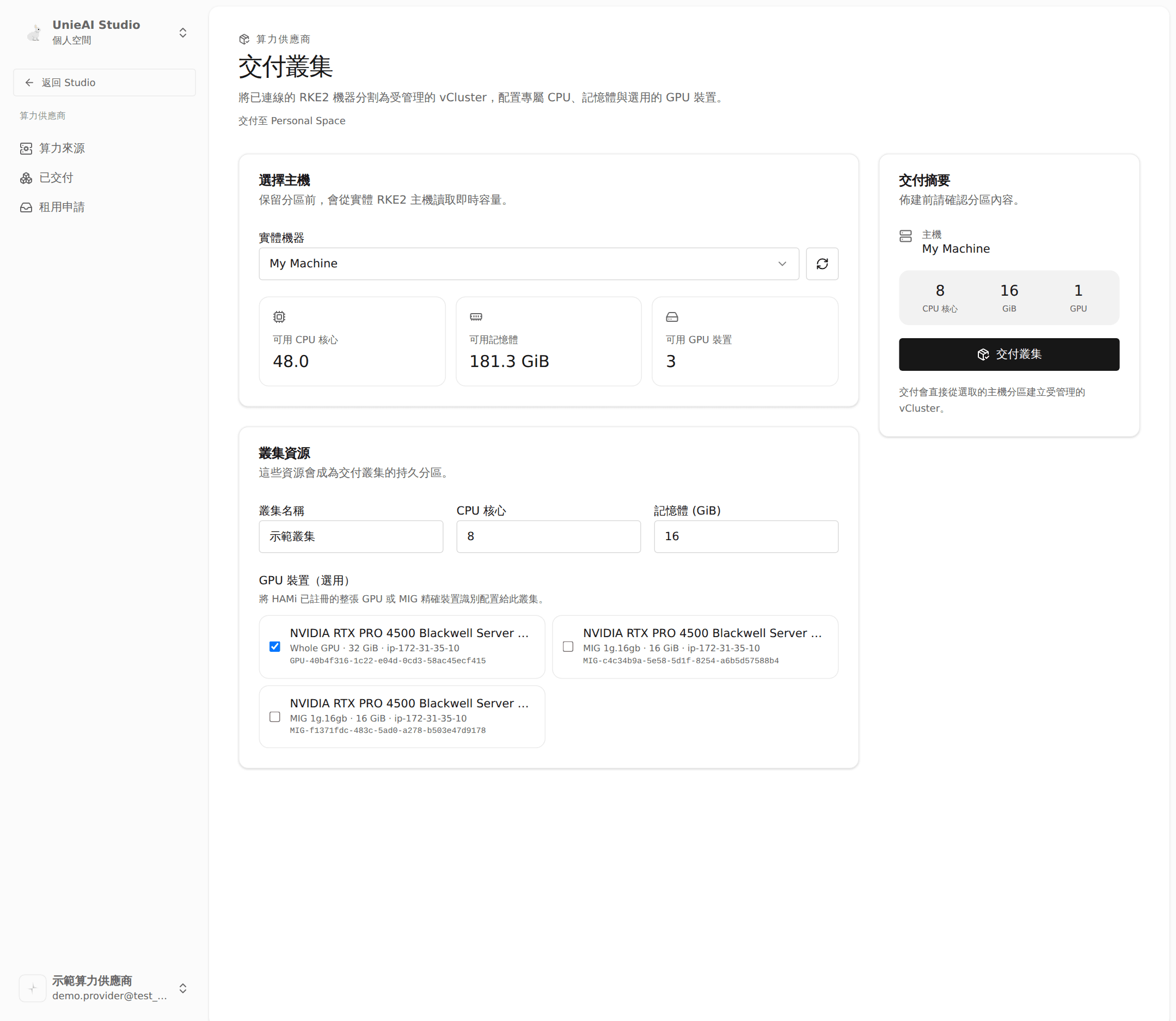
Under GPU devices, tick the whole GPUs or MIG slices reserved for this cluster. Devices already taken by another cluster are marked Reserved and cannot be selected.
Submit and wait for provisioning
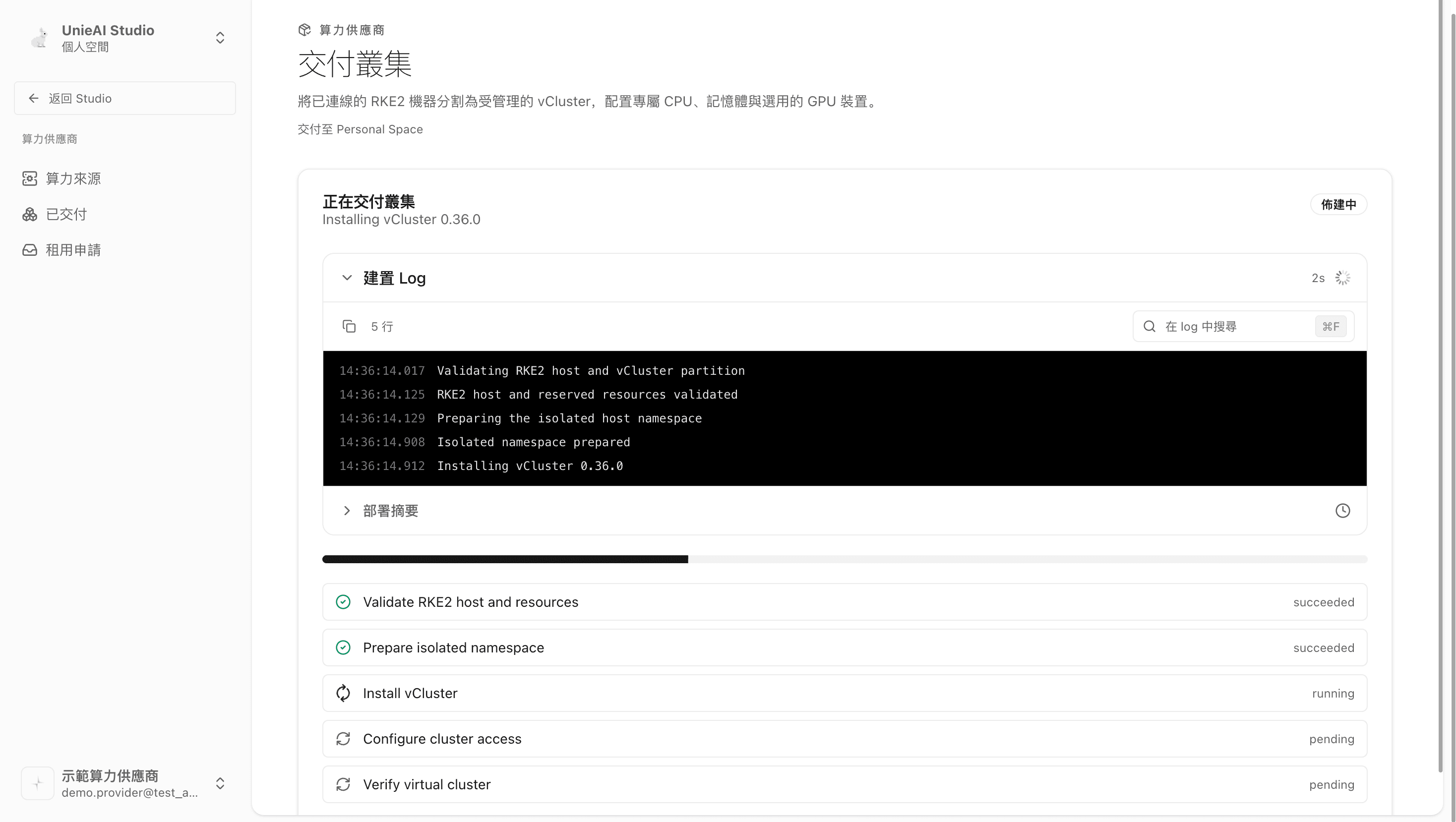
Click Deliver cluster. Progress runs queued → provisioning → ready.
"Cluster provisioned" means the partition is ready to publish.
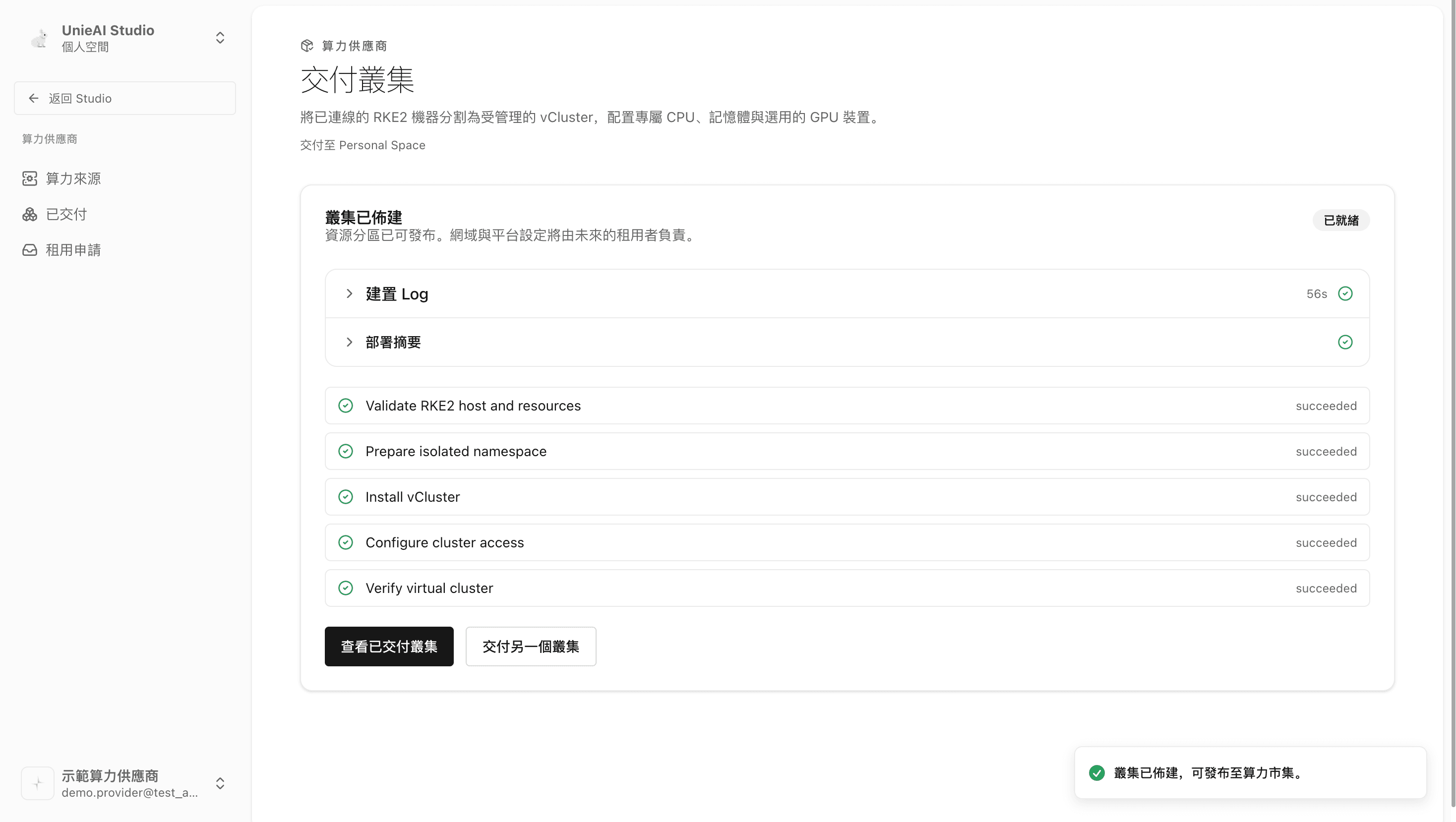
Domain and cluster setup are not the provider's job — the tenant does that after delivery (Part 8).
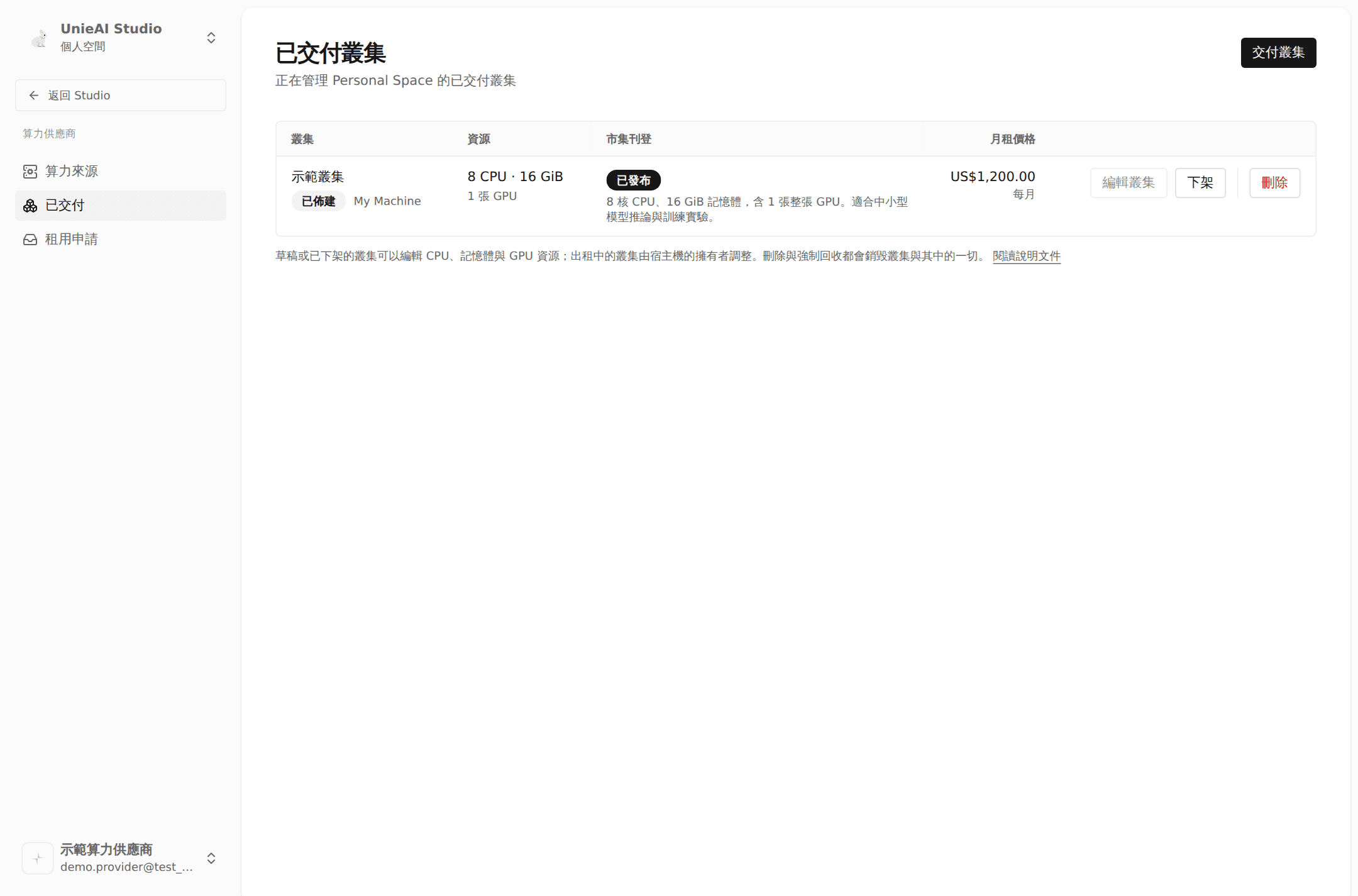
Part 4. Provider: list it on the compute marketplace
Publish from "Delivered"
The new cluster is listed under Delivered, marked Provisioned with the listing in Draft.
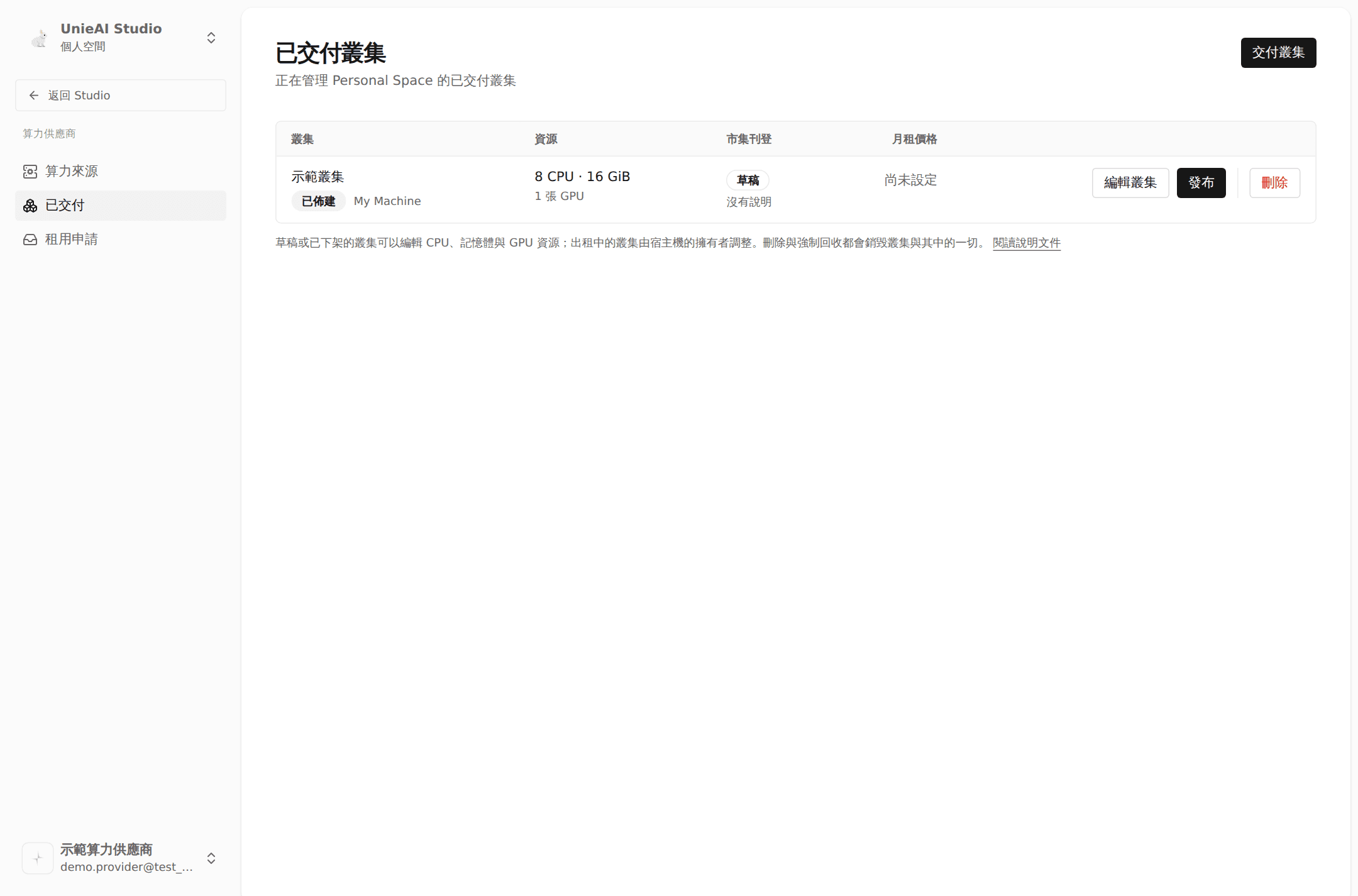
Click Publish on that row.
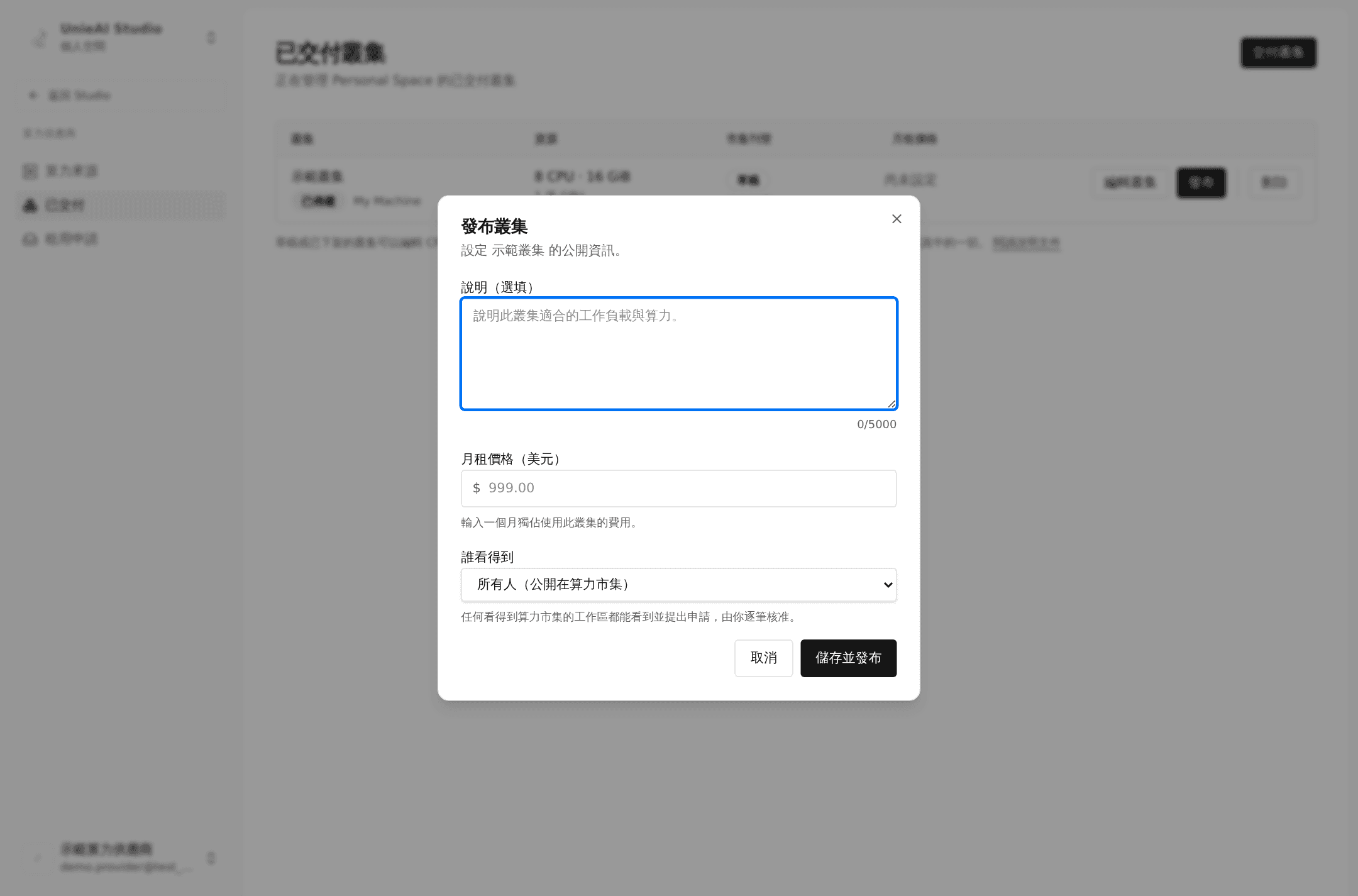
Fill in the listing
- Description (optional): what workloads this machine suits
- Monthly price (USD): the cost of exclusive use for one month
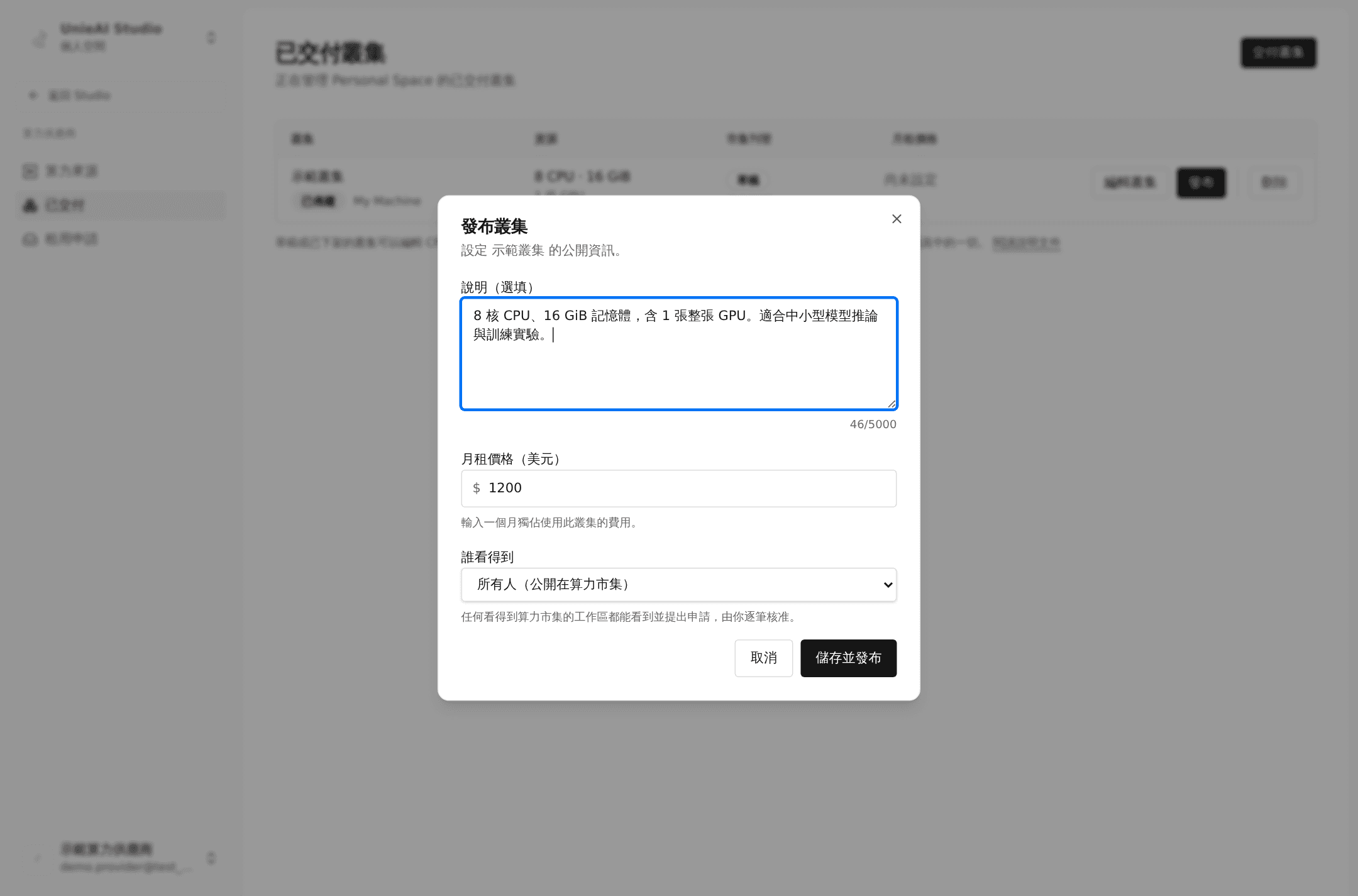
Decide who can see it
This choice determines what happens next:
| Choice | Who sees it | After they apply |
|---|---|---|
| Everyone (public on the marketplace) | Any workspace that can see the marketplace | The request lands in your Rental requests queue for case-by-case approval |
| Specific organization / person | Only the party you name | Delivered immediately — no approval step |
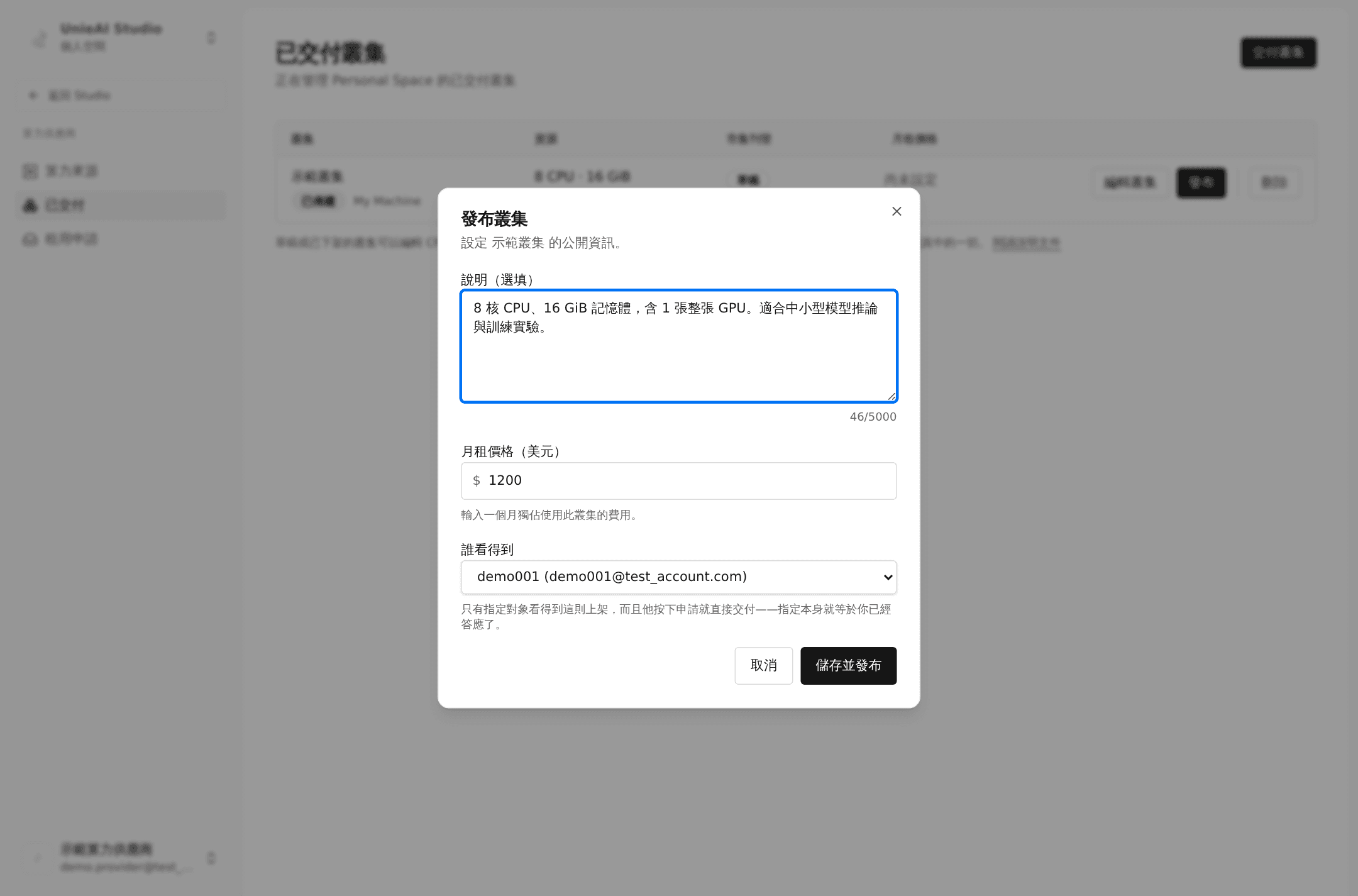
Naming a recipient is the approval. If you want to hold the decision, choose "Everyone" and approve case by case.
Part 5. Tenant: rent from the compute marketplace
Check your workspace first
Look at the top left. The machine is delivered to the workspace currently selected, not to you personally. To rent on behalf of an organization, switch to that workspace first.
Open the compute marketplace
Sidebar → Compute marketplace. Each row shows compute, accelerators, availability, and monthly price.
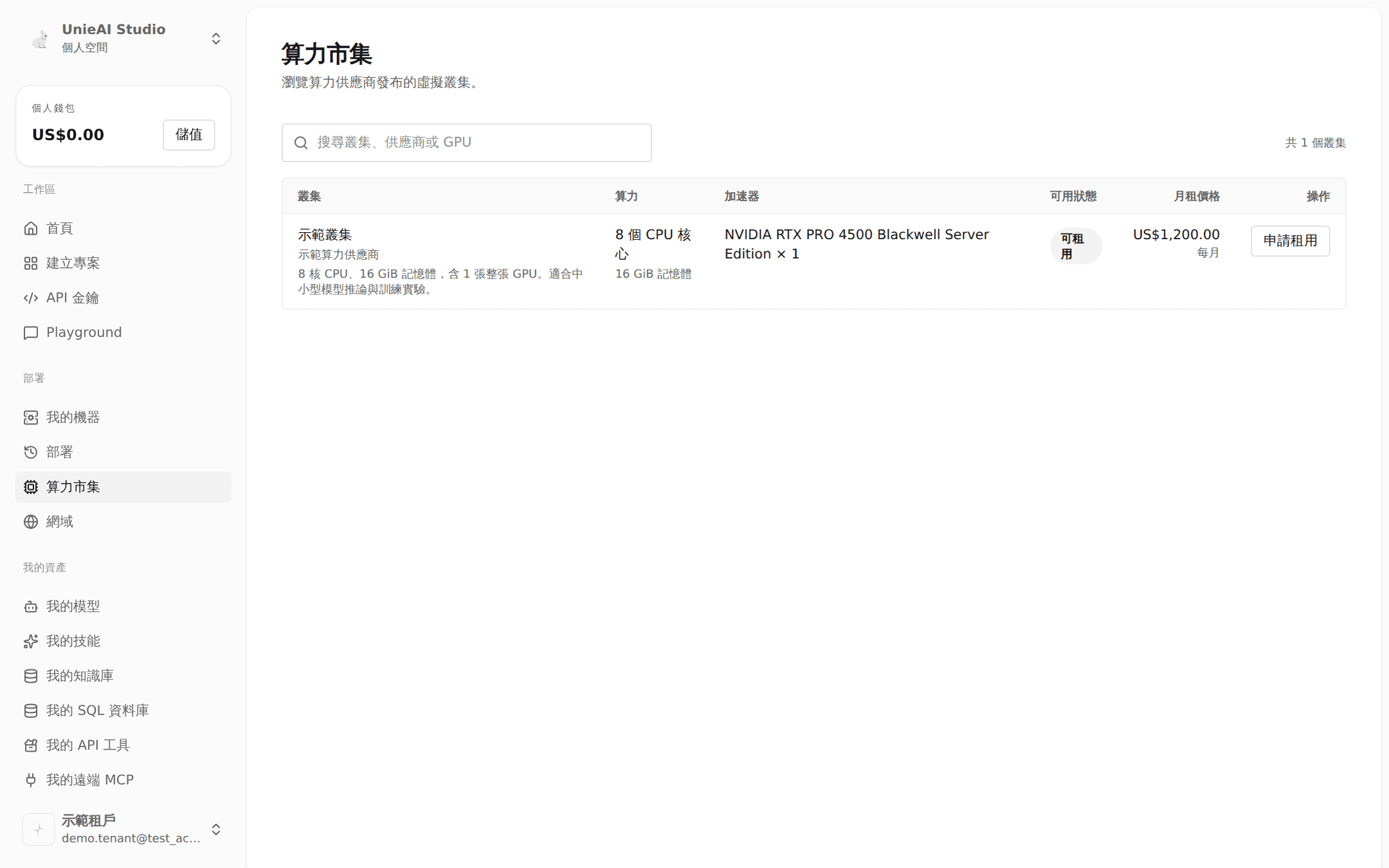
Not seeing a machine does not mean it does not exist — providers can target a listing at a specific organization or person, and only that party sees it.
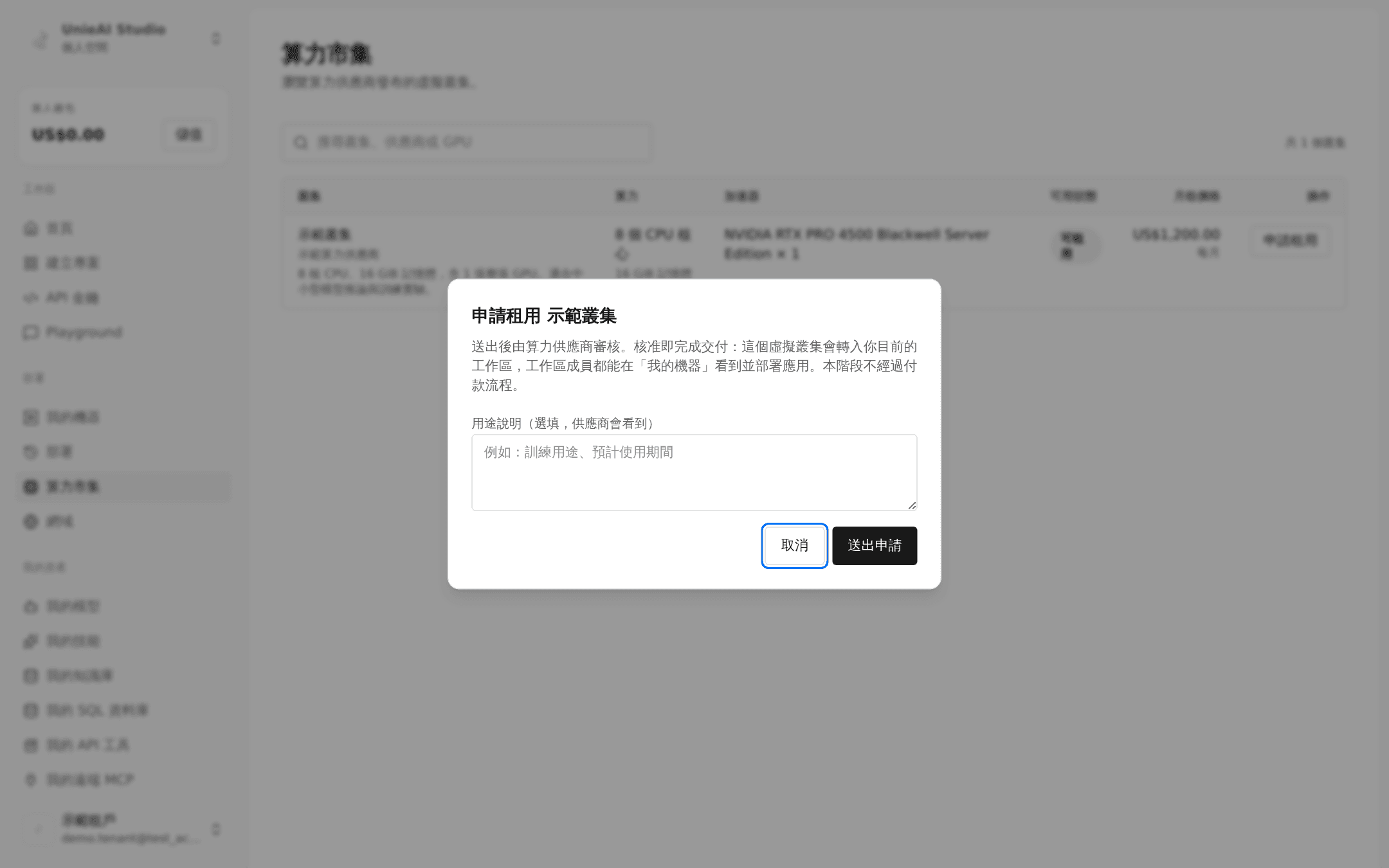
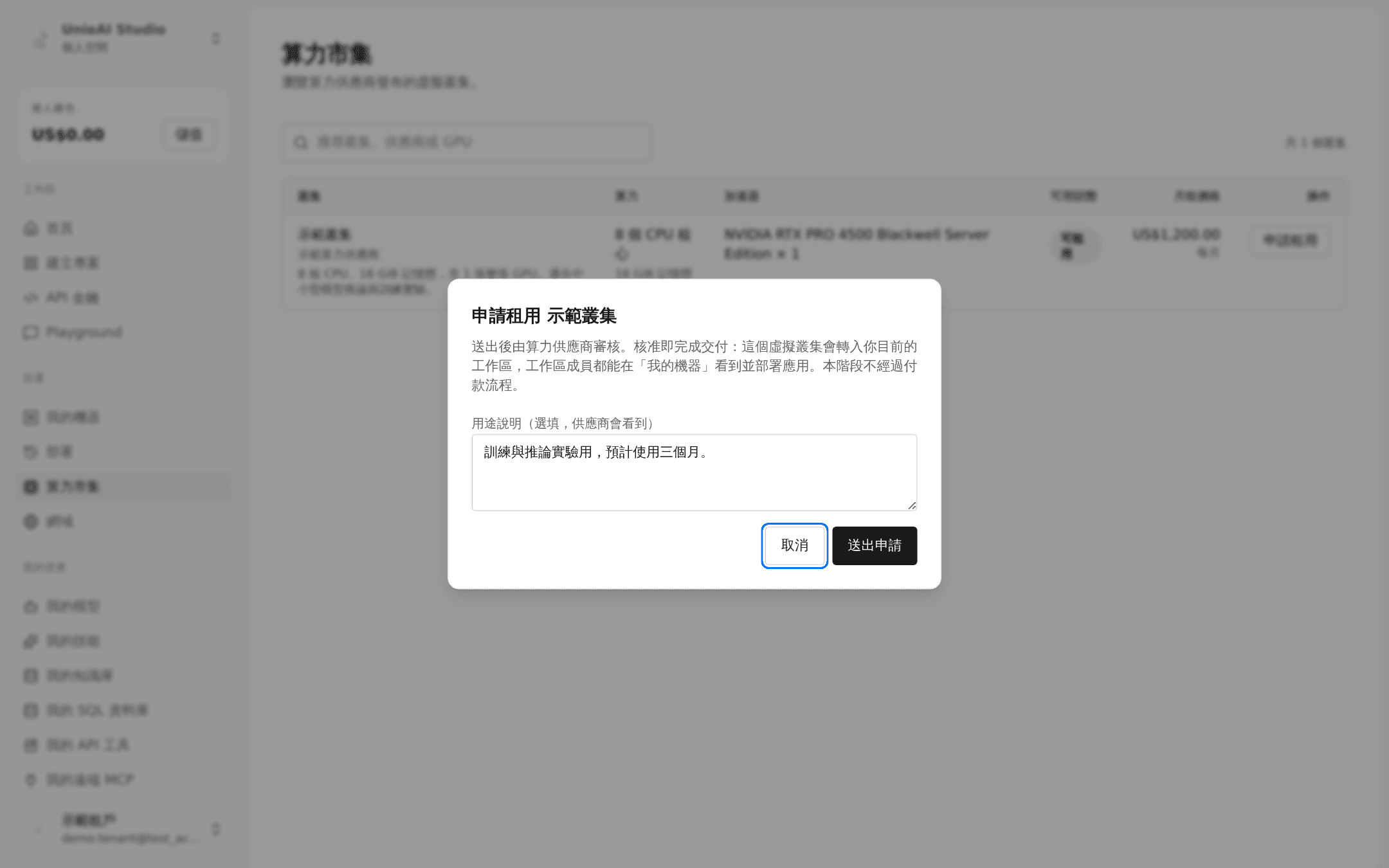
Wait — or get it immediately
Normally the row turns to Under review until the provider decides; Withdraw cancels it.
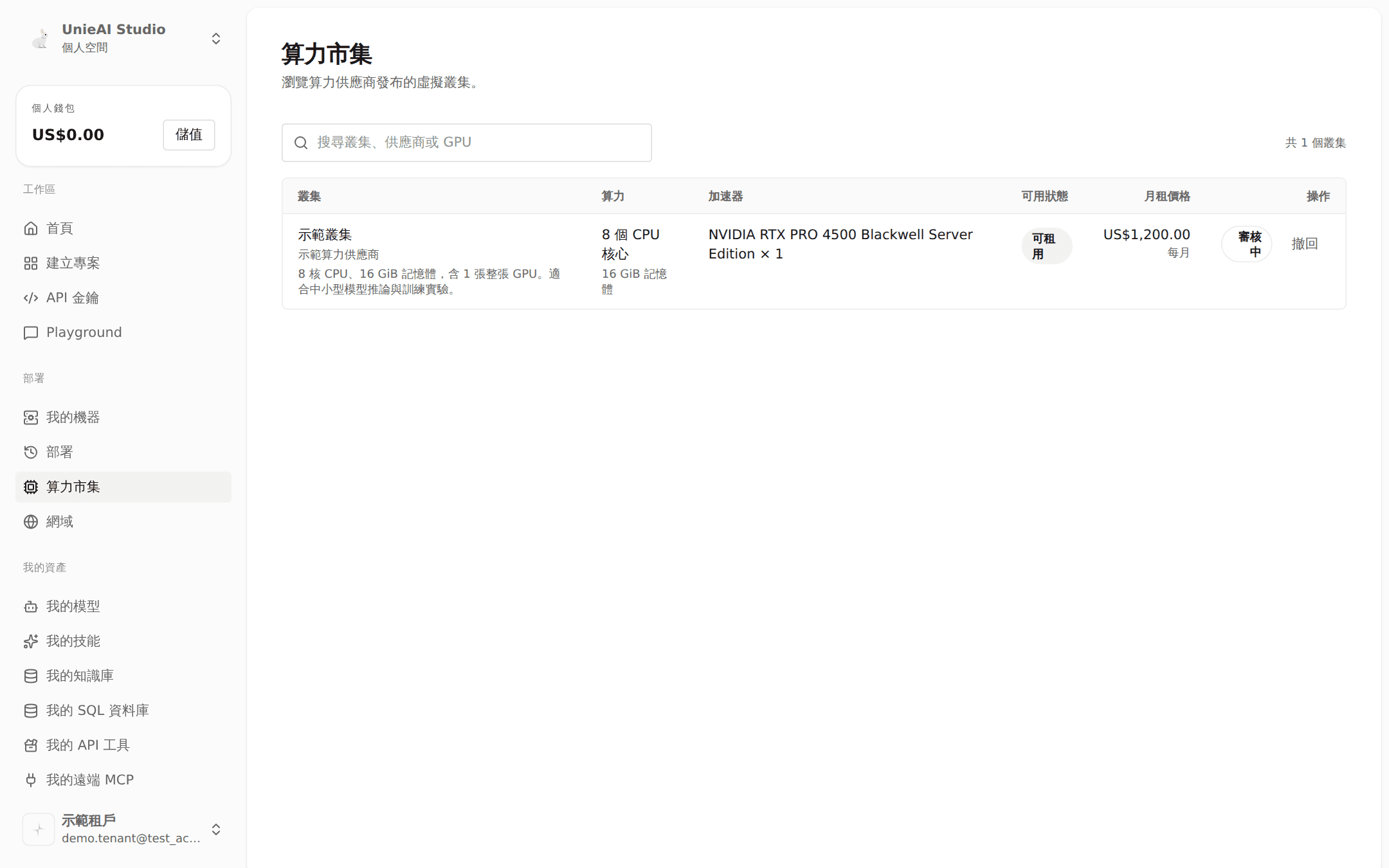
If the listing was targeted at you, applying completes the delivery immediately.
Part 6. Provider: review and deliver
Compute provider → Rental requests, split into Pending, Rented out, and History.
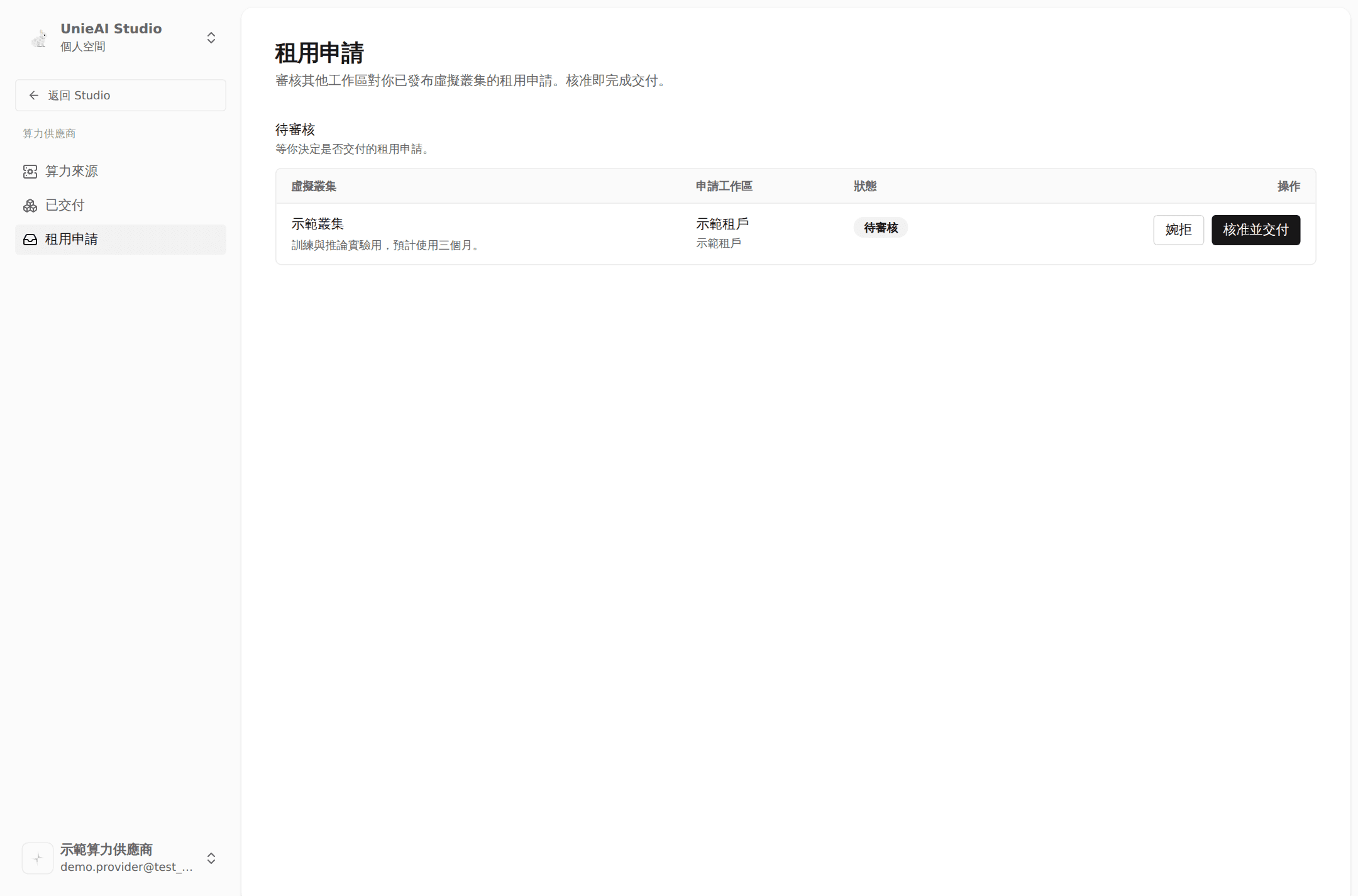
Click Approve and deliver. The confirmation spells out what happens:
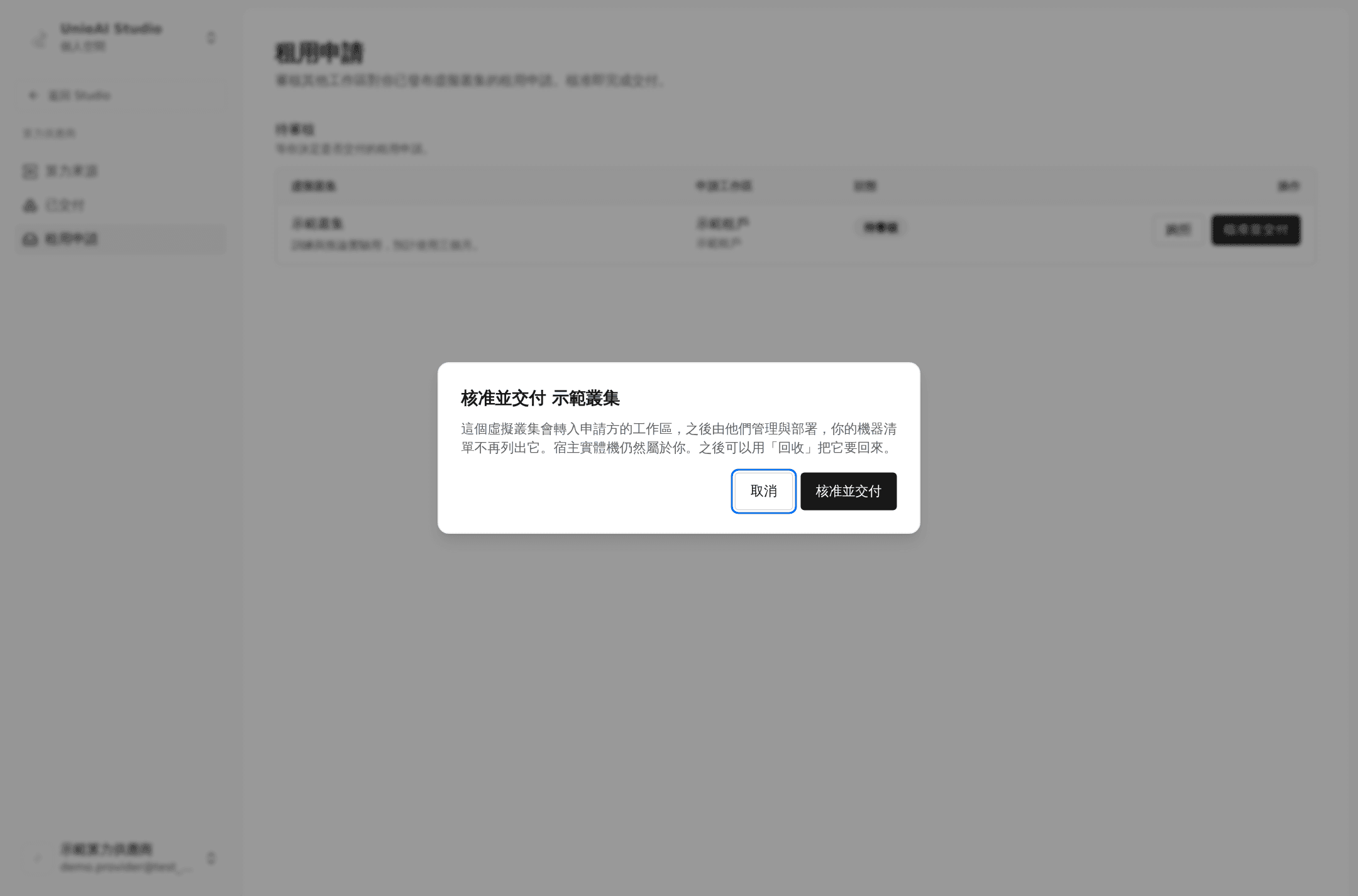
- The virtual cluster moves into the applicant's workspace, and they manage and deploy on it
- Your machine list stops showing it
- The host physical machine still belongs to you
- Other pending requests for the same machine are voided automatically
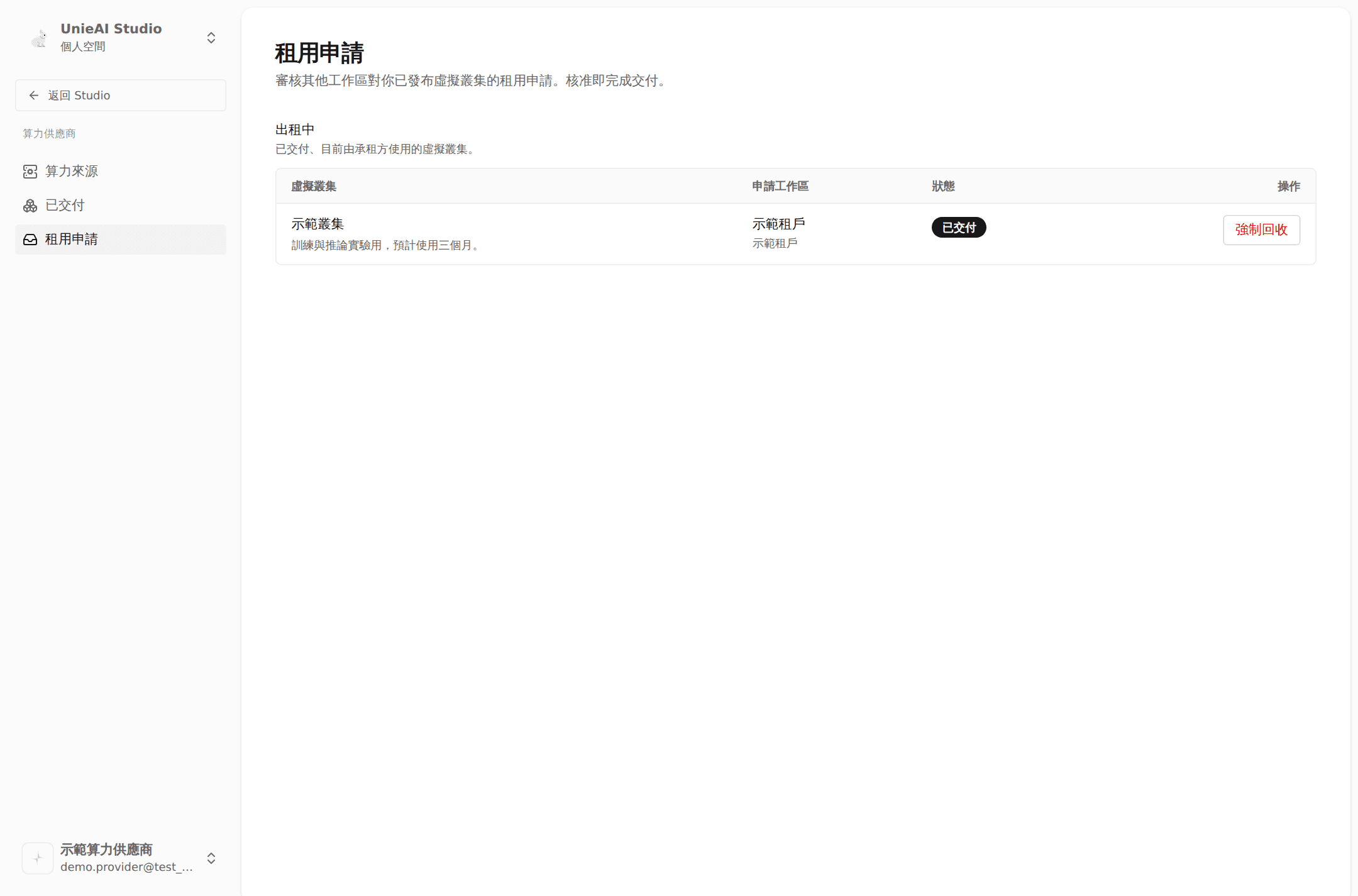
After delivery the row moves to Rented out.
To turn a request down, click Decline and optionally give a reason (the applicant sees it). The virtual cluster stays with you and remains published.
Part 7. Tenant: after the machine arrives
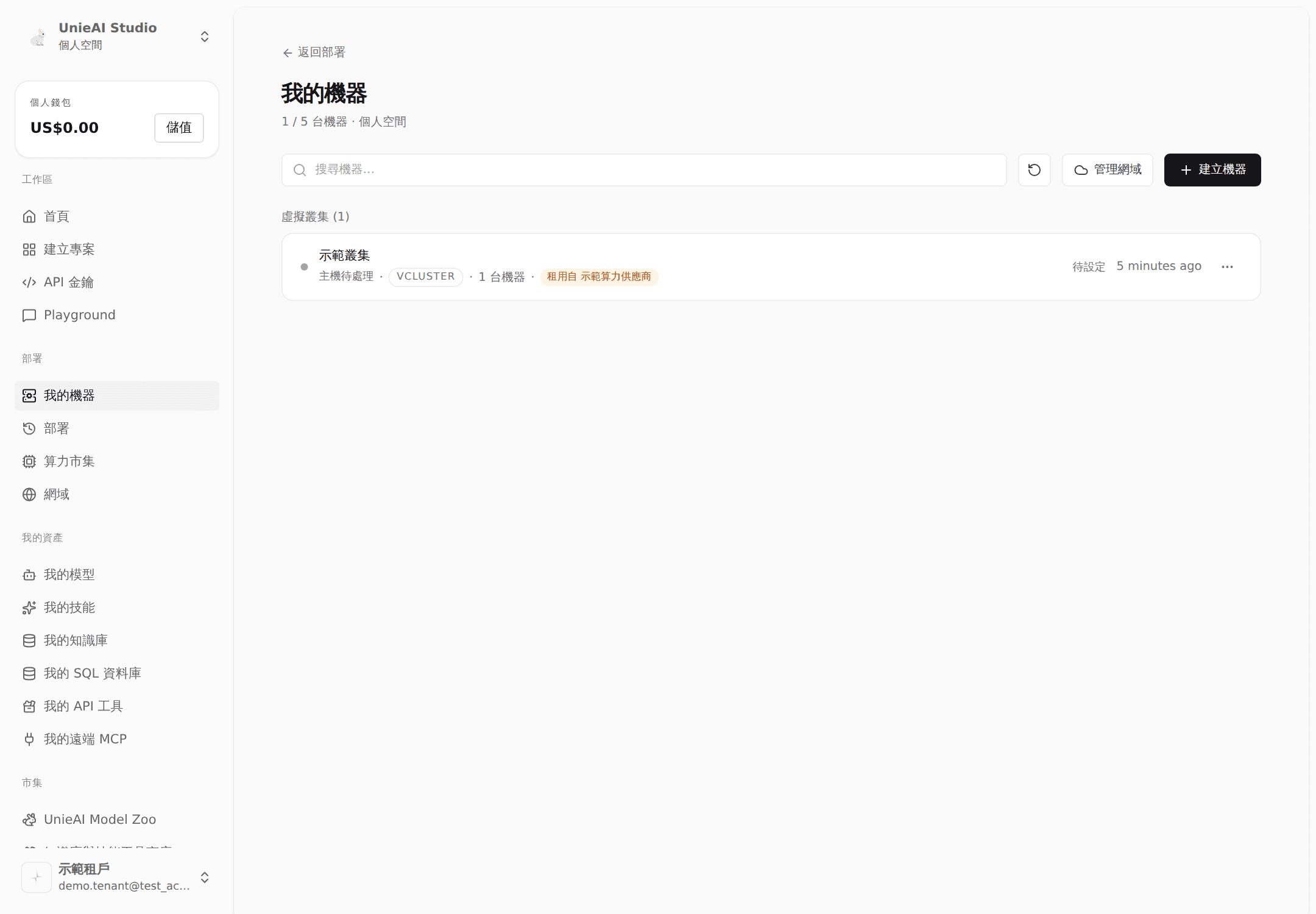
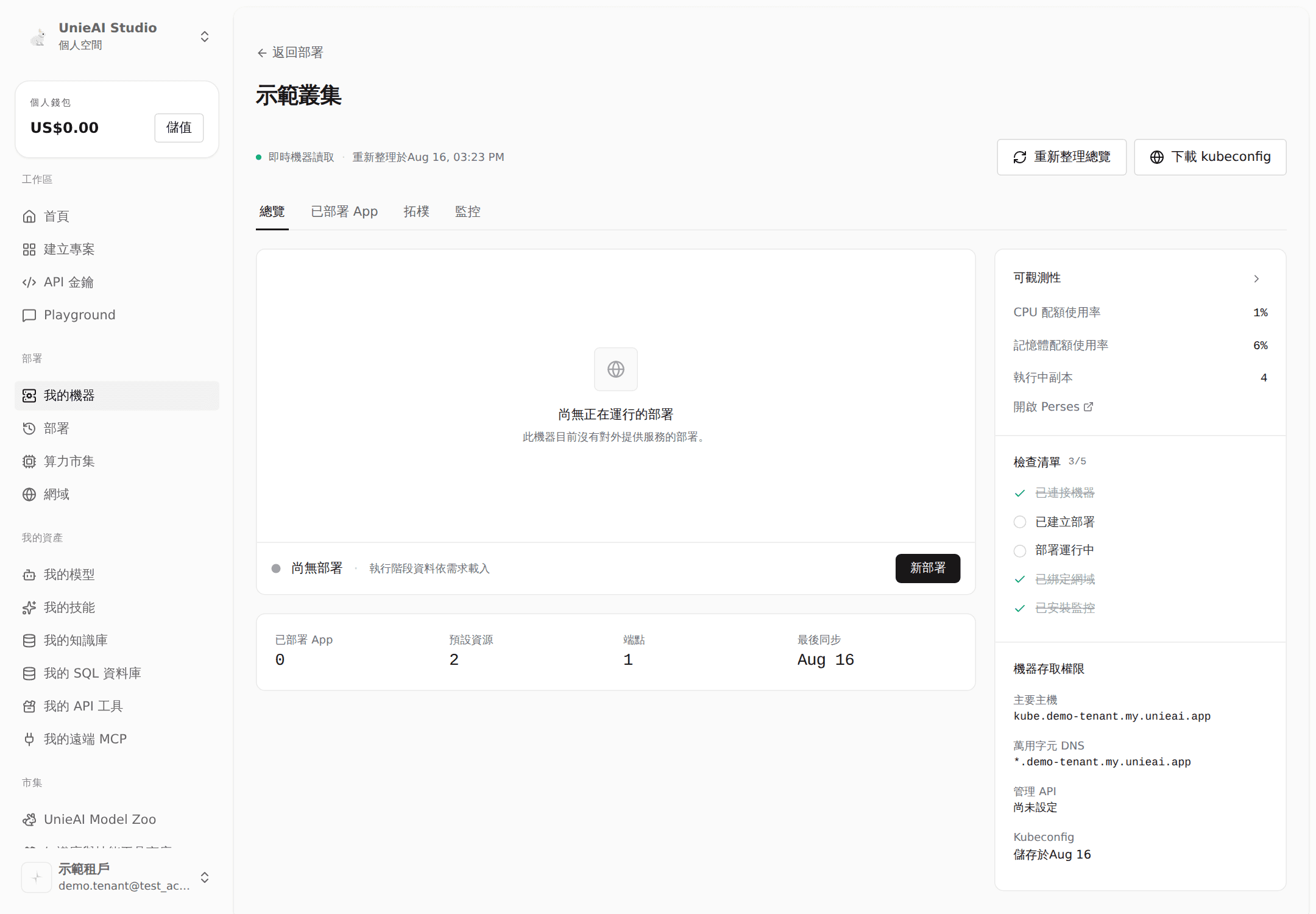
Back in Deploy → My machines, it appears under Virtual clusters, labeled Rented from “provider”, in the Setup required state.
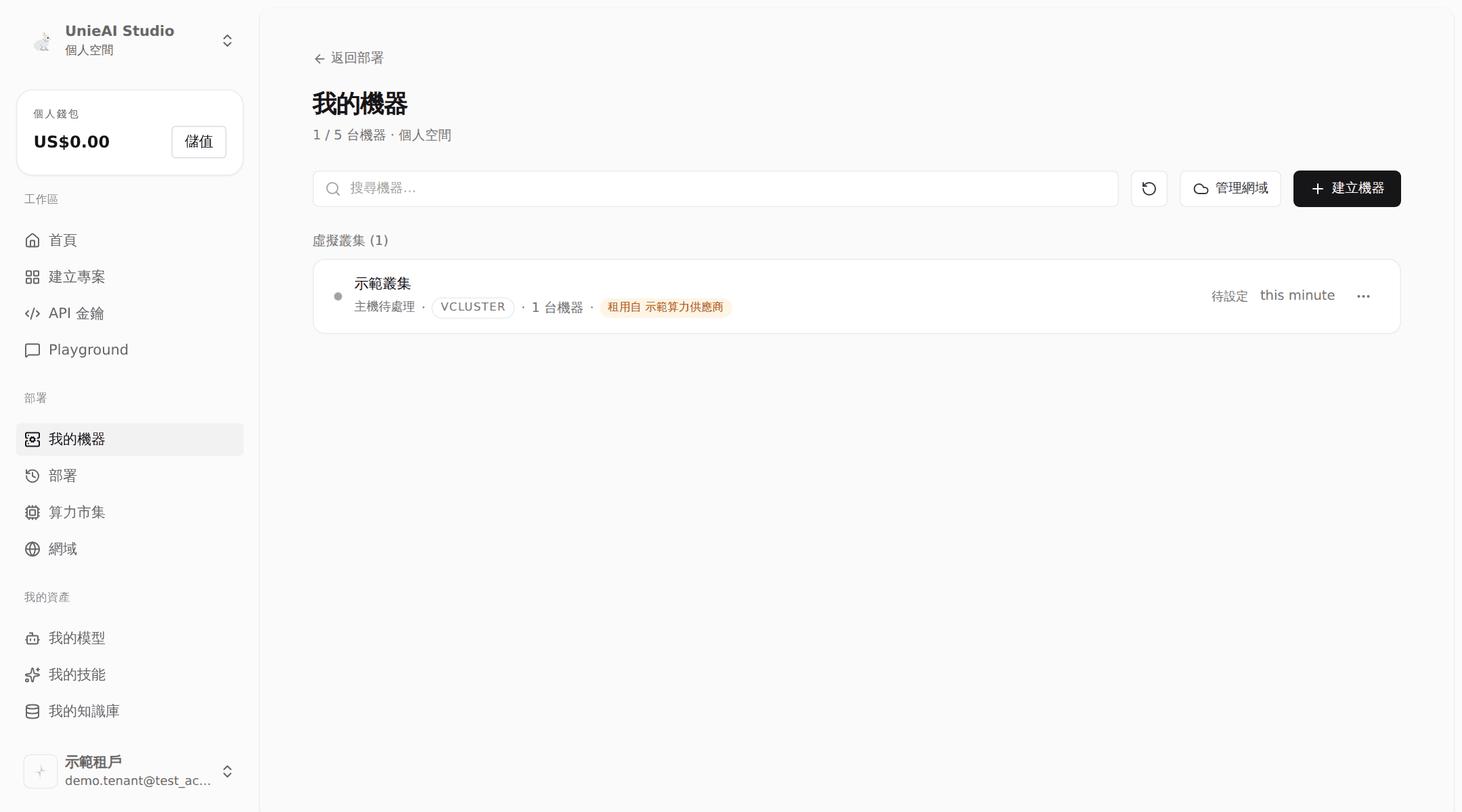
Setup required means one round of cluster setup is still needed before you can deploy. That is Part 8.
Part 8. Tenant: create a domain and finish cluster setup
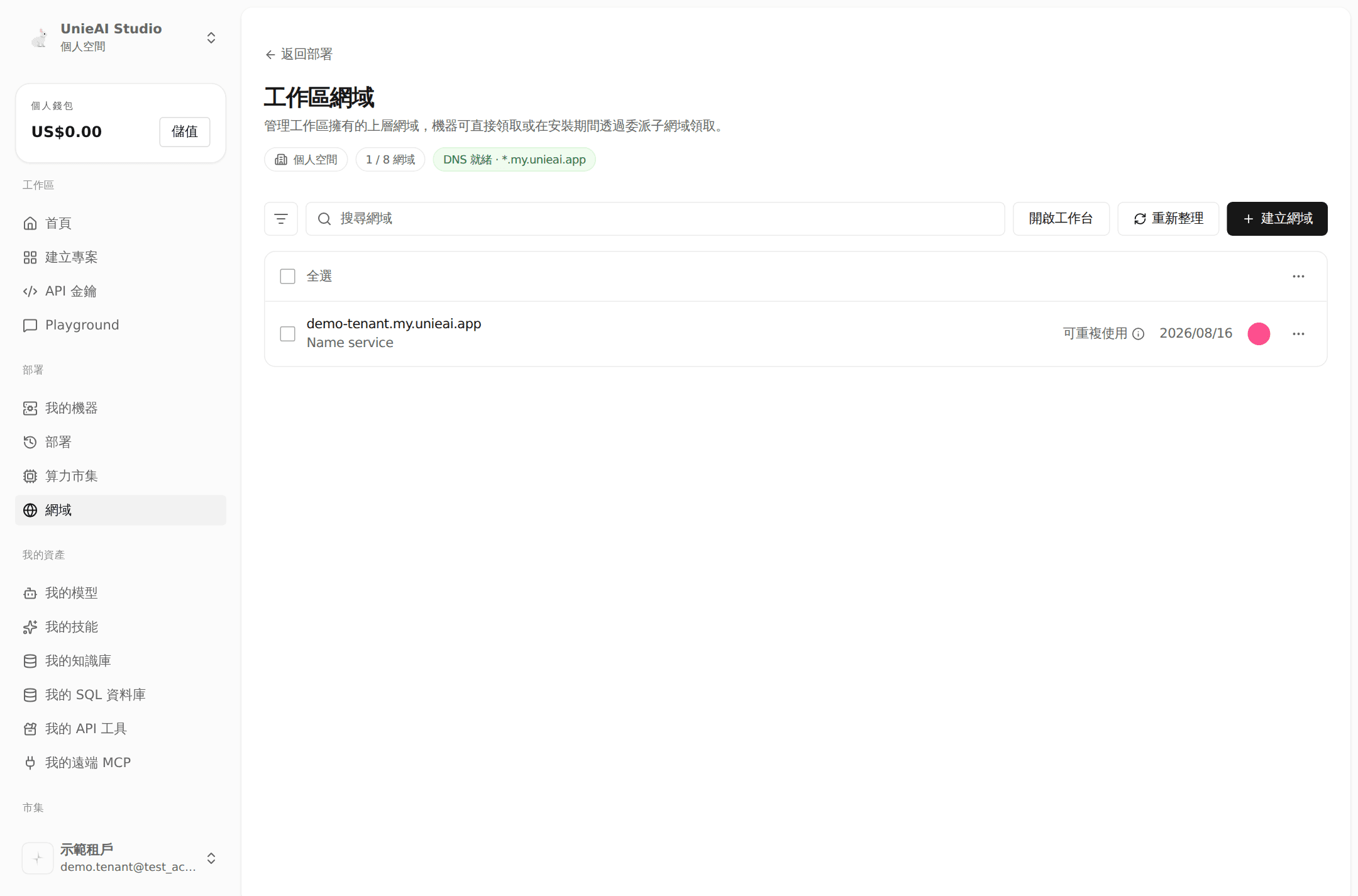
Every deployed app needs a public address, and that address comes from a workspace domain.
Check for an available domain
Sidebar → Deploy → Domains. The platform's DNS status is shown at the top. If the list is empty, create one first.
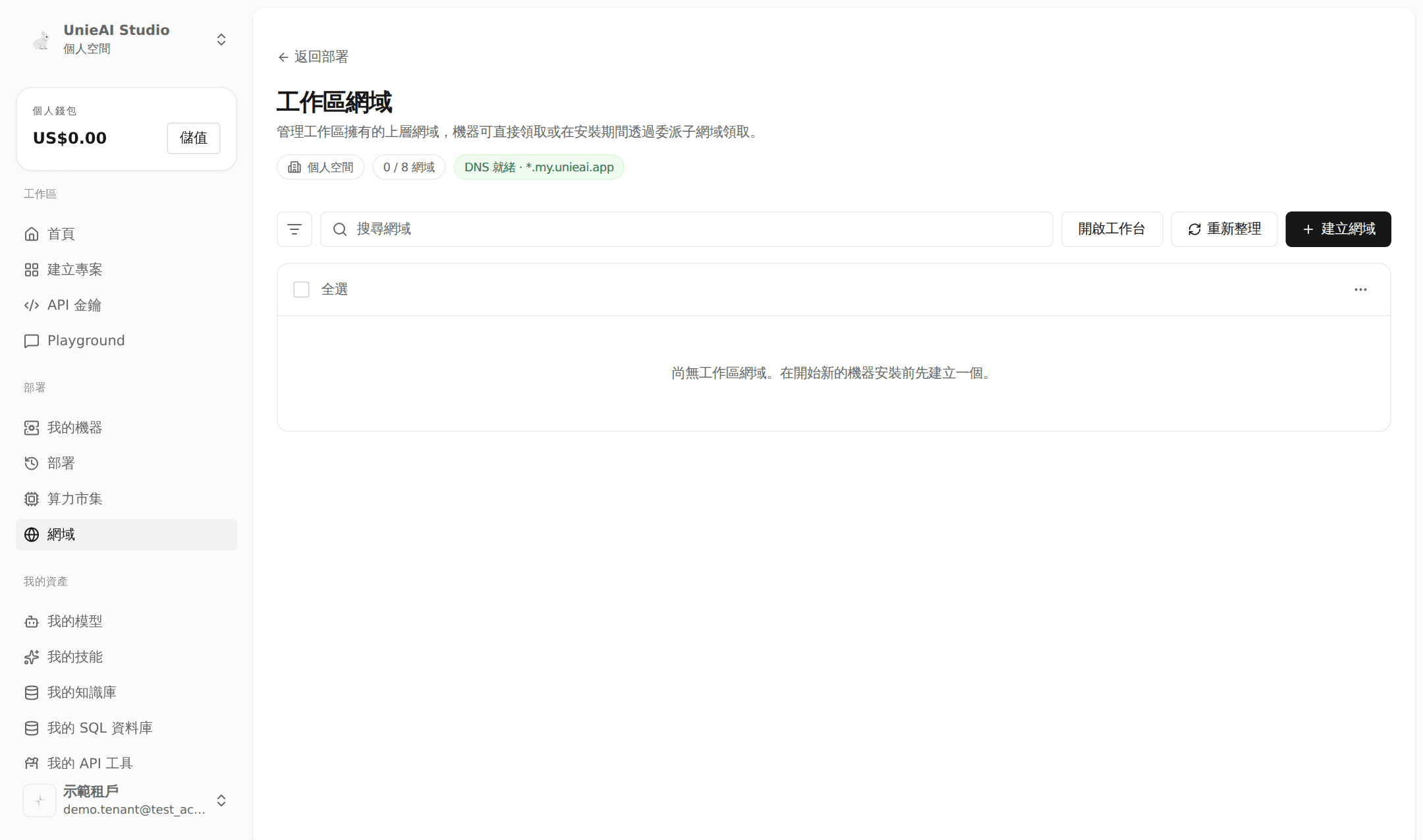
Create a domain
Click Create domain at the top right.
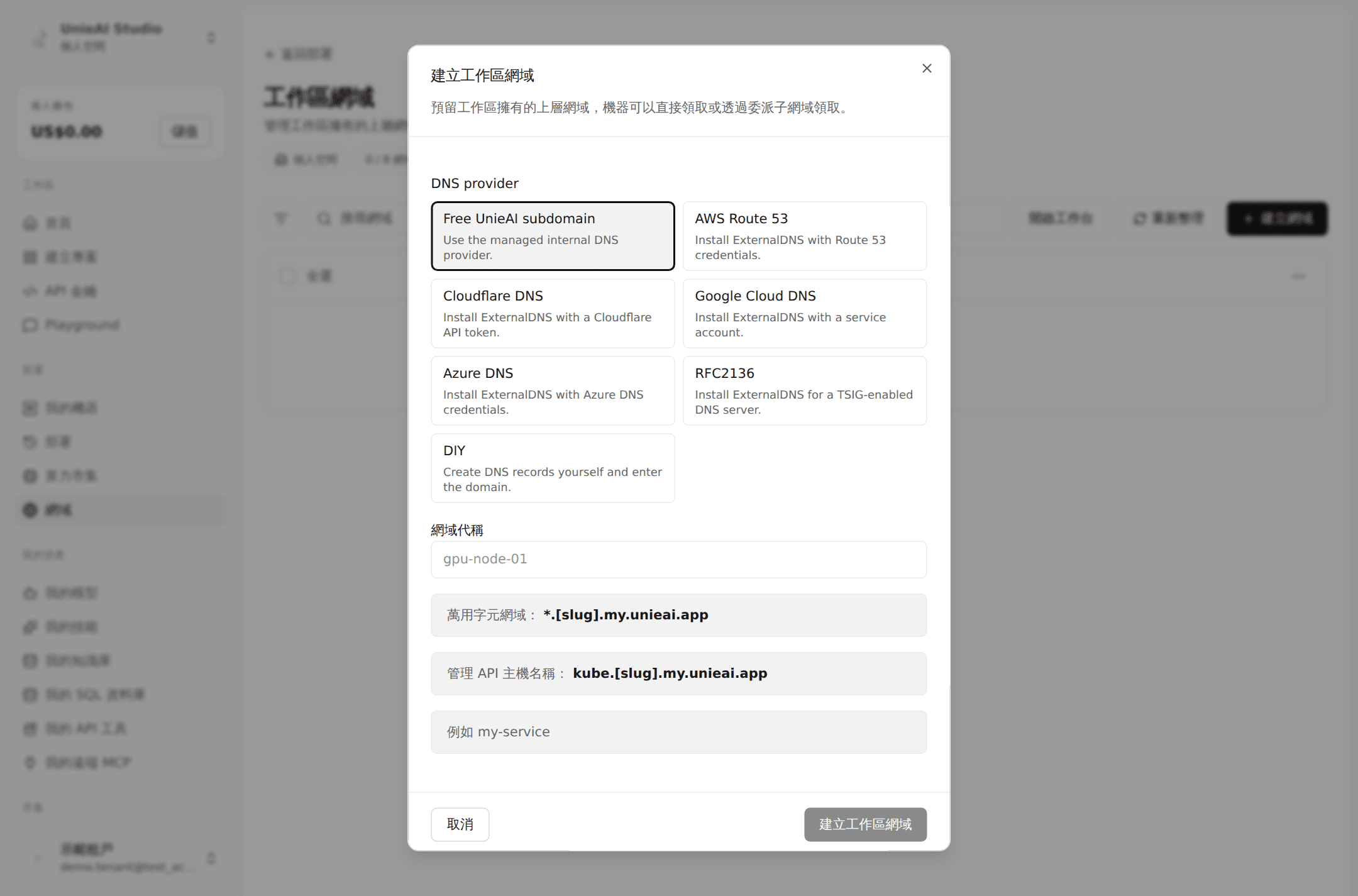
- Pick a DNS provider. The simplest is Free UnieAI subdomain (platform-managed) — no DNS records of your own. You can also connect Route 53, Cloudflare, Google Cloud DNS, Azure DNS, RFC2136, or choose DIY and create the records yourself.
- Enter a domain alias. The resulting wildcard domain and management API hostname update live.
- Click Create workspace domain.
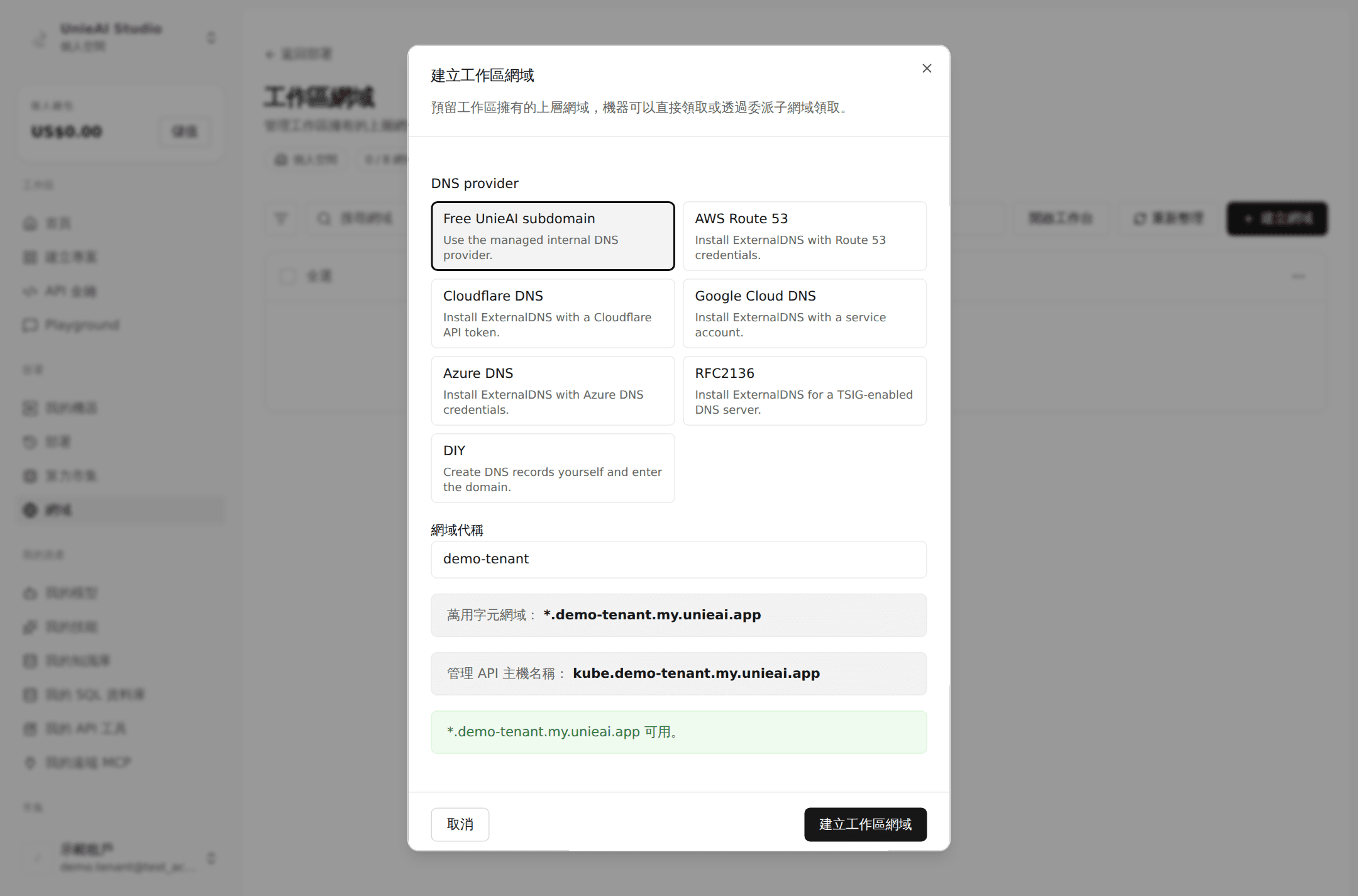
It then appears in the list marked Reusable — meaning no machine has claimed it yet.
Set up the cluster
Back in My machines, open the virtual cluster in the Setup required state.
"Set up the delivered cluster" lists what the platform is about to configure: the Kubernetes API domain, shared ingress and storage, and monitoring.
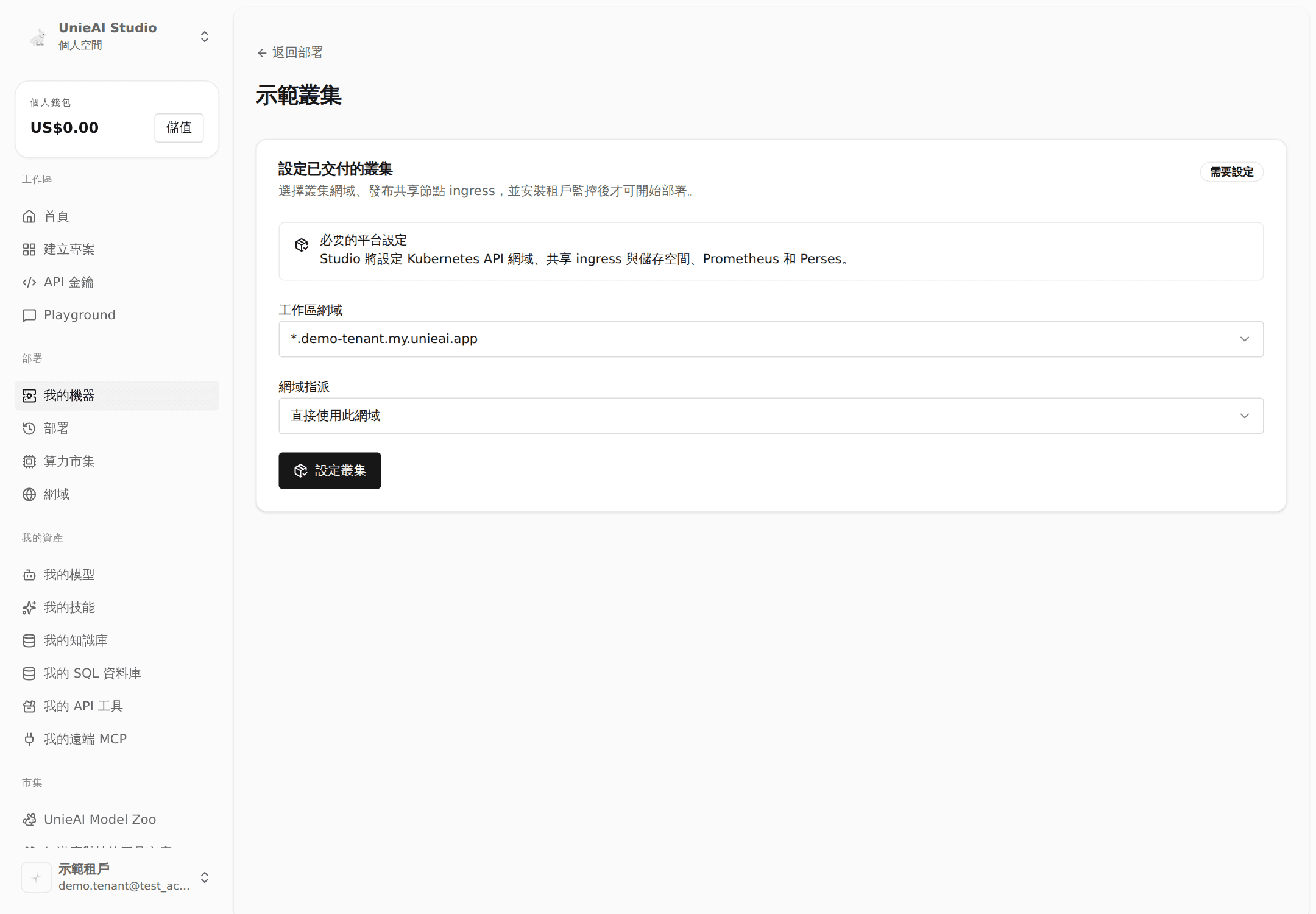
- Choose a workspace domain
- Choose how the domain is assigned: use this domain directly, or delegate a subdomain (which needs a subdomain label)
- Click Set up cluster
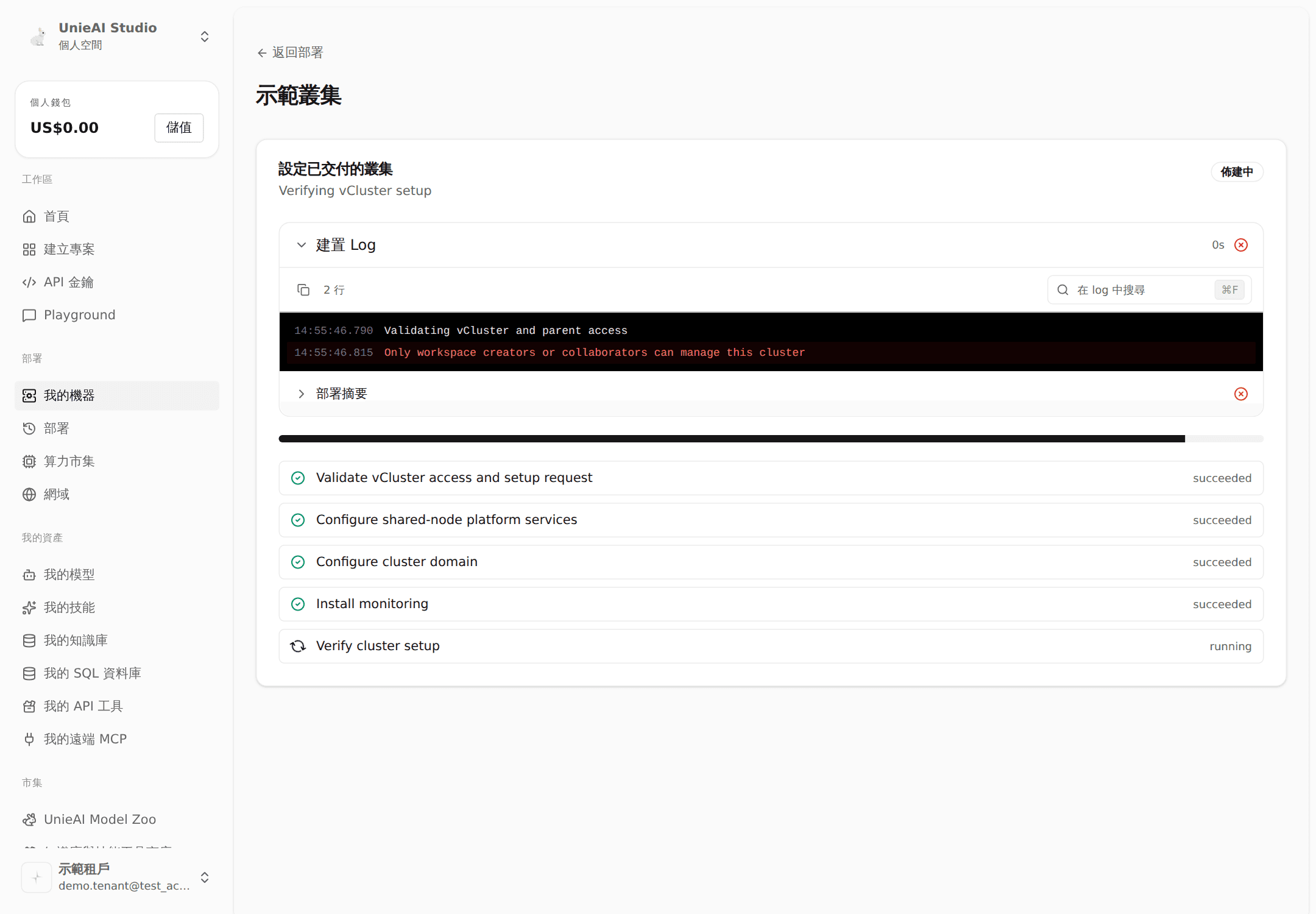
Setup runs in the background with live progress and logs.
Part 9. Deploy your first app
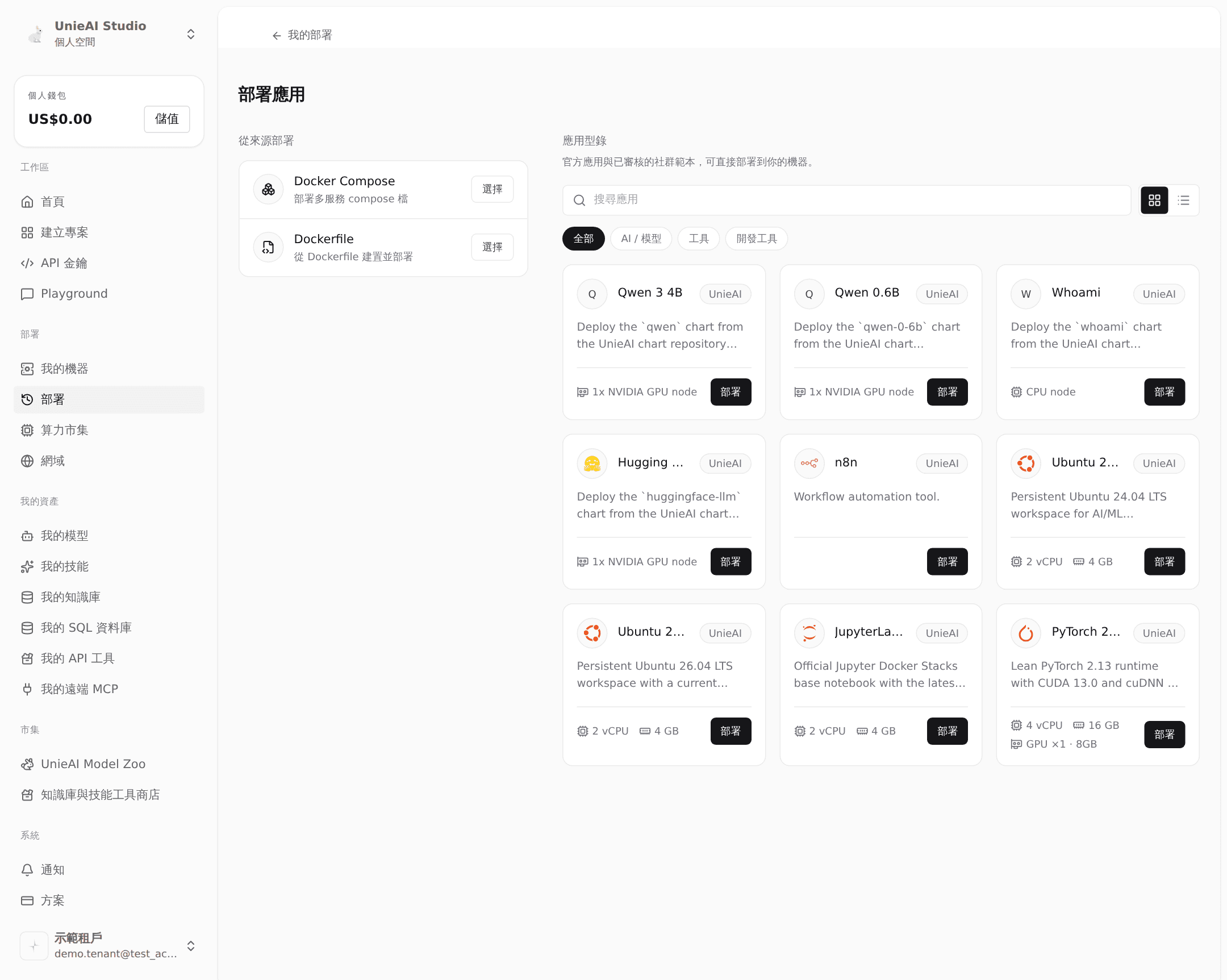
Every app in the catalog follows the same two steps first: pick the app, pick the machine.
Open the app catalog
Sidebar → Deploy → New at the top right. Custom sources (Docker Compose / Dockerfile) are on the left; app templates are on the right, filterable by search or category.
Pick the app, then the machine
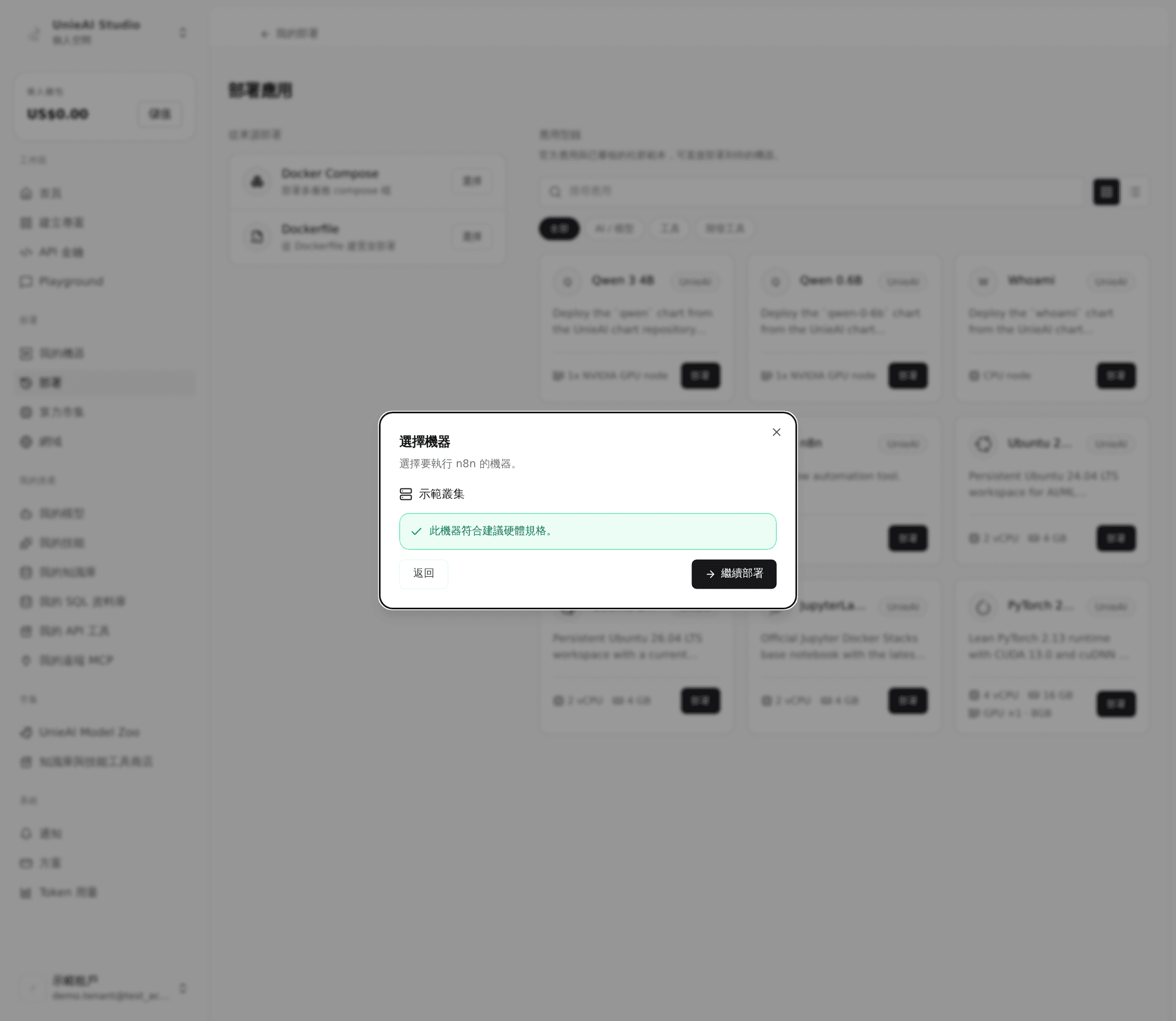
Click Deploy on a card. The platform compares the app's hardware requirements against the machine's capacity; confirm and click Continue.
From here the wizard depends on the app type.
Case A. An ordinary app (n8n)
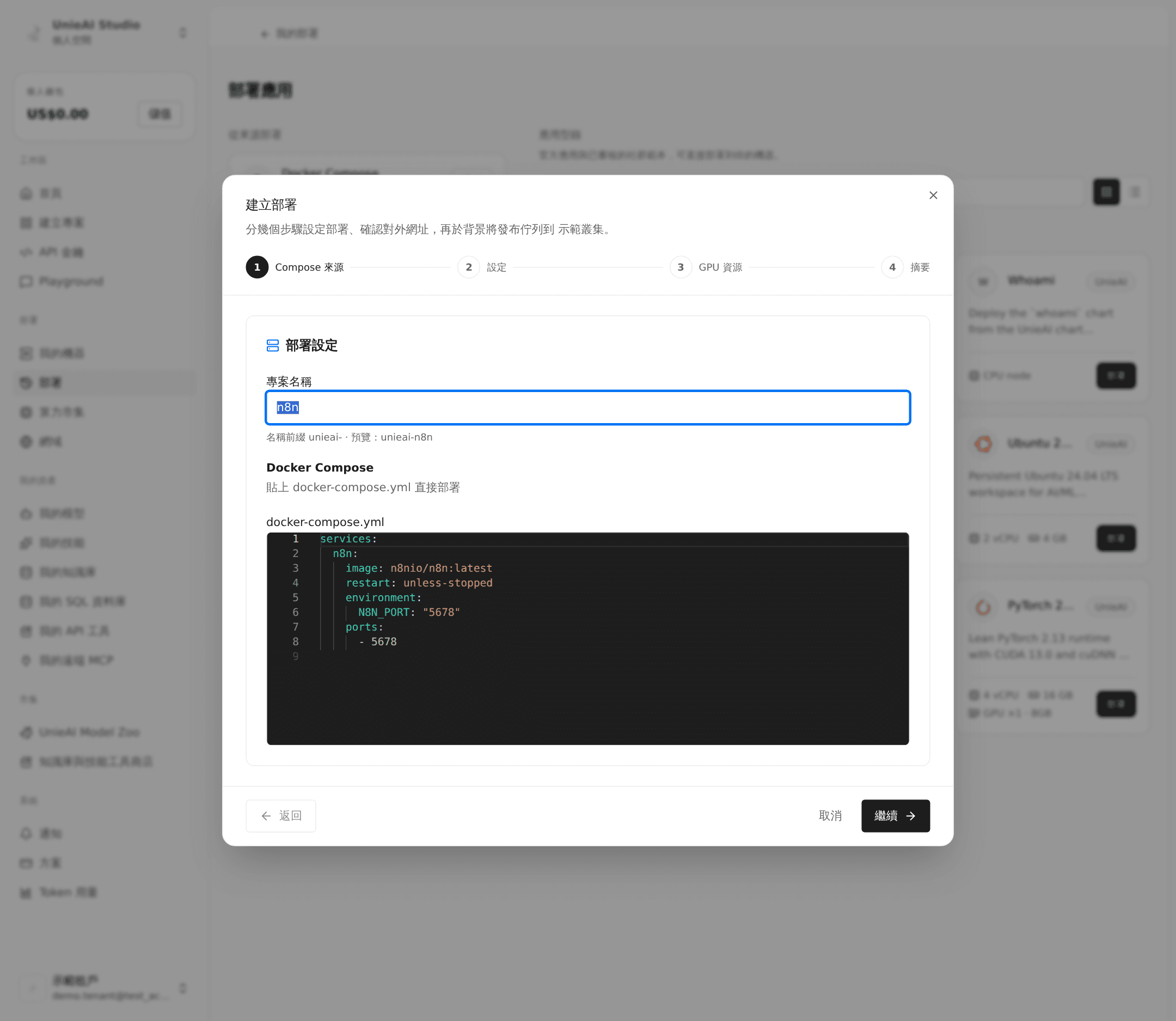
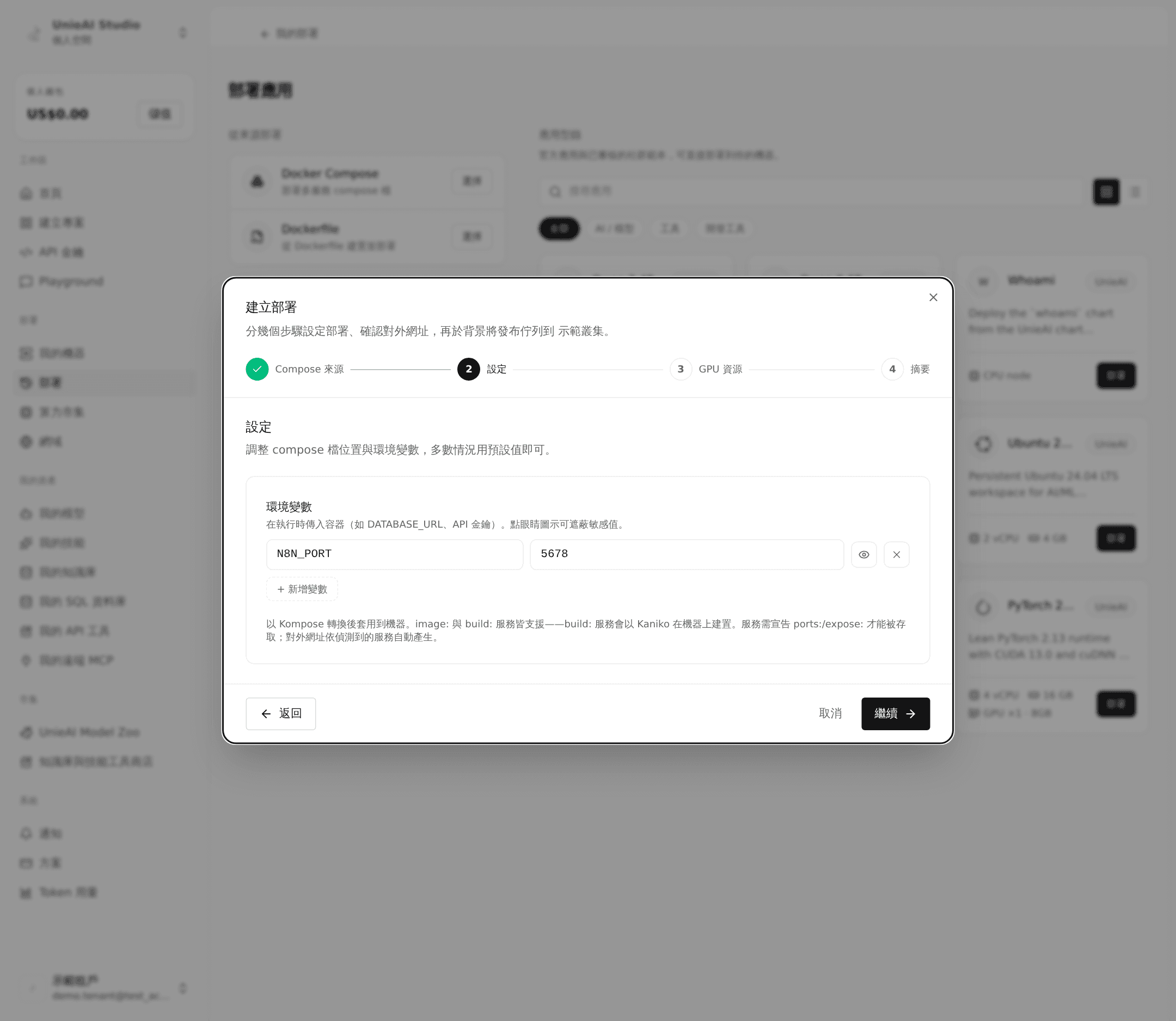
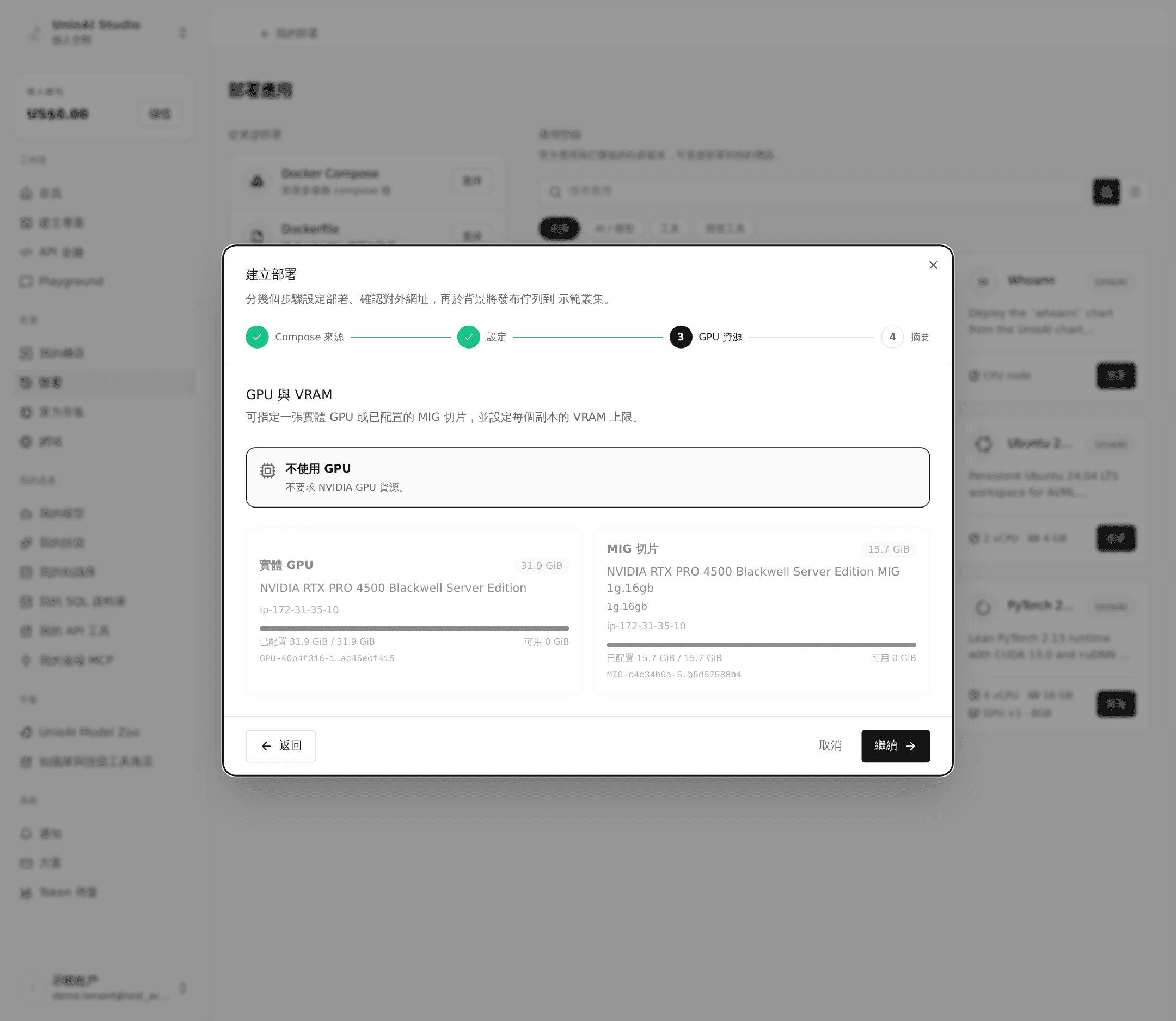
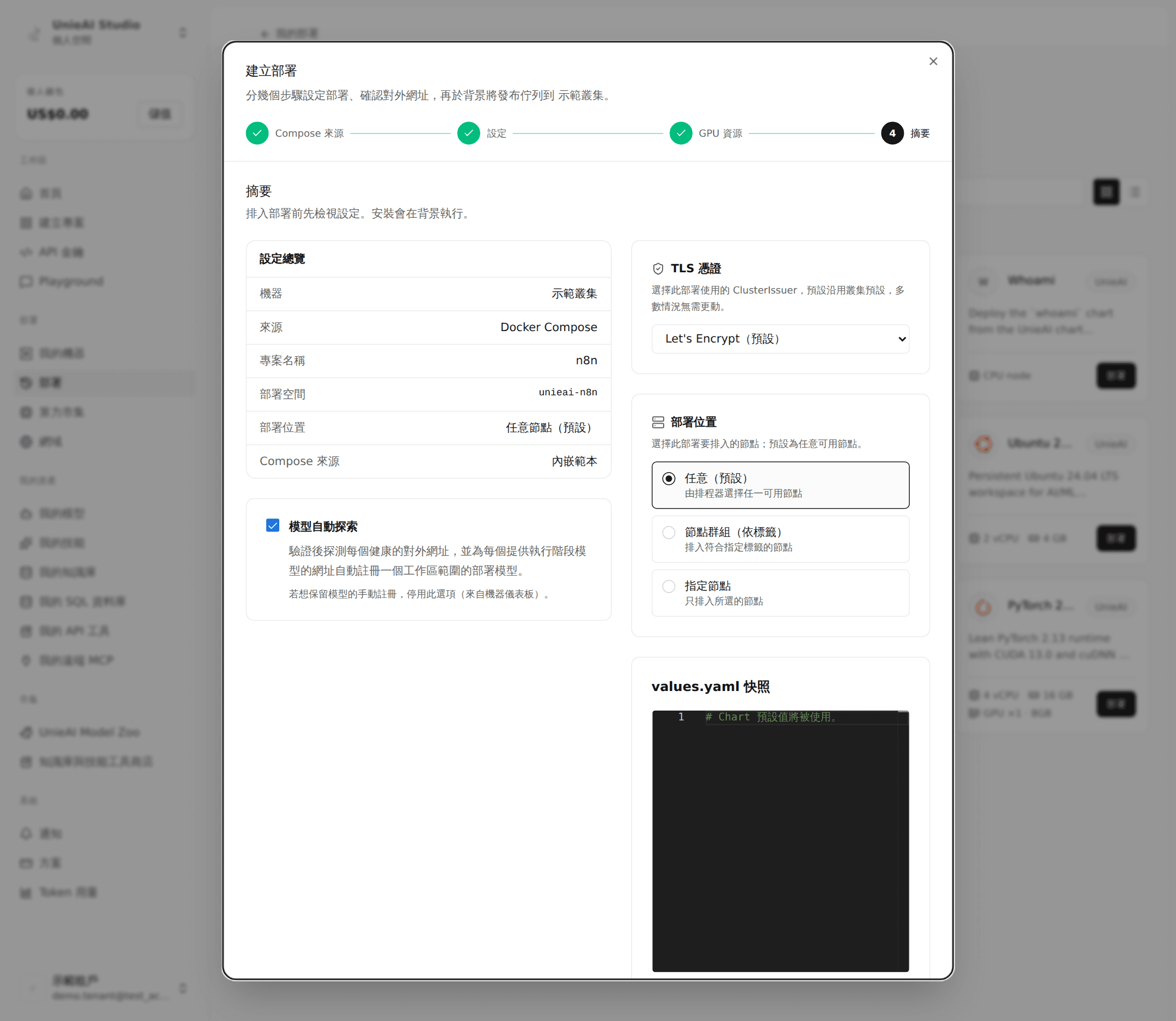
Docker Compose apps have four steps: Compose source → Settings → GPU resources → Summary.
Compose source: the template ships a docker-compose.yml, editable in place.
Settings: confirm file paths and environment variables.
GPU resources: n8n needs no GPU — choose No GPU.
Summary: review, then click Continue.
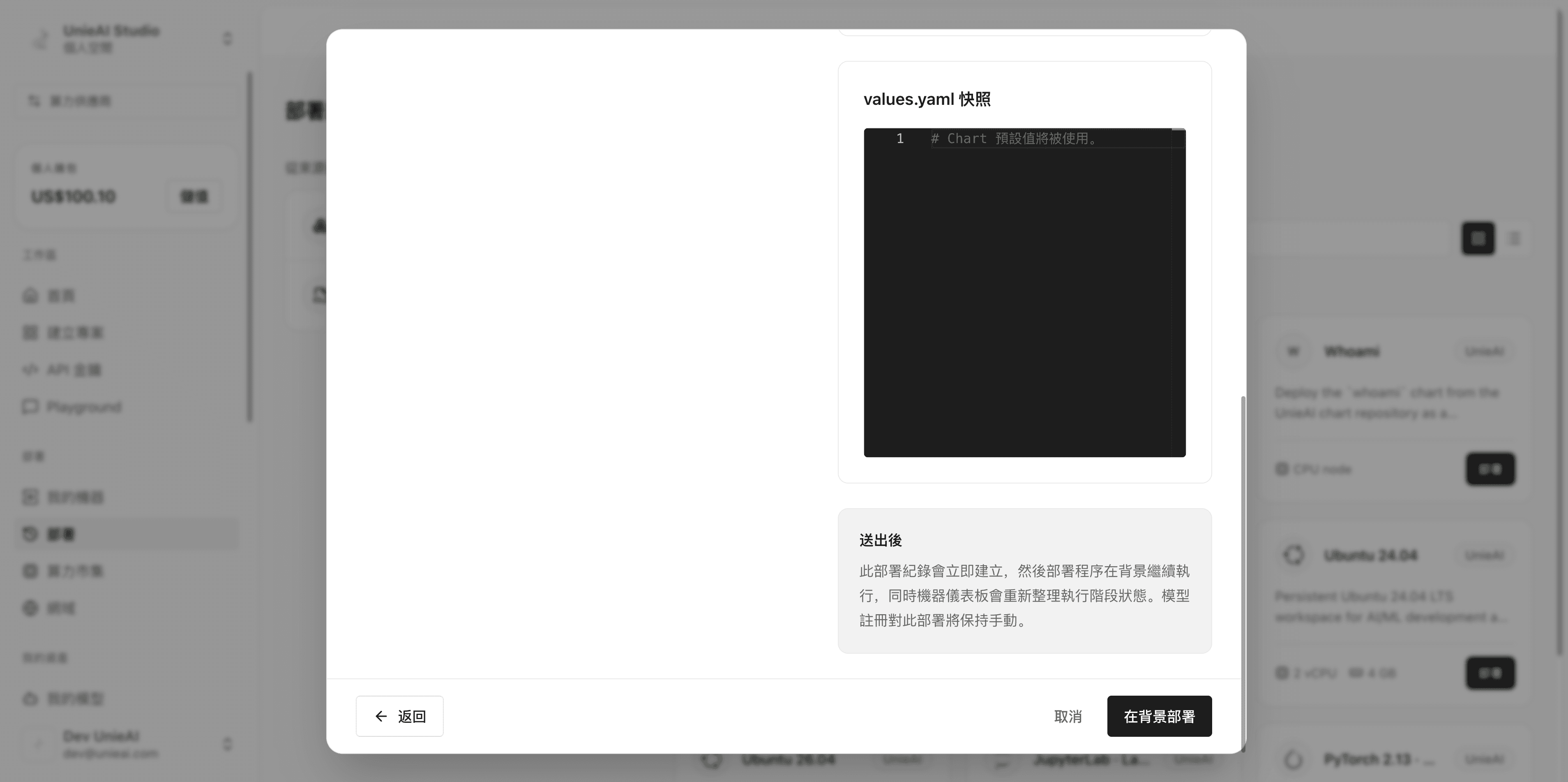
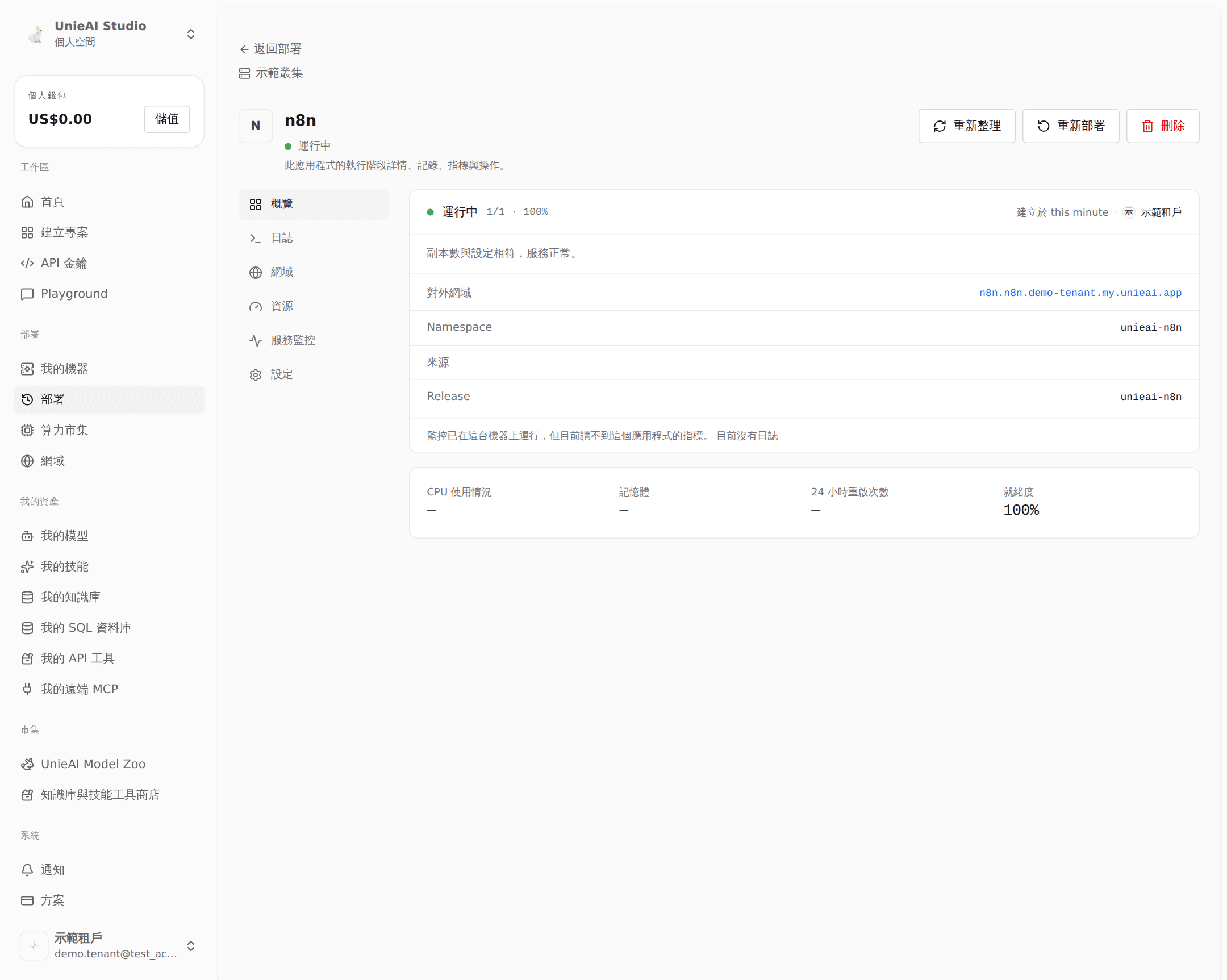
Watch it finish: installation runs in the background with live stages and logs.
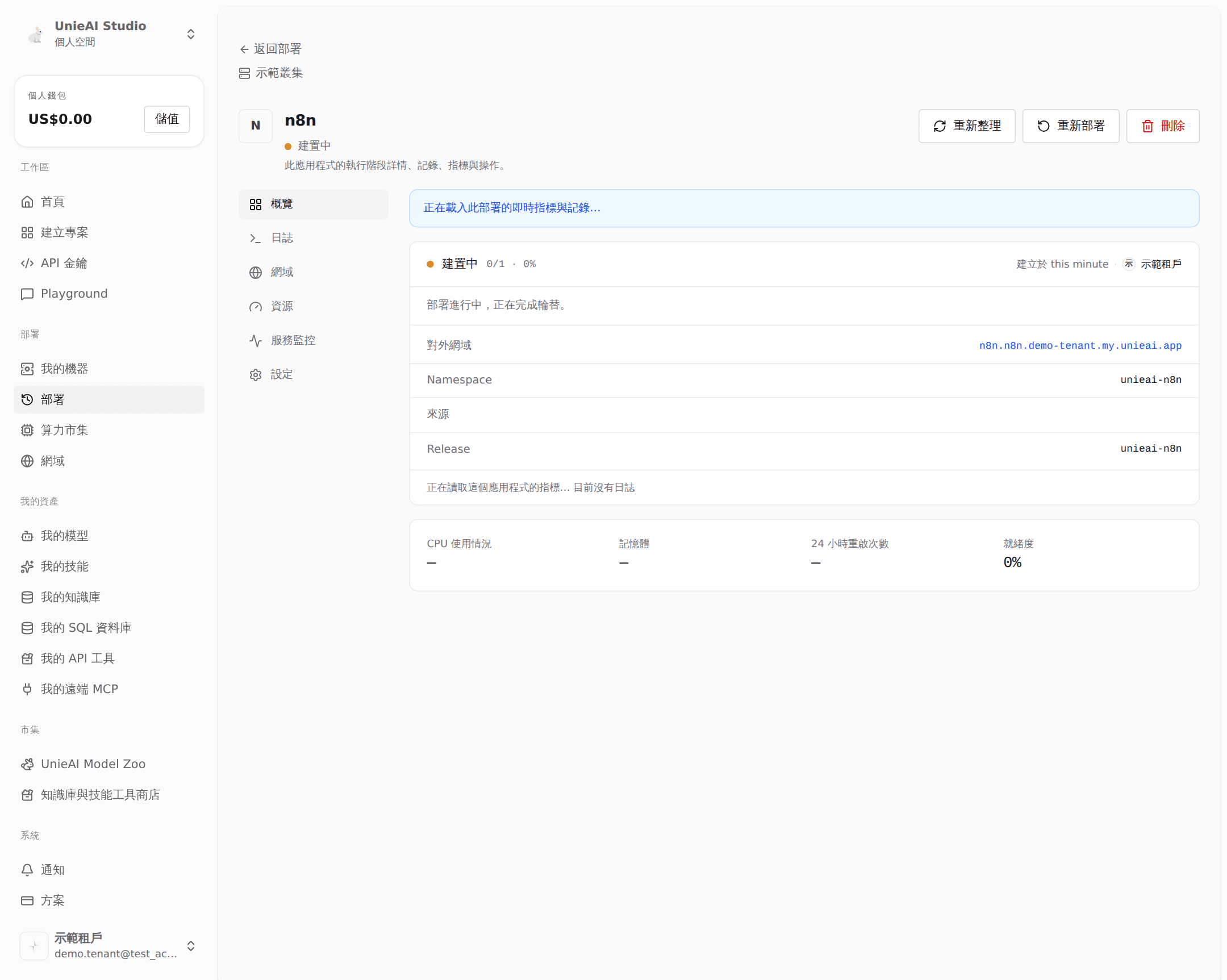
The status becomes Running.
Get the public URL: the Domains tab on the detail page shows it; open it and the app is live.
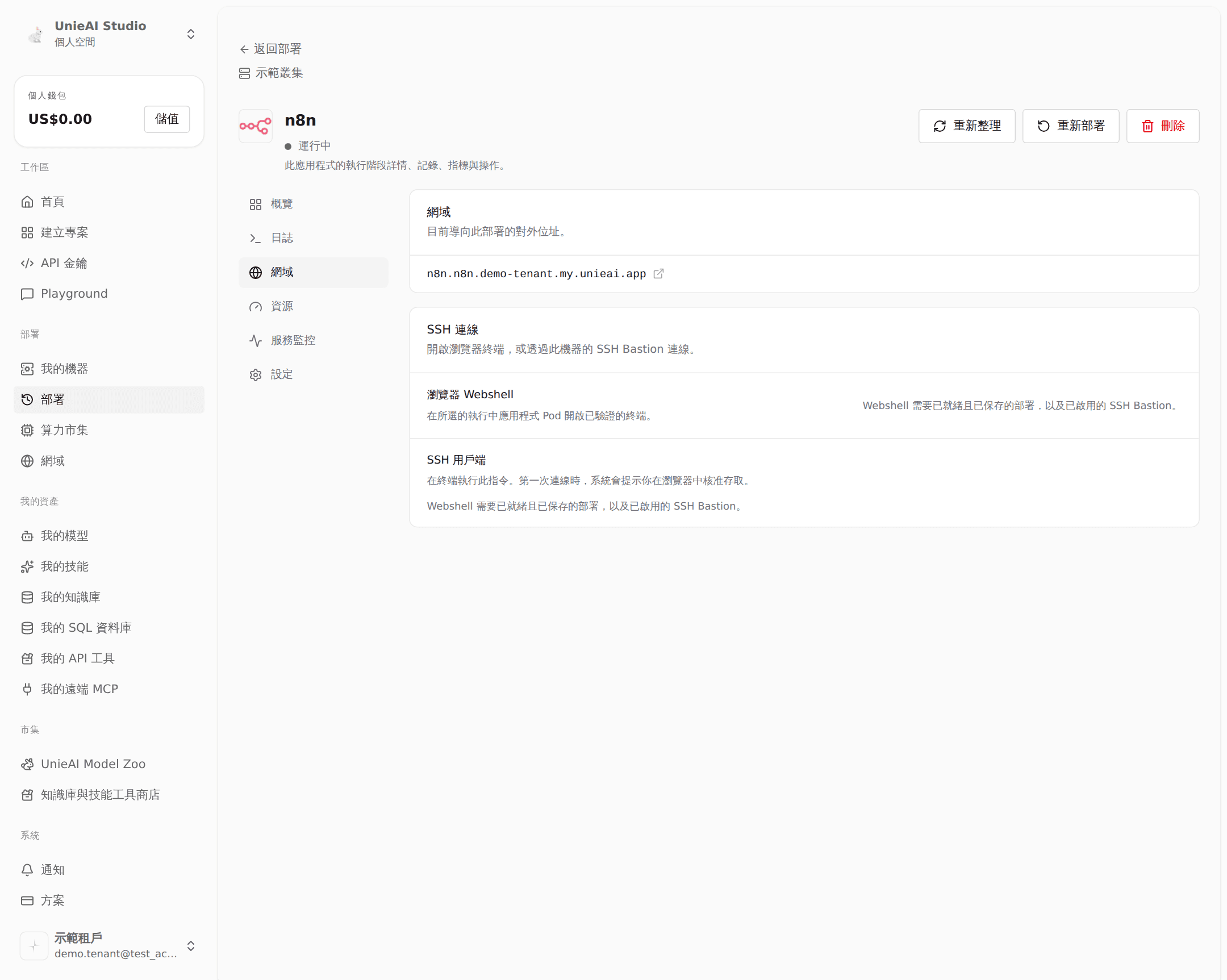
Compose apps do not ask for a public address in the wizard — the platform generates it.
Case B. An LLM (Qwen 0.6B)
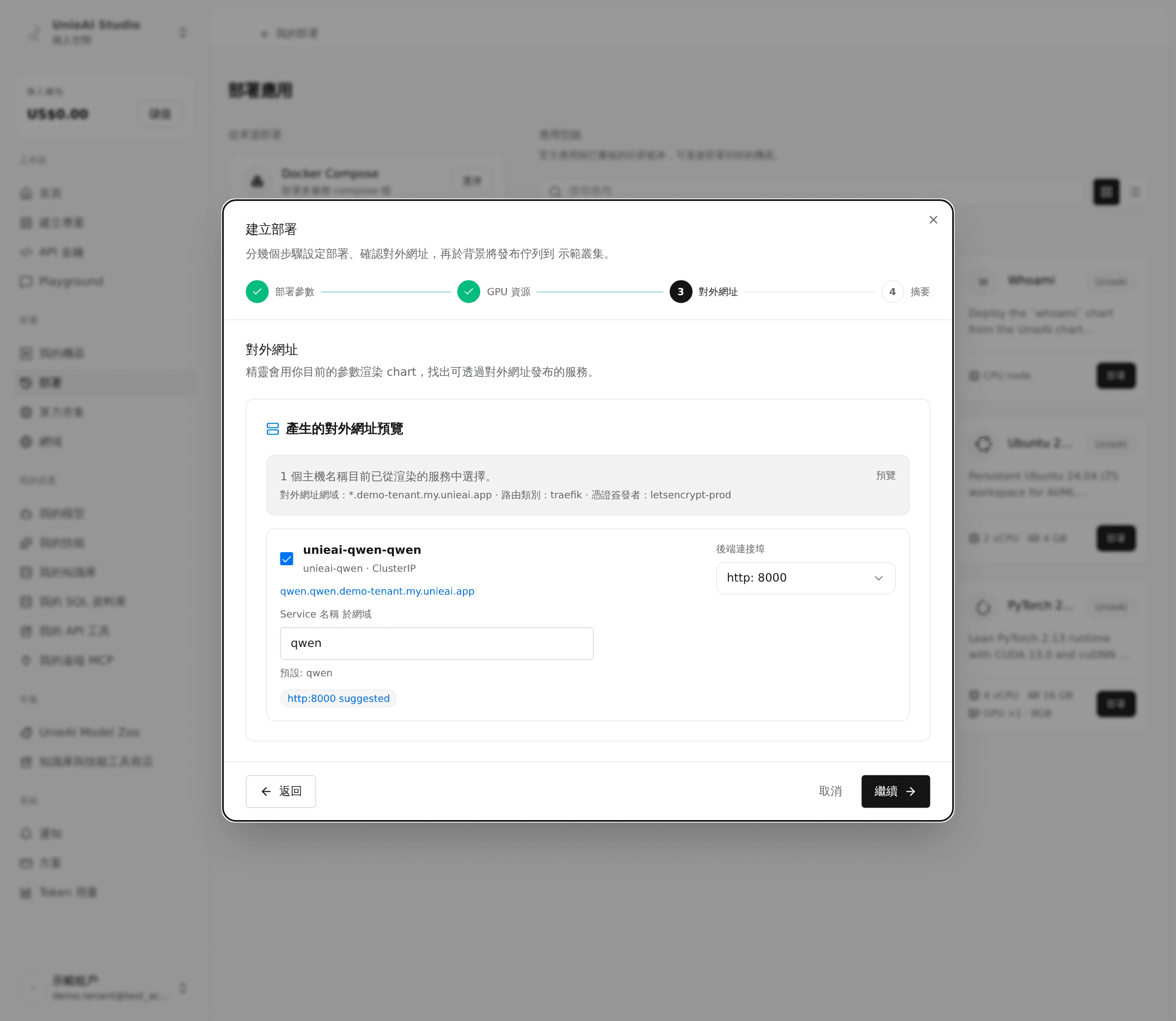
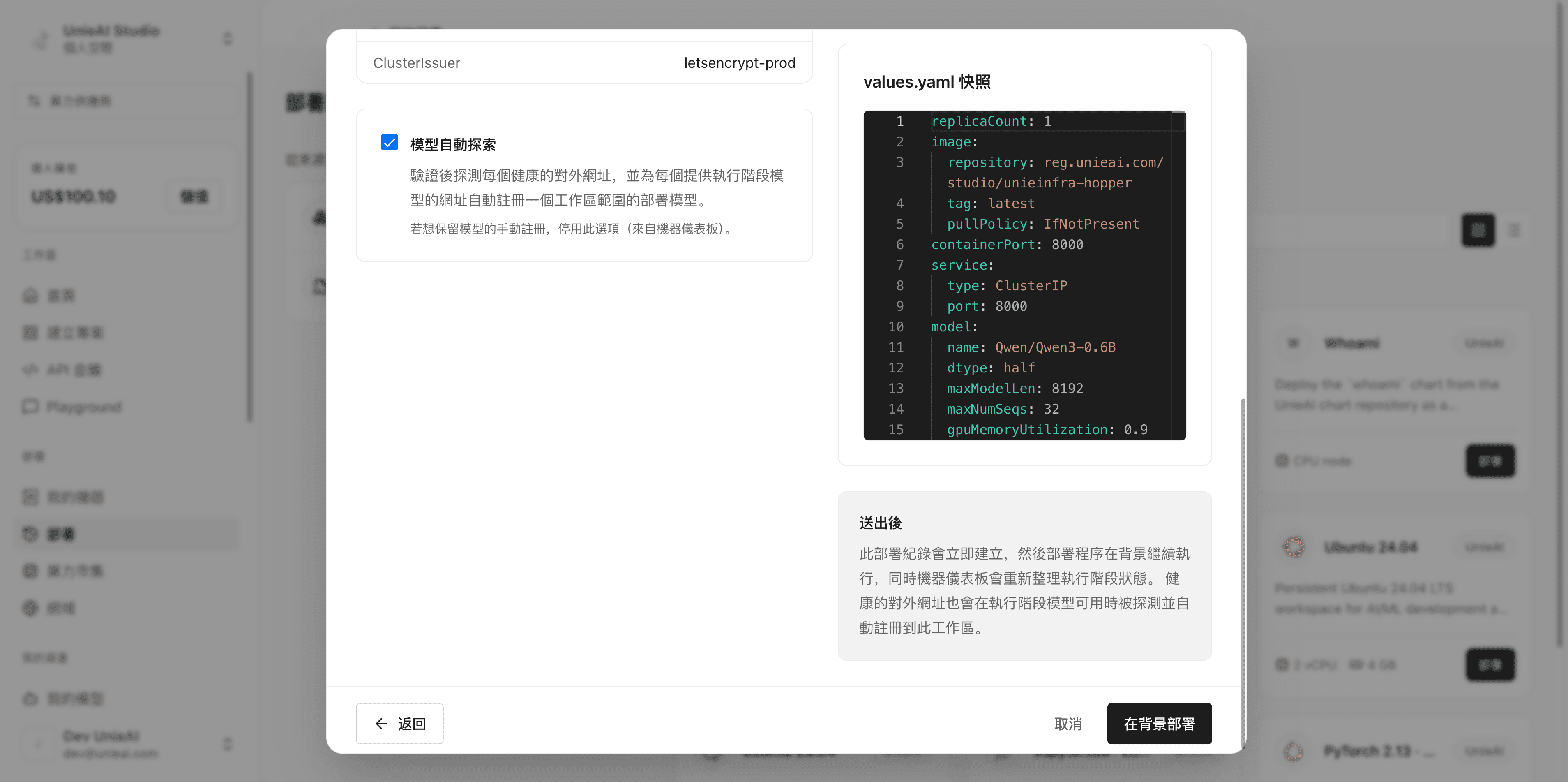
Chart-based templates have four steps: Deployment parameters → GPU resources → Public URL → Summary.
Deployment parameters: fields come from the chart. An LLM usually has these:
| Field | How to fill it |
|---|---|
| Hugging Face access token | Only for gated models; leave empty for public ones |
| UnieAI inference license | Leave empty. The machine's own license is injected at deploy time |
| GPU count | How many GPUs this model uses |
| Extra parameters | Additional inference parameters, added one at a time |
| Max context length | The longest context the service handles |
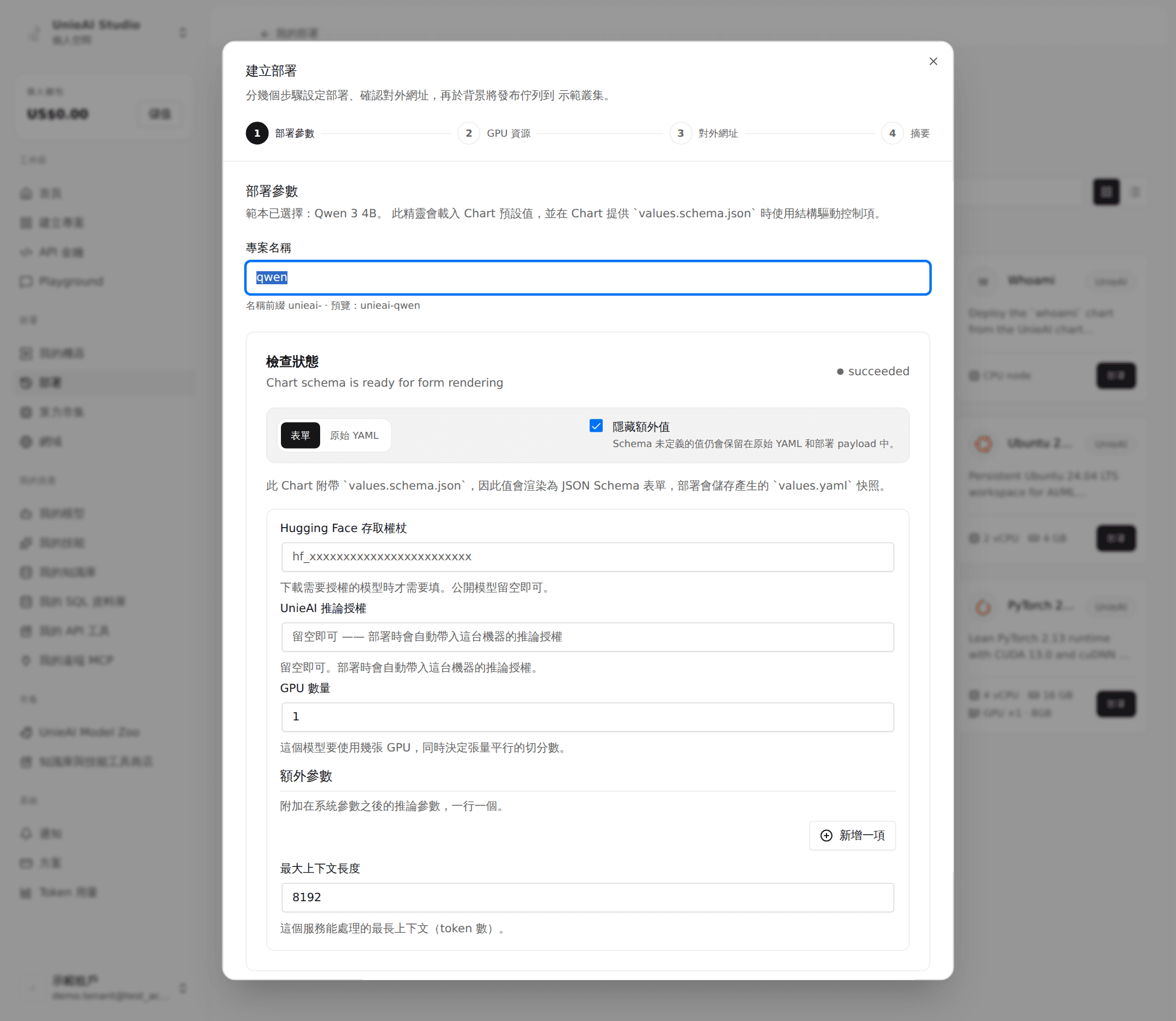
GPU resources: pick a physical GPU or MIG slice and set the VRAM ceiling per replica.
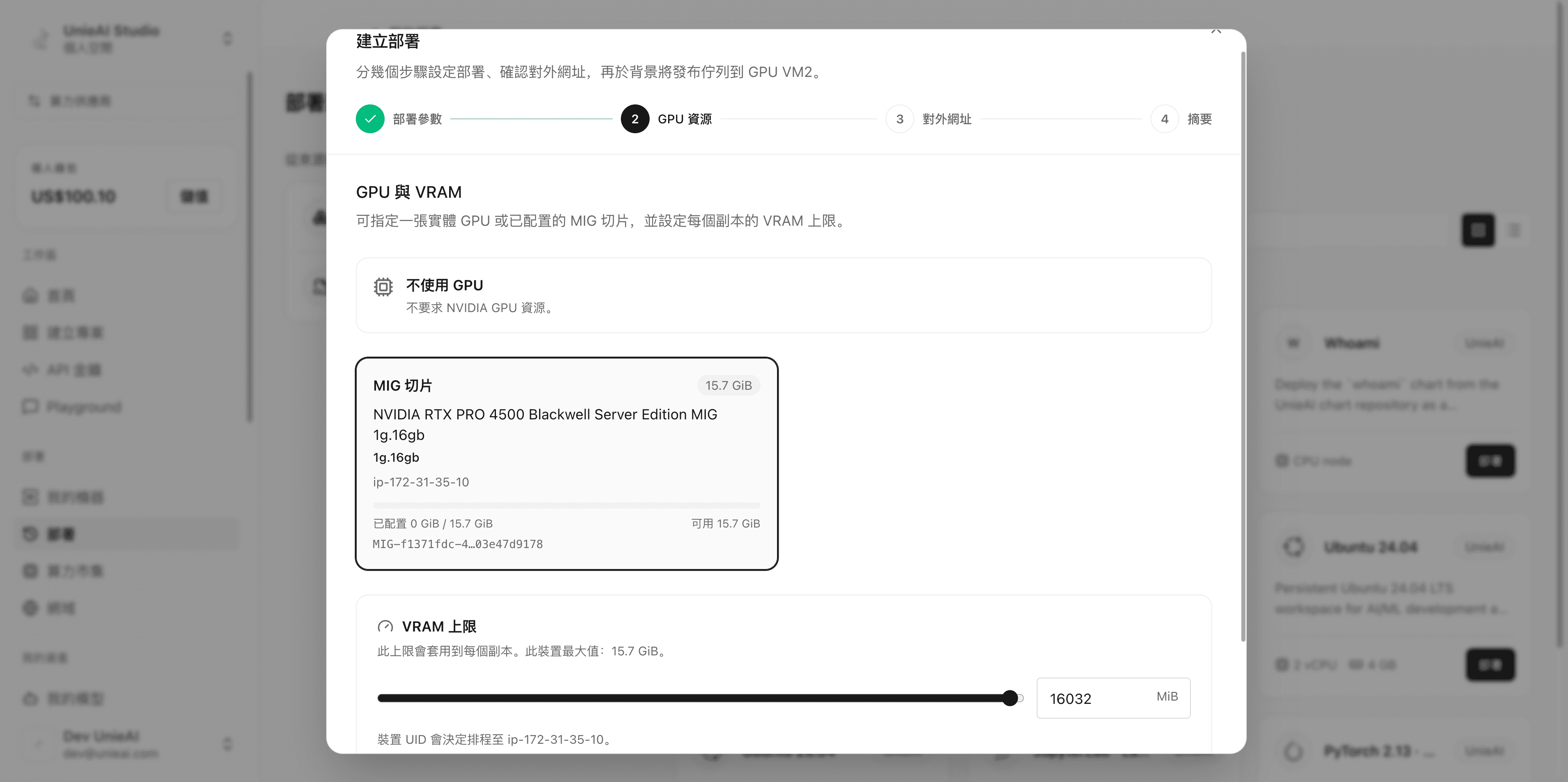
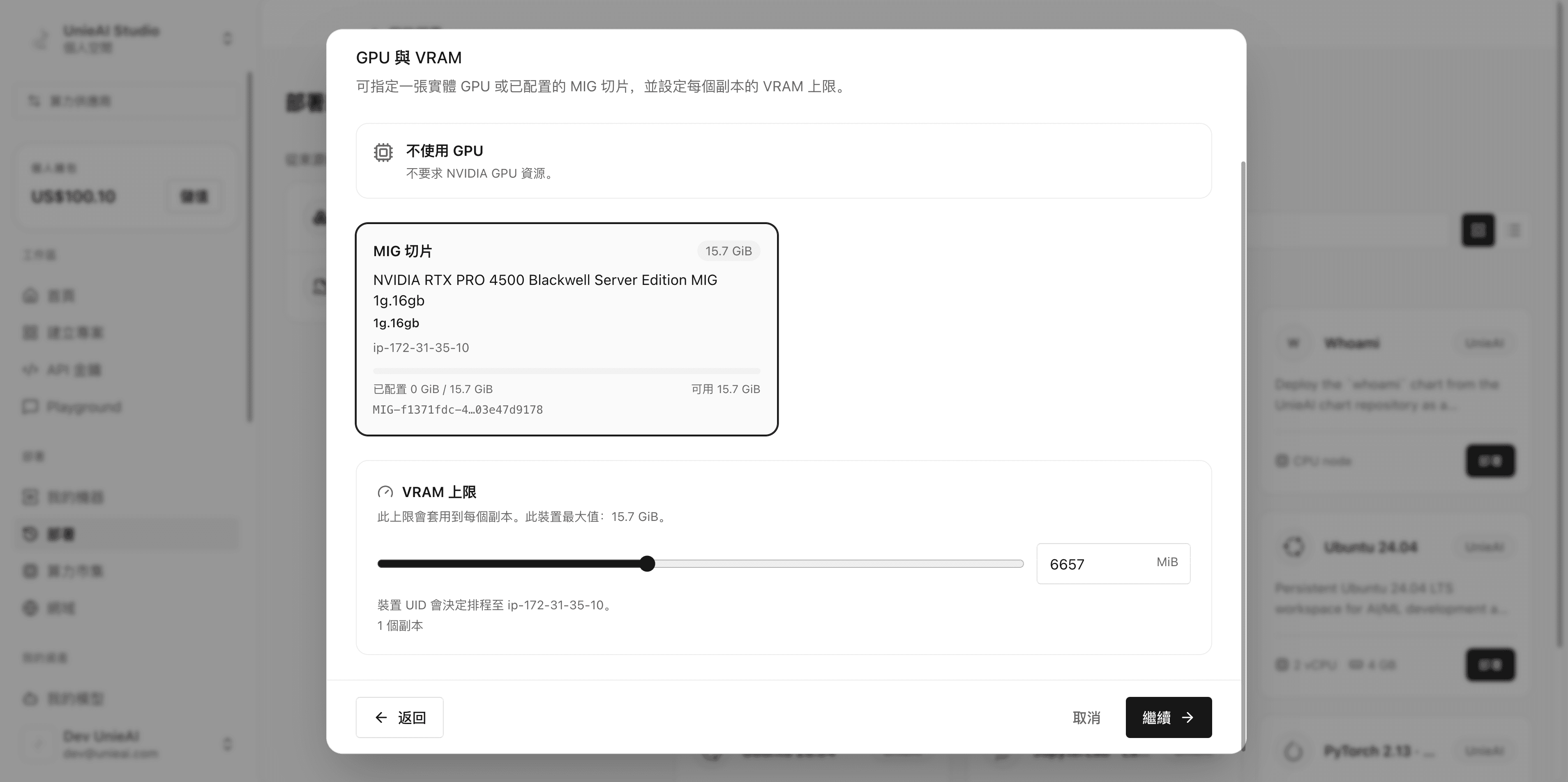
On a rented virtual cluster you can leave this unset — the platform uses the GPU reserved for that cluster, and the inference license maps to that card automatically.
Public URL: set the address for the model service.
Deploy in the background: afterwards, enable model auto-discovery so the platform registers the model API (the public URL you just set) into the Model Zoo.
Add the model to "My models": the detail page has Create model from public URL at the top.
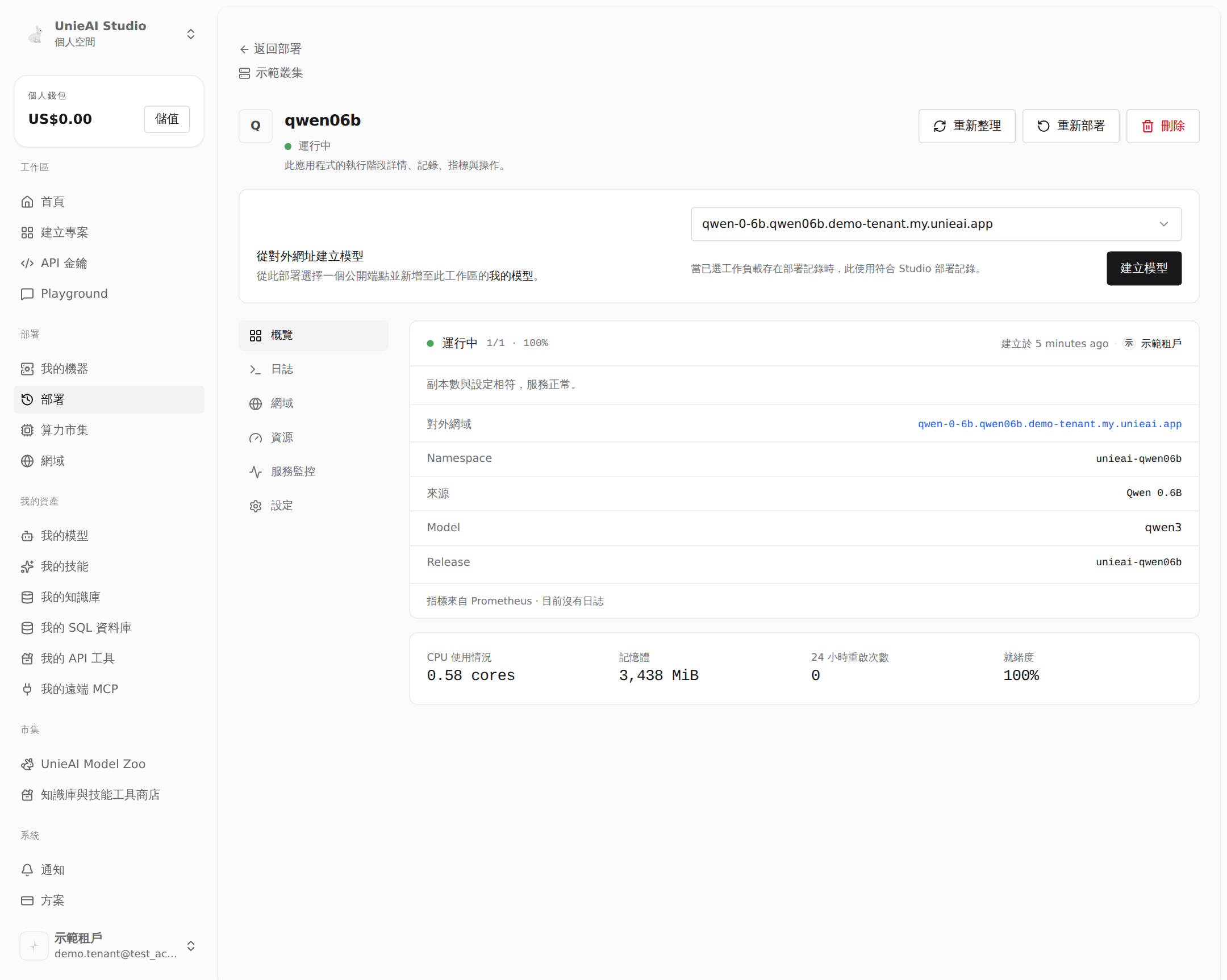
Pick a public endpoint and click Create model. It then appears under My models, usable in Playground and via the API.
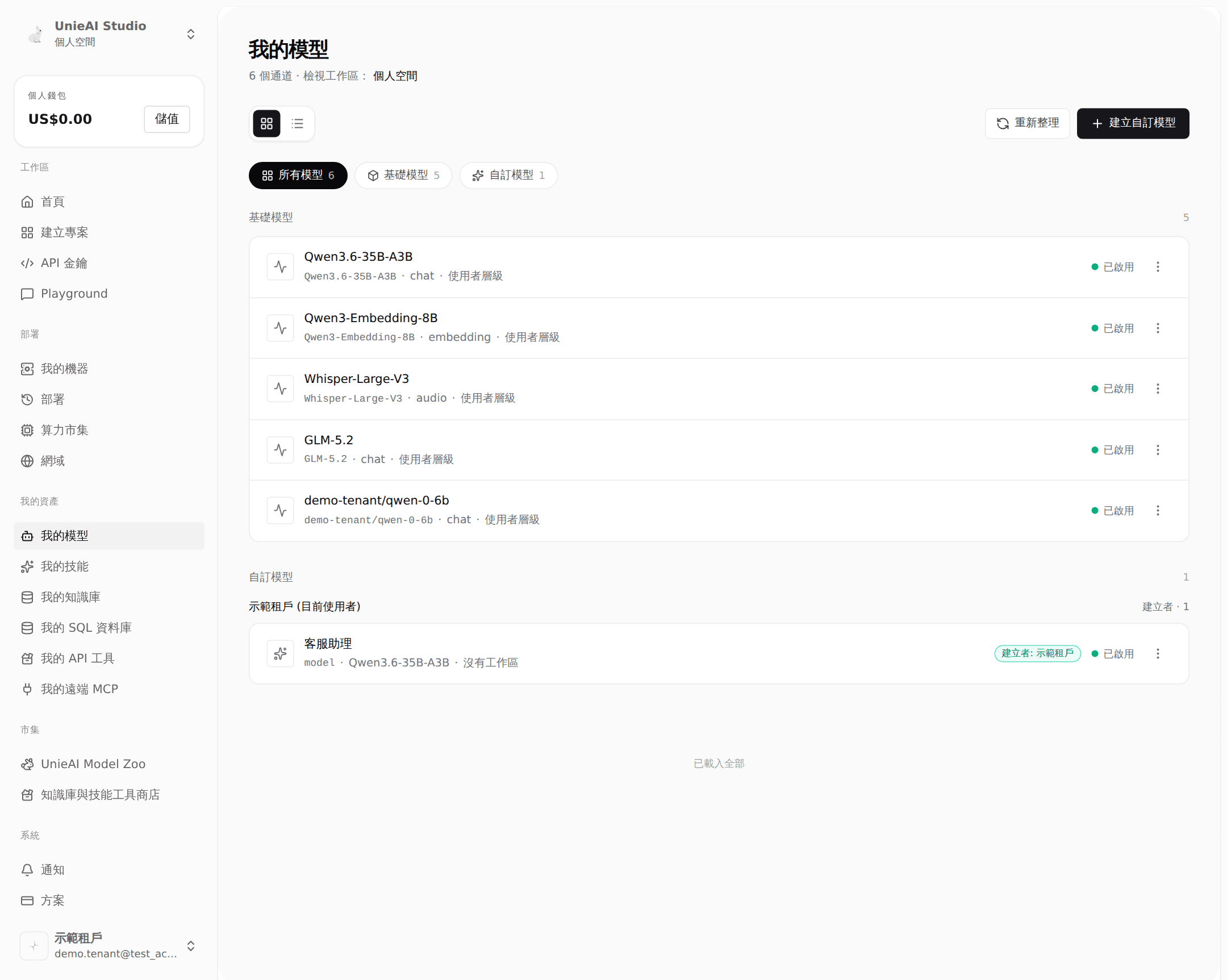
The model sometimes does not appear on its own. The platform probes the endpoint the moment the deployment finishes, when ingress and certificates are often not ready yet, and the log records "skipped: no runtime model available". Wait a minute or two and create it manually as above.
Case C. A GPU development environment (PyTorch)
For a machine you can write code and train on, deploy PyTorch … Development (or JupyterLab). The steps match Case A except that GPU resources needs a GPU or MIG slice.
Open the detail page after deployment:
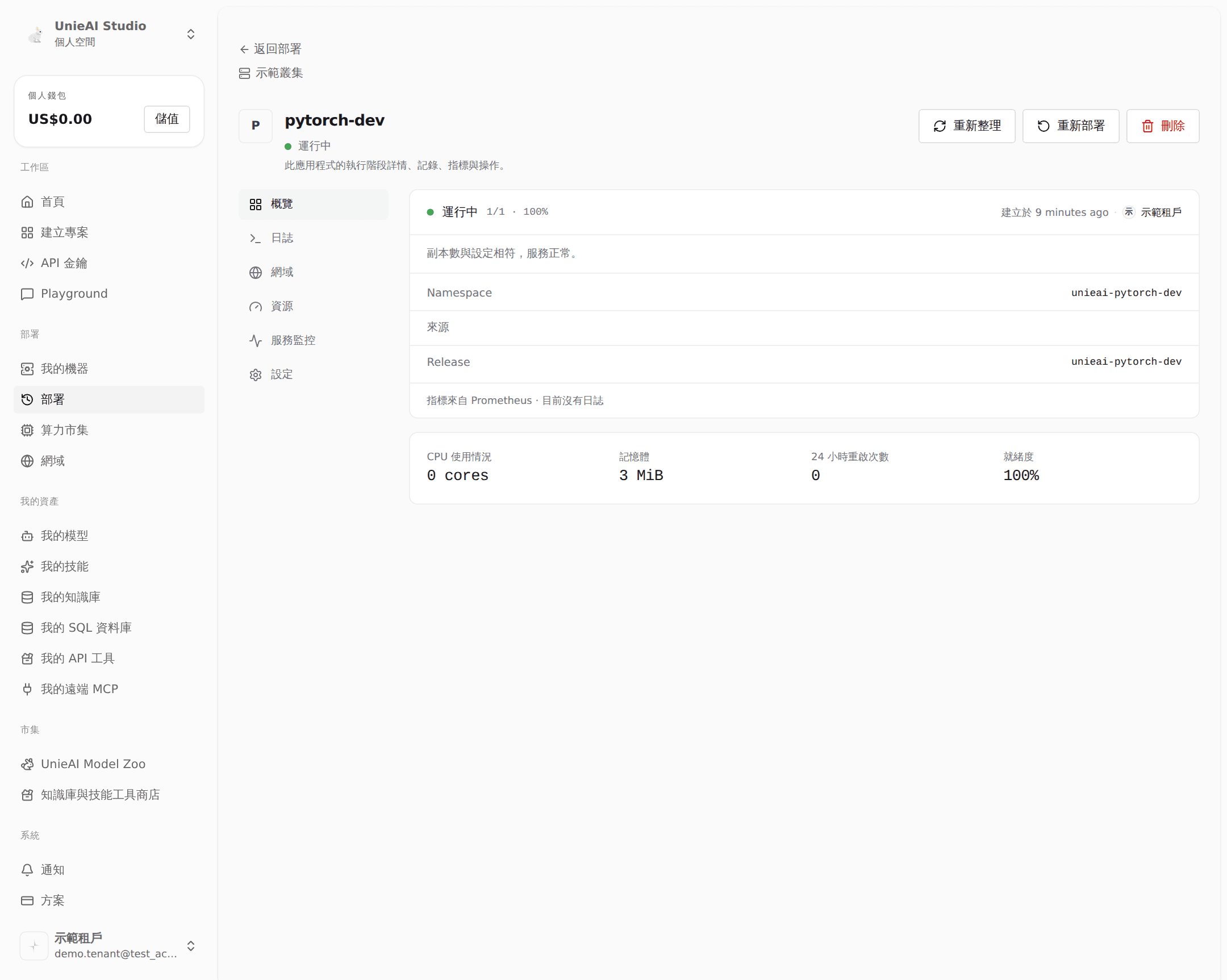
On the Domains tab, SSH access at the bottom offers two ways in:
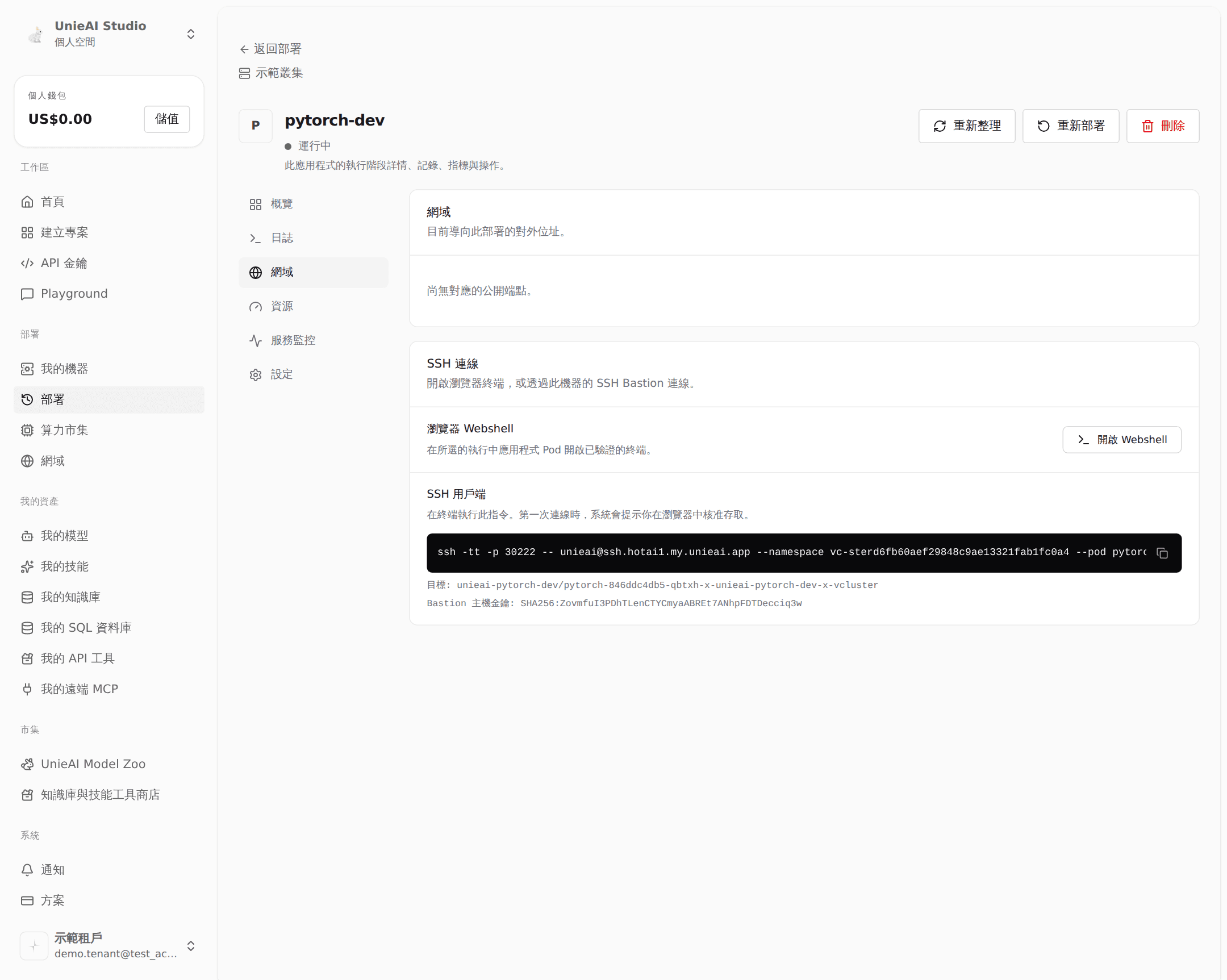
- Open Webshell — a terminal in the browser, attached to the running container
- SSH client — copy the command and run it in your own terminal; the first connection asks you to approve the access in the browser
Both routes go through the machine's SSH bastion, and the command includes the host key fingerprint so you can verify it. Webshell requires the SSH bastion to be enabled on the machine; otherwise the detail page shows a notice instead.
Part 10. Day-to-day operations
Sidebar → Deploy lists every deployed app.
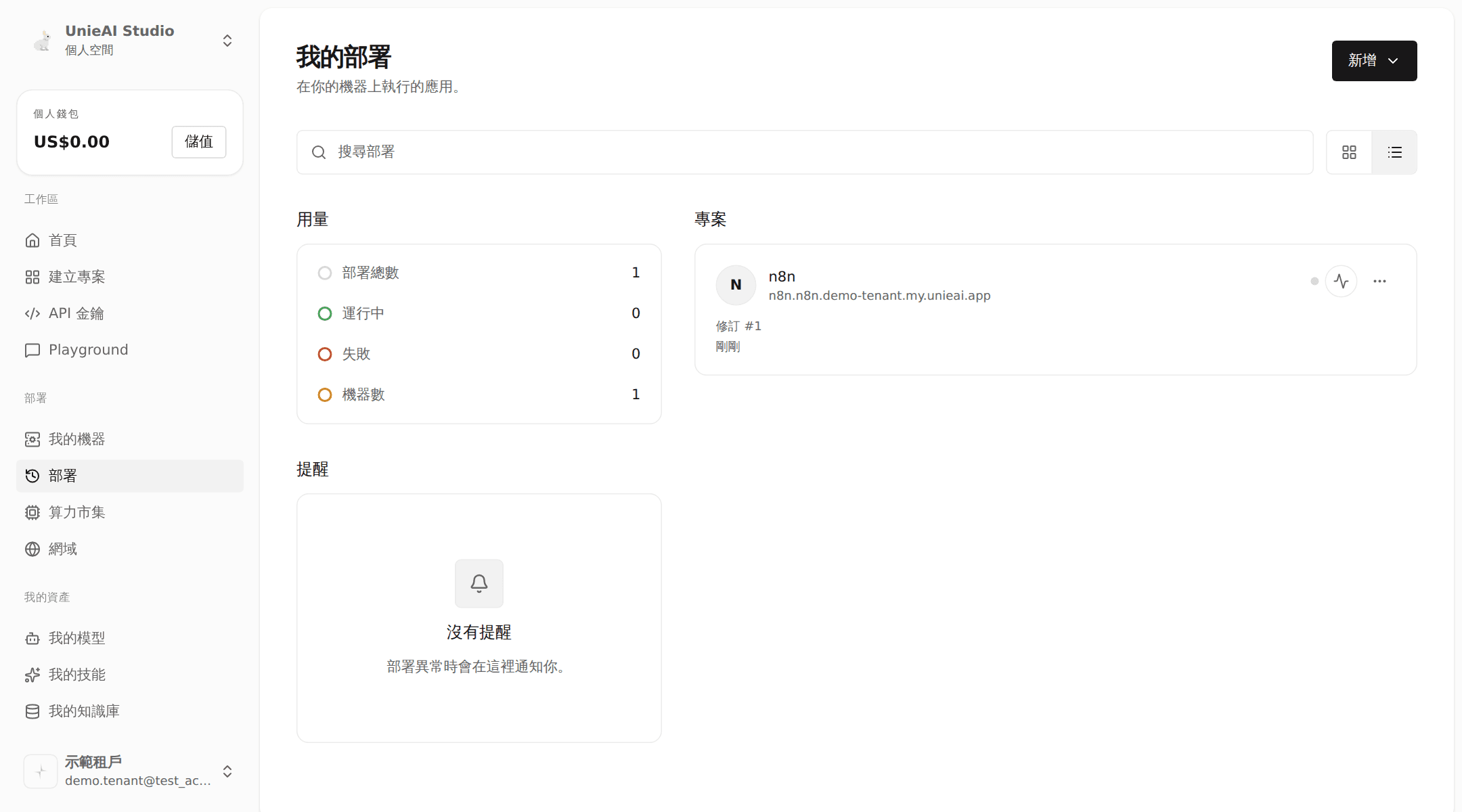
Open any app; the top right has three actions:
| Action | What it does | Watch out |
|---|---|---|
| Refresh | Re-reads the app's current state | No service impact |
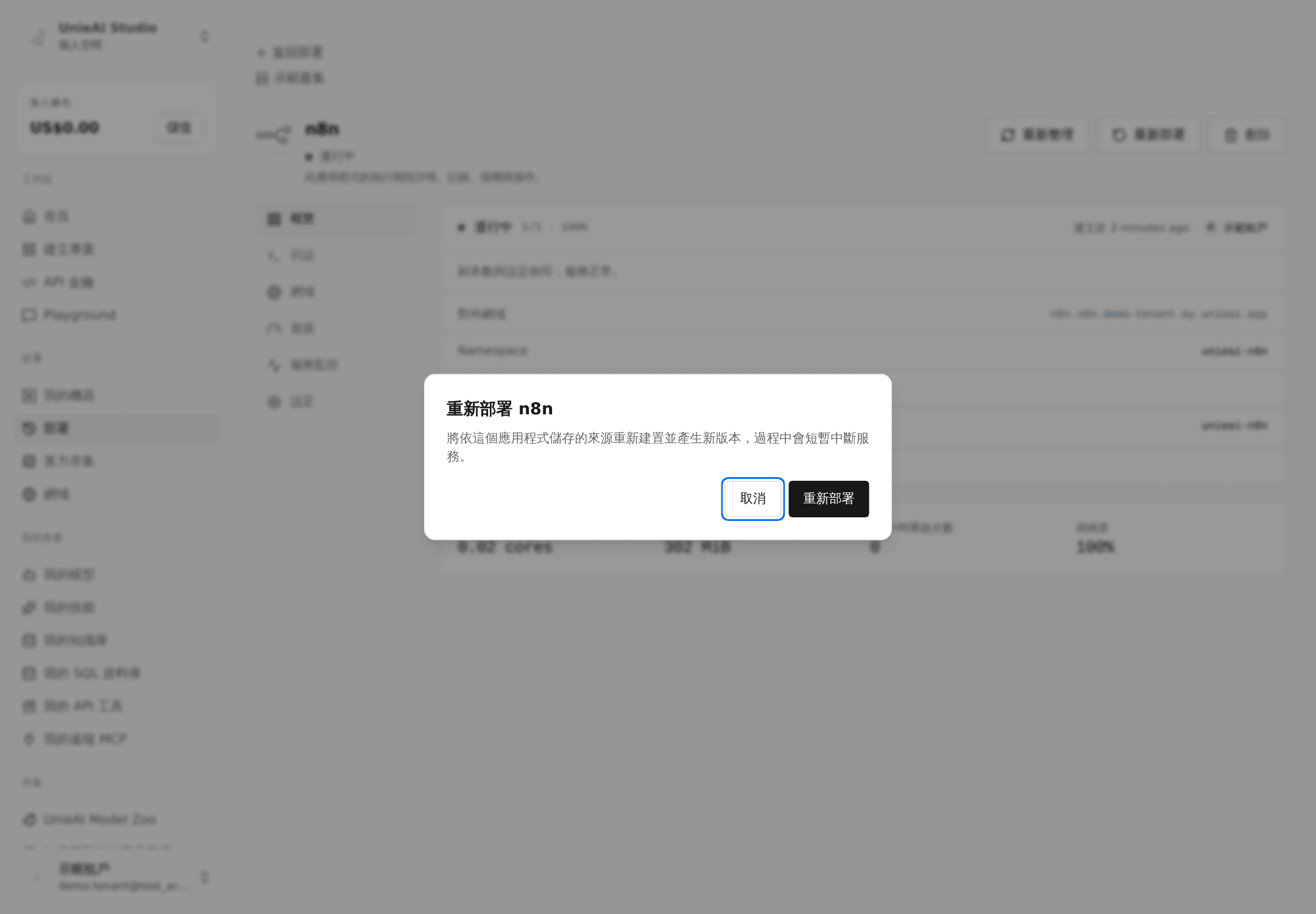
| Redeploy | Rebuilds from the stored source and produces a new revision | Briefly interrupts service; asks for confirmation |
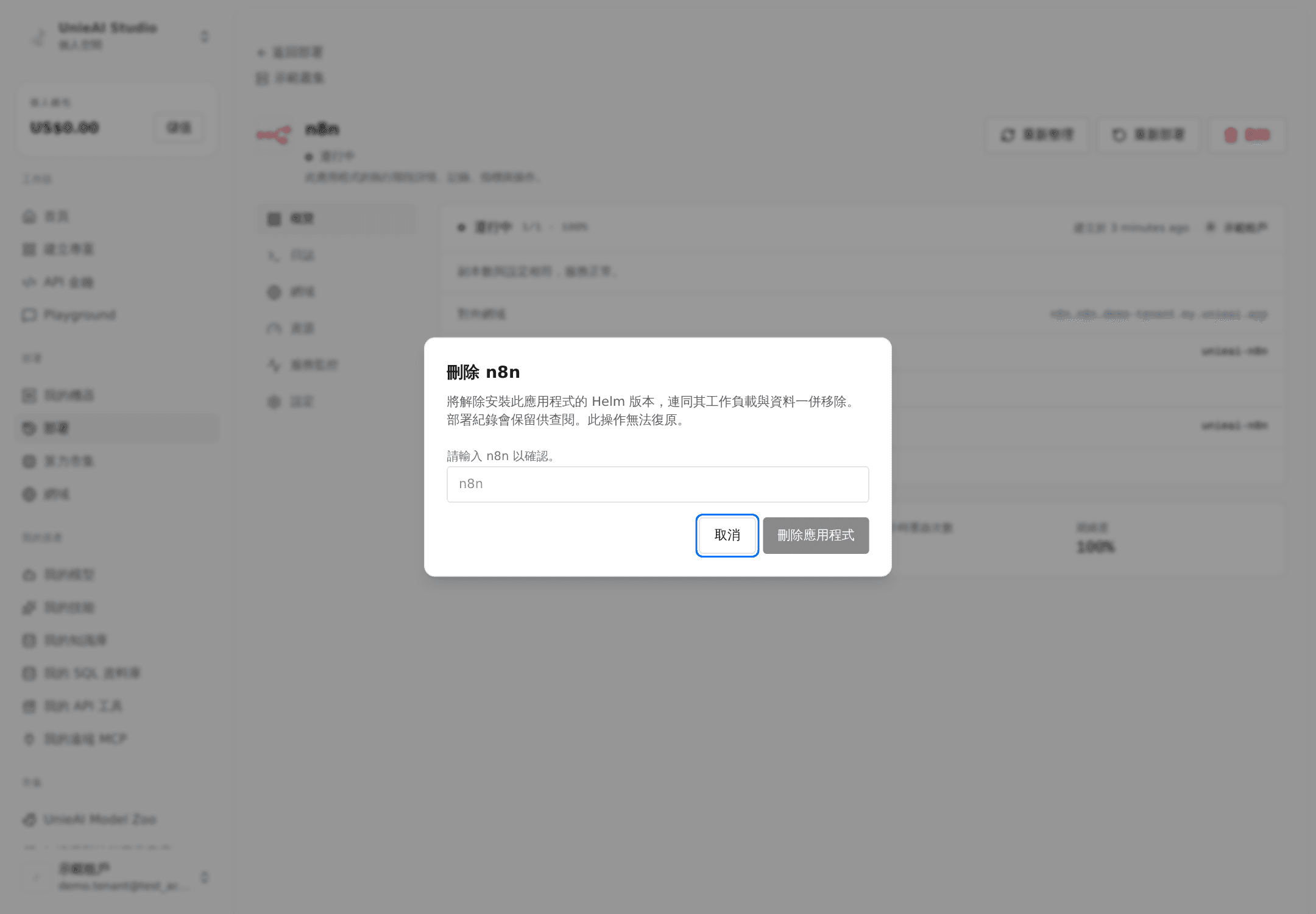
| Delete | Removes the workload and its data | Requires typing the app name; cannot be undone |
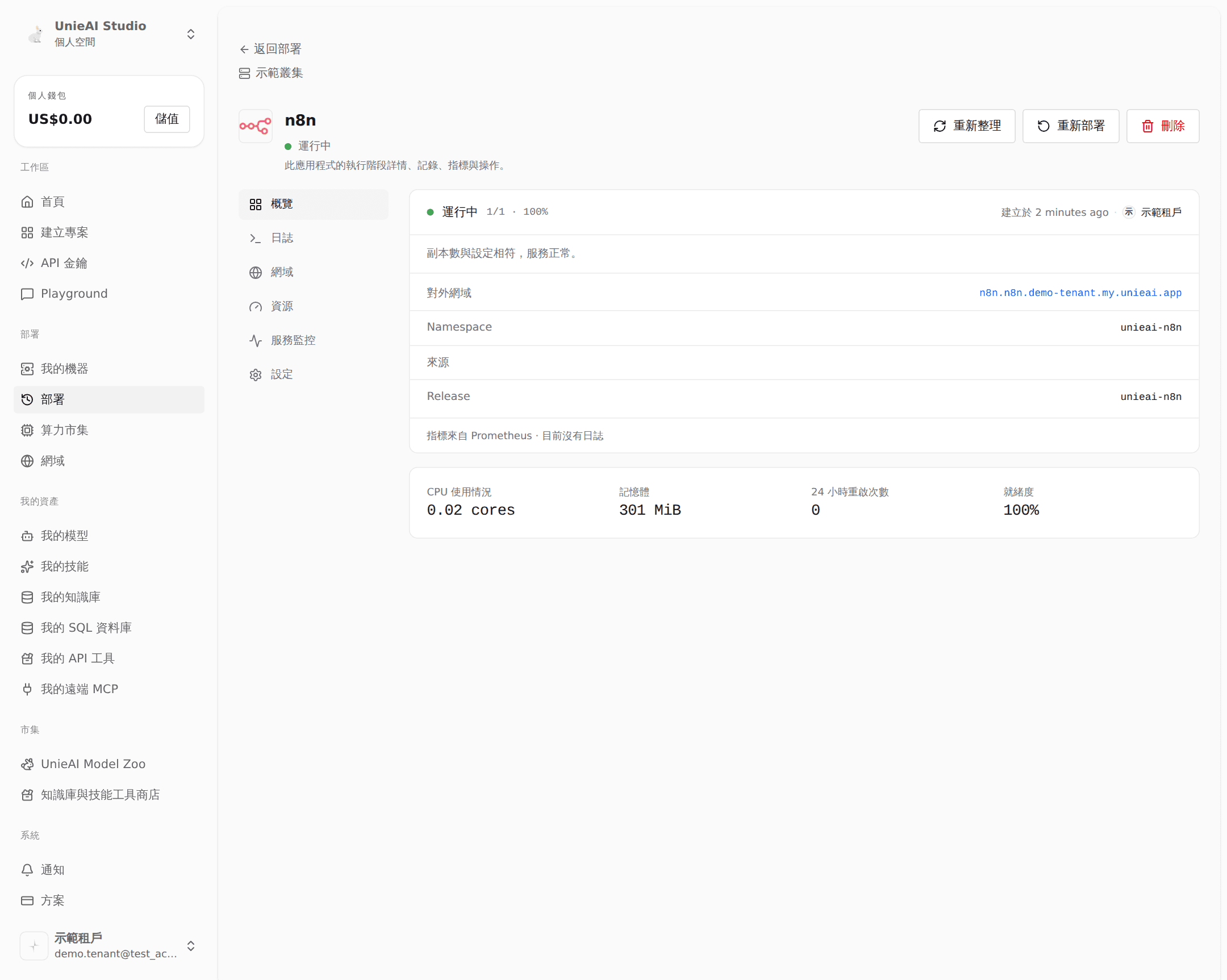
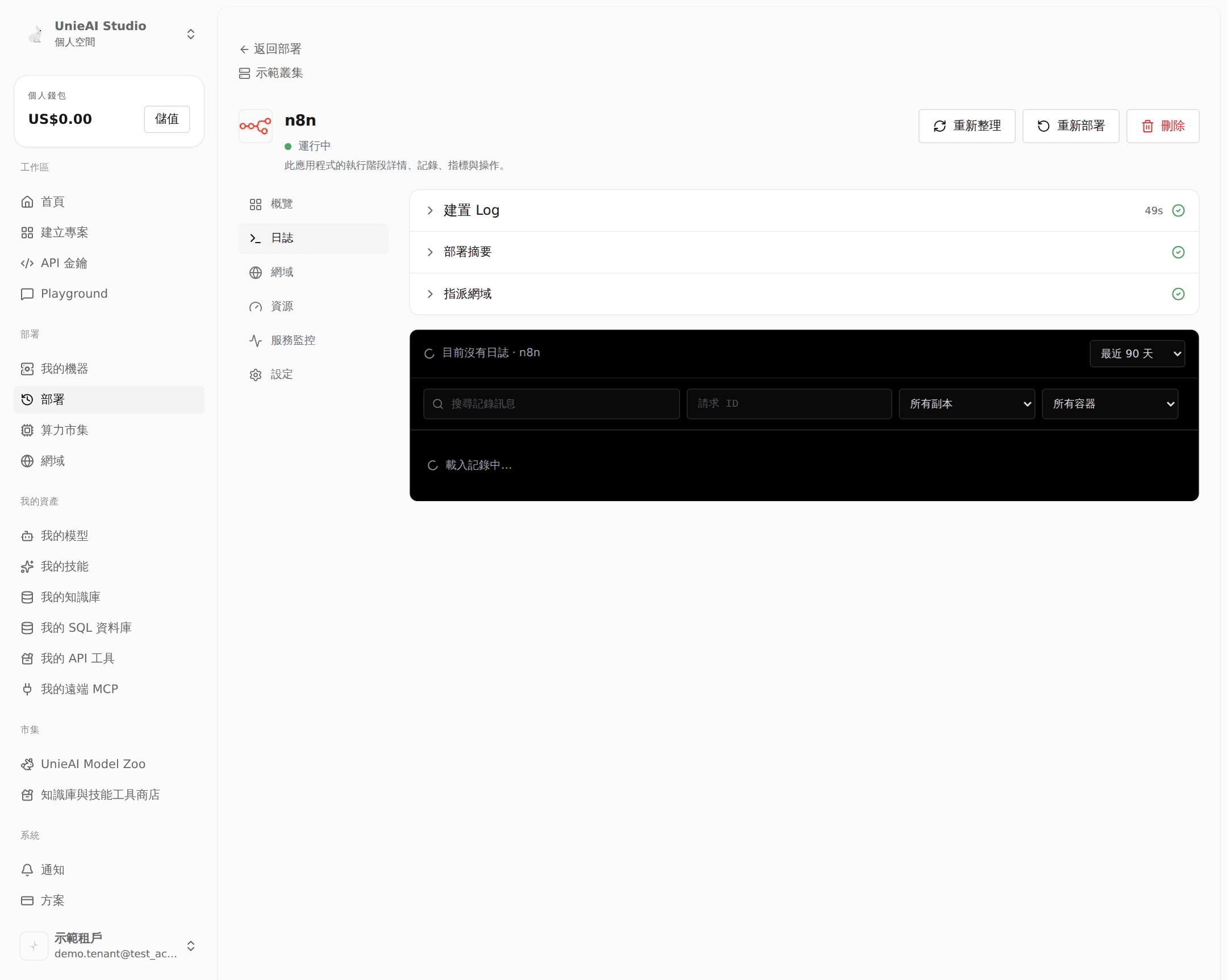
The tabs on the left: Overview (replicas, public domain, source, health), Logs (container output), Domains (public address and SSH access), Resources / Service monitoring, and Settings (runtime summary and deployment history).
The redeploy confirmation:
The delete confirmation, which requires the app name:
Part 11. Ending it: cancel, reclaim, unlist, delete
This is the easiest part to get wrong. The four actions have completely different consequences.
The tenant ends the rental
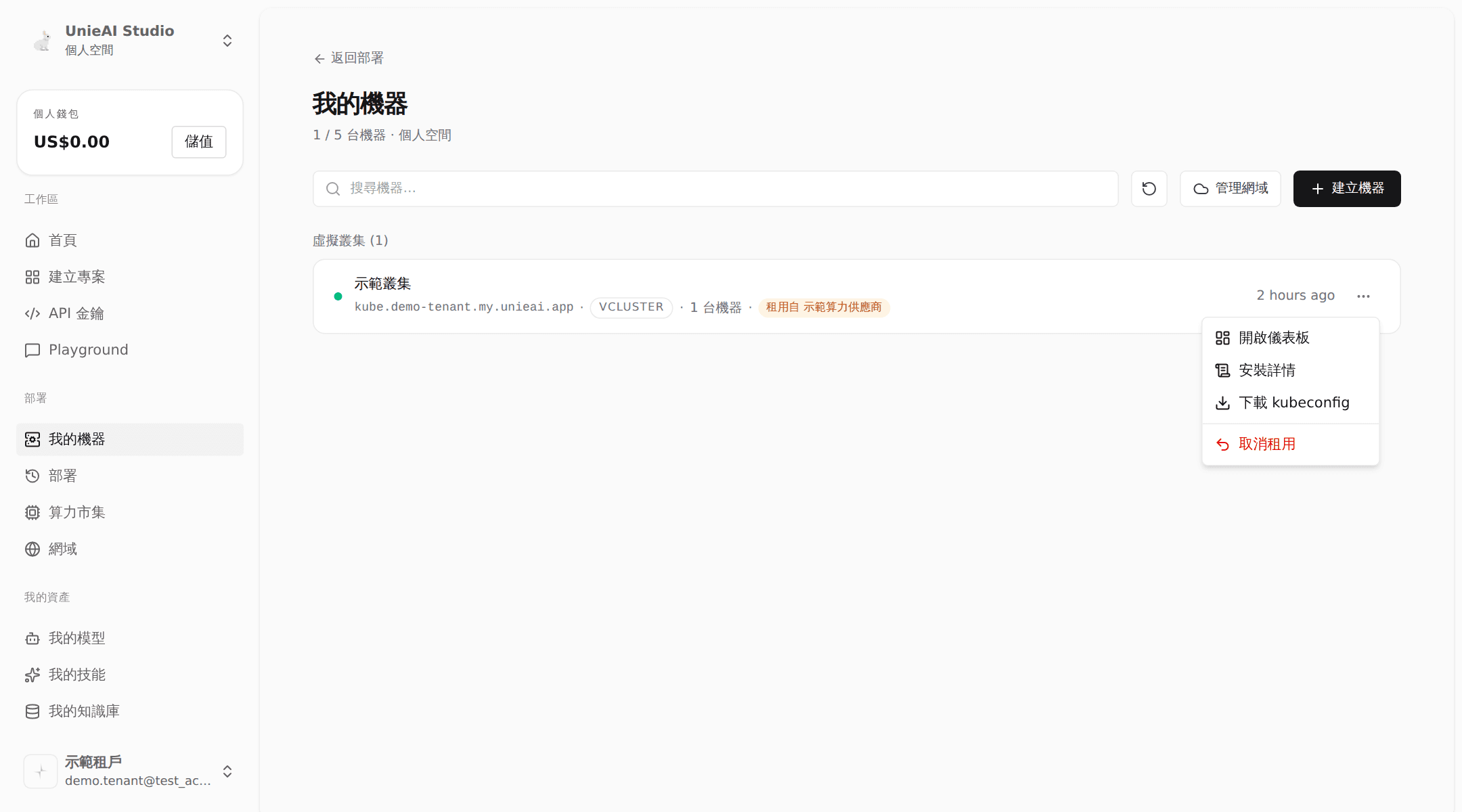
- My machines → find the virtual cluster (labeled "Rented from …")
- Click ⋯ at the far right of the row
- Choose Cancel rental
The confirmation spells out the consequences:
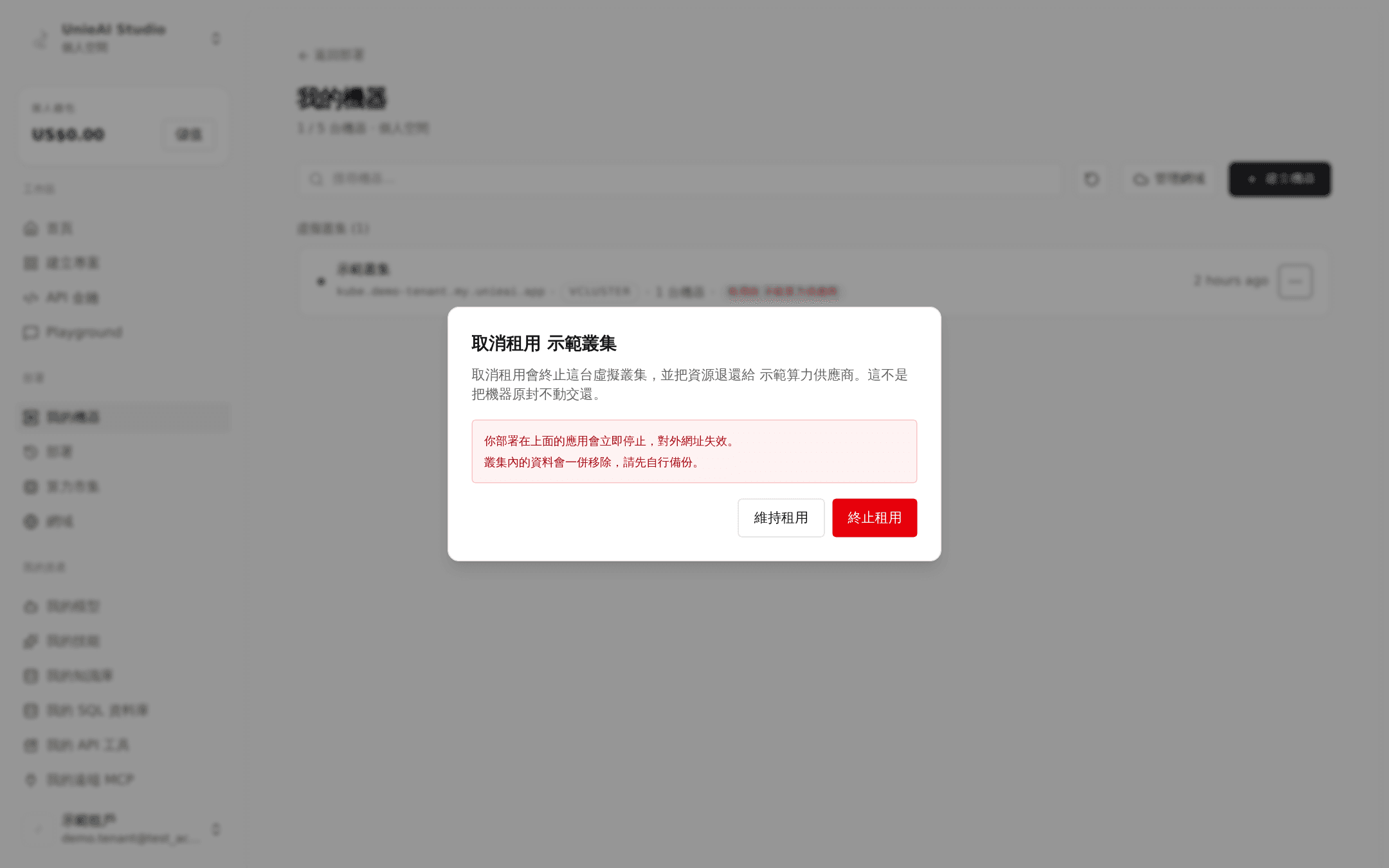
This does not hand the machine back intact. The virtual cluster is terminated: apps stop immediately, public URLs stop resolving, and the data inside the cluster is removed with it. Back up first. The resources return to the provider.
The provider takes a rented machine back
Compute provider → Delivered (or Rental requests → Rented out) → Force reclaim, confirmed by typing the cluster name.
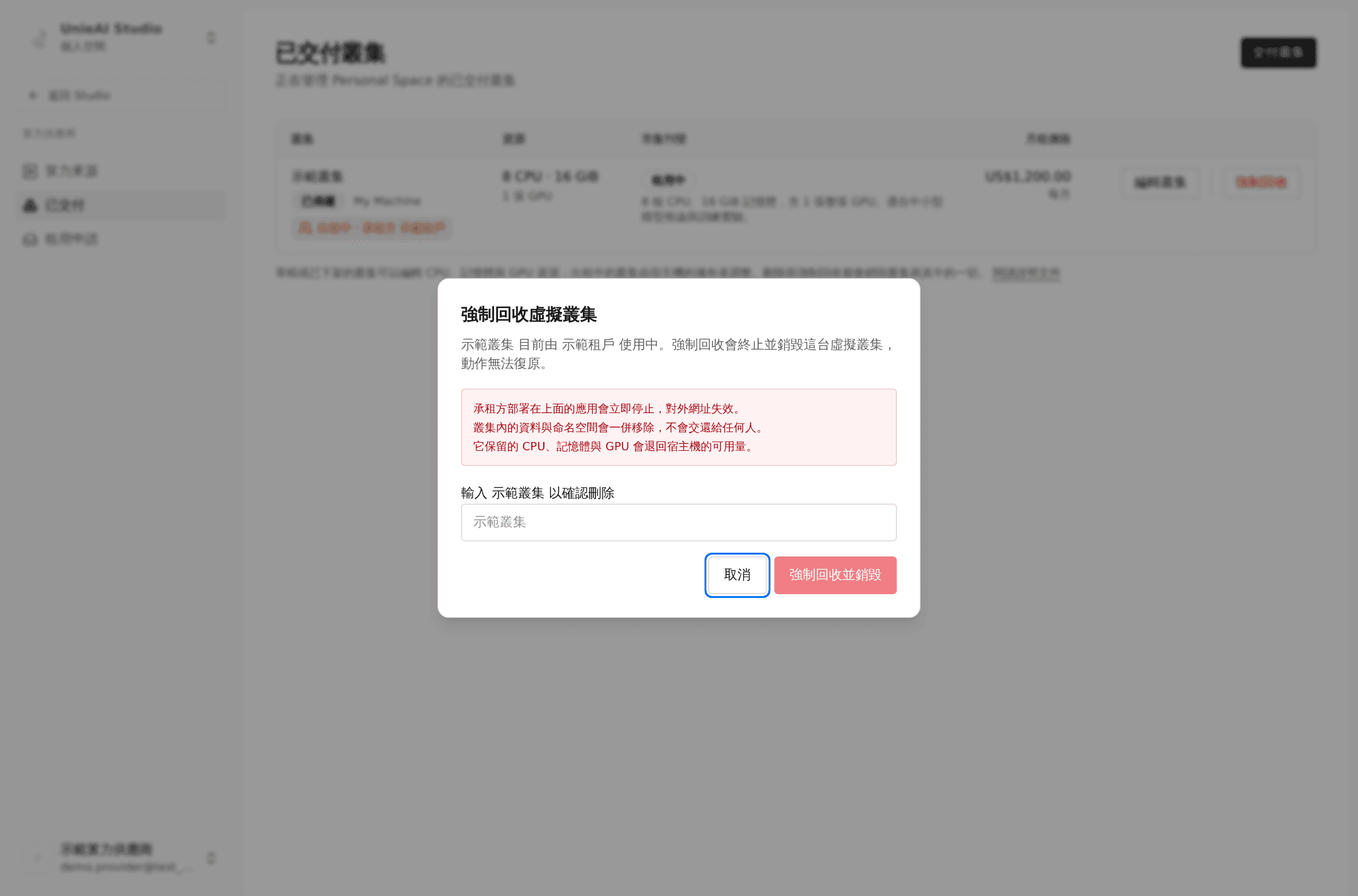
Consequences, listed in the dialog:
- The tenant's apps stop immediately and their public URLs stop resolving
- Data and namespaces inside the cluster are removed, not handed to anyone
- Its reserved CPU, memory, and GPU return to the host's available pool
You just want to stop renting it out
Use Unlist, not delete. Unlisting only removes it from the marketplace; the virtual cluster and everything in it stay, and you can publish again later.
Which action to use
| What you want | Where to click | Data lost? |
|---|---|---|
| Pause renting | Delivered → Unlist | No |
| Change price or description | Unlist, then Publish again | No |
| Change CPU / memory / GPU | Unlist, then Edit cluster | No |
| Tenant is done renting | My machines → ⋯ → Cancel rental | Yes — the cluster is terminated |
| Provider takes it back early | Delivered → Force reclaim | Yes — including the tenant's data |
| Remove an unrented virtual cluster for good | Delivered → Delete | Yes |
| Remove an ordinary deployment machine | My machines → ⋯ → Delete machine | Yes |
Part 12. Things to know
- Once a machine becomes a compute source, the interface offers no way to convert it back or delete it.
- Usage is metered but not yet charged. The numbers are real and visible (Usage → Compute usage, the spend card on the machine page, the provider's earnings page), but the platform does not debit wallets yet.
- Webshell requires the SSH bastion to be enabled on the machine; otherwise the detail page only shows a notice.
- Pausing an app is not available yet. Apps can only be redeployed or deleted.