Knowledge Base Overview
Create and manage knowledge bases, ingest documents, test hybrid retrieval, and link data to Customize Models.
A knowledge base is a reusable collection of documents and indexes. UnieAI Studio parses imported content, splits it into chunks, and indexes it so a Customize Model can retrieve relevant information with RAG before answering, without retraining the base model.
Knowledge bases and Customize Models are managed separately. One knowledge base can be linked to multiple Customize Models, and one Customize Model can use multiple knowledge bases.
Open Knowledge Bases
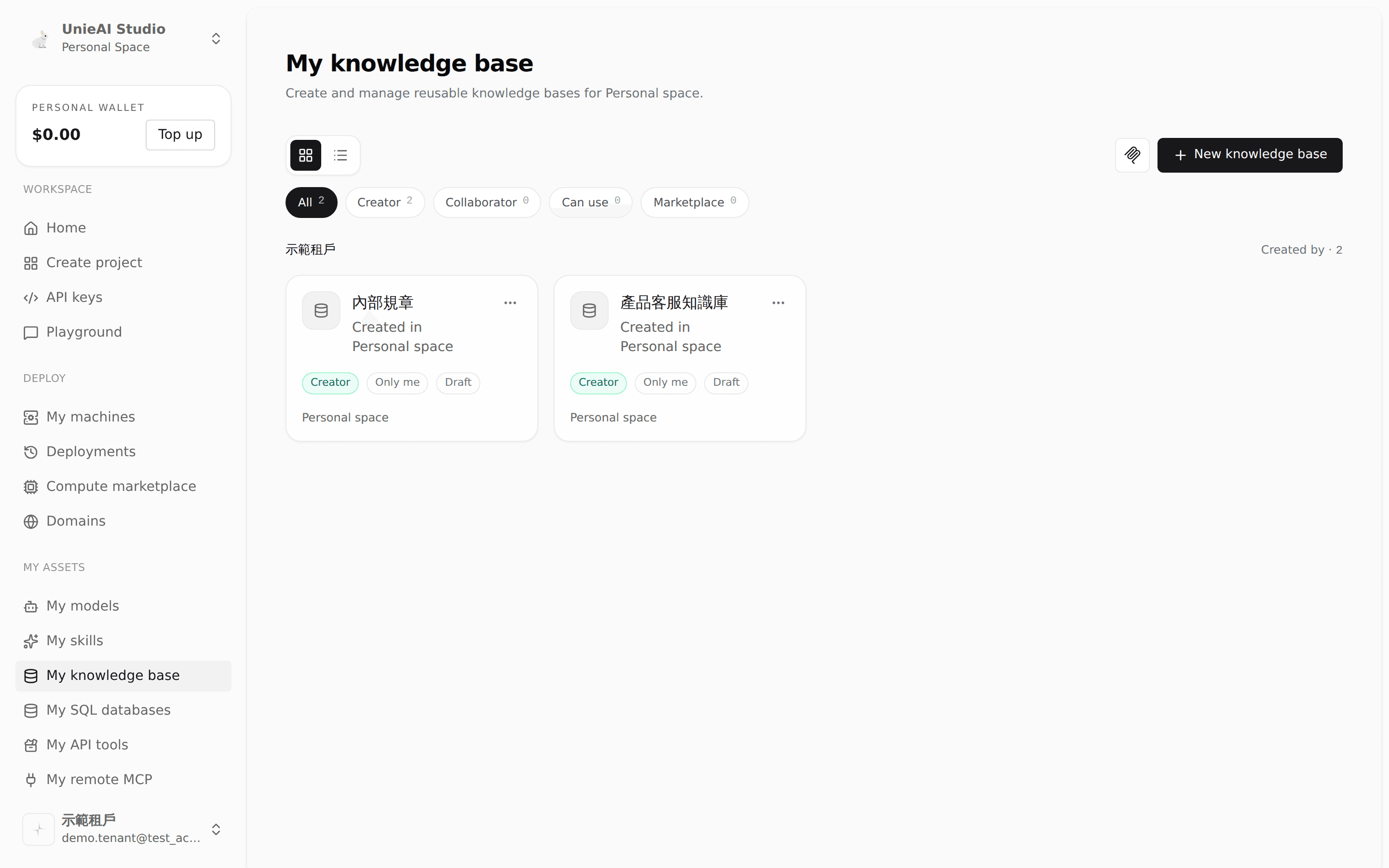
Choose a personal space or organization in the sidebar, then open My knowledge base in the workspace. The page includes knowledge bases owned by the workspace, shared with it, or adopted from Marketplace.
- Use a personal space for your own knowledge bases.
- In an organization workspace, only workspace creators or collaborators can add or remove knowledge bases. Other members may have view-and-use access only.
- An adopted Marketplace knowledge base can be removed from the current workspace. A knowledge base you own can be permanently deleted.
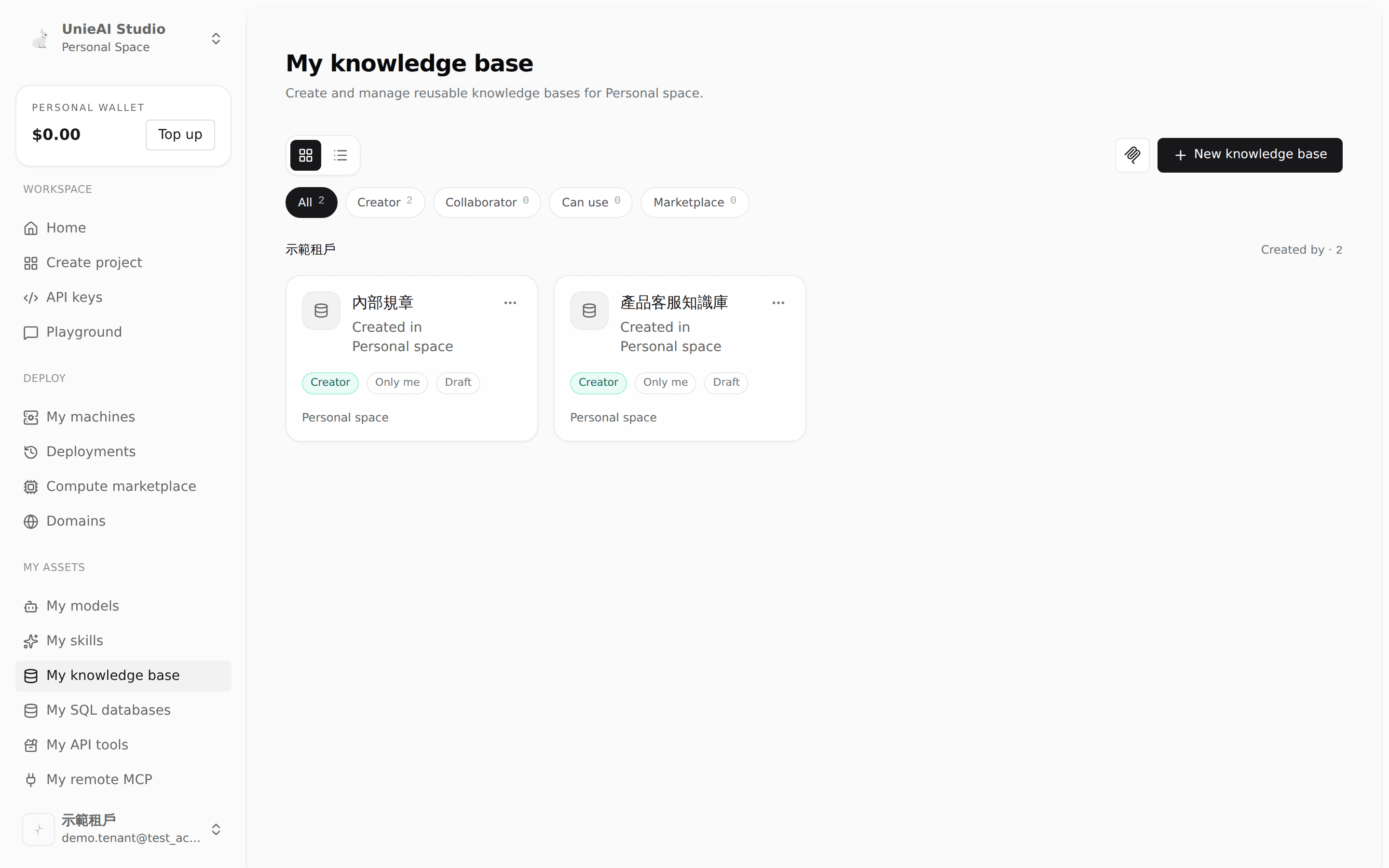
Create a knowledge base
Select New knowledge base on the My knowledge base page.
Enter the required Name and, optionally, a Description. The description is limited to 200 characters and appears in the Customize Model knowledge-base selector.
Add Co-editors if needed. After saving, co-editors can upload, update, and delete knowledge-base content.
Select Create. A new knowledge base is private by default.
Deleting a knowledge base you own permanently deletes all of its documents and cannot be undone. Removing an adopted knowledge base only removes it from the current workspace.
Supported file formats
| Type | Extensions | Processing notes |
|---|---|---|
| Documents | .pdf, .md, .docx, .txt | PDFs, Word documents, and layout-rich files may use paged and visual parsing |
| Tables | .csv, .xlsx | You can choose how many rows are grouped into each chunk before upload |
| Presentations | .pptx | Slides are processed by the active parsing pipeline |
| Images | .jpg, .jpeg, .gif, .png, .jp2, .tiff, .webp, .bmp | A platform-configured VLM is required to interpret image content |
| Video | .mp4 | May use a VLM for frames and a speech-to-text model for audio |
| Audio | .mp3, .wav, .m4a, .aac, .ogg, .flac | Requires a platform-configured speech-to-text model |
The knowledge-base page does not currently accept .hwp, legacy .doc, or legacy .ppt files for direct upload.
Parsing models and quotas
Depending on the file type and platform configuration, you may need to add these models to My Models before uploading:
- The knowledge-base parsing and chunking task model
- A VLM for PDFs, images, and video frames
- A speech-to-text model for audio and video soundtracks
If a required model is missing, the page displays a prompt with an action to add it to My Models. Per-file size, total knowledge-base storage, and maximum PDF page count are controlled by platform or user quotas. Files over a limit do not enter the parsing pipeline.
Add and process documents
Open a knowledge base, select Add new, and choose a source:
| Source | Purpose |
|---|---|
| Upload files | Select one or more supported files from your device |
| Sync from S3 | Bind an accessible S3 or S3-compatible bucket and folder, then scan and synchronize added, changed, or deleted objects |
S3 sync is available only when a platform administrator enables data connectors. After ingestion, files are stored, parsed, chunked, and indexed in the background. The list shows live pending, processing, completed, or failed states. If processing fails, open the parser error details to identify the failed stage.
After parsing, you can:
- Open a document's Chunks page to inspect and edit retrievable content.
- Change the rows-per-chunk setting for CSV or Excel files. An already indexed document is queued for rechunking.
- Review the KB log, delete documents, or refresh processing state.
- Choose Default (platform setting), Concurrent mode, or Page mode under Settings → Parsing.
- Open Data Foundry from Settings → Data Foundry, select chunks, and run de-identification for personally identifiable information.
Test knowledge-base search
After the knowledge base contains at least one document, select Search in the upper-right corner. The current test page uses hybrid retrieval (Dense + BM25) and supports only hybrid mode.
| Setting | Test-page default | Description |
|---|---|---|
| Result limit | 8 | Maximum number of matching chunks to return; range 1–50 |
| Min score | 0.18 | Excludes results below this relevance score; range 0–1 |
Results include relevance scores, source documents, chunk details, and metadata. The right panel also provides cURL and Python examples for POST /v1/kb/search, plus a Remote MCP configuration.
Access and co-editors
Under Settings → Access, the creator or a co-editor can update the name, description, and access list, and grant members use or edit access. Only creators and co-editors can change documents, settings, and publishing details. Members with use access can view and link the knowledge base but cannot modify its content.
A public knowledge base is not published directly from the creation dialog. To list it in Marketplace, open Settings → Publishing, complete the dataset description, price, icon, and cover details, then select a snapshot and submit it for administrator review.
Snapshots and Marketplace publishing
Snapshots are created manually. They are not generated automatically whenever the knowledge base changes.
Open Settings → Snapshots, select Manage snapshots, and create a snapshot.
Preview the snapshot to verify its documents and content summaries.
Complete the Marketplace details under Settings → Publishing, select the snapshot to publish, and submit it for review.
Track Pending review, Approved, or Rejected status. A rejected submission includes the review reason. You can withdraw the listing when it should no longer be available.
Snapshots currently support preview and Marketplace submission. There is no action to roll the live knowledge-base content back to a snapshot.
Link a knowledge base to a Customize Model
Open the Customize Model that should use the knowledge base.
In the sidebar, go to Data → Knowledge base.
Under Linked knowledge bases, select one or more knowledge bases you can access. Changes are saved automatically.
To tune retrieval behavior, go to Behavior → Agent Loop and configure Top K results, Min score, and the maximum iteration count.
After linking, use Playground with real questions to validate retrieval and model responses.