From Creating a CM to Using It in Chat
Choose a model, prepare knowledge and tools, connect them to a Customize Model, validate it in Playground, and deliver it to Chat.
This guide walks you through creating a working CM (Customize Model) from start to finish. You will prepare the data and tools it needs, connect them to the CM, test the result, and make the CM available in Chat.
Knowledge bases, SQL databases, API Tools, and MCP are optional. Create only the capabilities your CM needs. For general conversation, you can proceed directly from model selection and CM creation to Playground testing and Chat setup.
What You Will Complete
- A CM with a selected base model
- Documents, data, or external tools the CM can use
- A set of tests validated in Playground
- A model that users can select in Chat
Before You Start
- Switch to the intended personal space or organization workspace.
- Confirm that you can create a CM and the required assets.
- Prepare the documents, data, and services you want to connect.
- If the CM will be delivered to Chat, confirm that you can manage the appropriate Chat Provider.
Assets are created in the currently selected workspace. Check the workspace first so the intended users can access them later.
Complete Workflow
Choose a Base Model and Create the CM
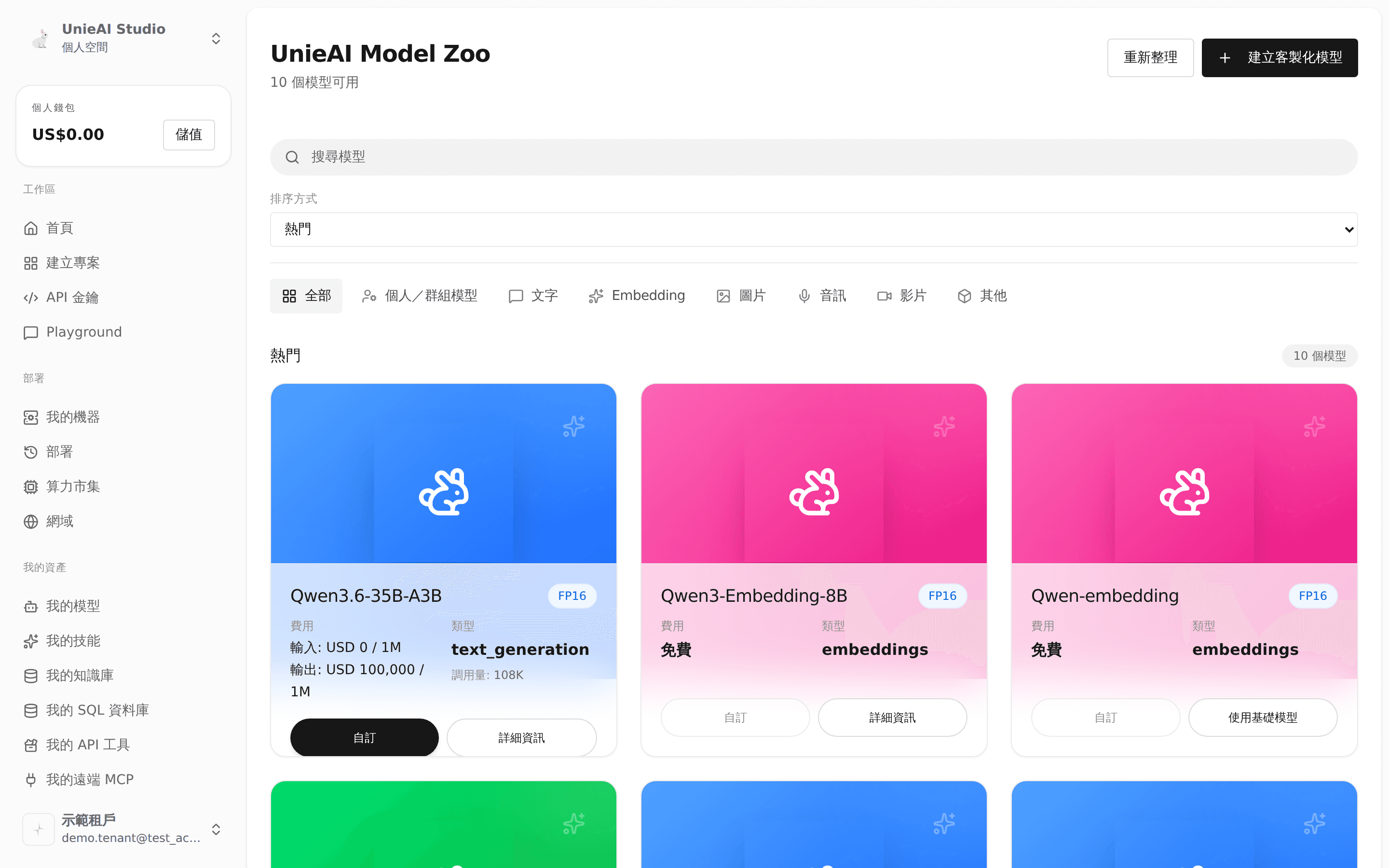
Confirm the model name and intended use here before adopting it and creating the CM.
- In the sidebar, go to Marketplace → UnieAI Model Zoo.
- Choose a suitable model, then select Use Base Model → Add to My Models.
- Go to My Assets → My Models and select Create Customize Model.
- Select the base model you just added, enter a CM name, and complete creation.
Use a text model for general text conversations. If the CM must read images or document images, choose a model that supports that content. After creation, the CM overview opens.
Create a Knowledge Base
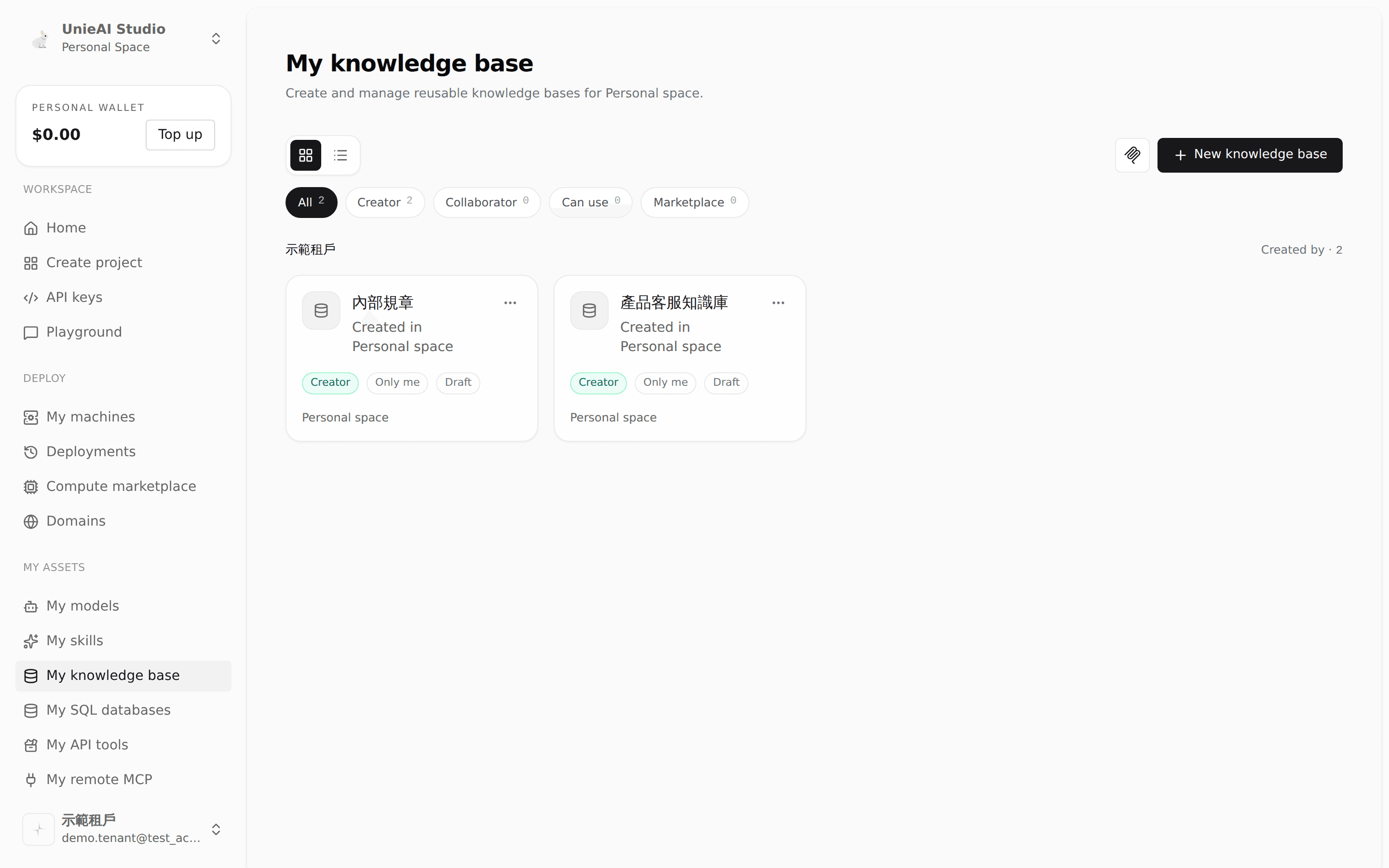
The name and description make the knowledge base easy to identify later in the CM data-source list.
- Go to My Assets → My Knowledge Bases and select New Knowledge Base.
- Enter a clear name and purpose, then create it.
- Add the documents the CM should reference.
- Wait until document processing is complete.
- Use Search in the knowledge base to confirm that the correct content can be found.
Search with questions your actual users are likely to ask. If important content cannot be found, revise the documents before continuing.
Create a SQL Database
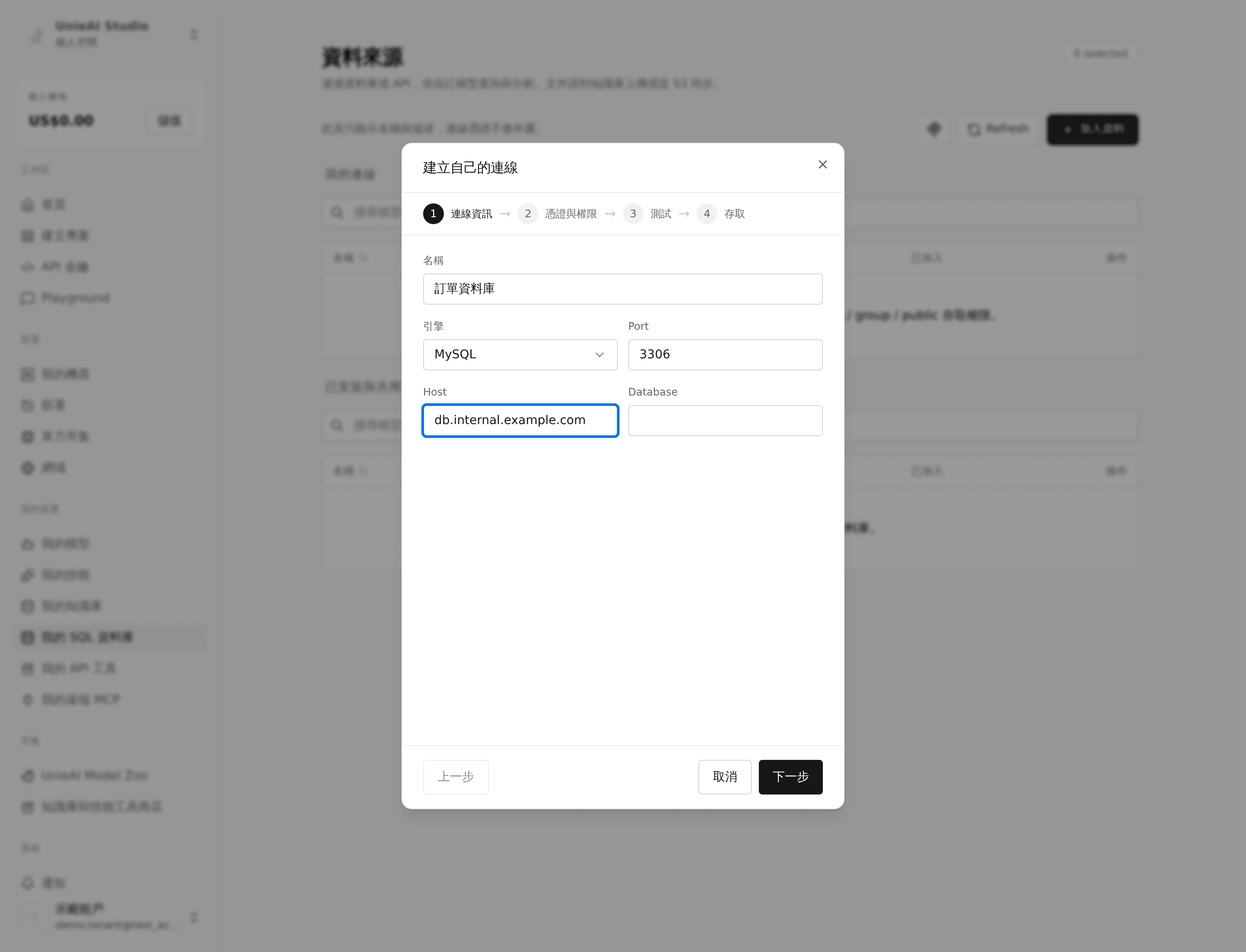
Complete the guided steps and confirm that the connection test succeeds before assigning the database to the CM.
- Go to My Assets → My SQL Databases.
- Select Add Data → Database.
- Complete the connection information, account permissions, and access scope shown on screen.
- Select Test Connection. Complete creation only after the test succeeds.
- Confirm that the database has been added and is available in the CM selection list.
For production data, start with read-only access and expose only the data required for the CM's task.
Create an API Tool
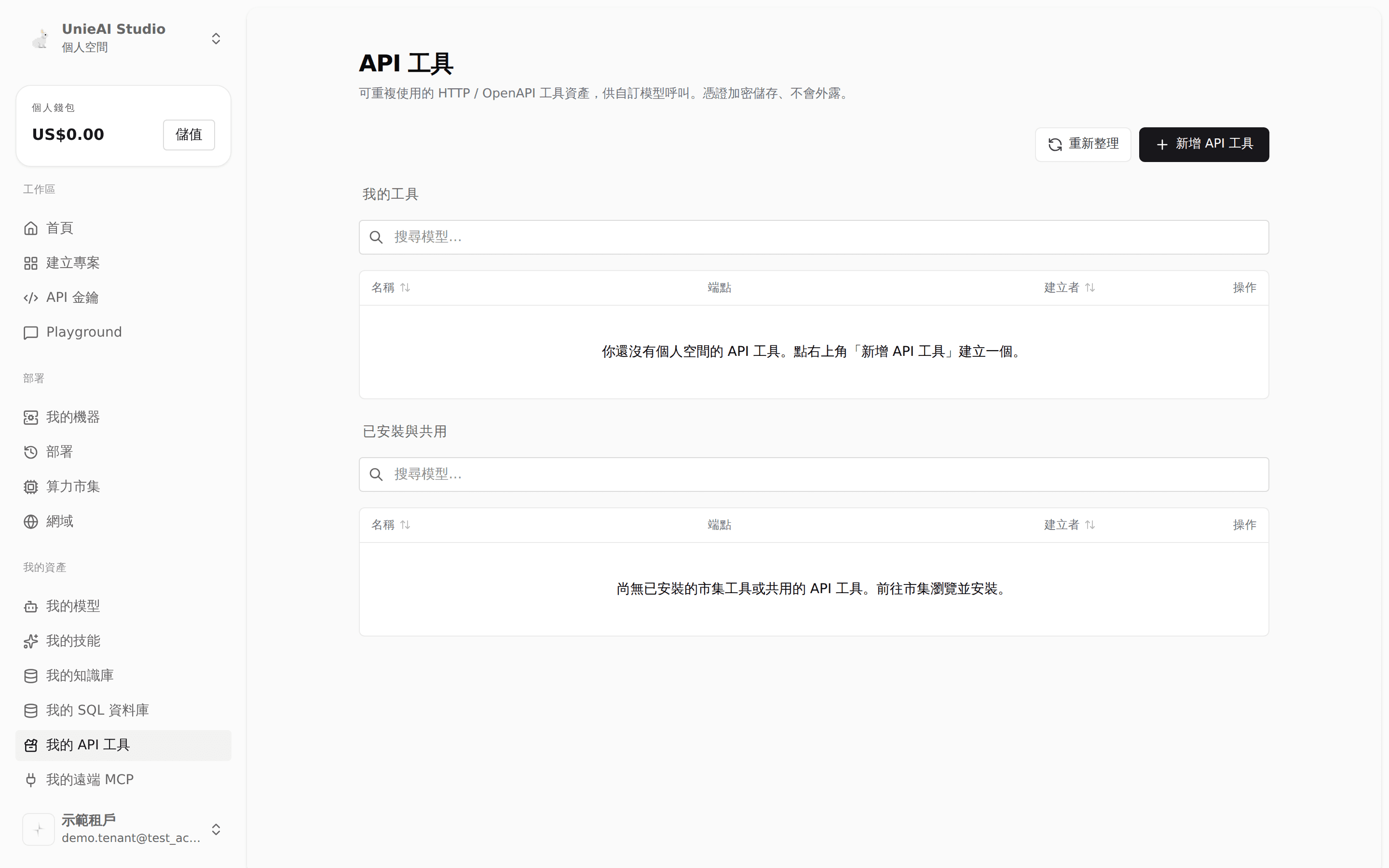
A completed tool appears here and can then be selected from the CM's feature settings.
- Go to My Assets → My API Tools.
- Select Add API Tool.
- Enter a name and clearly state when the tool should be used.
- Complete the service location, required data, and authorization settings shown on screen.
- Save the tool and confirm that it is enabled.
Keep each tool focused on one clear task, such as checking an order status or creating a support case.
Create an MCP Connection
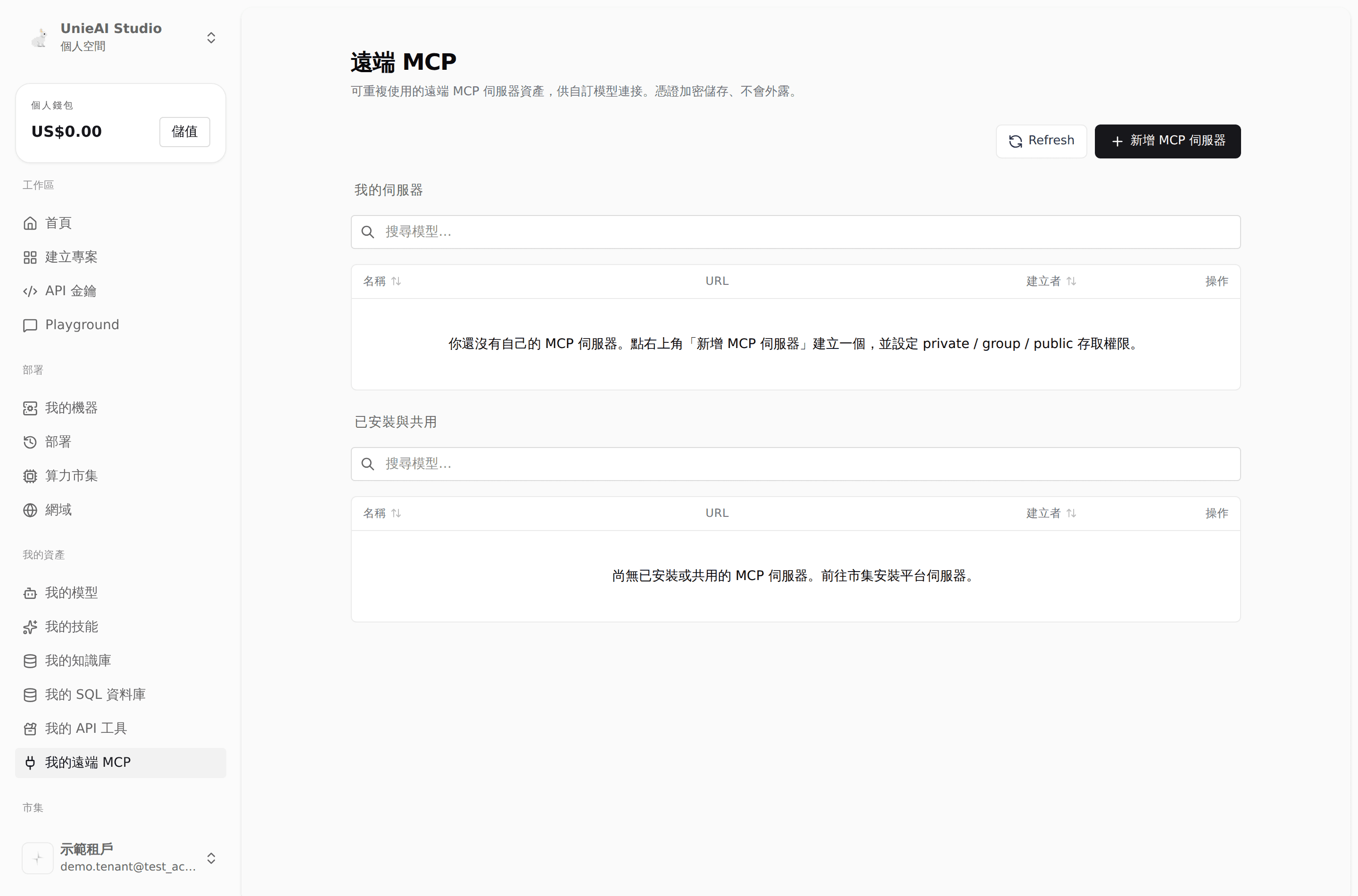
Confirm that the MCP connection lists its tools here before adding it to the CM.
- Go to My Assets → My Remote MCP.
- Select Add MCP Server.
- Complete the server, authorization, tools, and sharing steps.
- If Sign in and authorize appears, finish sign-in and return to Studio.
- Confirm that the status is normal and that the required tools appear in the list.
Resolve a Sign-in required or Disabled status before connecting the MCP server to the CM.
Connect Data and Tools to the CM
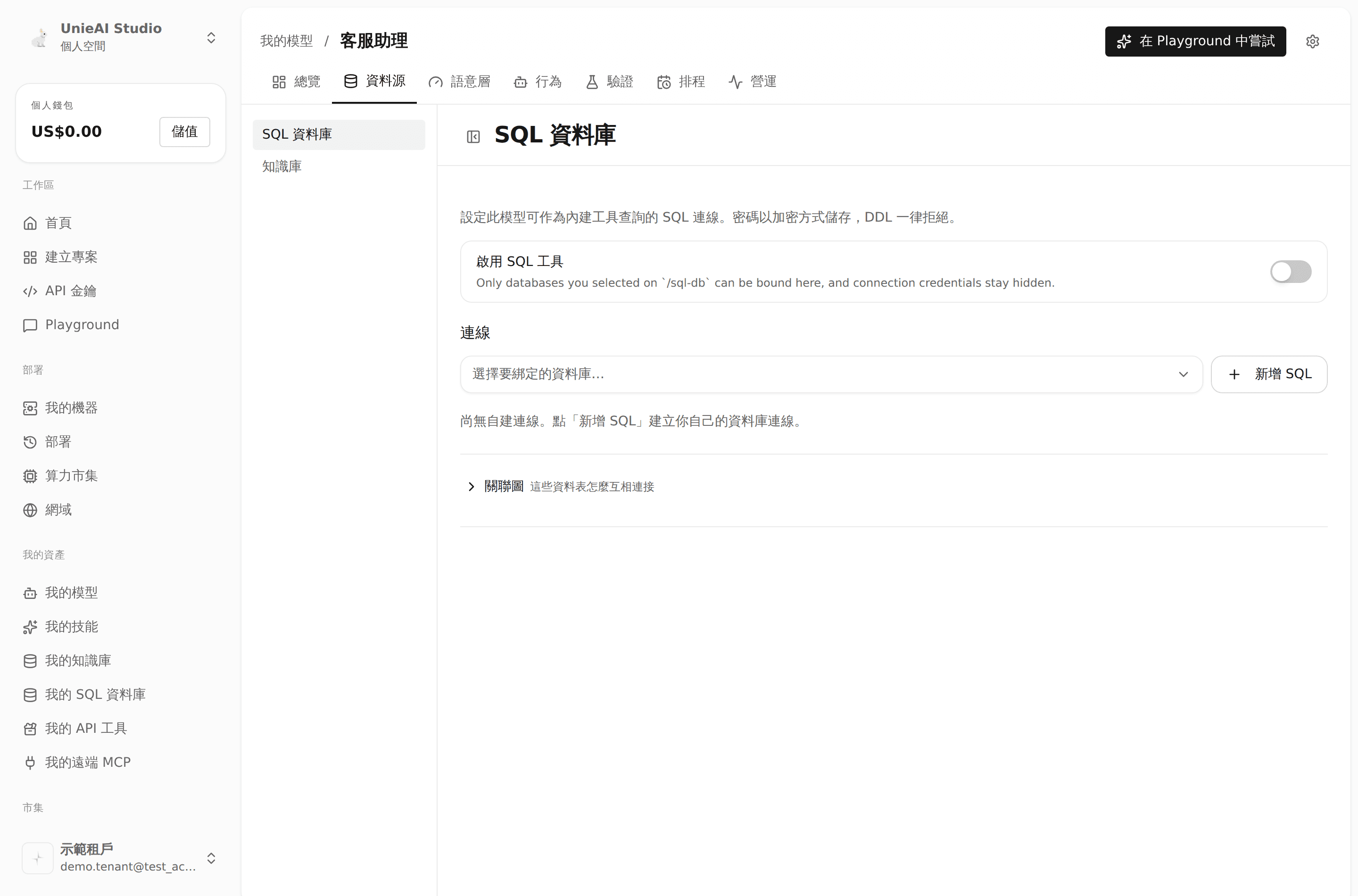
Manage knowledge bases and SQL databases on Data Sources, and add API tools and MCP connections from their corresponding feature pages.
Return to the CM and complete the applicable settings:
| Capability | Location in the CM | Action |
|---|---|---|
| Knowledge base | Data → Knowledge Base | Select the knowledge bases the CM can search |
| SQL database | Data → SQL Database | Select the databases the CM can query |
| API Tool | Behavior → API Tools | Enable the feature and select the tools |
| MCP | Behavior → MCP | Enable the feature and select the MCP servers |
Confirm that each selection has been saved. Then go to Behavior → Kernel Prompt and describe the CM's role, response rules, permitted data, and what it should do when information is uncertain.
Creating an asset does not connect it automatically. Each knowledge base, database, and tool must be selected in the target CM.
Test in Playground
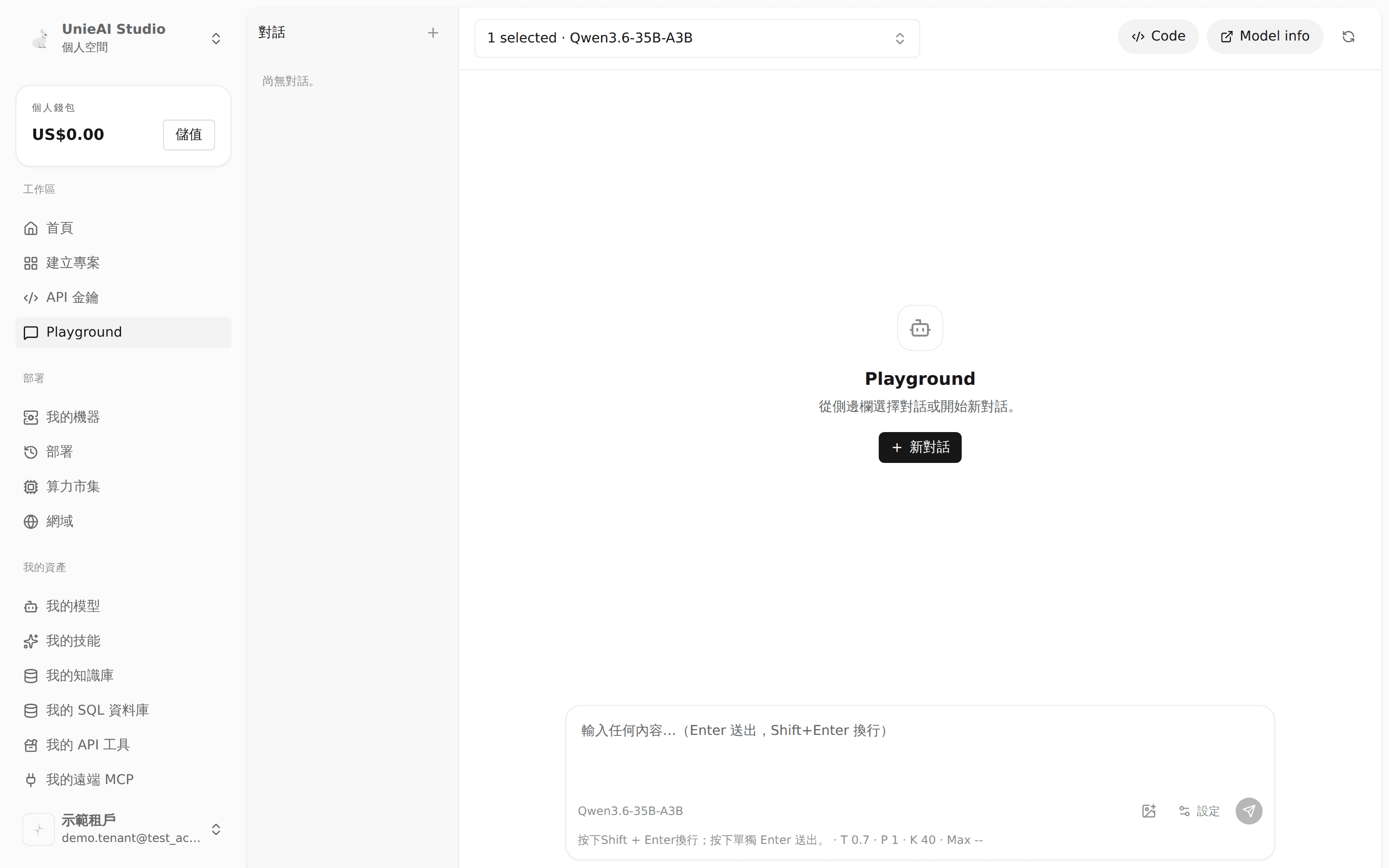
Before sending a test question, confirm that the model selector shows the CM created in this workflow.
- On the CM page, select Try in Playground.
- Confirm that the newly created CM is selected at the top.
- Test general responses, the knowledge base, SQL, API Tools, and MCP as applicable.
- Check that answers are correct, use the expected data, and avoid actions that should not be performed.
- After changing the CM, start a new conversation and test again.
| Test type | Example |
|---|---|
| General | What can you help me with? |
| Documents | According to company policy, how early must leave be requested? |
| Data | Summarize this month's order count by region. |
| Tool | Check the current status of order 12345. |
| Missing information | Ask for an order lookup without providing an order number. |
| Permission boundary | Request unauthorized data or an unavailable action. |
Continue to Chat setup only after all planned capabilities pass testing.
Prepare for Chat Delivery
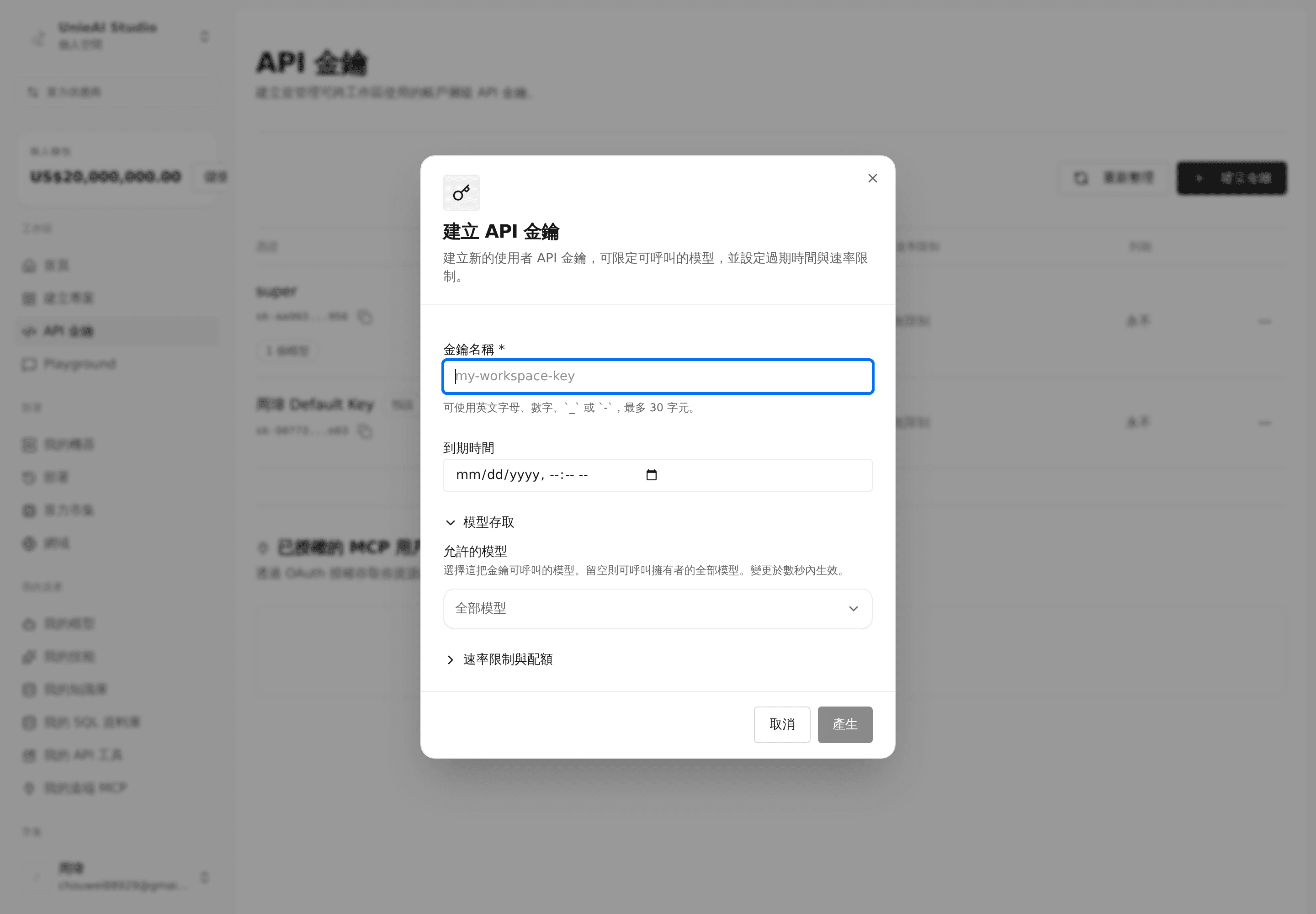
Copy the key directly into Chat when it is shown. Do not place it in documentation or screenshots.
- Go to API Keys.
- Find the API Key for Chat and select Copy Secret. If no suitable key exists, select Create Key, finish creating it, and then copy it.
- Return to the CM and go to Operations → Integrate to obtain the information and CM identifier needed for Chat.
- Confirm that the CM, base model, and required assets are available.
Copy the API Key from the API Keys page, not from the CM integration page. Store it securely and do not place it in public documents, group messages, or screenshots.
Add and Select the CM in Chat
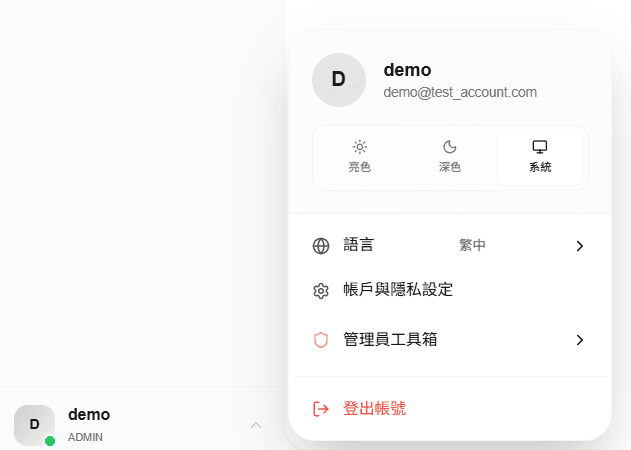
Open Account & Privacy Settings for a private Provider. Administrators use Administrator Toolbox for global Provider settings.
Choose one Provider type based on who should use the CM:
| Provider type | Use case | Who can use it |
|---|---|---|
| Private Provider | Personal use or initial testing | The creator only |
| Group Provider | Shared use by a specific team | Members of that group |
| Global Provider | Shared across the Chat platform | All platform users |
All three Provider forms require the following information:
| Field | Required | What to enter |
|---|---|---|
| Display Name | Yes | A recognizable Chat name, such as “Company Support CM” |
| Prefix | Yes | Four letters or numbers that are not already used by another Provider, such as CM01 |
| API URL | Yes | The Base URL shown under Operations → Integrate in the Studio CM |
| API Key | Yes | The API Key copied from Studio API Keys |
In Chat, enter Studio's Base URL in the API URL or API Endpoint field. Do not enter the separate “Endpoint” value or add anything else. Paste the API Key in full without leading or trailing spaces.
Private Provider
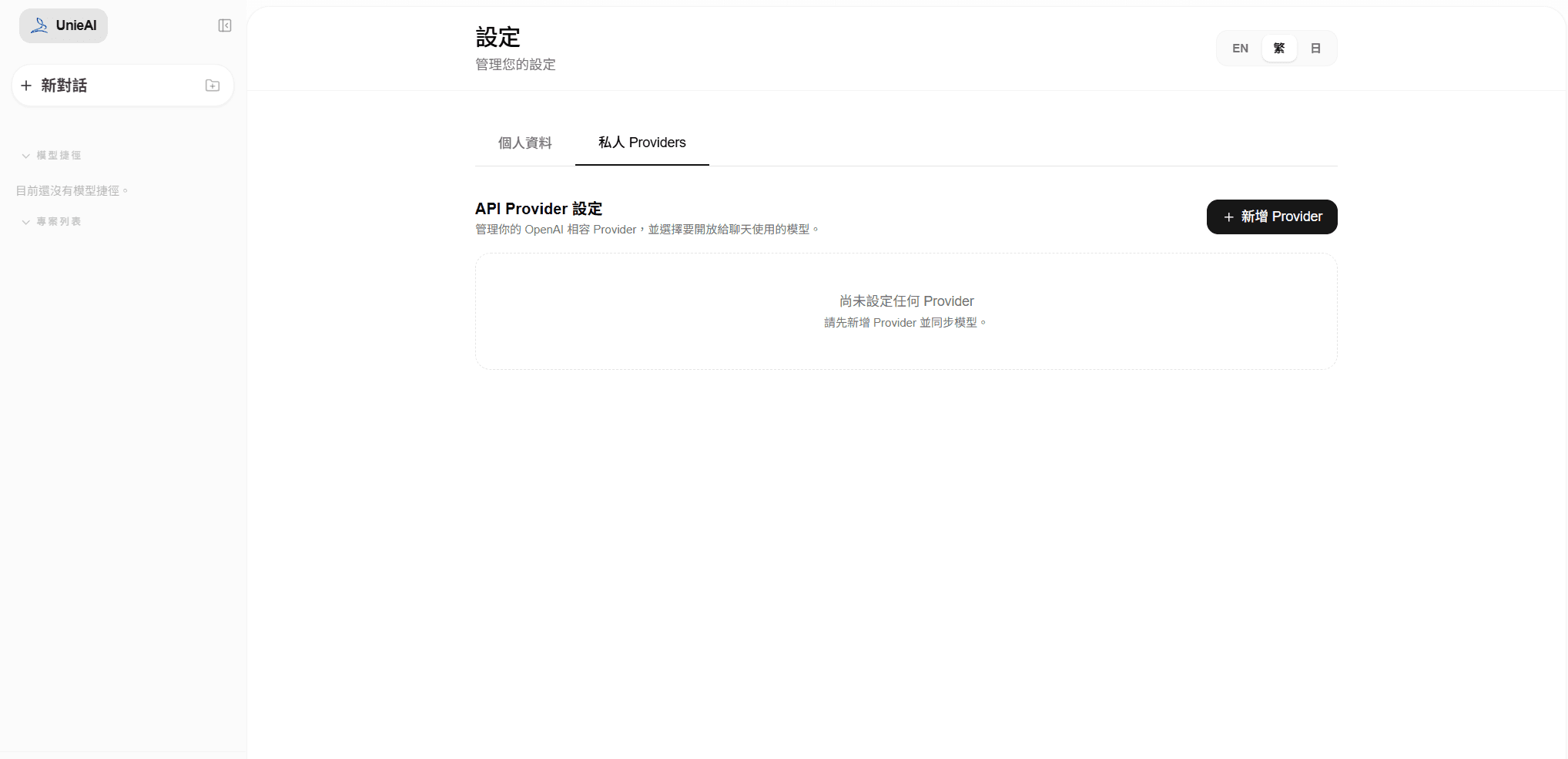
Use Add Provider in the upper-right corner to begin.
- Open Account & Privacy Settings from the account menu.
- Open the Private Providers tab and select Add Provider.
- Enter the CM name in Display Name.
- Enter four letters or numbers in Prefix. Choose another value if the Prefix already exists.
- Paste the Studio Base URL into API URL.
- Paste the API Key copied from Studio into API Key.
- Confirm all four fields and select Create Provider.
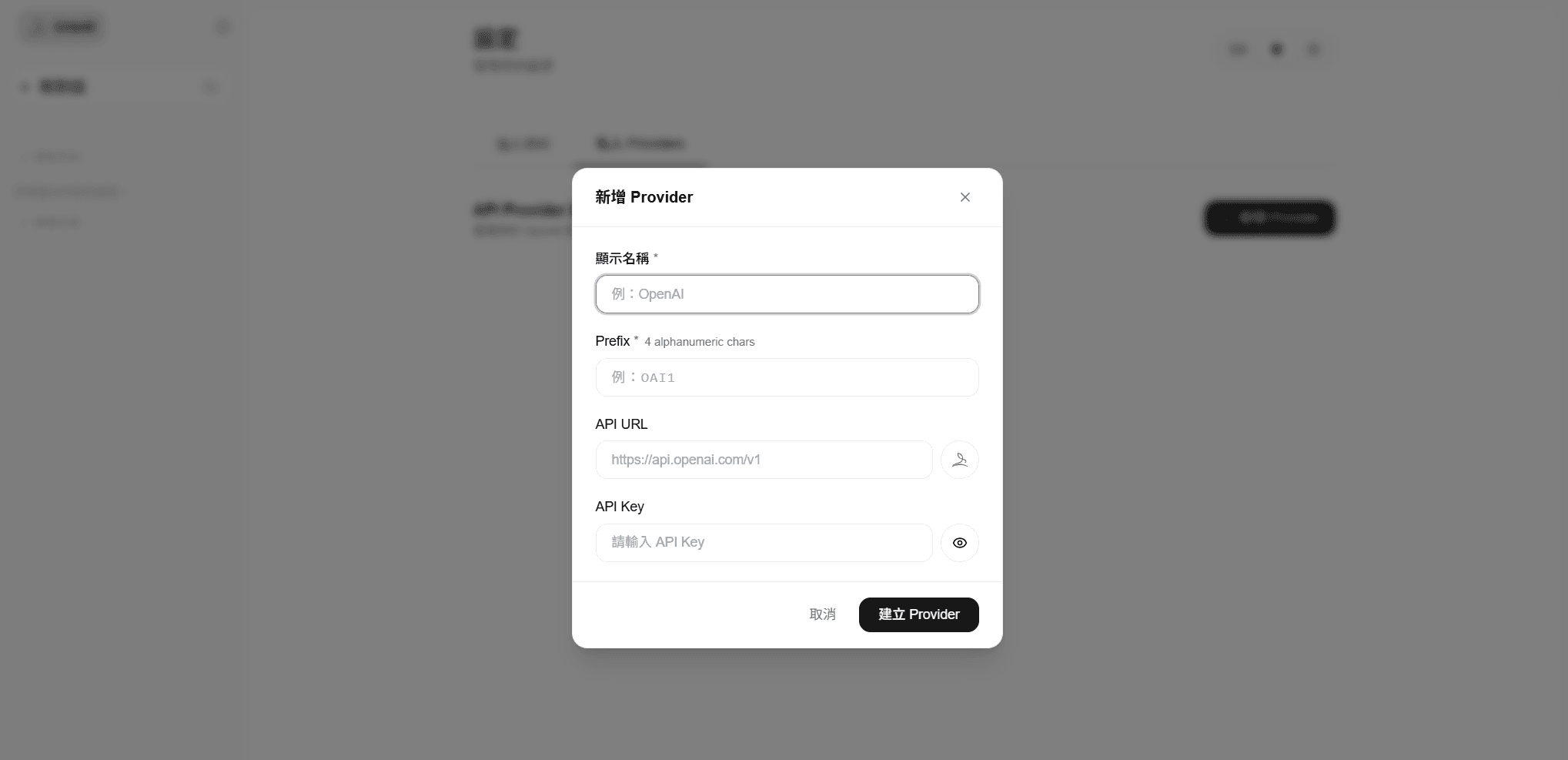
Complete all four fields. Keep the API Key masked whenever the screen is shared or captured.
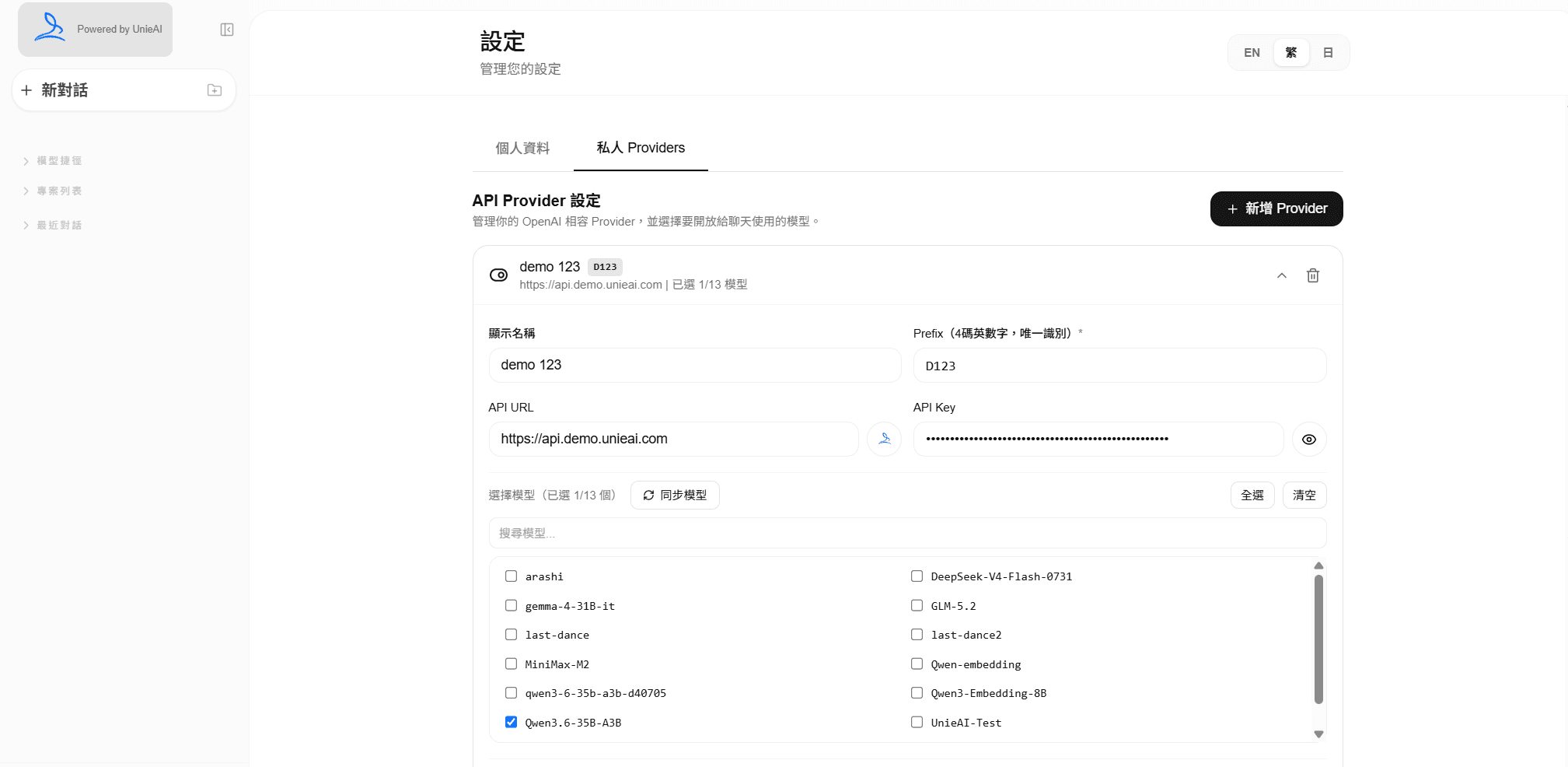
After creation, synchronize the models, select the CM that should be available, and save the selection.
If Private Providers is not visible, ask a group editor to create a Group Provider or an administrator to create a Global Provider.
Group Provider
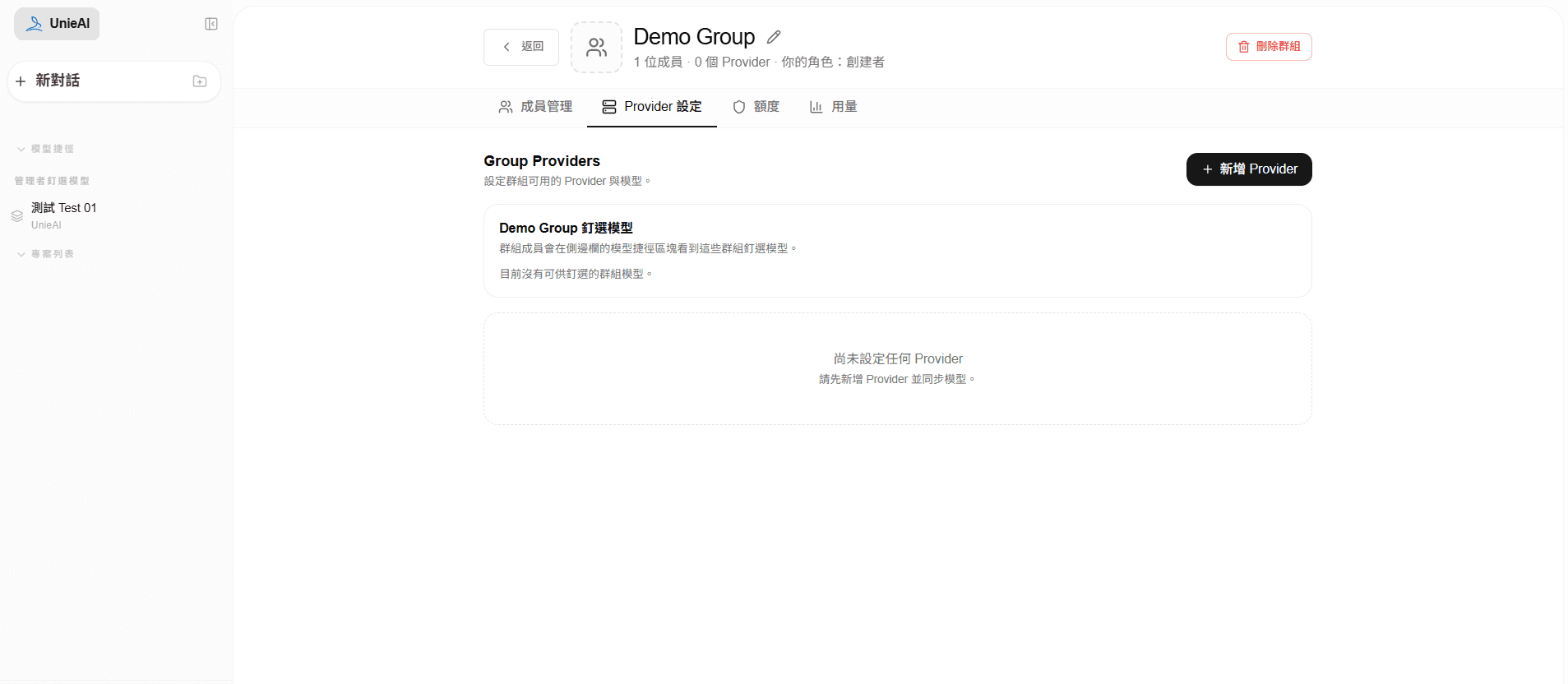
The add button is available to the group Creator and Editors who can manage Provider settings.
- Open My Groups and select the group that will use the CM.
- Open Provider Settings and find Group Providers.
- Select Add Provider.
- Enter a recognizable CM name in Display Name.
- Enter a unique four-character alphanumeric Prefix.
- Paste the Studio Base URL into API URL.
- Paste the API Key copied from Studio into API Key.
- Confirm all four fields and select Create Provider.
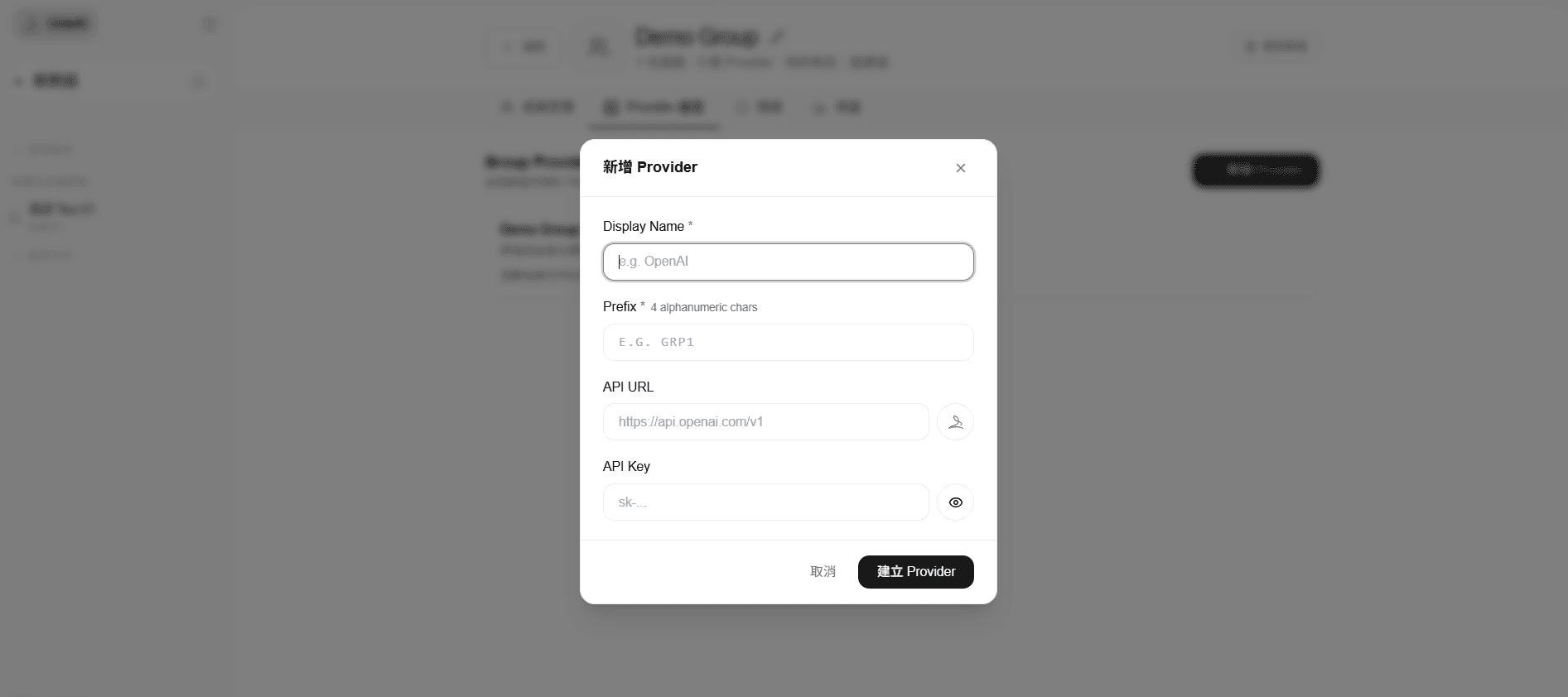
Complete all four fields and use a Prefix that is not already assigned to another Provider.
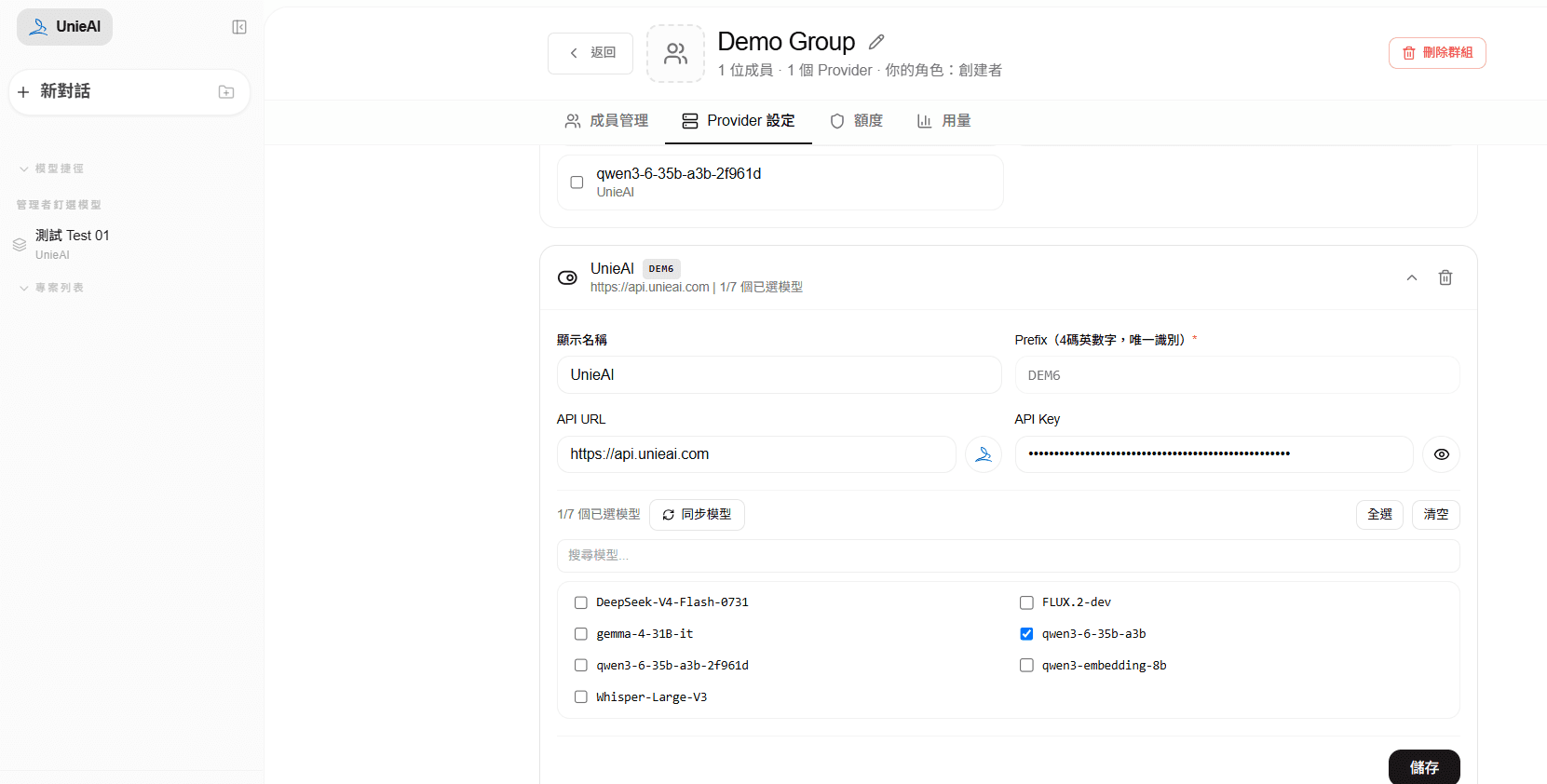
Select only the CM models the group should use, then save the selection.
Only the group Creator or Editor can manage Providers. Other group members can use enabled Group Providers but cannot add or change them.
Global Provider
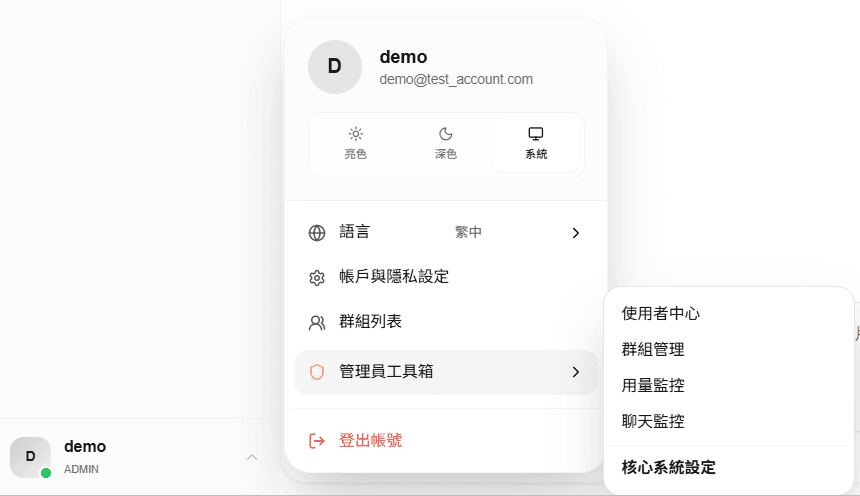
Open Core System Settings from the Administrator Toolbox, then go to Global Providers.
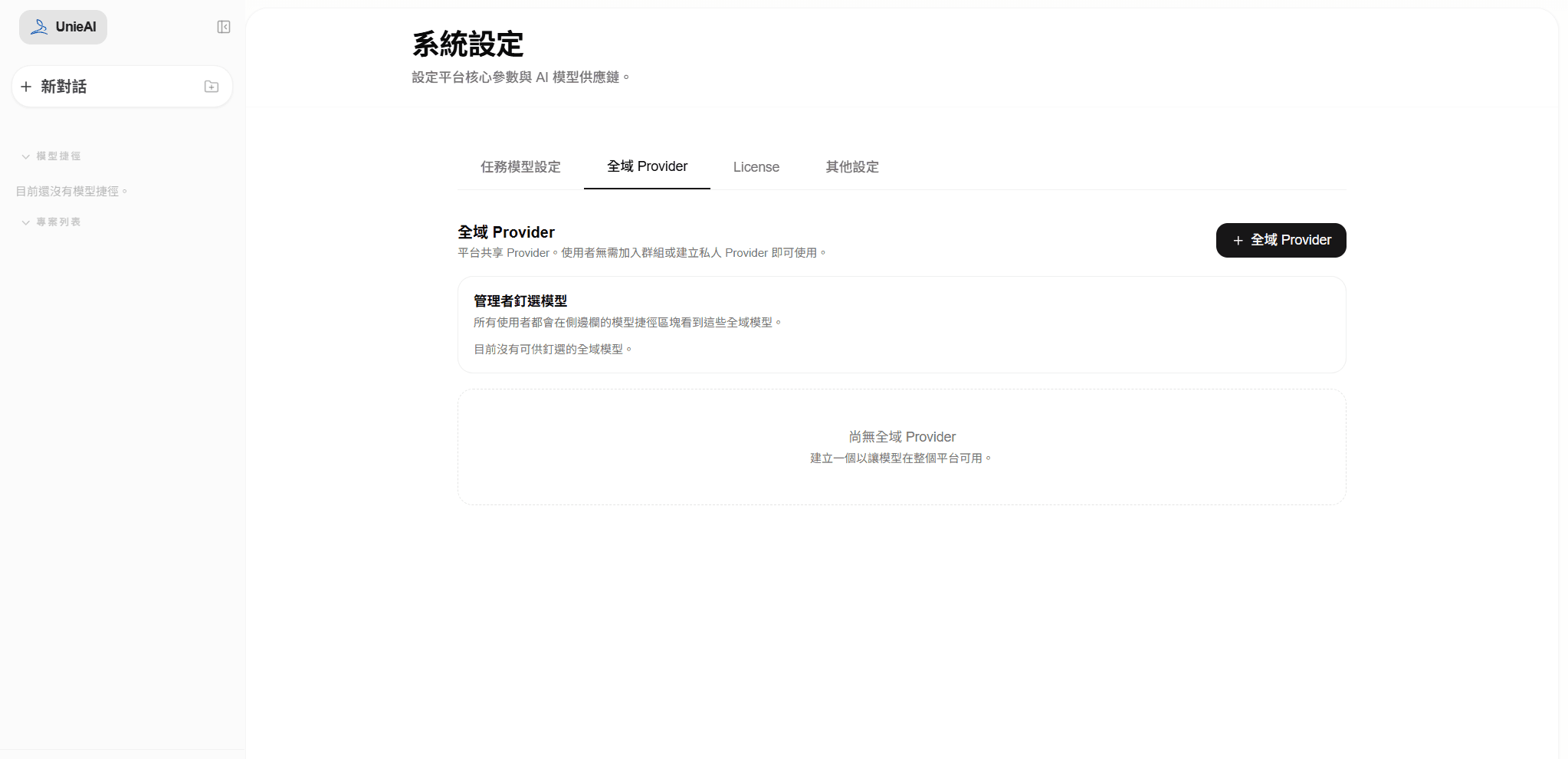
Select the button in the upper-right corner to open the creation form.
- A Chat administrator opens System Settings from the account menu.
- Open Global Providers and select Global Provider in the upper-right corner.
- Enter a recognizable CM name in Display Name.
- Enter a unique four-character alphanumeric Prefix.
- Paste the Studio Base URL into API Endpoint.
- Paste the API Key copied from Studio into API Key.
- Confirm all four fields and select Create Global Provider.
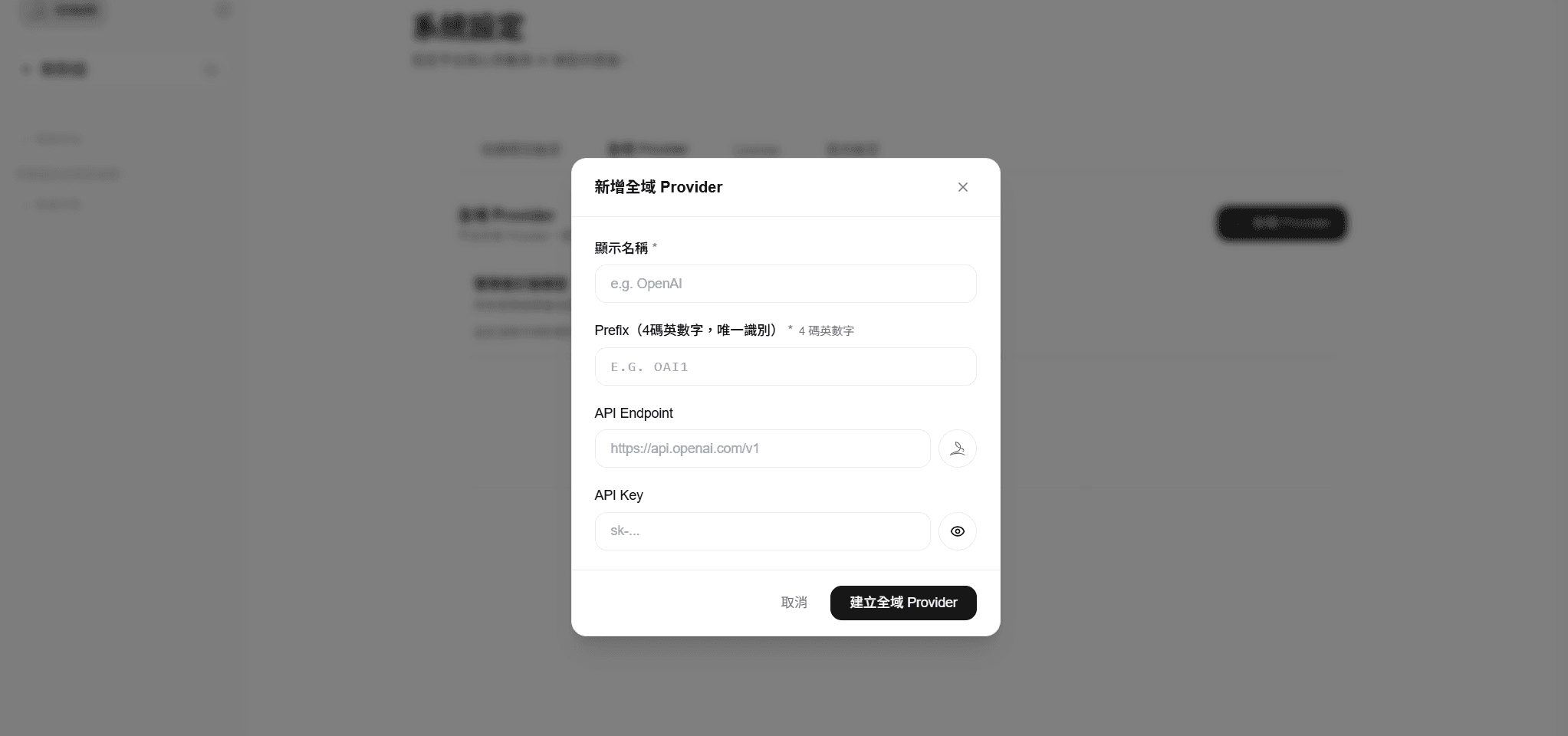
Enter Studio's Base URL in API Endpoint, then complete the remaining required fields.
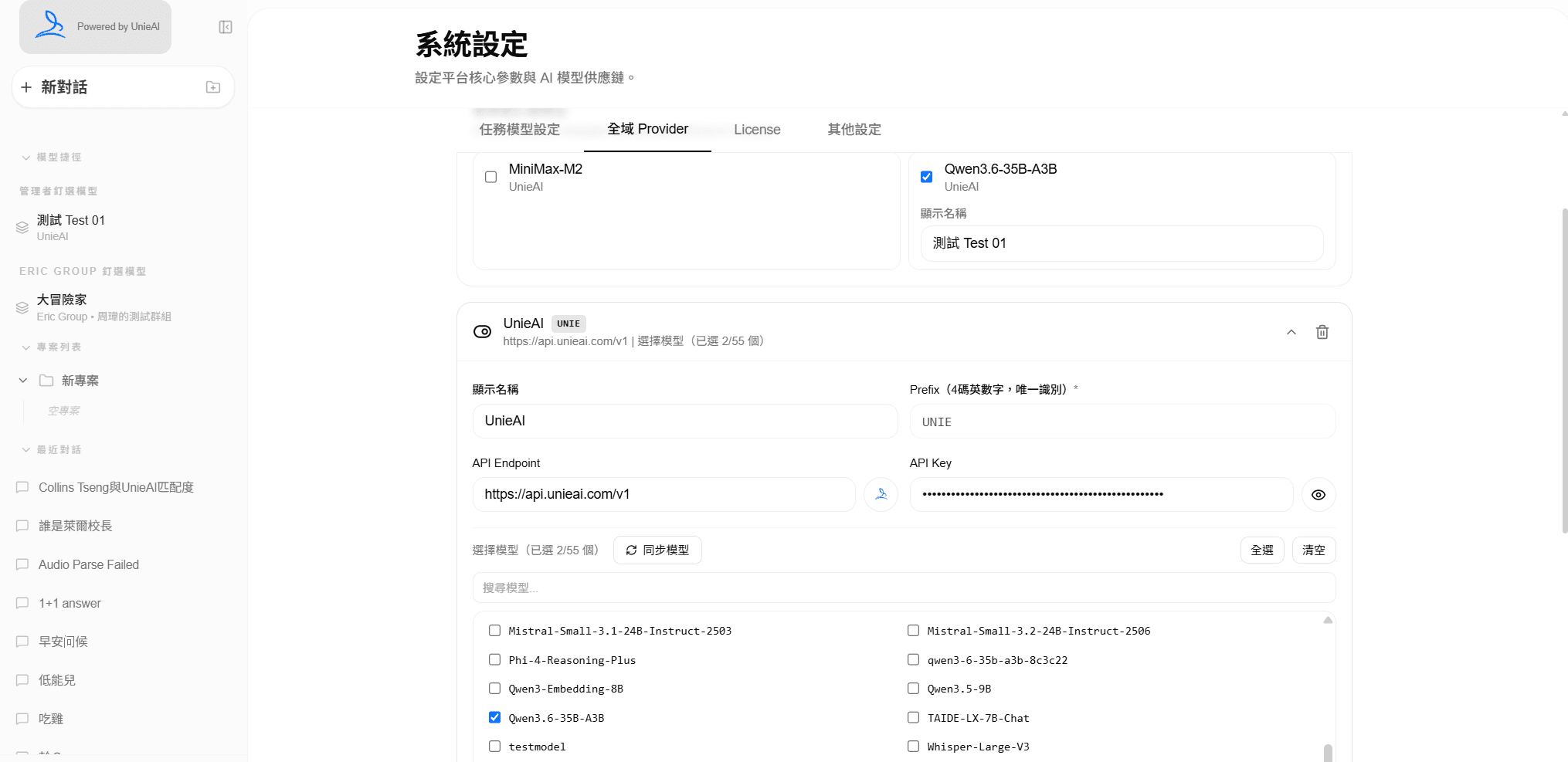
Synchronize the models, select the CM, and save. The saved selection is available platform-wide when the Provider is enabled.
Only Chat administrators can create and manage Global Providers. An enabled Global Provider is available to all Chat users.
Sync and Verify the CM
- Find the new Provider and expand its settings.
- Select Sync Models and wait for the completion message.
- Search for the CM and select it. Avoid Select All unless every listed model should be available.
- Select Save and confirm that the saved message appears.
- Confirm that the Provider is enabled. Turn it on if it is marked Disabled.
- Start a new Chat conversation and choose the CM from the model selector.
- Ask a question that already passed in Playground and confirm the result.
Pre-launch Checklist
- The correct CM name appears in the Chat model selector
- General responses match the Playground result
- Knowledge-base questions use the correct content
- SQL questions access only permitted data
- API Tools and MCP run only when appropriate
- The CM asks for clarification when required information is missing
- Unauthorized users cannot access restricted assets
- The API Key is stored by the designated person and does not appear in documents or screenshots
Common Issues
Related Guides
Getting Started
Set up your workspace and deploy your first AI model in under 5 minutes.
Quick Start: Build an Assistant That Uses Your Data
One walkthrough — pick a model, build a knowledge base, connect a database, add an API tool and an MCP server, bind them to a custom model, and verify in Playground.