Querying Large Databases
Handing a database to an assistant — from connecting it, through letting the system read it, to the few sentences you write that make it answer accurately. Every step says why it exists, and whether what you wrote actually reaches the assistant.
Connecting a database does not make the assistant understand it. This page walks the whole flow, and every step states why it exists and what goes wrong without it before telling you where to click.
Every screen and number here comes from a real example: a database with 31 tables and 2,387 columns.
First, two things that make the rest make sense
One: the assistant carries a map, not your data
The assistant carries a map — which tables exist, what each one holds, how they connect. It carries none of your rows. When it actually needs a number, it writes one SQL statement and pulls a few dozen rows back as evidence.
| When | Contents | |
|---|---|---|
| Map | Every message | Table names, descriptions, column names, relationships |
| Evidence | Only when a number is needed | The few dozen rows that query returned |
Everything below is about making that map correct. A wrong map makes the assistant confidently wrong.
Two: definitions belong to the database, not to the assistant
What a column means, how a metric is computed, how tables join — these are facts about that database. They do not change because a different assistant reads it.
So definitions live on the database's own page, written once:
- Three assistants on the same database means one read, and one set of descriptions to maintain
- Correct a column's meaning in one place and every assistant using it is current immediately
- There is no way to end up with "one database, two assistants, two different meanings"
When you need the full flow, and when you don't
A handful of tables with human-readable names — steps 1 and 2 are enough; the system's own descriptions are usually usable as they are.
The later steps matter when:
- Column names are abbreviations (
ord,cst,amt,f_0837) - One concept has different names in different tables, or one name means different things
- You have a history of "the same number, computed differently by different people"
If you only want the assistant to read documents, not query a database — this page does not apply; see the knowledge base sections.
Step 1: Connect a database
Why: something has to reach your database. This step only opens the connection — it reads nothing.
What you get: a working connection. The system still does not know what is inside.
How: go to My SQL Databases, add a connection, and fill in host, port, database, username and password.
Use a read-only account. The assistant always executes read-only, but a read-only account is the harder guarantee — it survives a misconfiguration, and it survives somebody using those credentials outside the assistant.
Step 2: Let the system read the database
Why: ord and f_0837 tell the assistant nothing. This step turns structure into meaning. Without it, an abbreviated schema is close to unanswerable — measured on name-only ranking, the right table was in the top 8 about 25% of the time, which is a coin flip.
What you get: a map the assistant can read.
How: click the database's name in the list to open its page, then press Read this database. It runs in the background and you can leave the page. The example above took 2.5 minutes.
It does four things:
- Reads the structure — tables, columns, types, primary keys, foreign keys. No rows are read.
- Writes descriptions — one sentence per table and per column. This calls a model and is billed to the owner's wallet.
- Groups what is the same thing —
ordandord_2023collapse into one business entity, marked current vs. history. - Adopts declared foreign keys — relationships your database declares are taken as fact, not put to you as questions. The example adopted 36.
Step 3: See what the assistant actually reads
Why: this is the most important step on the page and the easiest to skip. What you write does not automatically reach the assistant — see which parts do before deciding where to spend effort.
What you get: a definite answer to "is the sentence I just wrote being used".
How: on the database's page, open What the assistant reads.
The table at the top answers that per kind of definition, using this database's real numbers:
| Definition | In the prompt? | When it goes in |
|---|---|---|
| Table names | Yes | Always |
| Column names | Sometimes | Full mode only — and then all of them, nothing truncated |
| Column meanings | No | Never placed in the prompt directly — 2,387 descriptions would swamp the context |
| Business logic (metrics) | Sometimes | Full mode only, and only ones that are confirmed and carry an expression |
| Table relationships | Sometimes | Full mode only; a confirmed one becomes A.col = B.col |
Below it is the verbatim text, rendered by the same function the runtime uses — not a description of it.
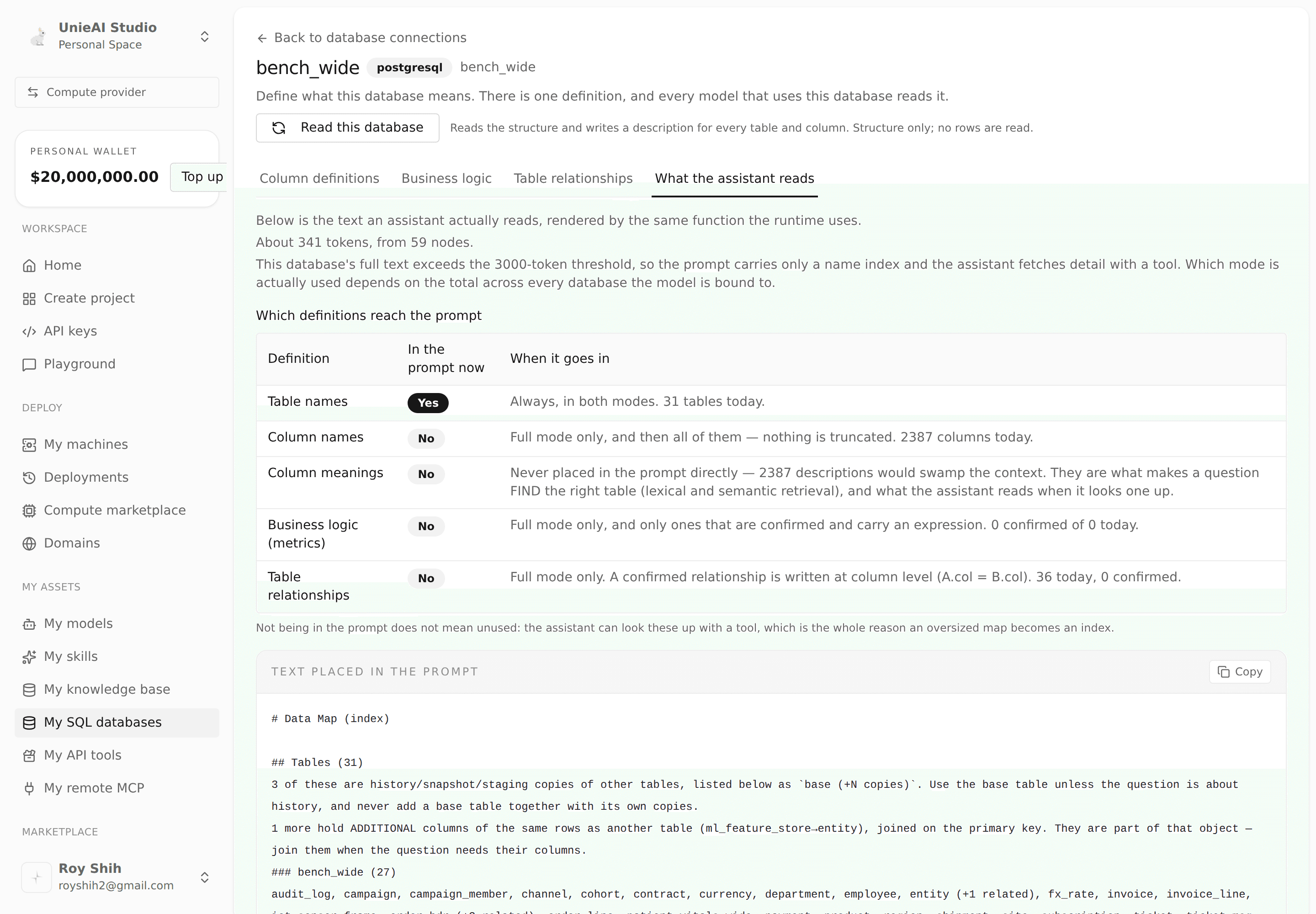
"Not in the prompt" is not "unused". Column meanings are what makes a question find the right table: they feed both lexical matching and semantic retrieval, and they are what the assistant reads when it looks a table up. A Chinese question reaching an English-named column is exactly this at work.
Two modes: while the full map fits the threshold (3,000 tokens) it goes into the prompt whole; past it, only a name index goes in and the assistant fetches detail with a tool. The example above is in index mode, at 341 tokens.
The rule is: compress, never silently discard. Even when names alone will not fit, the assistant still knows "there are 20 more tables starting with fin_" and can look any of them up. It will not tell you a table does not exist because it could not see it.
Step 4: Add the meanings only you know
Why: some things the data cannot answer. Whether net_amt is before tax or after discounts, what entity_id actually refers to — the schema does not say. An assistant that guesses gives you a number that cites real rows, looks reasonable, and is wrong.
What you get: the assistant stops guessing at those points.
How: on the Column definitions tab.
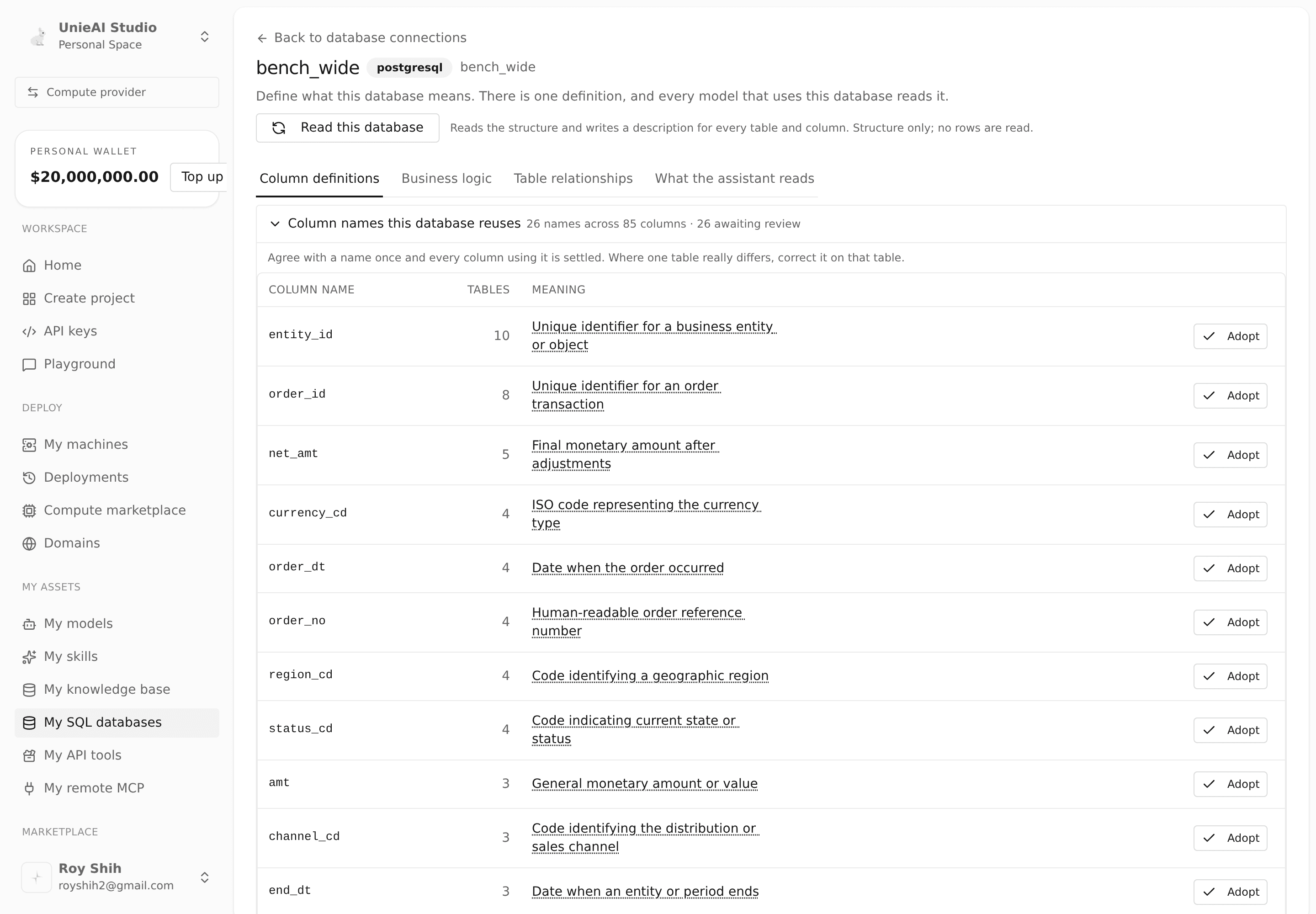
Start with the shared column names — the highest return on the page. The system collects names that recur across tables at the top; in the example that is 26 names covering 85 columns.
entity_id— used in 10 tables
Answer once and every column using that name is settled. One action defines 10 columns.
Below it is the per-table column list, searchable and filterable by "still needs me", where the system's descriptions can be reviewed and corrected one at a time.
How far is far enough: you do not have to empty the list. Columns you skip still work — the assistant just has nothing but the name to go on for those.
Step 5 (optional): Pin the numbers that matter
Why: if "revenue this month" is worked out afresh by a model each time it is asked, the same question returns different numbers on different days — and the difference is invisible, because both answers cite real rows.
What you get: a set of numbers that cannot drift.
How: open the Business logic tab and bind a number to one definition — "revenue this month = SUM(net_amt), status = 'paid' only".
Some numbers cannot be written as one expression — they join several tables, use window functions, or you already have an agreed query. Choose fixed query and paste that SQL. When a question names that metric, the assistant runs it verbatim; there is no opportunity to rewrite it.
Only confirmed definitions reach the prompt. Drafts do not.
Step 6: Confirm how tables join
Why: declared foreign keys are already adopted; for the rest, the system proposes joins from column names. A wrong proposal joins two unrelated tables, and the error arrives looking well-sourced.
What you get: the assistant does not join the wrong things.
How: open the Table relationships tab and confirm or correct each one. A confirmed relationship is written into the prompt at column level (A.col = B.col), not just "these two tables are related".
Step 7: Let an assistant use the database
In the assistant's Data station, add this database. It immediately reads everything written in the steps above — none of it has to be done again inside the assistant.
With more than one database there is one limit to know: one SQL statement runs on one database.
① The assistant knows which source each table belongs to. The map is sectioned; two databases' tables never blur together.
② It picks the best-matching source and says which ones it did not use.
Other bound sources also matched: support (tickets) — name it in your question to query there instead
③ Joining across two databases is currently unavailable. A cross-database relationship can never be inferred from a foreign key — no database declares one into another database — so it accepts only human-confirmed relationships, and there is currently no place to confirm one. The assistant says it answered from one side rather than quietly answering half the question.
What the assistant actually sees
You do not have to take this on trust — What the assistant reads shows the verbatim text. In full mode it looks like this:
# Data Map

This assistant can draw on the data sources below. Use `kb_search` for knowledge bases
and `sql_query` for databases; prefer the source whose description matches the question.

## Databases
### bench_wide (postgresql)
- **audit_log**: The audit_log table stores records of user actions, including the employee ID,
  action code, target type and ID, and the timestamp of the event.
  _[audit_id, actor_employee_id, action_cd, target_kind, target_id, logged_at]_

### Relationships
- audit_log → employee
- campaign → channel
No rows — table names, descriptions, column names, relationships.
Archive tables are labelled, not hidden — the name is evidence, strong enough to state and not strong enough to decide for you:
- **ord_2023** _(looks like an archive/staging copy of `ord` — prefer `ord` unless the question is about history)_A fixed query is one whole statement, not a fragment to assemble:
- Revenue this month (unit: TWD) — FIXED QUERY, run verbatim, do not modify or wrap:
    SELECT SUM(net_amt) FROM ord o JOIN fx f ON f.d = o.d WHERE o.status = 'paid'
Giving the database to an outside tool
The same definitions are available to clients outside Studio. Take the configuration from the connection's MCP dialog; three tools are available:
| Tool | What it gives you |
|---|---|
sql_schema | Table names, columns, types — asked of the database directly |
sql_data_map | What those names mean: column meanings, relationships, confirmed metrics; also finds which table holds a field |
sql_query | Runs SQL |
sql_data_map reads exactly the definitions written on this page. For a database that has not been read yet it says so, rather than returning an empty result that reads as "no such data".
Common questions
Does the assistant send my data to a model? Not normally — only the map is in the prompt. When the assistant decides it needs a number, it pulls a few dozen rows as evidence, and those rows appear in that answer's context.
What does reading cost? Writing descriptions in step 2 calls a model, billed to the database owner's wallet. 31 tables took about 2.5 minutes; ordinary conversation afterwards does not repeat that cost. Three assistants on the same database still only pay for that one read.
I corrected a column description — when does the assistant know? On the next message, and for every assistant using that database.
Can I see the definitions for a database somebody shared with me? Yes. Anyone who can use a database can read its definitions — that is what their own assistant answers from. Editing is limited to the owner and admins, because one edit changes what every assistant using it says.
Why doesn't the system work out the relationship between two databases? Because no foreign key exists across databases, so any answer would be a guess. A wrong guess joins two companies' customers together, and the error arrives looking well-sourced.
Version Snapshots and Content Organization
Create and preview knowledge-base snapshots, organize active document versions, and select a content manifest for marketplace review.
Customize Model Memory
Enable memory for a Customize Model and manage memory entries, reviews, answer repairs, and the Feedback API.