Creating a Customize Model
Adopt a base model from Model Zoo, select a workspace, and create a Customize Model.
A Customize Model uses a Model Zoo base model for inference and can then be configured with a Kernel Prompt, knowledge bases, tools, memory, guardrails, and other runtime capabilities.
Before You Start
The following requirements apply:
- You must be signed in and your platform role must not be Pending.
- The platform license must enable the Customize Model feature.
- A model created in personal space belongs to the current user.
- In an organization workspace, only the organization Creator or a Collaborator can create one; a User cannot.
- The selected base model must be added to the current user's My models.
Adding a base model to My models follows the current workspace: personal-space adoption belongs to the user, while organization adoption belongs to that organization. Switch to the intended workspace before opening the creation page.
Creation Flow
Choose a Base Model in Model Zoo
From the sidebar, go to Marketplace → UnieAI Model Zoo and open the desired model's detail page.
A model card can show its name, quantization precision, input and output prices, model type, context size, and call count. The detail page also provides the description, model ID, status, API information, and pricing.
Add It to My Models
Select Use base model. In the confirmation dialog, select Add to my models. After Model connected appears, select Close.
A model must be enabled and not waitlisted to be adopted normally. Pending users cannot adopt base models.
Open the Creation Page
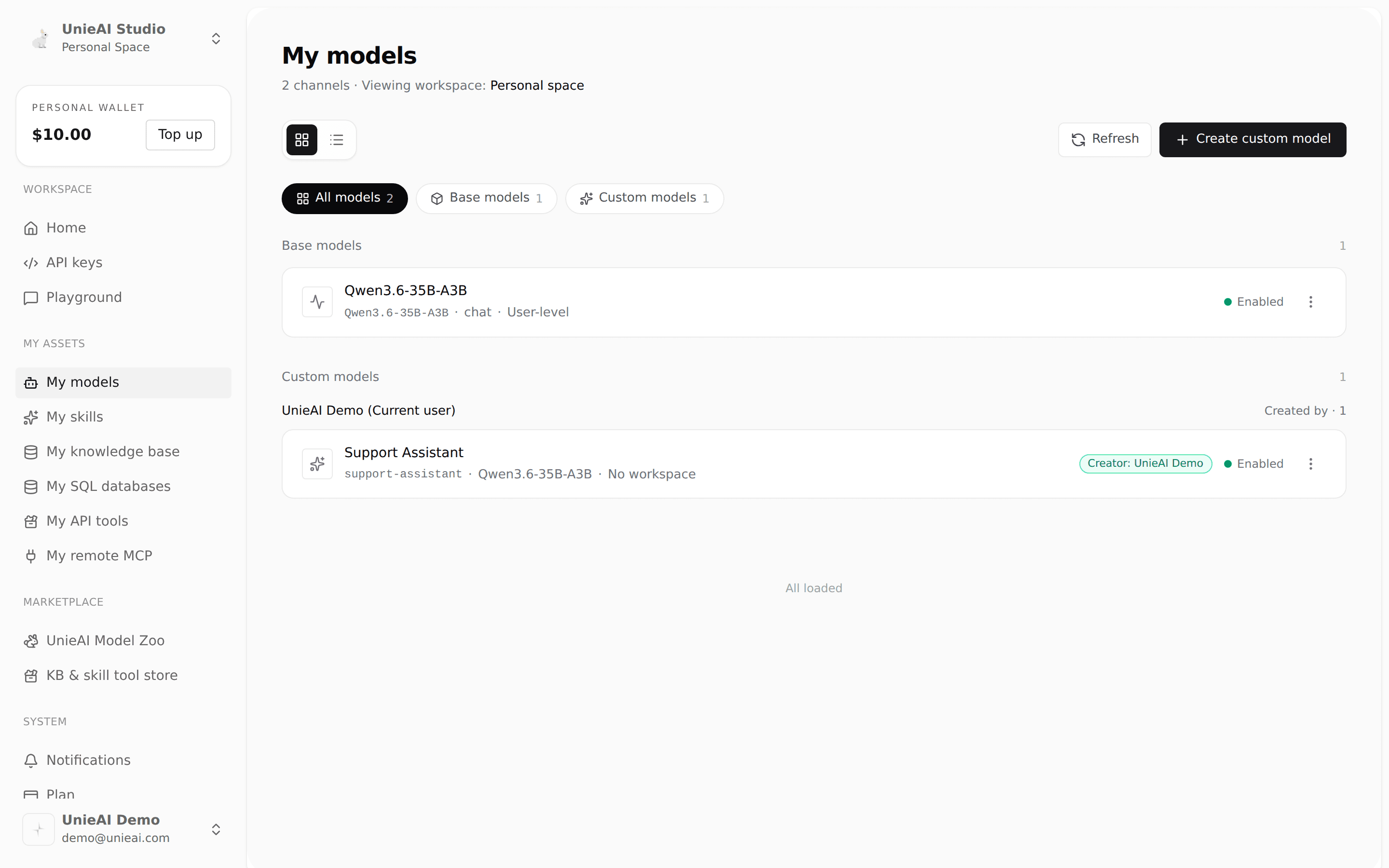
Verify the current workspace, go to My assets → My models, and select Create custom model in the upper-right corner.
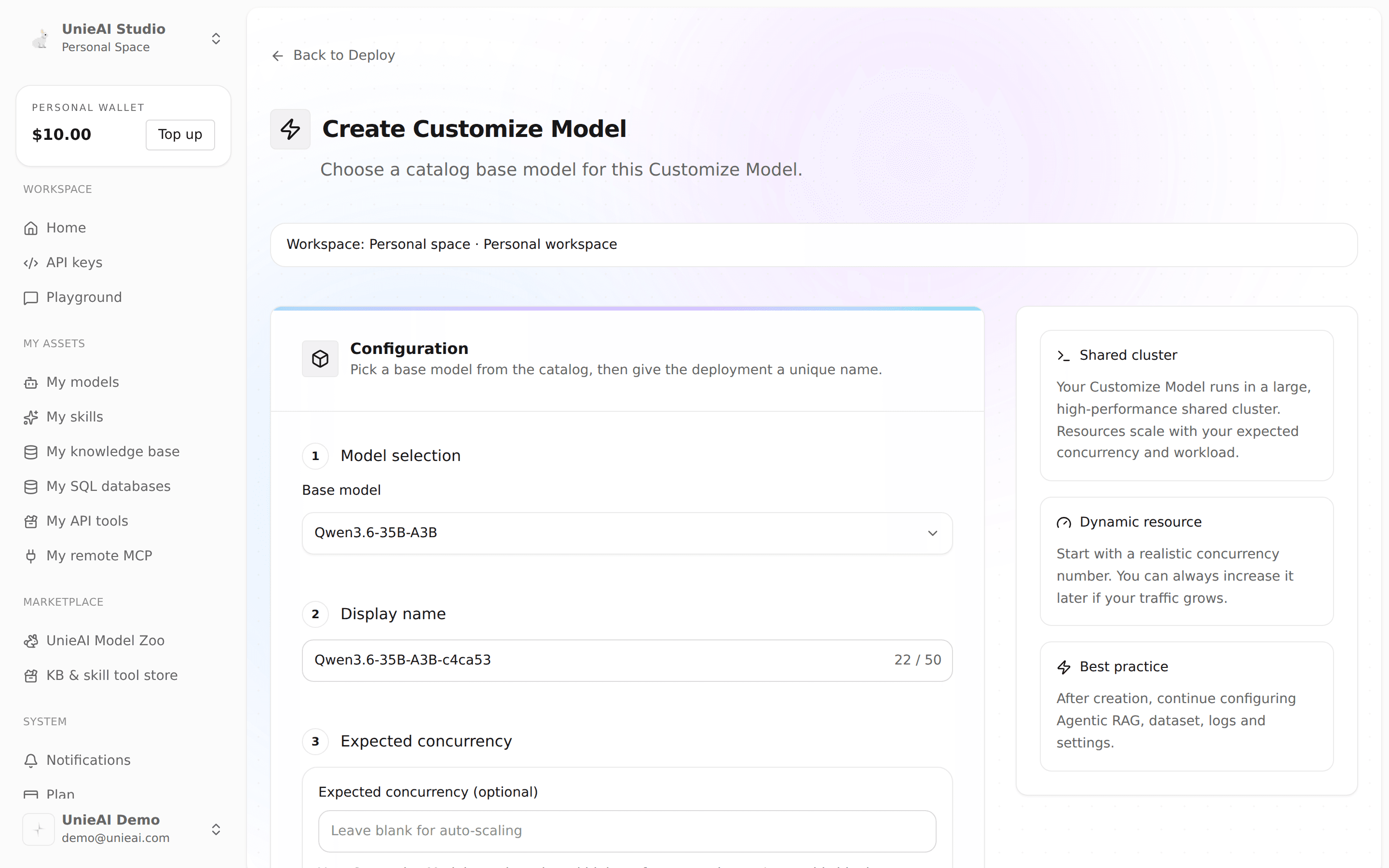
The page identifies the personal space or organization workspace where the model will be created.
Select the Base Model
Choose an adopted model from the Base model selector. If you select a model that is not yet adopted, the platform first asks you to add it to My models.
Set the Display Name
Enter a Display name with these rules:
- 3–50 characters
- Letters, numbers, periods (
.), underscores (_), and hyphens (-) only - Must not duplicate an existing Customize Model display name, case-insensitively
The platform derives the API Slug from the display name. That Slug must also be unique across base models and Customize Models.
Set Expected Concurrency (Optional)
Expected concurrency must be an integer from 1 through 10000. Leave it blank to use automatic scaling. Higher values display a capacity-planning reminder.
Create the Customize Model
Select Create custom model. The new model is enabled by default, and the platform opens its Overview page.
The backend has data structures for an external OpenAI-compatible model source, but the External URL controls on the current creation page are not exposed. The current UI creates models only from Model Zoo base models.
Customize Model Stations
| Station | Current capabilities |
|---|---|
| Overview | Model summary, status, access information, capability map, and integration examples |
| Data | Connected data sources, SQL databases, and knowledge bases |
| Business logic | Business objects, shared vocabulary, and confirmed metric logic across sources |
| Behavior | Kernel Prompt, Agent Loop, skills, MCP, web search, API tools, VLM, Thinking, memory, and guardrails |
| Evaluate | Evaluation and KB testing |
| Schedule | Self-trigger scheduling and sync intervals for bound SQL databases |
| Operate | Requests, guardrail blocks, and integration |
| Settings | Model source and runtime settings, access, and destructive actions |
Ontology graph and conversational BI remain available from the model feature map. Source-specific column meaning, joins, grain, and metrics are managed from the corresponding data-source detail page.
Availability still depends on base-model capabilities, the current workspace, roles, module entitlements, and whether the related resources have been configured.
Test in Playground
- Thumbs down creates a feedback-repair item for an answer that needs improvement.
- Thumbs up records positive feedback. It becomes model memory only when you also choose to save it as memory.
Use the API
After creation, use the integration example on Overview or open Operate → Integrate. The generated example reflects the current domain, model Slug, and selected request parameters.
Before calling the API, verify that:
- A usable user or organization API key exists.
- The API key has permission to use the Customize Model.
- The Customize Model and its base model are available.
- The target wallet has sufficient balance and the required module entitlements are active.
- RAG, tools, memory, and guardrails participate only after they are configured on the model.
See API Compatibility for request formats and parameters, and API Keys for key management.