Quick Start: Build an Assistant That Uses Your Data
One walkthrough — pick a model, build a knowledge base, connect a database, add an API tool and an MCP server, bind them to a custom model, and verify in Playground.
This page is a record of one complete run. Follow it and you end up with an assistant that reads your documents, queries your database, calls your API, and uses tools from an external MCP server — verified in Playground.
The order matters. Knowledge bases, SQL connections, API tools, and remote MCP servers are independent assets — build each one first, then bind them to the custom model at the end. Skip whole sections you do not need: for document Q&A only, do steps 1–3 and jump to step 7.
Before you start
- You are signed in and your platform role is not Pending.
- Check the workspace at the top left. An asset is usable only inside the workspace it was created in, so switch to the organization workspace first if the whole team needs it.
- Inside an organization workspace you must be its creator or a collaborator.
Step 1. Pick a base model
A custom model needs a base model as its inference source, so the first move is adopting one.
Sidebar → Marketplace → UnieAI Model Zoo, and open the model you want. The card shows quantization, input/output pricing, model type, context size, and call count.
Click Use base model, then Add to my models in the confirmation dialog. "Model connected" means it worked.
Confirm it under My assets → My models.
Adoption is recorded per workspace: a model adopted in your personal space is not visible in an organization workspace, and vice versa.
Step 2. Create the custom model
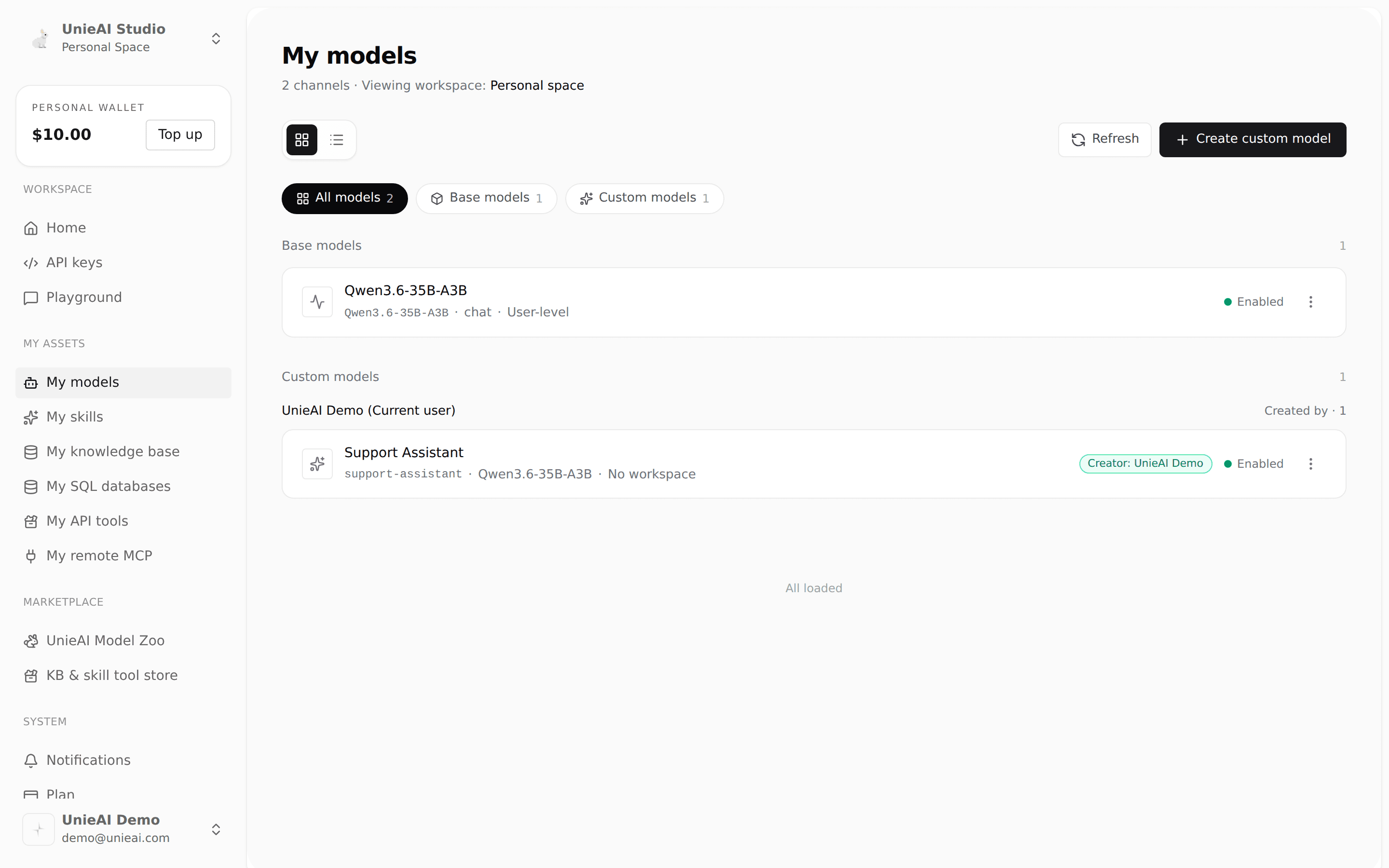
In My models, click Create custom model at the top right.
Base model: pick the one you just adopted. Choosing an unadopted model prompts you to add it to "My models" first.
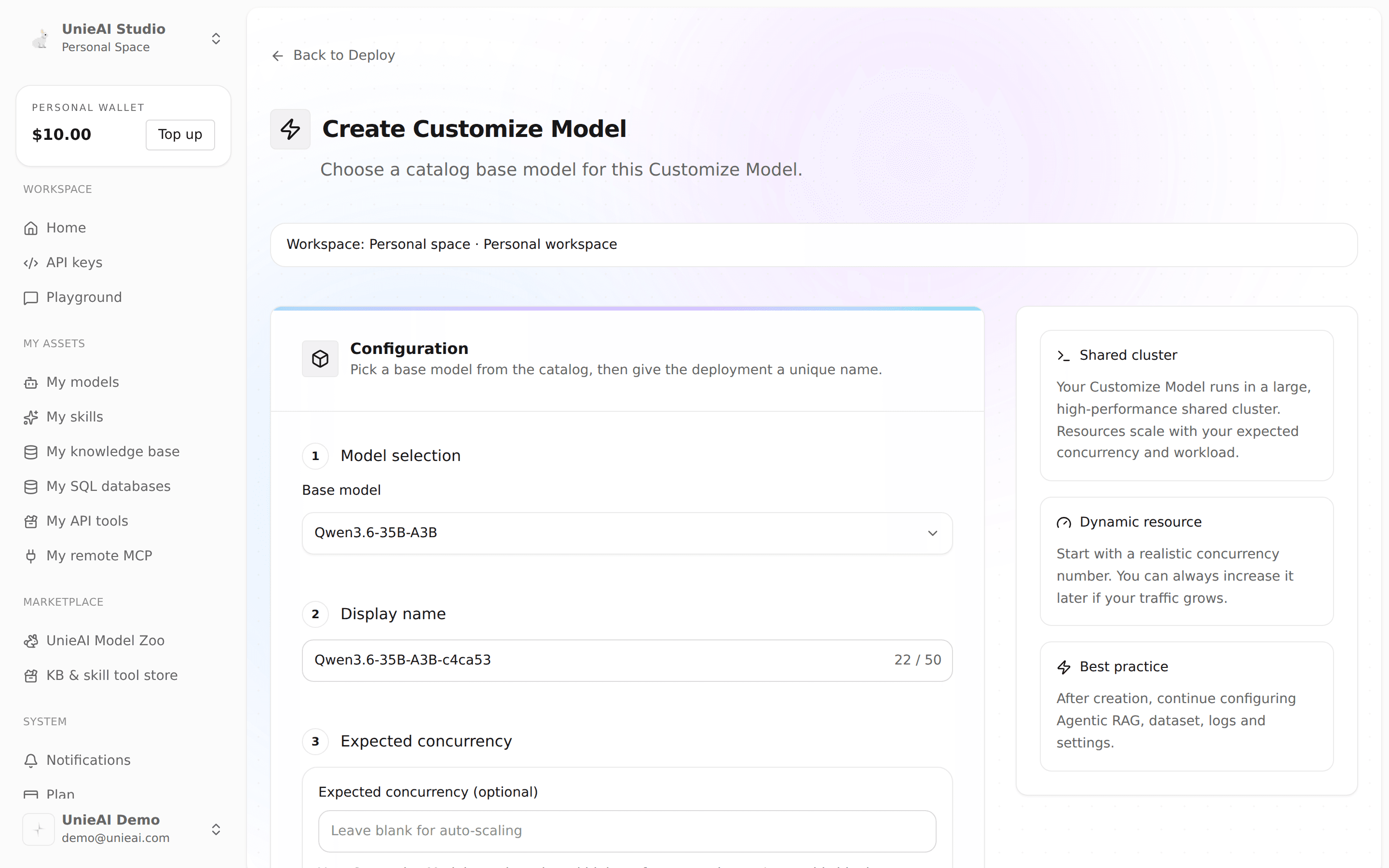
Display name: 3–50 characters, letters, digits, ., _, - only, and unique among custom models.
The API slug is generated from it.
There is no field to change the display name or slug after creation. Get the name right the first time.
Expected concurrency (optional): an integer from 1 to 10000; empty means autoscaling.
Click Create custom model. The model's Overview station opens.
It can already hold a conversation, but it has none of your data yet. The next three steps build the assets.
Step 3. Build a knowledge base (so it can read your documents)
Create it
Sidebar → My assets → My knowledge base, then New knowledge base.
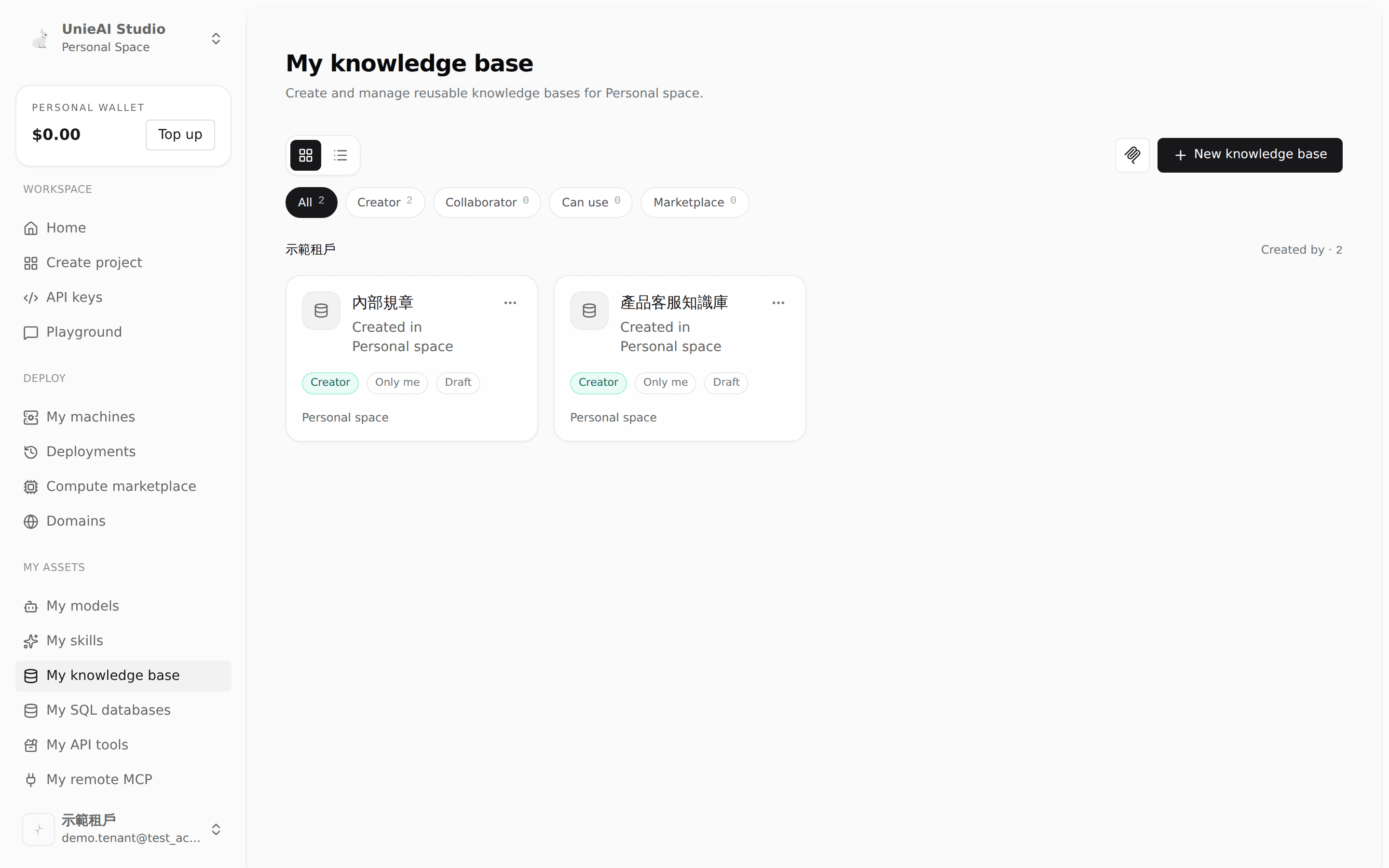
Enter a name, optionally a description (up to 200 characters; it shows in the custom model's knowledge base picker), add collaborators if needed, then click Create. New knowledge bases are private by default.
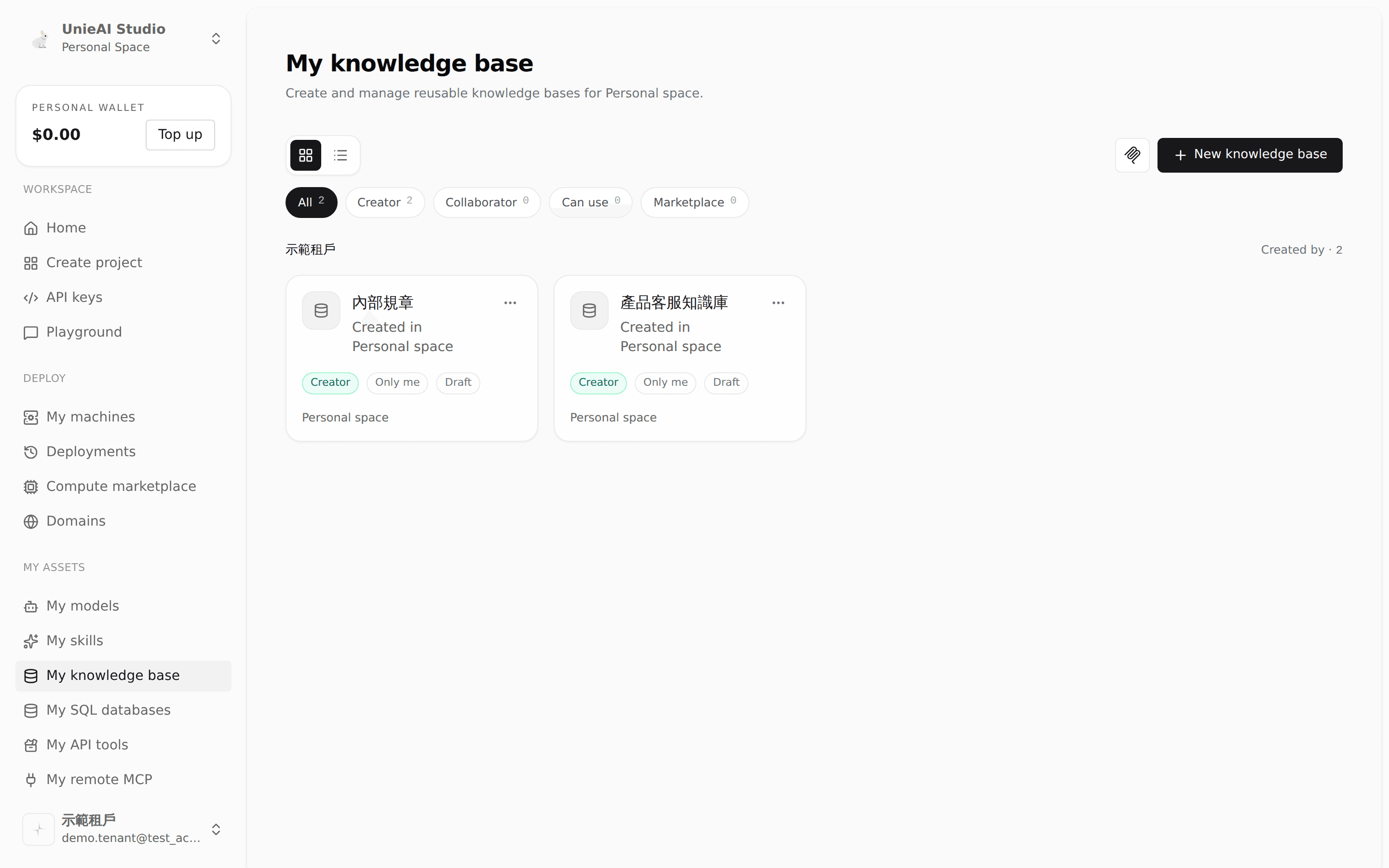
Upload documents and wait for indexing
Open the knowledge base, click Add, and choose Upload files (or Sync from S3). Files are stored, parsed, chunked, and indexed in the background; the list shows queued, processing, done, or failed live.
Only documents that reach Ready/Indexed are retrievable. Anything still in the parsing queue does not appear in results. If a parsing model (VLM, speech-to-text) is missing, the page says so and offers to add it to "My models".
Test retrieval before binding anything
Click Search at the top right and run a real question through hybrid search (dense + BM25). Confirm the chunks, source documents, and scores look right before moving on.
This step gets skipped often and saves the most time: what cannot be found here will never be answered by the assistant either. It separates a retrieval problem from a prompt problem.
Step 4. Connect a SQL database (so it can query your data)
Sidebar → My assets → My SQL databases, click Add data at the top right, and choose Database (PostgreSQL / MySQL / SQL Server). The wizard has four steps: Connection → Credentials and permissions → Test → Access.
Connection: name it, choose the engine (the default port fills in), then enter host and database name.
Credentials and permissions: enter the account and password, and decide which operations this connection allows. The default is read-only; you can also restrict which tables are reachable, the maximum rows per query, and the timeout.
Allowing writes means allowing the model to change this database. Keep production read-only, and open writes through a dedicated account limited to specific tables.
Test: click Test connection. The platform actually connects.
Next stays closed until the test passes. Go back and check host, port, credentials, and whether the database accepts connections from the platform's source IP.
Access: choose who can see this connection (only me / specific groups and users / publish to marketplace), then save.
Back in the list, note the Added toggle at the right of each row.
Only connections marked "Added" appear in a custom model's data source picker. If the connection is missing in step 7, this toggle is almost always why.
Step 5. Create an API tool (so it can call your own systems)
Sidebar → My assets → My API tools, then New API tool at the top right.
Enter a name and a description.
The description is what the model reads — it is the only basis it has for deciding when to use this tool. Write "look up shipping status by order number", not "order API". A model that never calls your tool usually has a vague description.
Configure the endpoint: HTTP method and URL. You can also import an OpenAPI spec and let the platform derive the parameters.
Configure authentication (API key or bearer token). Credentials are stored encrypted and never shown again; the model only ever receives the endpoint and parameters, never the credential.
Choose the access level and save.
Step 6. Add a remote MCP server (so it can use an external service's tools)
Sidebar → My assets → My remote MCP, then New MCP server. Three steps: Server → Authorization → Tools and sharing.
Server: name and server URL (the remote MCP endpoint). If you already have a config file, expand Paste from config and let the platform fill the fields from JSON.
Authorization: no auth, a token or custom header, or account sign-in (OAuth).
Tools and sharing: the platform connects, discovers the tools, and lists them, and you set access here before creating.
Seeing the tool list is the proof that the server actually works. If no tools are listed, fix the connection or the authorization before binding it to anything.
For OAuth servers, the row then shows Sign in and authorize; complete the service's authorization and the status turns healthy. When the token expires, the same control becomes Sign in again.
Step 7. Bind all four to the custom model
Open the custom model from My models. Only two of its stations matter here: Data sources and Behavior.
Check the AI engine first. Go to Behavior → AI engine and select UnieAI Agent Core. With Plain model selected the assistant retrieves nothing, queries nothing, and calls no API or MCP tool — and the Data sources station plus Skills / MCP tools / Websearch / API tools are hidden entirely.
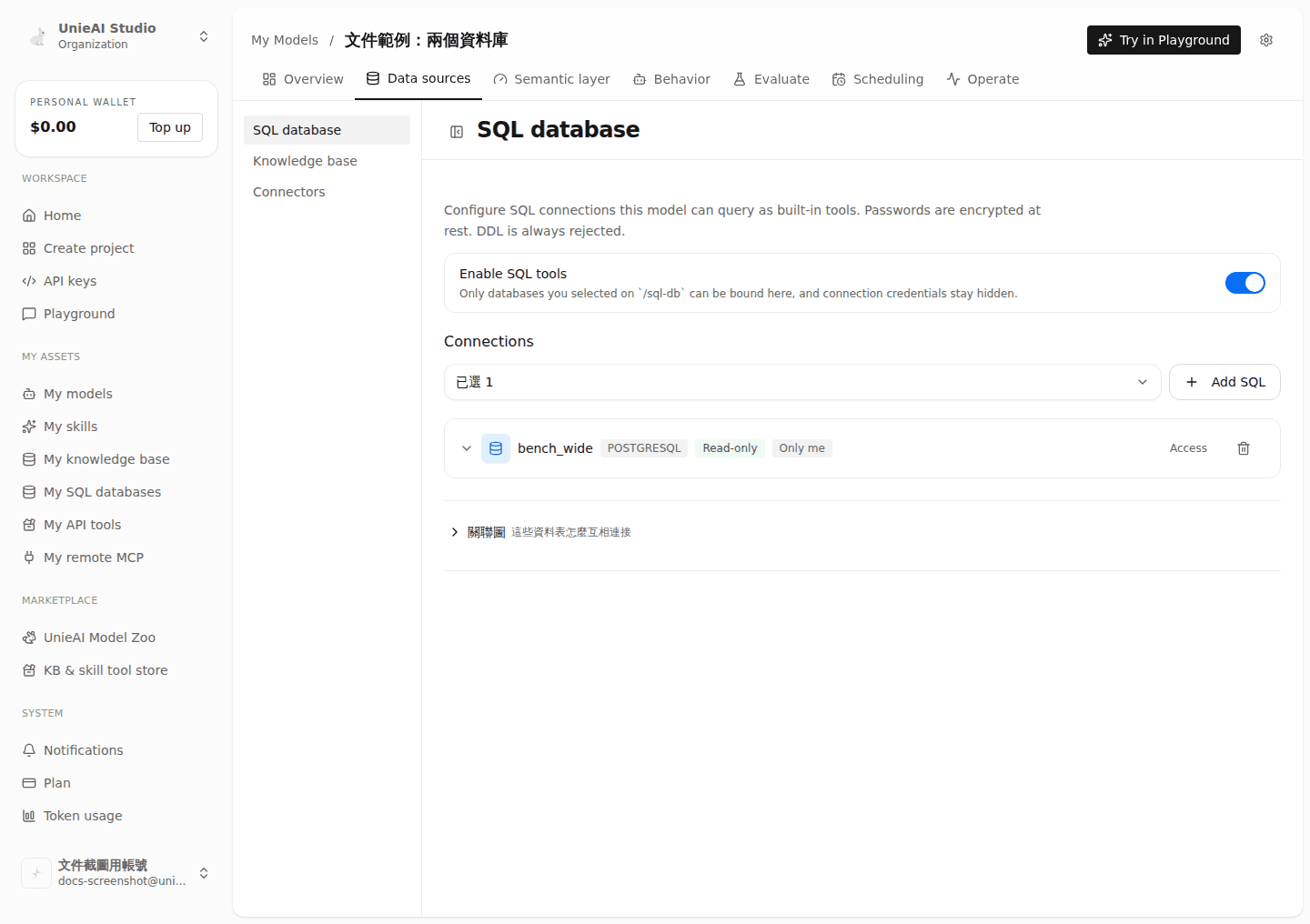
Databases
Data sources → SQL database, pick the connection from step 4.
What a column means and how a metric is computed belong to the database, not to one assistant — so those definitions live on the database's own page, written once for every assistant that reads it. See Querying Large Databases.
API tools
Behavior → API tools, tick the tool from step 5 and make sure Enable API tools is on. The same page sets the maximum tool calls per request.
MCP
Behavior → MCP tools, enable the MCP runtime and tick the server from step 6. Disabled servers keep their configuration but are left out of this assistant's tool snapshot.
Retrieval settings
Under Behavior → AI engine, set Top K (default 5), max iterations (default 3), minimum score (default 0.18), and whether Agentic RAG is on. These also save automatically.
Top K counts chunks, not documents. One document can contribute several chunks, and results from multiple knowledge bases are merged under one shared Top K.
Step 8. Verify in Playground
Click Try in Playground from the model page, or open Playground from the sidebar and select this custom model in the model picker at the top.
Ask four separate questions — verify one thing at a time:
| What you are verifying | How to ask |
|---|---|
| Knowledge base | Something only your uploaded documents can answer, and ask it to state the source |
| Database | Something that requires arithmetic over rows ("total orders last month") |
| API tool | Something only a live lookup in your system can answer (the current shipping status of an order) |
| MCP | An action only that external service can perform |
When an answer is wrong, do not start editing the prompt. Open Operate → Request logs and look at which tools were actually called and what came back.
Leave 👍 / 👎 feedback. 👎 creates a repair item to improve; 👍 stores a positive record, and the content becomes a memory only if you explicitly save it as one.
Every Playground submission is billed to the current workspace's wallet. Requests are blocked when the balance runs out.
Where to look when something is off
| Symptom | Check first |
|---|---|
| Uses no tools at all, answers from its own knowledge | Whether Behavior → AI engine is set to Plain model |
| The new SQL connection is missing from the picker | The Added toggle on that row in My SQL databases |
| The knowledge base returns nothing | Test in the knowledge base's own Search first — if it fails there, it is an indexing or document problem, not a prompt problem |
| One API tool is never called | Its description is too vague for the model to know when to use it |
| A tool call fails | Operate → Request logs for the real error — usually an expired credential or a parameter mismatch |
| The MCP server lists no tools | Re-verify the connection under My remote MCP; for OAuth, click Sign in again |
Next
From Creating a CM to Using It in Chat
Choose a model, prepare knowledge and tools, connect them to a Customize Model, validate it in Playground, and deliver it to Chat.
What Rabi can do for you
Rabi is the console's AI assistant. Say what you want done and it looks things up, changes settings, tests and diagnoses — without you moving between pages.